1
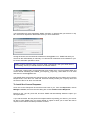
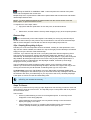
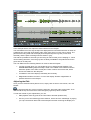
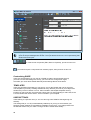
Plays up to the edit point, plays through the edit point, and plays from the edit point.
Note: The play through preview is the one that lets you hear how the edit will sound in the Playlist.
It also usefully resets the display to the edit point. The up-to and from previews are useful for
determining which side of the edit unwanted sounds may be.
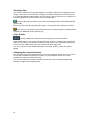
Preview in context - when pressed, all previews will include the other audio in the source
EDL as well as the current contents of the Trim Editor. When you are happy with the
adjustments, WRITE-BACK what you have done, as described below.
Trim Editor Fades and Cross-fades
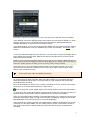
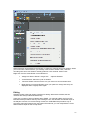
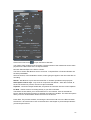
The fade lengths of Clips in the Trim Editor can be adjusted graphically, with the mouse on
the profile display as follows:At each in/out point there is actually a fade-in or fade-out (however short) and these fades
have a start and an end. Move the mouse pointer over the fade. It will change to a double
arrow. You can then click & hold to move the start of a fade to the left and the end of a fade to
the right, so lengthening the fade and setting it to where you want over the audio.
Fades are shown in lighter green on the profile and turn dark blue when selected to move.
The type of fade curve can be altered in the Clip Details window for the Entry by doubleclicking on the clip in question.
Once the fade-out of one Clip overlaps with the fade-in of the next Clip, you have created a
cross-fade. There is a useful tool available when there are two Clips in the Trim Editor:
Mirror & Align Fades - aligns the start of the later Clips fade-in with the start of the earlier
Clips fade-out, and alters the length of the later Clips fade-in to match the earlier Clips fadeout. This results in a matched cross-fade between the two Clips.
With two Clips in the window, selecting either fade automatically selects them both. Then the
whole cross-fade between two Clips can be moved easily in relation to the audio.
When you are happy with the adjustments, WRITE-BACK what you have done...
Writing Back the Finished Edit
The Trim Editor is actually a temporary area for adjusting edits. Once done, the edit (and any
other changes you have made) needs to be written-back to a Playlist, which will then be
updated.
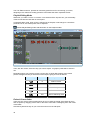
If you have loaded the Trim Editor from a Playlist, press WRITE BACK TO SOURCE EDL
to update that Playlist.
Other Trim Editor tools:
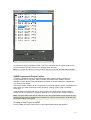
The four SNAPSHOT buttons allow you to store and recall four different arrangements
of the Clips in the Trim Editor, so you can compare different attempts at an edit. Click once to
take a snapshot, and the button will turn blue to show it has a snap stored. After making
adjustments, click on the button again to return the Trim Editor to the stored snap. The button
of the displayed snap will turn red. To overwrite a button with a new snap, hold Ctrl. while
clicking on it.
21