1
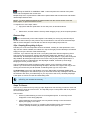
At the end of the dongle installation you will be prompted to restart the PC. (There are two
installers running to install the dongle, so please wait until the full process is complete.)
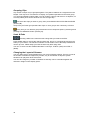
On re-starting the PC, connect the dongle to a USB port.
The installation of the driver for the dongle will be completed and you will be able to start
SADiE. The first ‘plug-and-play’ of the dongle may take a while and you should be able to
watch its progress in the Windows plug-and-play wizard. If starting SADiE doesn’t find the
dongle, wait just a while longer. Subsequent re-insertion of the dongle will be quicker.
The dongle will need to be present to start and run SADiE on that PC. To be able to use
SADiE on other PCs, run the same procedure of a) installing SADiE software and b) installing
the Dongle.
NOTE: To install the Dongle on a PC you will need both the Dongle and its installer and
its individual key file; the Dongle alone is not enough. Therefore it’s important to keep
the Dongle installer files safe. Once the Dongle is correctly installed to a PC however,
just plugging in the Dongle will authorise SADiE operation that PC.
Lost dongles
We must stress that it’s important to insure your dongle for the full amount of the software
that’s licensed to it. If a dongle is missing, to replace it will cost the price of the dongle plus a
full SADiE licence. If a dongle is broken or faulty, its licences can be moved to a new dongle
once the faulty one has been returned to the factory. We can provide users who have support
contracts with temporary licences to bridge a period while a faulty dongle is being replaced or
repaired.
Having installed the dongle, there is no need to ‘Request a Licence’ and so you can skip the
next section.
Requesting a Licence
If you haven’t purchased a dongle, SADiE is authorised to run on a single computer.
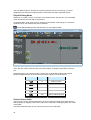
You will need to ‘request a licence’, send the licence request file to us by e-mail, then a
‘licence response’ file will be sent back to you which unlocks SADiE on that PC.
It’s not necessary to have email on the computer that is running SADiE – the ‘licence request’
is a file which can be copied to another computer that does have email.
To Request a Licence
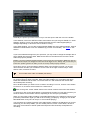
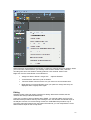
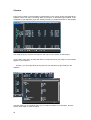
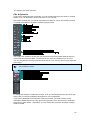
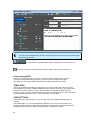
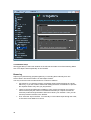
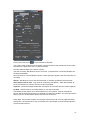
Go to the Help Menu in SADiE. Choose the Manage Licences option. (If your licence has
timed out, you won’t be able to start SADiE, but you will see this next dialog box)
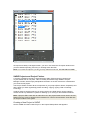
Select Create New Request
3