1
Settings
8
97
Settings
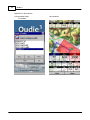
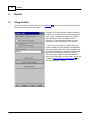
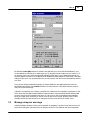
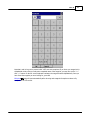
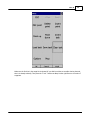
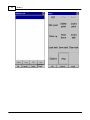
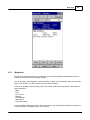
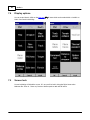
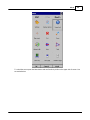
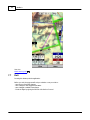
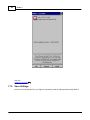
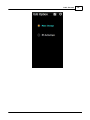
The Settings dialog has an array of Pages where all of the Oudie 3 preferences can be setup. Note that
some settings like Map and Navboxes are separate for Map 1 and Map 2 views while others like Units,
Commands etc. are unique through the whole application.
Available pages are
. Map 97 where display of the vector map is setup
. Airspace 99 where display of airspace and airspace warning is setup
. Waypoints 100 page controls the way waypoints are displayed
. Track &Target 102 page sets up the trace, vario colors of the displayed trace
. OLC & FAI area 103 page (short for Optimization) lets you setup how the optimizations are calculated
. Task 104 page sets up the observation zones and other task options
. Navboxes 105 page lets you choose which navboxes to display and control their appearance
. Symbols 112 page allows you to choose from symbols for the map display
. Warnings 113 page sets up airspace and altitude warnings
. Thermal 114 page sets up the Thermal assistant
. Polar 116 page has all the controls to choose the polar for your glider
. Units 117 by your preference
. Fonts 118 page changes the appearance of the text on the screen
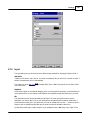
. Input 119 page lets you select between GPS, Simulator and File replay mode
. Commands 121 page reassigns tasks to all buttons of your PDA and SeeYou Mobile
. Menu 121 page lets you control the content of the main Menu
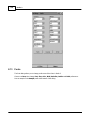
. Files 122 page has shortcuts to the terrain, waypoint and airspace files
. Log 124 page sets up the header for the IGC file
. User interface 125 is short for User Interface
. Miscellaneous 126 page has all the rest
. Hardware 127 page controls communication to GPS with proprietary sentences
8.1
Map
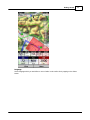
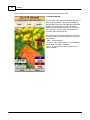
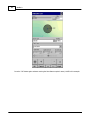
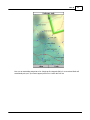
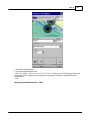
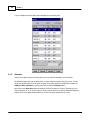
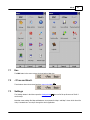
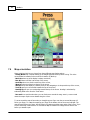
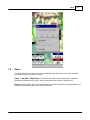
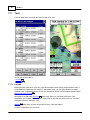
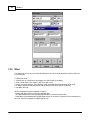
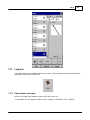
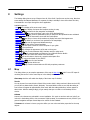
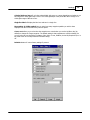
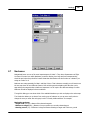
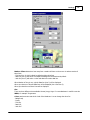
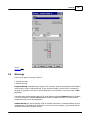
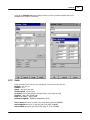
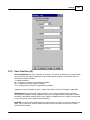
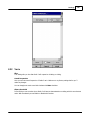
This dialog allows you to setup the appearance of the map in Map view 53 . Oudie 3 uses CIT maps for
rendering the terrain. It is the same map as in the desktop version of SeeYou.
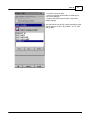
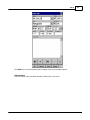
Show map check box will enable the display of the Vector map if checked.
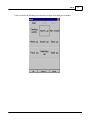
Terrain
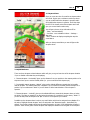
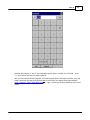
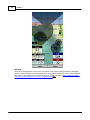
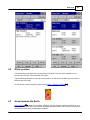
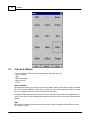
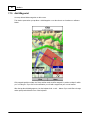
You can choose from several levels of detail of the terrain which is being rendered. When terrain is Off,
you will still see Water bodies, Roads, Railroads, Towns and labels on the screen. With the setting at
Low isolines will appear at approximately 300m each. With the setting at Medium, isolines appear at
about 100m. With the setting at High, you get exactly what you are used to in the desktop SeeYou
version.
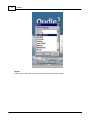
Scheme
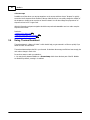
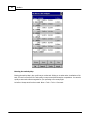
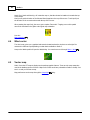
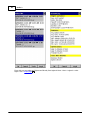
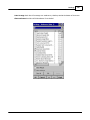
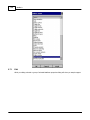
Several color schemes are preloaded in a new installation. It is easier to see how each one looks if you
look at it in the desktop SeeYou. We recommend "Hight contrast" for mountaneous terrain, ICAO for just
general navigation and Open Street Maps color scheme for the Flatlands.
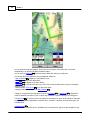
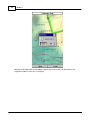
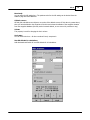
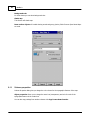
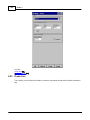
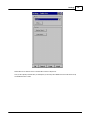
If Custom color scheme is chosen you get to define your own colors and other properties for the map
objects.
© 2003 - 2014 ... Naviter d.o.o.