1
9 . LIST OF TABLES
8 . TROUBLESHOOTIN G
8 .1 . R e a l l a s e r p o w e r d o e s n ot m atc h s h o w n i n
s o f t wa r e
2. Progress bar on lower part of the window begins to fill, now program
is waiting for user to press “Firmware upgrade” button, which is located
inside controller box. Proceed to next step.
6. Click “OK” in “Firmware upgrade complete” messagebox. “Firmware
Upgrade” window will close and “Watt Pilot control” window will start.
Table 1. Controller specifications. . . . . . . . . . . . . . . . . . . . . . . . . . . . . . . . . . . . . . . . . . . . . . . . . . . . . . 31
Table 2. “STEP/DIR INTERFACE” connector pin out. . . . . . . . . . . . . . . . . . . . . . . . . . . . . . 35
Click “Home” button inWatt Pilot “Control” window. This eliminates angular error, which can occur if power is lost during waveplate motion.
8 .3 . F i r m wa r e u pg r a d e wa s u n s u cc e s s f u l o r i n terrupted
8 .2 . “ Upg r a d e co n t r o l l e r f i r m wa r e n o w ?” m e s s a g e a pp e a r s
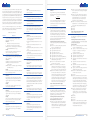
In case firmware upgrade ended unsuccessfully due to some reasons
(cable disconnection, program crash…), usually such error will be
thrown then trying to use Watt Pilot.
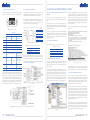
Sometimes Watt Pilot software will show dialog, asking whether to update firmware:
Table 3. “STEP/DIR INTERFACE” connector electrical specifications. . . . . . 36
Table 4. “MOTOR” connector pin out. . . . . . . . . . . . . . . . . . . . . . . . . . . . . . . . . . . . . . . . . . . . . . . . . 41
Table 5. Stepper motor ST2818S1006 electrical characteristics. . . . . . . . . . . 42
Table 6. Serial port parameters. . . . . . . . . . . . . . . . . . . . . . . . . . . . . . . . . . . . . . . . . . . . . . . . . . . . . . . . . 44
Table 7. Serial commands list.. . . . . . . . . . . . . . . . . . . . . . . . . . . . . . . . . . . . . . . . . . . . . . . . . . . . . . . . . . . 47
Figure 38. Error, thrown if device firmware becomes corrupted.
In order to recover, follow these steps:
Figure 36. Dialog, asking whether to update firmware.
This will appear if controller firmware cannot be updated without user
interaction and depends only on controller firmware version, not related
to hardware revision. It will pop up if controller has firmware version
prior to v8, released on August 22, 2012.These dialogs will newer show
up againonce firmware is updated.
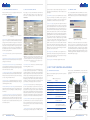
3. Press and hold firmware upgrade button located under small hole
on controller’s front panel. This must be done in one minute, otherwise
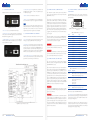
process must berestarted. Firmware upgrade button is marked by yellow arrow in the picture below. It can be accessed with teeth stick, for
example.
1. Close “Watt Pilot”software;
2. Turn off controller using “ON/OFF” switch:
WAR NI NG !
Upgrade process cannot be interrupted! Do not disconnect USB, attenuator or power supply cables, do not shutdown the computer. Do not
use other devices while flashing. If upgrade is interrupted or unsuccessful, go to the end of this troubleshooter point to recover.
Follow these steps to update firmware manually:
Figure 37. “Firmware upgrade” button location inside Watt Pilot controller.
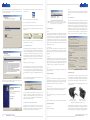
1. Answer“Yes” when asked about update dialog is shown in Figure 36.
“Firmware Upgrade” window will appear. Click “Upgrade Firmware” button:
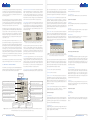
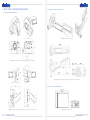
4. Hold “Firmware upgrade” button pressed until confirmation about release will be displayed in “Firmware Upgrade” window as shown below.
Usually button must be held pressed up to 15 seconds. Process status is
displayed above progress bar.
3. Press and hold down “Firmware upgrade” button located inside controller box, see Figure 37 on page 64 to find there it is;
4. Turn on controller, while holding firmware upgrade button pressed;
5. Release button after 10 second after power on;
6. Launch “Watt Pilot” software and try to use the device;
7. Firmware will be correctly rewritten automatically. Device will be
ready to use after one minute.
5. Now wait till “Firmware upgrade was successful!” message appears.It
will take up to 1 minute to complete.
24
www.altechna.com
www.altechna.com
25