1
Movie Magic® Screenwriter 6 Help
261
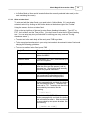
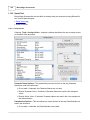
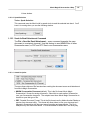
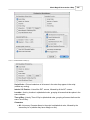
If your script doesn't import successfully, try again with different options checked. You may
have to experiment with these options to get the best results.
1.15.4.4 Importing a Macintosh Word Processor script
If the Cut and Paste method doesn’t import satisfactorily, try this method. Also, if the Mac
Word Processor script you want to import is on a different computer than Screenwriter, you
can’t use the Cut and Paste method. Instead:
1. Open the Mac Word Processor (e.g. Microsoft Word or TextEdit), and open the script
file you want to import to Screenwriter.
2. Under the File menu, choose Save As. Save the script under a different name.
3. In the Save As window there should be an option to save the script in a different
format. Typically, it says something like Format or File Type or Save Type. Change it
to Rich Text Format or RTF. If that’s not available, choose Text or ASCII Text (If Text
or ASCII options like With Line Breaks or With Formatting are available, select them.)
4. Click on OK to save. When the file’s saved, exit the Windows Word Processor. (If
importing from a different computer, transfer the saved file to your Screenwriter
computer.)
Now follow the Direct Import instructions above.
1.15.4.5 Importing a Scriptware for Windows script
First, export the Scriptware script as a Scriptware Tagged file:
1. Open Scriptware for Windows and open the script you want to import to Screenwriter.
2. Under the File menu, select Export, then Scriptware Tagged.
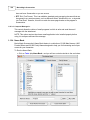
3. In the file name field, Enter C:\Movie Magic Screenwriter\Scripts\<File Name>.TAG.
Click on the Export button to save the Export file.
4. Exit Scriptware.
Now follow the Direct Import instructions above.
1.15.4.6 Cleaning up Imported Scripts
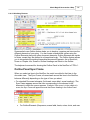
Screenwriter may require you to do some cleaning up after importing a script.
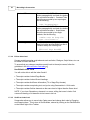
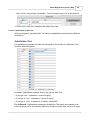
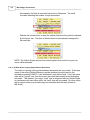
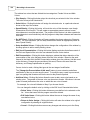
To correct a mis-recognized Element, place the cursor anywhere in the element. Click on
the Current Element Window in the center of the Top Toolbar, and select the desired
Element.
If the imported script was in TV format, you may have to reset the script’s formats (See
Choosing a Script Format for more details.) You’ll also need to put back in the forced Page
Breaks between scenes, and re-enter the Act and Scene Information. Unfortunately, due to
a lack of standardization in TV formats, the import function is unable to recognize all possible
permutations.
NOTE: Although the Import function is highly accurate, we recommend you check all
imported scripts for errors before printing multiple copies. Running SmartCheck helps,
though even it can’t catch all errors.