1
CyBlock Software User Guide v.9.2.0
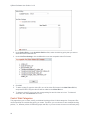
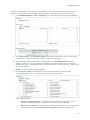
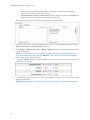
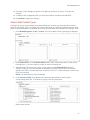
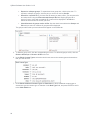
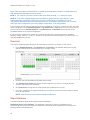
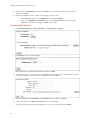
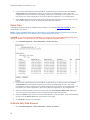
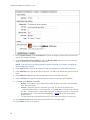
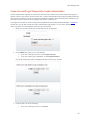
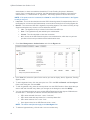
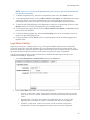
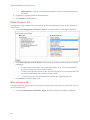
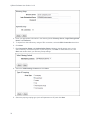
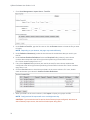
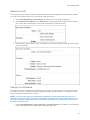
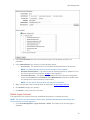
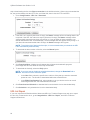
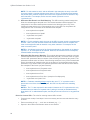
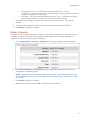
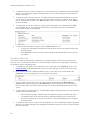
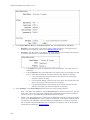
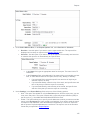
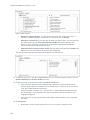
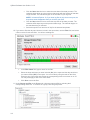
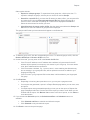
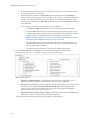
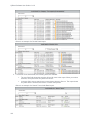
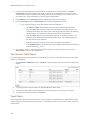
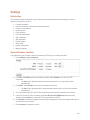
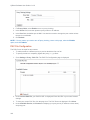
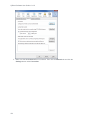
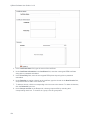
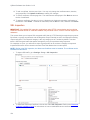
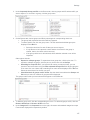
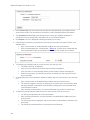
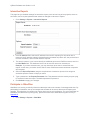
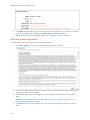
13. To edit a certificate, click the pencil icon. You may only change the certificate name, domains,
and groups/IDs. Click Update Certificate to submit your changes.
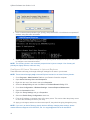
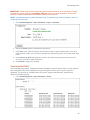
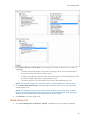
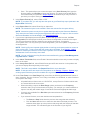
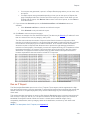
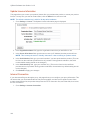
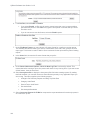
14. To view a certificate, click the page icon. The certificate text is displayed. Click Back to return to
the list of certificates.
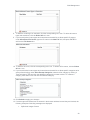
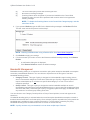
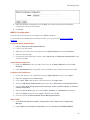
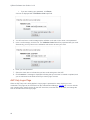
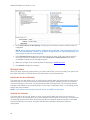
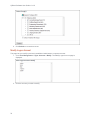
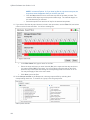
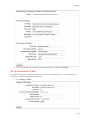
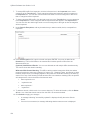
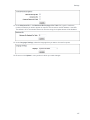
15. To delete a certificate, click the red x icon. A dialog box is displayed requesting confirmation of
the deletion. Click Delete. To delete all certificates, click the All red x icon, and then click Delete.
SSL Inspection
IMPORTANT: By enabling SSL Inspection, applications using HTTPS communication and not utilizing
Windows Certificate Stores for certificate validation may encounter errors. Contact Technical Support for
assistance.
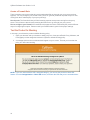
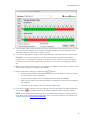
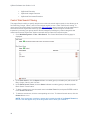
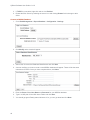
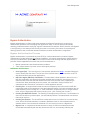
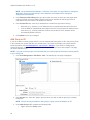
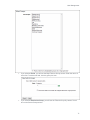
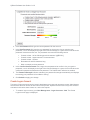
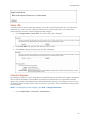
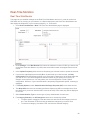
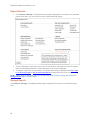
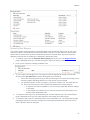
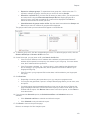
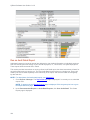
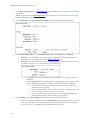
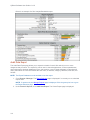
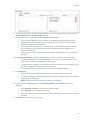
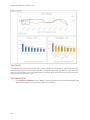
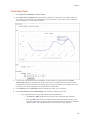
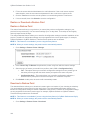
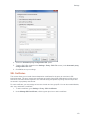
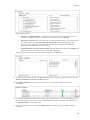
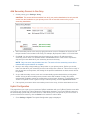
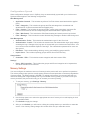
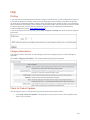
This screen allows you to inspect SSL-encrypted traffic (that is, HTTPS activity) through the proxy server.
By default, no groups are selected, and all categories except Financial are set to be inspected including
custom categories. The Financial category is the only category set to Tunneled by default. Tunneled
traffic is SSL-encrypted traffic that passes through the proxy server without being inspected.
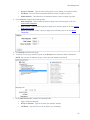
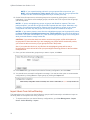
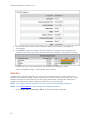
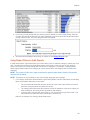
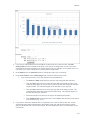
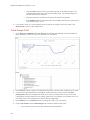
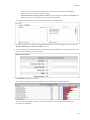
For inspection to occur, you will need to select a group and/or an ID, and set a category to Inspected.
Inspected SSL traffic can be viewed in the Real-Time Web Monitor and in audit reports.
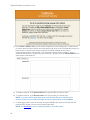
NOTE: Before using SSL Inspection, the Wavecrest Certificate must be installed. The certificate can be
installed from this screen.
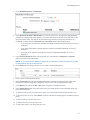
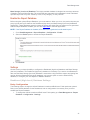
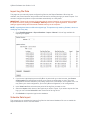
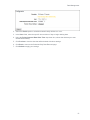
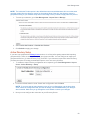
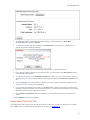
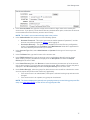
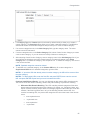
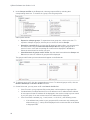
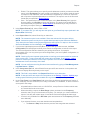
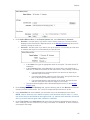
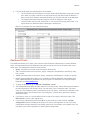
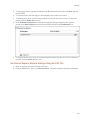
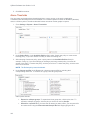
1. To inspect SSL traffic, go to Settings - Proxy - SSL Inspection.
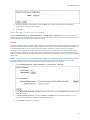
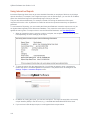
2. To install the Wavecrest Certificate, click the link under SSL Inspection. Refer to the Wavecrest
Certificate Installation Guide for instructions on how to install/distribute the certificate.
156