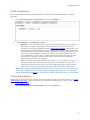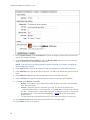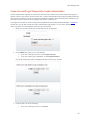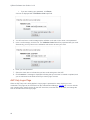
1
WavecrestCyBlock Software ® Version 9.2.0 Web-Access Security Solution UserGuide www.wavecrest.net Copyright Copyright © 1996-2015, Wavecrest Computing, Inc. All rights reserved. Use of this product and this manual is subject to license. Information in this document is subject to change without notice. 904 East New Haven Avenue, Melbourne, FL 32901 USA www.wavecrest.net Trademarks The following are trademarks, registered trademarks, or service marks of Wavecrest Computing, Inc.: Wavecrest Computing, Inc., CyBlock® App, CyBlock® Appliance, CyBlock® Client, CyBlock® Cloud, CyBlock® ISA, CyBlock® Software, Cyfin®, and OtherWise™. All other trademarks mentioned are the property of their respective owners. Table of Contents Introduction.................................................................................................................................................... 1 Organization ........................................................................................................................................... 1 Getting Started ................................................................................................................................... 1 Array Configuration ............................................................................................................................ 1 Hybrid Deployment ............................................................................................................................. 1 Web Management .............................................................................................................................. 1 Data Management .............................................................................................................................. 1 User Management .............................................................................................................................. 1 Categorization .................................................................................................................................... 2 Real-Time Monitors ............................................................................................................................ 2 Reports ............................................................................................................................................... 2 System Status .................................................................................................................................... 2 Settings .............................................................................................................................................. 2 Help .................................................................................................................................................... 2 Help and Contact Information ................................................................................................................ 2 Logon ............................................................................................................................................................ 5 Forgot Password .................................................................................................................................... 5 Technical Considerations .............................................................................................................................. 7 Getting Started .............................................................................................................................................. 9 Getting Started Checklist ........................................................................................................................... 9 Download and Install the Product .............................................................................................................. 9 Configure Users' Browsers ........................................................................................................................ 9 Configure All Users' Browsers in Internet Explorer.............................................................................. 10 Configure a Single User's Browser in Internet Explorer ...................................................................... 11 Configure a Single User's Browser in Mozilla Firefox .......................................................................... 13 Prevent Users From Changing Browser Settings ................................................................................ 15 Disable Internet Explorer's Connection Option ................................................................................ 15 Create a Firewall Rule ...................................................................................................................... 16 Test the Product for Blocking .................................................................................................................. 16 Array Configuration ..................................................................................................................................... 17 Introduction .............................................................................................................................................. 17 Array Configuration Checklist .................................................................................................................. 17 Hybrid Deployment ...................................................................................................................................... 19 Web Management ....................................................................................................................................... 21 Introduction .............................................................................................................................................. 21 i CyBlock Software User Guide v.9.2.0 Application Controls ................................................................................................................................. 21 Control Web Categories .......................................................................................................................... 22 Control Web Content Types .................................................................................................................... 27 Control Web Search Filtering .................................................................................................................. 30 Web Blocking Message ........................................................................................................................... 31 Bandwidth Management .......................................................................................................................... 32 Data Management ....................................................................................................................................... 37 Introduction .............................................................................................................................................. 37 Log File Setup ......................................................................................................................................... 38 View Log Files ......................................................................................................................................... 38 Revalidate Log Files ................................................................................................................................ 39 Download ................................................................................................................................................. 40 Report Database ..................................................................................................................................... 40 Enable the Report Database ................................................................................................................... 41 Settings .................................................................................................................................................... 41 Dashboard (High-Level) Database Settings ........................................................................................ 41 Derby Configuration ......................................................................................................................... 41 MySQL Configuration ....................................................................................................................... 43 Allocate Memory to Database ...................................................................................................... 43 Create Database........................................................................................................................... 43 Connect to MySQL Database ....................................................................................................... 44 MSSQL Configuration ...................................................................................................................... 45 Set Up SQL Server Authentication ............................................................................................... 45 Create Database Superview ......................................................................................................... 45 Configure User Permissions ......................................................................................................... 45 Allow TCP/IP ................................................................................................................................. 45 Connect to MSSQL Database ...................................................................................................... 46 Mass Storage (Low-Level) Database .................................................................................................. 47 Arrays ............................................................................................................................................... 47 Import Log File Data ................................................................................................................................ 48 Schedule Data Import .............................................................................................................................. 48 View Imported Data ................................................................................................................................. 49 Delete Data .............................................................................................................................................. 50 Schedule Daily Data Removal ................................................................................................................. 50 User Management ....................................................................................................................................... 53 Introduction .............................................................................................................................................. 53 Authentication Manager........................................................................................................................... 54 ii Table of Contents Authentication Rules ................................................................................................................................ 54 NTLM Authentication ............................................................................................................................... 57 Cookie Authentication.............................................................................................................................. 57 Create Account/Forgot Password for Cookie Authentication .................................................................. 59 AUP Only Logon Page ............................................................................................................................ 60 Bypass Authentication ............................................................................................................................. 61 Bypass Authentication Process ........................................................................................................... 61 Login Name Caching ............................................................................................................................... 63 Add Group or ID ...................................................................................................................................... 64 Delete Groups or IDs ............................................................................................................................... 66 Move Groups or IDs ................................................................................................................................ 66 Modify Group or ID .................................................................................................................................. 67 Manage Users ......................................................................................................................................... 68 Inside the Product (Default) ............................................................................................................. 68 Outside the Product.......................................................................................................................... 68 Active Directory Setup ............................................................................................................................. 69 Import Users From Active Directory ........................................................................................................ 72 Import Users From Text File .................................................................................................................... 73 Search for an ID ...................................................................................................................................... 75 Change Your Password........................................................................................................................... 75 Create Logon Account ............................................................................................................................. 76 Modify Logon Account ............................................................................................................................. 78 Delete Logon Account ............................................................................................................................. 79 Categorization ............................................................................................................................................. 81 Introduction .............................................................................................................................................. 81 URL List Location .................................................................................................................................... 81 URL List Version ...................................................................................................................................... 81 Download the URL List ............................................................................................................................ 81 URL List Repair ....................................................................................................................................... 82 Check URL .............................................................................................................................................. 83 Classify Categories .................................................................................................................................. 83 Edit URLs................................................................................................................................................. 84 Display Categories .................................................................................................................................. 87 Real-Time Monitors ..................................................................................................................................... 89 Real-Time Web Monitor ........................................................................................................................... 89 Real-Time Bandwidth Monitor ................................................................................................................. 92 Reports ........................................................................................................................................................ 95 iii CyBlock Software User Guide v.9.2.0 Introduction .............................................................................................................................................. 95 Report Selection ...................................................................................................................................... 96 Manage Reports ...................................................................................................................................... 96 Recently Run Reports .......................................................................................................................... 97 Scheduled Reports .............................................................................................................................. 98 Run a High-Level Summary Report ........................................................................................................ 99 Run an Audit Detail Report .................................................................................................................... 104 Run an IT Report ................................................................................................................................... 109 Audit Data Export .................................................................................................................................. 114 Using Interactive Reports ...................................................................................................................... 118 Using Report Filters in Audit Reports .................................................................................................... 119 Dashboard Charts ................................................................................................................................. 121 Top Charts ............................................................................................................................................. 122 Top Users Chart .................................................................................................................................... 122 Top Groups Chart .................................................................................................................................. 124 Top Categories Chart ............................................................................................................................ 125 Top Classifications Chart....................................................................................................................... 126 Top Sites Chart ...................................................................................................................................... 127 Top Coached Traffic Report .................................................................................................................. 128 Trend Charts .......................................................................................................................................... 128 Trend Users Chart ................................................................................................................................. 129 Trend Groups Chart ............................................................................................................................... 130 Trend Categories Chart ......................................................................................................................... 131 Trend Classifications Chart ................................................................................................................... 133 Trend Traffic Chart ................................................................................................................................ 134 System Status ........................................................................................................................................... 137 Dashboard ............................................................................................................................................. 137 Server Status ......................................................................................................................................... 138 Filter Status ........................................................................................................................................... 138 Server Information ................................................................................................................................. 138 Proxy Information .................................................................................................................................. 139 Job Queue ............................................................................................................................................. 139 Policy Reports ....................................................................................................................................... 139 Login Cache .......................................................................................................................................... 140 IPC Log .................................................................................................................................................. 140 Array Communication Log ..................................................................................................................... 140 Update Log ............................................................................................................................................ 140 iv Table of Contents Event Log............................................................................................................................................... 140 Profiling Log ........................................................................................................................................... 141 Settings ..................................................................................................................................................... 143 Introduction ............................................................................................................................................ 143 Secure Browser Interface ...................................................................................................................... 143 Update License Information................................................................................................................... 144 Internet Connection ............................................................................................................................... 144 Set up Administrator E-Mail ................................................................................................................... 145 Restore or Download a Restore Point ................................................................................................... 146 Restore a Restore Point ........................................................................................................................ 146 Download a Restore Point ..................................................................................................................... 146 Restart or Shutdown .............................................................................................................................. 147 Proxy Chaining ...................................................................................................................................... 147 PAC File Configuration .......................................................................................................................... 148 Set Internet Explorer Browser Settings Using the PAC File .................................................................. 149 Push PAC File Configuration to IE Browsers With GPOs ..................................................................... 151 Set Firefox Browser Settings Using the PAC File ................................................................................. 151 SSL Certificates ..................................................................................................................................... 153 SSL Inspection ...................................................................................................................................... 156 Add Secondary Servers to the Array ..................................................................................................... 159 Hybrid Configuration .............................................................................................................................. 159 Configurations Synced ....................................................................................................................... 161 Memory Settings .................................................................................................................................... 161 Abuse Thresholds .................................................................................................................................. 162 Interactive Reports ................................................................................................................................ 164 Participate in OtherWise ........................................................................................................................ 164 Report Options ...................................................................................................................................... 165 Help ........................................................................................................................................................... 169 Profiling .................................................................................................................................................. 169 Category Descriptions ........................................................................................................................... 169 Check for Product Updates ................................................................................................................... 169 End User License Agreement ............................................................................................................... 170 Appendix A - Groups and IDs ................................................................................................................... 171 Introduction to Groups and IDs ............................................................................................................. 171 Fully Automated Grouping Using Active Directory ................................................................................ 171 How Wavecrest Products Interact with Active Directory ....................................................................... 172 Semiautomatic Grouping Using a "Text File" Method ........................................................................... 174 v CyBlock Software User Guide v.9.2.0 Manual Management of Groups and IDs .............................................................................................. 176 Using a (High-Level) Site Analysis Report to Import IDs ...................................................................... 176 Appendix B - Report Descriptions ............................................................................................................. 177 Recommended Reports......................................................................................................................... 177 High-Level Summary Reports ............................................................................................................... 177 Acceptable Visits Report .................................................................................................................... 177 All User Summary Report .................................................................................................................. 177 Custom Categories Report ................................................................................................................ 177 Denied Visits Report .......................................................................................................................... 177 Legal Liability Report ......................................................................................................................... 177 Neutral Visits Report .......................................................................................................................... 178 Site Analysis Report........................................................................................................................... 178 Top Users Report............................................................................................................................... 178 Top Web Sites Report........................................................................................................................ 178 Unacceptable Visits Report ............................................................................................................... 178 Audit Detail Reports ............................................................................................................................... 179 Category Audit Detail Report ............................................................................................................. 179 Category Audit Summary Report ....................................................................................................... 179 Denied Detail Report.......................................................................................................................... 179 Legal Liability Detail Report ............................................................................................................... 179 Search Terms Audit Detail Report ..................................................................................................... 179 Site Audit Detail Report...................................................................................................................... 179 Site Audit Summary Report ............................................................................................................... 180 User Audit Detail Report .................................................................................................................... 180 User Audit Summary Report .............................................................................................................. 180 IT Reports .............................................................................................................................................. 180 Network Information Report ............................................................................................................... 180 Site Analysis Bandwidth Report ......................................................................................................... 180 Top Bandwidth Sites Report .............................................................................................................. 180 Forensic Reports ................................................................................................................................... 181 Audit Data Export ............................................................................................................................... 181 Improve Your Reporting Results ........................................................................................................... 181 Top Noncategorized Sites Report ...................................................................................................... 181 Appendix C - OtherWise Program & Policy .............................................................................................. 183 The OtherWise Program - What is It? ................................................................................................... 183 Overview of the OtherWise Process - How Does OtherWise Work? .................................................... 183 Dealing with Intranet and Extranet Sites ............................................................................................... 183 vi Table of Contents Results ................................................................................................................................................... 183 Confidentiality ........................................................................................................................................ 183 Your Part in the OtherWise Program ..................................................................................................... 184 vii Introduction Welcome to CyBlock Software. CyBlock Software is a complete Web security solution. It provides advanced Web security, threat protection, comprehensive reporting, simplified management, and flexible deployment options. This manual covers detailed instructions for all of CyBlock Software’s features. It is up to you whether you want to use the basic or advanced functionality of CyBlock's features. Organization The documentation follows the menu structure which is organized for ease of setup and use of the product. However, you can always start with using the basic setup of the product covered in the Getting Started Checklist and later use the more advanced features when you are ready. You do not have to read each section from beginning to end. You are welcome to skip around to find instructions for the features that are important for your organization’s use. Some of the key things you will find instructions for in this manual are how to: Create a white list. Create blocking policies. Run summarized and detailed reports. Classify categories based on your company's Internet usage policy. Set abuse thresholds. Increase reporting speed with the optional internal database. Getting Started This section is a checklist of all the basic setup steps you need to complete to get the product up and running. This includes installing the product, configuring your browser, downloading the URL List, and testing blocking and reporting. Array Configuration This section describes array configurations and provides a checklist of the basic setup steps you need to complete to get the array up and running. Hybrid Deployment The Hybrid deployment is a feature that uses CyBlock Cloud to extend Web filtering and monitoring to your cloud users. It integrates your on-premises CyBlock installation with your cloud account. This section summarizes how the Hybrid deployment works. Web Management Wavecrest’s products were built with customizable Web policy support settings to fit any organization’s needs. This section will walk you through creating blocking policies, white/black lists, and a customized blocking message. Data Management The reporting feature of this product is dependent on the log files. This section covers instructions on viewing your log files and managing the product's Report Database. The Report Database compresses log files allowing for faster reporting and long-term storage. User Management In this section, you will learn about the product’s core grouping structure and the ways that you can use grouping. This includes adding your groups and IDs as well as importing them from a text file or Active Directory. Even if you do not want to use grouping, you will want to read the Introduction to this section as 1 CyBlock Software User Guide v.9.2.0 you will still need to understand the core grouping structure and how to import or add IDs. Instructions on how to change your password for your account and add logon accounts can also be found here. Categorization This section contains instructions on scheduling the download of the URL List, checking the category of any URL in the URL List, and creating custom categories and populating them with URLs that your company wants to track. You can also select the categories to display on your reports. Real-Time Monitors The Real-Time Monitors let you view employees' Web activity live including requests that were denied due to Web filtering and those denied due to content type filtering. You may also view current bandwidth usage data for the Enterprise. Reports There are several reports available in the product and the option to use Interactive or Read-Only reports. Interactive reports allow you to drill down from a higher-level report to get more detailed Web-use data. This section shows you how to use the Dashboard, manage reports, schedule reports to run automatically, and create high-level and low-level reports. System Status This section contains informational screens which are used to view the product's server status and its specifications, jobs in the queue, and policy-related information that you have set in the product. Settings This section contains instructions on updating your license information, creating a restore point, and setting report options for the way that you want report data presented. For those organizations that require an array configuration, this section gives instructions on how to set this up and maintain all product installations within your array. It also covers instructions for setting up a PAC file configuration and proxy chaining to connect to another proxy upstream from the product. Help This section briefly describes the Profiling page used with Technical Support, how to find category descriptions, how to check for product updates, and how to accept and print the End User License Agreement. Help and Contact Information Additional help for the product is also available in the product. Just click Help in the navigation bar at the top. The product Help window will then appear in which you can search for information. If you ever need additional help beyond what is available in the manual or the product, please feel free to contact our Technical Support team. 2 Introduction Contact Information Telephone Numbers Toll-Free 877-442-9346, Ext. 4 (U.S. and Canada) Direct 321-953-5351, Ext. 4 International 001-321-953-5351, Ext. 4 (outside U.S. and Canada) E-Mail Technical Support [email protected] General Info [email protected] 3 Logon 1. Log on to the product using the following default credentials: Logon - admin Password - password 2. Click Logon. The Change Your Password page is displayed. 3. After changing your temporary password, log on with your new password. NOTE: If the Logon page does not appear, bring it up by going to Start - All Programs - CyBlock Browser Interface. Forgot Password If you ever forget your password, click the Forgot password? link on the Logon page. The Reset Password page will be displayed. Enter your logon and click Submit. Your password will be reset, and you will receive a Password Reset email to change your password. NOTE: If your logon account was created using Active Directory, your password cannot be reset with this link. Contact your network administrator for assistance. 5 Technical Considerations 1. Will you be using an array configuration? If you plan to set up an array configuration in your network, then you need to do this first before setting up any other features in your product. An array configuration allows you to manage several product installations from one primary product that you designate. Once the array is configured, then you will only need to configure product settings at the primary server. You will find the setup instructions for an array in Array Configuration Checklist. 2. How will you manage groups and IDs? You have two options. You can either 1) manage them at the directory source, i.e., Active Directory, or 2) manage them inside the product. If you choose to manage your groups and IDs at the directory source, you will not be able to move or edit them inside the product. If you choose to manage your groups and IDs inside the product, only new IDs will be imported from your Active Directory or text file. No moves or changes at the directory source will be imported. Instead, these changes will have to be made inside the product. To learn more about managing groups and IDs, see the Introduction and Manage Users section for User Management. 3. What policies do you need to create and how will they apply to your users? Your answers to these questions will not only help you when it is time to create your policies, but it will also help you determine how to structure your groups and IDs. For example, you may only need a single policy for the entire Enterprise or several different policies for your different groups and/or individual users. How you plan to distribute reports will also need to be taken into consideration when setting up your groups and IDs. To learn more about what your options are and what decisions you need to make before importing your groups and IDs, see Appendix A. For instructions on how to create or import your groups and IDs, see User Management. 4. Will you import your groups and IDs from Active Directory? If the answer is yes, then you have two options when creating your blocking policies. Option 1: You can import your groups and IDs first and then create blocking policies. Option 2: You can create blocking policies first to match your Active Directory policies and then import your groups and IDs. This way all of your groups and IDs will automatically be assigned to the appropriate blocking policies when you import them. If you choose to create your blocking policies first, you must use permission groups. NOTE: You must select to manage your groups and IDs outside the product if you choose to create your blocking policies first. 5. Will you run reports from raw logs or the Report Database? There are several advantages to importing the raw log data into the Report Database. The Report Database compresses the log file data, which increases the reporting speed dramatically, and allows you to use the Dashboard and Interactive Reporting. To learn more about the Report Database and for instructions on how to enable it, see Report Database. 6. Will you apply classification ratings to your categories? The product offers three different classification ratings that can be applied to each category. They are acceptable, unacceptable, or neutral. You can choose to have these ratings appear in your Web-use reports, making it easy to quickly identify when Web abuse has occurred. For instructions on setting default classification ratings, see Classify Categories. 7. Will you incorporate abuse thresholds? This is another feature that allows you to quickly identify Web abuse in reports. Abuse thresholds allow you to set the number of "allowed visits" to each category by the individual user, group, or 7 CyBlock Software User Guide v.9.2.0 entire enterprise. If that threshold is ever exceeded, this will be displayed via a red bar in the reports. To learn more about abuse thresholds, see Abuse Thresholds. 8. How will you distribute reports? Reports can either be run manually on an ad hoc basis or can be scheduled to run daily, weekly, or monthly. Scheduled reports can either be sent via e-mail to someone you specify or saved to a directory where managers can retrieve the report. See Reports for creating reports. If you plan for managers to log on and create their own reports, see the instructions for creating operator access accounts in Create Logon Account. 9. Will you create administrator and operator access accounts? Administrators have full access to the product while operators are limited to only reporting. Operator accounts can be further limited to only have access to run reports on specified users and/or groups. When creating these accounts, you also have the option to assign a new password or authenticate to Active Directory. For instructions on creating administrator and operator accounts, see Create Logon Account. 8 Getting Started Getting Started Checklist This checklist is provided for getting the product up and running. It involves the following steps: Download and Install the Product - A wizard will guide you through the process. Download the URL List - Complete this step so that you can run reports. Change the Default Password - Change the Administrator password. Set Up Memory Settings - Select the amount of memory needed. Configure Users' Browsers - Browsers must be set to go through the proxy. Configure Authentication - Specify NTLM or cookie authentication for your network definitions. Set Up Administrator E-Mail - Receive reports and status updates via e-mail. Participate in OtherWise - Optimize categorization results. Test the Product for Blocking - Test CyBlock's blocking feature. Generate Some Log Files - Browse the Internet in order to create some log files. In this step you will generate and record some Web activity. Browse the Internet with your configured browser for about five minutes. For example, go to wavecrest.net, espn.go.com, msn.com, amazon.com, and cnn.com. Run the Web Monitor Report - View Web traffic live. Create and Run a Site Analysis Report - Create a high-level summary report–one that is useful for identifying suspect areas. NOTE: Be sure to complete these steps. Many of these steps are mandatory to get the product up and running properly. Click the links above to go to the instructions for a particular step. Most of these instructions are located in other sections of the manual. CAUTION: If you plan on having an array configuration, skip this checklist and instead go to the Array Configuration Checklist. Download and Install the Product In this step, you will download the product and start a wizard to install the product. 1. Download the product. 2. Double-click the executable file and follow the wizard’s on-screen instructions. 3. After a few clicks, you will find yourself at the Logon page where you can log on to the product. Configure Users' Browsers Your monitored users' browsers must be configured to go through the proxy. In an array, browsers can be set to go through the primary server or any of the secondaries. How users are grouped to go through one of the proxies and how many go through each is up to you and what works best for your network setup. There are a few ways to accomplish this task and a couple of things you can do to ensure that users do not change their browser settings. For Internet Explorer, it is possible to change IE settings for all users in your domain in one step, or you can choose to change each user's IE settings individually. For Firefox, you can only change each user's browser settings individually. You need to know the IP addresses of the servers on which the product is installed before you begin configuring browsers. Instructions on how to find the IP address are below. 1. On the computers on which the product is installed, go to Start - Run, type cmd, and click OK. 9 CyBlock Software User Guide v.9.2.0 2. In the command prompt window, type ipconfig, and press ENTER. You will see the computer's IP address, along with other information. 3. Take note of the IP addresses displayed for the primary server and secondaries. You need them to configure users' Internet browsers. NOTE: The directory shown in the command prompt window is just an example. Your directory will probably be slightly different, and that is okay. Configure All Users' Browsers in Internet Explorer These instructions will step you through defining IE settings for all users in your domain. NOTE: These instructions apply only to Internet Explorer browsers in an Active Directory domain. 1. Go to Programs - Administrative Tools on your Domain Controller computer. 2. Open Active Directory Users and Computers. 3. Right-click the root of the domain and select Properties. 4. Select the Group Policy tab and click Edit for the Default Domain Policy GPO. 5. Go to User Configuration - Windows Settings - Internet Explorer Maintenance. 6. Open the Connection folder. 7. Right-click Proxy Settings and go to Properties. 8. Select the Enable Proxy Configuration check box. 9. Fill in the IP address or computer name of the proxy server. This can be either the primary server or one of the secondary servers in your array. 10. Apply your changes, and the next time users open IE, they should be going through the proxy. NOTE: If you are in an Active Directory domain but have difficulty changing these settings, please contact Wavecrest Support at 321-953-5351, Ext. 4 or [email protected] for assistance. 10 Getting Started Configure a Single User's Browser in Internet Explorer 1. Begin by opening your Internet Explorer browser. 2. Click the Tools menu. Then, click Internet Options. The Internet Options dialog box will appear. 3. Next, click the Connections tab and then the LAN Settings button. 11 CyBlock Software User Guide v.9.2.0 4. In the LAN Settings dialog box, select the check box in the Proxy server section that indicates Use a proxy server... 5. Clear any other check boxes on this screen. 6. In the Address field, type the IP address or computer name of the server. This can be either the primary server or one of the secondary servers in your array. 7. If possible, leave the Port field alone with the default port of 8080. 8. If you click the Advanced button next to the Port field, you should see that HTTP traffic is now being routed through the server you just specified. (There should be no reason to modify this screen.) 12 Getting Started 9. Click OK to close any open dialog boxes; doing so will save your new proxy configuration. Configure a Single User's Browser in Mozilla Firefox 1. Begin by opening your Mozilla Firefox browser. 2. Click the Tools menu, and then click Options. 13 CyBlock Software User Guide v.9.2.0 3. Make sure that the Advanced icon is selected. Then click the Network tab, and click the Settings button under Connection. 14 Getting Started 4. Select the Manual proxy configuration option. 5. In the HTTP Proxy field, type the IP address of the server. This can be either the primary server or one of the secondary servers in your array. Do not change the default of 8080 in the Port field 6. Click OK to save changes, and exit the dialog box. Prevent Users From Changing Browser Settings Disable Internet Explorer's Connection Option 1. Go to Programs - Administrative Tools on your Domain Controller computer. 2. Open Active Directory Users and Computers. 3. Right-click the root of the domain and select Properties. 4. Select the Group Policy tab and click Edit for the Default Domain Policy GPO. 5. Go to User Configuration - Administrative Templates - Windows Components - Internet Explorer. 6. Double-click Internet Control Panel. 7. Go to Properties and select the enabled option for Disable the connections page. 8. Click OK when are finished to save your changes. Users will no longer be able to see the Connections tab in their Internet Explorer browser. 15 CyBlock Software User Guide v.9.2.0 Create a Firewall Rule There is another way to ensure that all users browsing the Web go through your proxy server and not bypass it. You can configure your firewall to deny all HTTP (port 80) outbound requests except for ones coming from the IP address(es) of your proxy server(s). How it works: The firewall will deny all Web browsing requests except ones coming from the proxy server. This will ensure that all users browsing the Web have to go through your proxy server. How to configure your firewall: All firewalls should support the above functionality but provide different ways of configuring this option. Please consult your firewall’s admin guide for the proper settings. Test the Product for Blocking In this step, you will test the product's default blocking policy. 1. Open your browser and try to browse to www.proxy.com. Anonymous/Public Proxy, Malware, and Pornography are the categories blocked in CyBlock's default blocking policy. 2. A message similar to the one below should appear on your screen. This lets you know that the policy is in effect and working. NOTE: If you are unsure about a URL's assigned category, you can use the product's Check URL feature. Go to the Categorization - Check URL screen, and enter the URL that you are uncertain about. 16 Array Configuration Introduction An array configuration makes it easy for an organization to manage multiple CyBlock Software installations from one primary location. This configuration is ideal for any organization that is large or has its network setup in a way where employees need to go through separate proxies, whether it be all at one location or spread out over separate or remote locations. Below, Figure 1 shows at the most basic level how the array is managed. All administrative configurations, e.g., filtering and abuse threshold policies, are managed on the primary. Additionally, all reports are also scheduled and run from the primary. Figure 1: Array Configuration for CyBlock Software Array Configuration Checklist This checklist covers steps as if you were installing the products for the very first time, so it includes a few extra steps for those that may have already configured the product when it was originally installed. However, you still may want to double-check those settings to make sure they are configured to how you want them and to ensure that the product is running seamlessly after setting up the array. You will find that some configurations must be done on the primary server and secondary servers before adding your secondaries to the array. Before getting started with the product installations, be sure to decide which server will be your primary and which servers will be your secondaries. If you plan to upgrade the software on your primary server, uninstall Cyfin or CyBlock Software from your secondary servers, and download a new product installation. CAUTION: If you already have a successful installation in production and are using the Report Database feature, it is highly recommended that you save copies of your import data (.war files) to a safe location before continuing. 17 CyBlock Software User Guide v.9.2.0 If you ever decide to disband an array, remember to manually save import data (.war files) to a safe location first. After you have taken servers out of an array scenario, you will then be able to place the import data where you see fit. Setting up an array involves the following steps: Designate and set up the primary server Install the product on the primary server Download the URL List Change the default password Establish memory settings Enable the Report Database Set the import data storage location Designate and set up secondary servers Install the product on the secondary servers Change the default password Establish memory settings Complete the array setup on the primary server Add secondary servers to the array Configure users' browsers Configure authentication Set up the administrator e-mail Test the product for blocking Import data into the Report Database Create and run a Site Analysis Report NOTE: Be sure to complete these steps. Click the links above to go to the instructions for a particular step. 18 Hybrid Deployment The Hybrid deployment is a feature that uses CyBlock Cloud to extend Web filtering and monitoring to your off-premises employees, that is, those connecting to the Internet from hotels, airports, home offices, or remote offices. It consists of two components, that is, an on-premises CyBlock installation and CyBlock Cloud delivered as a service. Below is a summary of how the Hybrid deployment works. An on-premises CyBlock installation is a prerequisite. A CyBlock Cloud account is created for you by our Sales department. You pair your existing installation of CyBlock with your cloud account using the Hybrid Configuration page. On the User Management - Authentication - Rules tab, a Cloud rule appears with the same authentication type as the Default rule which you can modify, but not delete. When configuration changes occur in your on-premises CyBlock installation, they automatically sync with CyBlock Cloud. See Configurations Synced. The IPC Log page displays the communication messages sent between your on-premises CyBlock installation and CyBlock Cloud and is used for troubleshooting purposes. Remote employee Web traffic can be routed to the CyBlock Cloud server where the policies are applied. On-premises employee Web traffic continues to route to the on-premises CyBlock installation within your network. You can monitor live Web Traffic of your remote employees, i.e., cloud users, on the Real-Time Web Monitor. Dashboard charts show cloud Web activity for the top users, groups, categories, and sites, and provide trending. Reports can be run to further analyze the Web usage of your cloud users. 19 Web Management Introduction This product contains several configurable features that let you correlate and optimize its support of your organization’s Web usage policy. That is, you can easily configure these features to highlight inappropriate activity and block selected Web sites. In addition, if you need to, you can configure different policy settings for different suborganizations and individual users. Before configuring these features, make sure you have completed the Getting Started Checklist. In addition, if you plan to apply different Web policies to different groups or users, be sure to complete the groups and IDs import process. See User Management. In this section, you will find instructions on how to: Apply Controls - Allow specific YouTube videos based on your blocking policies for Web categories. Filter - Block by Web categories, content types, and search terms; create white/black lists; and customize your own blocking message. Manage Bandwidth - Create policies to control bandwidth usage by categories or groups. The Web Management features can be very helpful in controlling and monitoring Web usage in the workplace. By using these features, you can greatly reduce the risk of legal liability, wasted bandwidth, security threats, and lost productivity. These same features help ensure the production of clear, actionable information that management and IT staff can use to correct any deviations from the organization's policy. Application Controls The Application Controls feature enables you to reliably fine-tune access to popular sites within social media such as YouTube. This page provides the ability to allow only specific YouTube videos based on your blocking policies for Web categories. The TV/Video Streaming category should be blocked to enforce the selected policy. NOTE: The allowed video will only play if users are not logged on to YouTube or any other Google app. 1. Go to Web Management - Application Controls. The Application Controls page is displayed. 21 CyBlock Software User Guide v.9.2.0 2. Under Select Policy, in the Available Policies field, select the blocking policy that you want to associate with this allowed site. 3. Under YouTube Settings, click the View link to see the acceptable video ID formats. 4. Click OK. 5. To allow a video ID, type the video ID in one of the video ID formats in the New Video ID field, and press ENTER. Only the video ID will be added to the Video IDs box. 6. To delete a video ID, hover over the corresponding line and click the red x icon. To delete all video IDs, click the Delete All red x icon. Control Web Categories This page allows you to create, modify, and delete blocking policies for Web categories. Groups and IDs can be specified for each blocking policy you create. Therefore, you can choose to have multiple blocking policies, i.e., different policies for different groups and IDs, or you can choose to have one universal policy 22 Web Management for the entire organization. You can also select what times of the day you want to block categories. For example, you may want to allow shopping sites during lunch, but block them for the rest of the day. 1. Go to Web Management - Filter - Categories. The Control Web Categories page is displayed. 2. Under Select Policy, in the Available Policies field, select Create new policy to create a new blocking policy, or you can choose to modify or delete an existing one. 3. After selecting Create new policy, enter a policy name in the Available Policies field (for example, Policy A). If you are modifying or deleting a previously created policy, its name will appear in this field. To rename the policy, click the pencil icon. To delete the policy, click the red x icon next to the field. NOTE: The Default policy cannot be deleted. 4. Under Groups and IDs on the Browse tab, choose groups and IDs by selecting their corresponding check box. To view IDs in a group, click the group name. Other options include: Expand or collapse groups: To expand and view group tiers, click the plus icon. To expand or collapse all groups, click the plus or minus icon next to Groups. Search for a specific ID: If you know the ID names you want to filter, you can search for and select them using the Filter selected Group's IDs field. Begin typing the ID or 23 CyBlock Software User Guide v.9.2.0 name of a user. Users with a matching ID or name will be displayed in the IDs box. Select the check boxes for the IDs you want. Check/Uncheck all groups and/or all IDs: Use the check boxes below the Groups and IDs boxes to select or unselect all groups and IDs displayed. The groups and IDs that you have selected will appear on the Select tab. 5. To delete a group or ID, click the corresponding red x icon. To delete all groups or IDs, click the Remove All Groups or Remove All IDs red x icon. 6. Under Block or Allow Access, apply a Block or Allow setting to each category by selecting the corresponding option. NOTE: If you know there are only a handful of categories to which you wish to allow access, scroll to the bottom of the page, and click Block All. Then, scroll up to select those categories that you want to allow (and vice versa). 7. If you apply a Block setting to a category, Block will change to the color red, and you will see a small clock icon next to it. 8. To apply blocking by 30-minute increments to the category, click the clock. The Filtering Schedule dialog box will appear. NOTE: By default, when you select the block option for a category, it will be blocked at all times. 24 Web Management 9. Click the table cells to select the times you want to allow access to that category. When you click a cell, the color will change from red to green indicating that the sites in that category can be accessed at that time. (Red = Block; Green = Allow) 10. If you want to apply these settings to all blocked categories, select the check box at the bottom. CAUTION: If you use this check box, your time selections will also apply to legal liability categories, e.g., Pornography, Gambling, and Hate and Crime. However, you can change the time policy for each of these categories by clicking the clock for each and changing all cells to red. 11. When you have finished making your time selections, click Save. If at any time you want to close the box without saving your changes, click Cancel. 12. Next to each blocked category a coaching icon appears. Coaching allows authenticated/authorized users to override CyBlock’s blocking function and to proceed to the site requested. Coaching can be enabled on only categories that have been set to Block. With coaching, traffic for the blocked category is allowed for 30 minutes and is logged in the database. This traffic can be viewed on the Top Coached Traffic report. 13. If you want to enable coaching, click the coaching icon which will toggle from white (disabled) to red (enabled) . The following blocking message is displayed when coaching is enabled. NOTE: When using a redirect Web page for your Web Blocking Message, coaching cannot be used. When using a custom blocking message, token {6} must be included in your HTML file to enable coaching. See Web Blocking Message. 25 CyBlock Software User Guide v.9.2.0 14. Under White List/Black List, you can create exceptions to your blocking policy. A white list can be used to allow access to specific sites while blocking all others in the corresponding category. A black list can be used to block access to specific sites while allowing all others in the corresponding category. For example, if you blocked the Search Engines category, but you wanted to allow access to Google, then you would type *.google.com in the Allowed URLs box to allow access to that Web site. 15. To create a white list, in the Allowed URLs box, type the URL you want to allow. 16. To create a black list, in the Blocked URLs box, type the URL you want to block. NOTE: If you enter a URL that already exists in the Allowed URLs box, that URL will be removed, and the entry in the Blocked URLs box will be retained after you click Submit. 17. To add multiple URLs, enter the first URL and press ENTER; then enter the second URL and press ENTER. Repeat until you have included all the URLs. NOTE: See Edit URLs for rules on adding wildcards in your URL entries. 26 Web Management 18. To modify a URL, highlight the portion of the URL you would like to modify. Then type the changes. 19. To delete a URL, highlight the URL you would like to delete, and then press DELETE. 20. Click Submit to apply your changes. Control Web Content Types This page lets you go beyond blocking categorized Web sites. It allows you to actually block content found on Web pages. That is, it enables you to stop certain kinds of content from appearing on the Web page or being downloaded. This attribute can be used to block known file extensions (for example, .mp3). 1. Go to Web Management - Filter - Content. The Control Web Content Types page is displayed. 2. Under Select Policy, in the Available Policies field, select Create new policy to create a new blocking policy, or you can choose to modify or delete an existing one. 3. After selecting Create new policy, enter a policy name in the Available Policies field (for example, Policy A). If you are modifying or deleting a previously created policy, its name will appear in this field. To rename the policy, click the pencil icon. To delete the policy, click the red x icon next to the field. NOTE: The Default policy cannot be deleted. 4. Under Groups and IDs on the Browse tab, choose groups and IDs by selecting their corresponding check box. To view IDs in a group, click the group name. Other options include: 27 CyBlock Software User Guide v.9.2.0 Expand or collapse groups: To expand and view group tiers, click the plus icon. To expand or collapse all groups, click the plus or minus icon next to Groups. Search for a specific ID: If you know the ID names you want to filter, you can search for and select them using the Filter selected Group's IDs field. Begin typing the ID or name of a user. Users with a matching ID or name will be displayed in the IDs box. Select the check boxes for the IDs you want. Check/Uncheck all groups and/or all IDs: Use the check boxes below the Groups and IDs boxes to select or unselect all groups and IDs displayed. The groups and IDs that you have selected will appear on the Select tab. 5. To delete a group or ID, click the corresponding red x icon. To delete all groups or IDs, click the Remove All Groups or Remove All IDs red x icon. 6. Under Block Content Types, select the check boxes next to the content types and extensions that you want to block. 7. Under Block Additional Content Types or Extensions, to block additional content types or extensions, type the content type or extension in the New Type field, and press ENTER to add it to the Other Media box. 28 Web Management 8. To delete a content type or extension, click the corresponding red x icon. To delete all content types and extensions, click the Delete All red x icon. 9. If you have blocked content types and extensions and would like to allow specific file names, under Allow Exact File Names, type the file name in the New File field, and press ENTER to add it to the File Names box. 10. To delete a file name, click the corresponding red x icon. To delete all file names, click the Delete All red x icon. 11. If you have blocked content types and extensions and would like to allow specific categories to be exempt from blocking, under Allow Exempt Categories, select the first category by clicking it. Then hold down CTRL and click the additional categories you want to allow. To unselect a category, hold down CTRL and click the selected category. 12. Click Submit to apply your changes. 13. If content types and extensions are entered in the browser address bar and they are blocked, the following examples of blocking messages are displayed. CyBlocked Images Content 29 CyBlock Software User Guide v.9.2.0 CyBlocked Extension CyBlocked Images Extension CyBlocked Documents Extension Control Web Search Filtering This page offers the ability to specify search terms to block in search engine results. It also allows you to force the Bing, Google, Yahoo!, and YouTube search engines to use a "strict" Safe Search setting. To use a secure connection (https://) to these sites, SSL Inspection has to be turned on for the categories in which these search engine sites reside. By default, this category is Search Engines. Enable SSL Inspection by selecting your groups and/or IDs and categories including any custom categories that contain these search engine sites. Adult content will then be filtered from search results. 1. Go to Web Management - Filter - Web Search. The Control Web Search Filtering page is displayed. 2. Under Safe Search, click the Status indicator to enable (green) or disable (red) safe search for Bing, Google, Yahoo!, and YouTube. 3. Under Block Search Terms, click the Status indicator to enable (green) or disable (red) the Block Search Terms feature. 4. To block a search term, type the search term in the New Term field, and press ENTER to add it to the Search Terms box. 5. To delete a search term, click the corresponding red x icon. To delete all search terms, click the Delete All red x icon. NOTE: If the search term contains no spaces and exceeds the width of the Search Terms box, the red x icon will appear on top of the long search term to allow you to delete it. 30 Web Management Web Blocking Message This page lets you customize a Web blocking message that will appear when a user tries to access a blocked Web site. You can use the Toolbar buttons in the Message Editor to change the formatting of the text and to add the necessary tokens in the blocking message. Or, you can specify a URL that the user will be redirected to when he or she tries to access a blocked site. NOTE: If coaching is enabled for any categories on the Control Web Categories page, you will not be able to change the blocking message. 1. Go to Web Management - Filter - Message. The Web Blocking Message page is displayed. 2. Select Custom or Redirect to configure your Web blocking message. 3. If you selected Custom, in the Message Editor, the Wavecrest default blocking message is displayed. You can customize the blocking message to suit your needs. The following describes the available tokens, and their use within the blocking message file: Token {0} {1} {2} {3} Description The user name that is being blocked. The URL being accessed that caused the user to be blocked. The category name that the URL is classified as. Your organization name as defined on the Update License Information page. 31 CyBlock Software User Guide v.9.2.0 {4} {5} {6} The current filter policy name that is blocking the user. Not used for blocking messages. Coaching feature which is optional. If present and enabled on the Control Web Categories page, the user will be presented with a notice and a link to bypass the blocking message. NOTE: To disable the Coaching feature on the Control Web Categories page, omit this token from the file. 4. If you selected Redirect, type the URL for the Web blocking message in the Redirect To field. The URL must include the protocol such as http://. NOTE: Coaching is disabled when using a Redirect URL. See Control Web Categories. 5. Click Submit to apply your settings. 6. If for some reason you need to revert to the Wavecrest default blocking message, click Restore Default. A confirmation dialog box is displayed. Click Restore Default to restore the default message. Bandwidth Management Bandwidth throttling allows you to implement a restriction policy when enterprise bandwidth consumption exceeds a preestablished threshold. You can choose to implement one of two types of real-time bandwidth throttling policies: Category Control: This type of policy is designed to limit bandwidth usage involving visits to sites in nonessential categories of Web sites. When this type of policy is triggered, CyBlock will impose a bandwidth cap on all visits to a specific Web category or to one or more sets of categories specified. Group Control: This type of policy is designed to restrict bandwidth available to users in designated groups when they visit high bandwidth sites (e.g., peer-to-peer file swapping and sites with video and audio). When this type of policy is triggered, CyBlock will apply a bandwidth cap to any member of a covered group visiting such sites. You can choose to use Category Control policies or Group Control policies, but not both types at the same time. A bandwidth throttling policy is activated when the overall enterprise bandwidth consumption exceeds a threshold level that has been set for that policy. Once activated, specific caps within the policy restrict the bandwidth that is available to users covered by that policy. For Web activity covered by the policy, bandwidth throttling slows the data transfer rate so it does not exceed the cap. NOTE: A policy can have only one threshold, but it can have multiple caps if desired. 32 Web Management 1. Go to Web Management - Bandwidth. 2. In the Maximum Available Bandwidth field, click the pencil icon, and type the total bandwidth available for Internet connection speed in your wide area network (WAN). Press ENTER, or click the green check mark. This field is for information only and does not impose restrictions on bandwidth. It works with the Threshold and Cap Limits fields in the following ways: If you decrease the maximum available bandwidth to lower than the threshold, an error is displayed. If you set the threshold to greater than the maximum available bandwidth, an error is displayed. If the total of all cap limits exceeds the maximum available bandwidth, an error is displayed. 3. In the Policies Based On field, click the pencil icon, and select the Categories or Groups option. Click the green check mark. NOTE: If you create policies based on categories, you will have to delete all policies if you wish to change this to groups, and vice versa. 4. Under Policies, click the green plus icon to create a new throttling policy. 5. Enter a name for the threshold policy. 6. In the Threshold field, type the bandwidth threshold in kilobits per second (Kbps). When this threshold is reached, the policy is triggered, and the policy row is highlighted in orange. 7. In the Status field, select the On or Off option to enable or disable the policy. 8. In the Notifications field, select the check box if you would like an e-mail notification when this policy becomes active. 9. To save the policy, click the green check mark; or to cancel before saving, click the red x icon. 10. To turn the policy on or off, under Status, click the indicator to enable (green) or disable (red) the policy. 11. To edit the policy, click the pencil icon. 12. To delete the policy, click the red x icon. 13. To add a new policy, click the green plus icon. 33 CyBlock Software User Guide v.9.2.0 Select the Create New or Duplicate Existing option. If you select Duplicate Existing, select the policy you want to duplicate from the Select Policy drop-down field. Complete and save the information for the new policy. 14. Use the plus icon next to the policy name to expand the policy and create, view, or edit caps. One of the following screens is displayed based on the type of policy you selected. 15. Under Cap Limits, click the green plus icon to create a new cap. One of the following screens is displayed based on the type of policy you selected. 34 Web Management 16. Enter a cap limit in kilobits per second (Kbps). This limit is used to throttle the bandwidth used by the assigned categories or groups. NOTE: If set to 0, the category or group will be blocked when the threshold is reached, and the blocking message will be displayed. 17. Add categories or groups to which the bandwidth throttling cap applies by clicking and dragging categories or groups to the Selected Categories or Selected Groups box. NOTE: If you have two caps and want to add a category or group that is in cap 1 to cap 2, you will be notified that the category or group is already capped. If you choose to update caps, cap 1 will be deleted if it contains only that one category or group. 18. Click OK to save changes to the bandwidth throttling cap. 19. When a policy is activated, the following occurs: The policy row is highlighted in orange. You can clear the alert by double-clicking the policy row and selecting Clear Alert. Click the green check mark to save the change. An e-mail notification will automatically be sent to the administrator for each policy activated, if the policy is on and e-mail alerts are enabled. 35 Data Management Introduction Because this product is a stand-alone proxy server, it creates its own log files on Web use. Reports can be run from these log files, or the log files can be imported into the optional Dashboard (high-level) and Mass Storage (low-level) databases where the data is compressed, which speeds up reporting. Even though the databases are an optional feature, they must be used if you choose to use the Dashboard and Interactive Reporting (see Reports). It is highly recommended that you use the Report Database if you have large amounts of Web-use data. In managing your log file data, this section will show you how to: Set up the Log File Directory - Specify the directory location of your log files. View Log Files - View your configured log files. Revalidate Log Files - Revalidate any invalid log files. NOTE: In a Hybrid deployment, your cloud log files can also be managed in the same manner as your local CyBlock log files. Log file data can be imported into the Wavecrest Database where it is compressed and converted to XML format. Most importantly, this will reduce report-generation time by more than 95 percent (compared to methods that generate reports by reading log files directly). This section will show you how to: Enable the Report Database - Turn on the Dashboard (high-level) and Mass Storage (low-level) databases. Configure Dashboard Database - Keep the default Derby database or configure MySQL or MSSQL. Import Log File Data into the Database - Manually import configured log file data or schedule the import to occur daily. View Data - View the imported data. Delete Data - Delete data from the database. To use the Report Database, you must first enable it. Once enabled, the product automatically retrieves the previous day’s raw log file data and stores it in the database. It does this on a daily scheduled basis. This process could be scheduled, for example, between 1:00 A.M. and 4:00 A.M., or other periods of low Web usage. The product default is midnight. This way the previous day’s data will be available the following morning for report generation. The data will be permanently stored within the product to enable generation of a variety of reports daily, weekly, or monthly. Although processing log files is active from the time the Report Database feature is first enabled, the product is only designed to automatically retrieve and store “future” log file data as it is created in daily use. (It does not automatically “go back” and retrieve data generated prior to the Report Database being enabled.) To populate the Mass Storage (low-level) database with past configured log file data, you can import these log files into the database manually. This data can then be used to generate reports covering past periods. Alternatively, you can select to convert all past data on the Schedule screen. The primary benefit of using the Report Database is report-generation speed. When the databases are used, a virtually unlimited number of authorized users can generate their own reports in minimal time. Currently, only administrators can access the Dashboard. For example, when the Report Database is enabled, this product can run a large weekly Site Analysis report in seconds rather than hours and can run a monthly report in minutes rather than days. This dramatic reduction is made possible by storing the source data in the Mass Storage (low-level) database. With respect to scalability, this product can run a report based on 1 GB of data in about the same amount of time required to run a similar report by reading a 1-MB log file. With respect to persistence, once the 37 CyBlock Software User Guide v.9.2.0 configured log file data has been imported into the Report Database, you never have to read it again. The data remains stored and readily available for future use. Another benefit is that the Report Database can hold immense amounts of data for long periods of time. This permits the generation of reports from the “distant” past if necessary. Log File Setup Most likely, you will not need to use this screen, unless you want to disable logging or change the location of the log files. 1. Go to Data Management - Log Data Source - Setup. 2. Select the Enable or Disable option. NOTE: If you select to "disable logging," then you will not be able to run any reports on Web use in your environment. In most cases, the only time you will ever need to disable logging is if Technical Support asks you to when troubleshooting an issue. 3. To change the Log File Storage Location, create a new log file storage folder in the desired non-default location. Click the Browse button. This will display available drives and directories. In the dialog box, click the Up one directory icon to locate the parent of the folder you created previously. Click the new folder and click OK. 4. Click Submit to apply your changes. View Log Files This screen displays the log files that have been configured. The product uses these log files to produce reports. For each log file configuration, this screen displays the log file configuration name, type of log file, and path if applicable. For each individual log file, it displays the log name, start time, stop time, and status. 1. Go to Data Management - Log Data Source - Viewer, and the log files will appear on the opened page. 38 Data Management 2. Under Display Selection, select an option to view valid logs only, invalid logs, or all logs. 3. If you have a Hybrid deployment and CyBlock is paired with your cloud account, a data configuration field is displayed to allow you to choose a configuration to view. The cloud configuration selection shows as your pairing cloud server, for example, cloud.cyblock.com. You may select your cloud configuration, your local CyBlock configuration, or all configurations. 4. In the View Last field, select the time period of the log files you want to view. Data is displayed depending on your selections. Below are definitions of the information shown for each log file. Log File Configuration Name - The name for each configuration appears in the upper left of its displayed listing. Type of Log File - This is the log file source type. Path - This is the directory path of the log files. Log Name - This column shows the name of validated files. Start Time - This column shows the date and time of the first record in the log file. Stop Time - This column shows the date and time of the last record in the log file. Status - This column shows the status of log files for report generation purposes, using the three codes defined below. Valid - Log file can be used to generate reports. Invalid - Log file has a problem or is not compatible with report request. Pending - Validity has not yet been determined, i.e., current file has not been read yet. Revalidate Log Files This feature requires minimal use and instruction. If the product has not had a problem reading your configured log files, all log files should be valid, and you will not have to use this feature. If for any reason some log files are invalid, you should go to the Data Management - Log Data Source - Revalidate 39 CyBlock Software User Guide v.9.2.0 page. There the product will reexamine any "invalid" log files that were included in a configuration and may validate those that were previously invalid. NOTE 1: For a log file to be valid, it must contain some Web-use data, i.e., it cannot be empty. NOTE 2: If you have a Hybrid deployment and CyBlock is paired with your cloud account, a data configuration field is displayed to allow you to choose a configuration to revalidate. The cloud configuration selection shows as your pairing cloud server, for example, cloud.cyblock.com. You may select your cloud configuration, your local CyBlock configuration, or all configurations. In some cases, the log files are invalid because the configuration is incorrect. If this is the case, you must fix the configuration in the Data Management - Log Data Source - Setup page. Once you have done so, you need to go back to Data Management - Log Data Source - Revalidate so that log files can be revalidated based on the revised configuration. If your log files are still invalid, contact our Technical Support team. Our Support team is available Monday - Friday, 8:00 a.m. - 6:00 p.m. Eastern Time and can be reached by phone (321-953-5351) or email ([email protected]). Download The Log File Download page allows you to download raw log files to a location of your choice. 1. Go to Data Management - Log Data Source - Download. The calendar displays the current date and allows you to select a single day or a range of days. 2. Click the start and stop dates of the data that you want. 3. The Selected Time Frame field shows the date range that you chose. If a single day was selected, that date will be displayed. 4. Click Download. The log files are compressed and combined into a .zip file. 5. In Firefox, a dialog box is displayed allowing you to open or save the file. Select what you would like to do with the file. NOTE: Other browsers may render this dialog box differently. Report Database The Report Database features two special-purpose databases. Dashboard (High-Level) Database. This database is designed to meet a very different set of requirements. Its job is to store high-level data that is used to generate sophisticated, summary-level trending charts on the Dashboard. 40 Data Management Mass Storage (Low-Level) Database. This highly scalable database is designed to store huge amounts of detailed, low-level Web-use data. The reports that are supported by this database include audit detail reports that provide every URL visited by a user, every category, or every domain. Enable the Report Database Before using the optional Report Database, you must enable it. When you do so, the product imports your proxy log hits and log file data into the Dashboard (high-level) and Mass Storage (low-level) databases respectively. These databases greatly increase the speed with which Web-use reports can be generated. With the Report Database enabled, you can also export data to external applications. NOTE: If the Report Database is disabled, URLs will not be hyperlinked in audit detail reports. 1. Go to Data Management - Report Database - Configuration - Enable. 2. Select the Enable option to enable the Report Database. 3. Click Submit. Settings On this screen you have the ability to configure the Dashboard (high-level) database and Mass Storage (low-level) database. The Dashboard (high-level) database is necessary if you want to view Dashboard data, and the Mass Storage (low-level) database is essential to using Interactive reports and getting fast reports. With the Dashboard (high-level) database, you have the option to use the default Derby database, or configure your own MySQL or MSSQL database. Dashboard (High-Level) Database Settings Derby Configuration The following steps to change the default Database Location and Bulk Insert Folder paths are optional. Derby is the default database for the Dashboard, and no configuration is necessary once you have enabled the Report Database. 1. To change the default Location and Bulk Insert Folder paths, go to Data Management - Report Database - Configuration - Settings. 41 CyBlock Software User Guide v.9.2.0 2. Click Modify and a wizard will appear. 3. Select Derby as the Database Manufacturer and click Next. 4. A screen notifying you that the next steps are optional will appear. If you want to proceed, click Next. 5. Change the Database Location and/or Bulk Insert Folder location and click Next. 6. You should get green Ready status indicators. If so, you can go ahead and click Next. 42 Data Management 7. Name the database configuration and click Next. A message indicates that the database configuration was saved successfully. 8. Click Done. MySQL Configuration The initial below instructions are for creating a new MySQL database. If you already have a MySQL Server database created, you may proceed to Connect to MySQL Database. Allocate Memory to Database 1. Go to the C:/Program Files/MySQL/MySQL Server 5.x/ folder and open the file my.ini in Notepad. (This could also be called my.cnf on some systems.) 2. Edit the file by changing the innodb_buffer_pool_size (near the bottom of the file) value to 50% of your RAM. This is the recommended minimum. For example, if your computer has 2G of RAM, and you wish to allocate half of that to running the MySQL Server, set innod_buffer_pool_size=1024M. 3. Save the file. Create Database NOTE: See optional GUI instructions for the MySQL Query Browser below. Option A 1. Open the MySQL Command Line Client by going to Programs - MySQL - MySQL Server x.x MySQL Line Client Command. 2. Login as the user name "root." 3. Enter the command "create database Superview;" 4. To verify it was created, enter the command "show databases;" and you should see the database Superview present. 5. Restart your MySQL Service. There are two ways you can do this. a. Go to Services, right-click the MySQL Service and click Restart. b. Sign in to the MySQL Administrator and use the Service Control options. Click the Stop button and when it changes to Start, click it again. Option B 1. Open the MySQL Query Browser. 2. Login as the user name "root." 3. Right-click the Schema Explorer and click Create New Schema. 4. In the pop-up box, enter "Superview" for the Schema Name and click OK. 43 CyBlock Software User Guide v.9.2.0 5. Right-click in the Schemata pane and click Refresh. You should now also be able to see the Superview database. 6. Restart your MySQL Service. There are two ways you can do this. a. Go to Services, right-click the MySQL Service and click Restart. b. Sign in to the MySQL Administrator and use the Service Control options. Click the Stop button and when it changes to Start, click it again. Connect to MySQL Database 1. Go to Data Management - Report Database - Configuration - Settings. 2. Click Modify and a wizard will appear. 3. Select MySQL as the Database Manufacturer and click Next. 4. A screen notifying you how to create a new MySQL database will appear. These will be the same instructions as above. Once you have completed them, click Next. 5. Enter the Server, Port, User Name, and Password for your MySQL database. 6. Type a UNC path for the Bulk Insert Folder field, and click Next. 7. You should get green Ready status indicators. If so, you can go ahead and click Next. 44 Data Management 8. Name the database configuration and click Next. A message indicates that the database configuration was saved successfully. 9. Click Done. MSSQL Configuration The initial below instructions are for creating a new MSSQL database. If you already have a MSSQL Server database created, you may proceed to Connect to MSSQL Database. Set Up SQL Server Authentication 1. Open the SQL Server Management Studio. 2. Login to your SQL server. 3. Right-click your SQL Server node instance in the Object Explorer and select Properties. 4. Select the Security page. 5. Under the Server authentication section, select SQL Server and Windows Authentication mode and then click OK. Create Database Superview 1. Right-click Databases under your SQL Server node in the Object Explorer and select New Database. 2. In the New Database pop-up window, enter the database name Superview and then click OK. Configure User Permissions 1. In your SQL Server node, expand Security in the Object Explorer until you see Logins. 2. Right-click Logins and select New Login. 3. In the Login - New popup window, enter wavecrest for the Login name. 4. Select the SQL Server Authentication option and enter a Password and Confirm Password. 5. Uncheck User must change password at next login, Enforce password policy, and Enforce password expiration. 6. Select the Server Roles page and ensure public, sysadmin, and bulkadmin are selected. 7. Select the Status page and ensure Login is enabled and click OK. 8. Close or minimize the Microsoft SQL Server Management Studio. Allow TCP/IP 1. Open Microsoft SQL Server 2008 - Configuration Tools - SQL Server Configuration Manager. 2. Expand SQL Server Network Configuration and click Protocols for MSSQLSERVER. 45 CyBlock Software User Guide v.9.2.0 3. If TCP/IP is not enabled, right-click and set it to Enabled. 4. Restart the SQL Server by selecting the server icon and clicking Restart for this change to take effect. Connect to MSSQL Database 1. Go to Data Management - Report Database - Configuration - Settings. 2. Click Modify and a wizard will appear. 3. Select SQL Server as the Database Manufacturer and click Next. 4. A screen notifying you how to create a new MSSQL database will appear. These will be the same instructions as above. Once you have completed them, click Next. 5. Enter the Server, Port, User Name and Password for your MSSQL database. 6. Type in a UNC path for the Bulk Insert Folder and click Next. 7. You should get green Ready status indicators. If so, you can go ahead and click Next. 46 Data Management 8. Name the database configuration and click Next. A message indicates that the database configuration was saved successfully. 9. Click Done. Mass Storage (Low-Level) Database With the Data Management - Report Database - Configuration - Settings screen, you can choose a location to store the imported data. It also lets you choose whether or not to receive e-mail notifications of suspected data errors, if they occur during the import. Arrays In arrays, the import data storage location needs to be on a shared network drive so that all servers in the array will be able to find the imported data. If that is not the case on your already configured installation, it is recommended that you save copies of all import data (.war files) to a safe location as a backup precaution. Then, change the locally configured storage path to a shared network drive location. Place copies of any preexisting (pre-array) import data in the new shared location. It is recommended that you also keep backup copies of preexisting import data elsewhere for a short amount of time to ensure that no data is lost. NOTE: Test results have proven that having this location on a different physical hard disk rather than the log file configuration set previously results in much faster import time. This setup is recommended because in this scenario you are reading from one hard disk and writing to another. 1. Go to Data Management - Report Database - Configuration - Settings. 2. In the Wavecrest Database Location field, type the path or use the Browse button to select the database location. 3. For Notify Admin of Errors, select the Enable or Disable option to choose whether or not to receive e-mail notification regarding imported data errors. 4. Click Submit to apply your settings. 47 CyBlock Software User Guide v.9.2.0 Import Log File Data This page lets you manually import configured log files into the Report Database. When logs are available, the screen lists them and provides check boxes for selecting the logs you want to import. You can also configure the product to import the data automatically on a daily basis. IMPORTANT: Because the process of importing data is memory intensive, we recommend increasing the product's memory setting on the Settings - Memory screen. As a general guideline, increase the setting to approximately half of the actual available memory on the computer. NOTE: Importing data does not affect the original logs. This product only reads log file data; it does not modify log files in any way. 1. Go to Data Management - Report Database - Import - Manual. A list of logs available for importing will appear. 2. If you have a Hybrid deployment and CyBlock is paired with your cloud account, the Choose Configuration field is displayed to allow you to choose a configuration to view. The cloud configuration selection shows as your pairing cloud server, for example, cloud.cyblock.com. You may select your cloud configuration, your local CyBlock configuration, or all configurations. 3. In the View Last field, select the time period of the log files you want to view. 4. Select the Import check boxes of the logs that you wish to import. If you wish to import all of the logs, you can click the Select All button at the end of the log file list. 5. Click Submit to import the logs into the database. Schedule Data Import This screen lets you schedule the import of log files into the internal database. Be sure to enable the Report Database in order to use this feature. 48 Data Management IMPORTANT: Because the process of importing data is memory intensive, we recommend increasing the product's memory setting on the Settings - Memory screen. As a general guideline, increase the setting to be approximately half of the available memory on the machine. NOTE: Importing data does not affect the original logs. This product only reads log file data; it does not modify log files in any way. 1. Go to Data Management - Report Database - Import - Schedule. 2. Select the Enable option to schedule the data import. 3. In the Hour fields, select the specific hour and time of day to begin importing data. If you have large amounts of data, you may want to schedule the data import process to run when Web traffic is low. 4. In the Import Log Files drop-down box, select if you want to import log files from the last 24 hours or if you want to import all log files. 5. Click Submit to apply your changes. View Imported Data This is a display-only feature. It displays the Report Database’s imported log file data. For each imported data configuration, this screen displays the log file configuration name, type of log file, and path if applicable. For each log file, it displays the log file name, imported start date/time, imported stop date/time, and date imported. 1. Go to Data Management - Report Database - Viewer 49 CyBlock Software User Guide v.9.2.0 2. If you have a Hybrid deployment and CyBlock is paired with your cloud account, the Choose Configuration field is displayed to allow you to choose a configuration to view. The cloud configuration selection shows as your pairing cloud server, for example, cloud.cyblock.com. You may select your cloud configuration, your local CyBlock configuration, or all configurations. 3. In the View Last field, select the time period of the imported log files you want to view. You can use the Date Imported column to determine when data was imported. Delete Data This feature allows you to delete database data manually. You can also schedule deletions to occur automatically once a day. NOTE: Deleting database data does not affect logs or log file data. Wavecrest products only read and process log file data; they do not delete, alter, or distort log files in any way. CAUTION: If you delete data from the database, you will not be able to generate Dashboard drill-down reports on that data. The product will try to reimport that data from available log files. 1. Go to Data Management - Report Database - Delete - Manual. 2. If you have a Hybrid deployment and CyBlock is paired with your cloud account, the Choose Configuration field is displayed to allow you to choose a configuration to view. The cloud configuration selection shows as your pairing cloud server, for example, cloud.cyblock.com. You may select your cloud configuration, your local CyBlock configuration, or all configurations. 3. Select the database data you want to see by using the View Imported Data Older Than field. You can use the Date Imported column to determine when data was imported. 4. Select the Delete check boxes of the imported data that you want to delete. If you want to delete all data, click the Select All button at the bottom of the page. 5. Click Submit to delete your selections. Schedule Daily Data Removal 1. Go to Data Management - Report Database - Delete - Schedule. 50 Data Management 2. Select the Enable option to schedule automatic daily deletions to occur. 3. In the Hour fields, select the specific hour and time of day to begin deleting data. 4. Using the Delete Imported Data Older Than drop-down box, select what old data you want deleted automatically. 5. Click Preview to view the data that will be deleted with these settings. 6. Click Back to return to the Schedule Daily Data Removal page. 7. Click Submit to apply your settings. 51 User Management Introduction In User Management you can input and import user ID information into the product for subsequent use in reporting and/or filtering. Users can be grouped in accordance with some common characteristic, usually by department (groups). They can also be entered without grouping (IDs). The groups and IDs import process can be performed manually or automatically. You also have the option of managing your groups and IDs (users) inside the product or at your directory source. Before importing users, you must complete the Getting Started Checklist, which covers all setup procedures to get the product running. Once you have completed the product setup, you need to understand the product’s grouping structure, which is discussed below. The product consists of a core grouping structure for groups and IDs that can be used as is or expanded to fit your organization and its policies. The core structure cannot be deleted or changed. It contains a single top-level group called "Enterprise" and two subordinate groups called "Ungrouped IDs" and "VIP." You can add additional subordinate groups and/or individual IDs to Enterprise if desired. The functions of these core groups are as follows: Enterprise - The Enterprise group encompasses all monitored users, specifically those Internet and/or intranet users whose IDs are made available to the product. For example, if Enterprise is specified during the setup of a report, all monitored users who accessed Web sites during the requested time frame will be included in the report. This will occur whether or not the user population has been subdivided into lower-level groups. Ungrouped IDs - This group is a subgroup to Enterprise. If you do not need user-grouping, all users can be placed in the Ungrouped IDs group. In that case, there would be no need to set up additional groups. On the other hand, if user-grouping is set up, Ungrouped IDs can be used as a "holding area" for IDs until they can be moved into your specific groups. AUP_Guest - This ID is assigned when a guest user accepts the AUP on the AUP Only logon page to access your network. VIP - This group is another subgroup to Enterprise. It is used to exclude designated individuals from reports and applies a default blocking policy of "Allow All." When IDs are placed in this group, users' Web activity will not appear in reports, and users will be allowed full access to Web categories, Web content, and protocols unless the default policy is changed. Bypassed - This ID is assigned when a user accesses a Web application that has been bypassed by the proxy and no login name is retrievable from the cache. See Bypass Authentication and Login Name Caching for more information on managing bypassed Web applications. Next, you must decide whether or not you will use grouping. Using groups lets you apply different Web policy and report settings for each group. Even if you wish to use a universal Web-use policy for the entire company, you may wish to have individual department or division reports run and sent to their respective managers only. Grouping is also recommended if upper management or administrators want to see employee Web-use activity. If you choose not to use grouping, we recommend that you place all of your users in Ungrouped IDs. You can populate Ungrouped IDs three different ways. When high-level reports such as Site Analysis are run, all new IDs in the log files (those not previously found) will be placed automatically in Ungrouped IDs. You can import IDs into Ungrouped IDs. You can manually add IDs to Ungrouped IDs. In this section, you will find instructions on how to: 53 CyBlock Software User Guide v.9.2.0 Configure Authentication - Use different types of proxy authentication, specify if Web applications that fail to authenticate will be automatically or manually bypassed, create a cookie authentication or AUP Only page for your users to log on to your network, manage Web applications that do not authenticate, and manage login name caching for bypassed sites. Edit Users - Manually add groups and IDs or add them after your initial import, as well as delete, move, and modify groups and IDs. Manage Users - Specify how users will be managed. Completing this section is required (mandatory) before importing any groups and IDs. Import Users - Import from Active Directory or a text file. Search Users - Search for an ID, its group, and its policy settings. Logon Accounts - Change the password for accounts; and create, modify, and delete accounts. Authentication Manager The Authentication Manager is a feature that allows you to use different types of proxy authentication to support your organization, which may include your main office, remote users, and branch offices. You can choose to use NTLM authentication, cookie authentication, AUP only, or a combination of all three mixed with no authentication, or turn off authentication entirely. You can also create rules for various network definitions, such as an individual IP address, a range of IP addresses, and a host name. Authentication is set to NTLM by default where login names are used for reporting and filtering. When authentication is enabled, you can automatically or manually bypass Web applications that fail to authenticate. You can also set up login name caching to cache the user name and IP address of every authenticated user. In conjunction with Bypass Authentication, the cache is used when connection requests are made, or it can be disabled to authenticate all connection requests. When cookie authentication is enabled, a cookie is used to confirm that the user has been authenticated. Users' browsers must be configured to allow local addresses to go through the proxy. Therefore, in Internet Explorer, the "Bypass proxy server for local addresses" check box should not be selected. The default length of time that the cookie will persist is 30 days. When a user enters a URL in the browser, he will be required to log on and accept your organization's Acceptable Use Policy (AUP) if this option is configured on the Authentication Manager - Cookie tab. A cookie will be created with this logon information, and the user will not be prompted again until the cookie expires. The AUP Only option is used mainly by organizations, such as hotels, restaurants, airports, and those with guest networks, that do not require their customers to log on with credentials, but do require them to accept their AUP for liability reasons. The logon page presented to the user is configured on the Cookie tab. You may want to disable authentication if you have servers that users are not logging on to or your network does not support login names. IP addresses will then be used for reporting and filtering. To configure proxy authentication, begin by creating your authentication rules. Authentication Rules The Rules tab allows you to create authentication rules for various network definitions, such as an individual IP address, a range of IP addresses, and a host name. You may set authentication to NTLM, Cookie, AUP Only, or Disabled. NOTE: If you are a Hybrid customer, a Cloud rule will be displayed when your CyBlock installation is paired with your CyBlock Cloud account on the Settings - Hybrid page. This rule is set to the authentication type of the Default entry and can be modified, but not deleted. 1. Go to User Management - Authentication. The Rules tab is displayed. 54 User Management 2. The default authentication (* Default) NTLM is displayed and is always set to the lowest priority and therefore last in the list. It can be modified, but not deleted. 3. To change the default authentication, hover over the rule line and click the pencil icon. 4. In the dialog box, you may only change the Type field. Select an authentication type from NTLM, Cookie, AUP Only, and Disabled. Click Edit. 5. To create a rule, click the Add New Rule green plus icon. 6. For the Network Definition field, select Host Name or IP Address, Range of IP Address, or IP Address/Subnet. 7. In the Type field, select NTLM, Cookie, AUP Only, or Disabled. 8. Complete the fields as follows: If you selected Host Name or IP Address, type the host name or IP address in the Host Name or IP Address field. 55 CyBlock Software User Guide v.9.2.0 If you selected Range of IP Addresses, in the Start Address field, type the first address in the range. In the End Address field, type the last address in the range. If you selected IP Address/Subnet, enter the IP address and subnet in the respective fields. 9. The Insert Rule fields allow you to specify where the new rule should appear in the list. Select Before or After and the rank number of an existing rule. 10. Click Add. Continue adding more rules as necessary. If a new rule overlaps an existing rule, a message will be displayed. 11. To sort the rules, click the drag icon and drag the rule to where you want it. 12. To edit a rule, hover over the corresponding line and click the pencil icon. 13. To delete a rule, hover over the corresponding line and the click the red x icon. 14. If you have a long list of rules, you may search for a host name or IP address by entering it in the Lookup field and pressing ENTER. Click Back to Rules list to return to the list of rules. 15. To change the view of the rules, select NTLM, Cookie, AUP Only, or Disabled in the filter field. The default is View All. 56 User Management NTLM Authentication On this tab you specify if Web applications that fail to authenticate will be automatically or manually bypassed. 1. Go to User Management - Authentication and click the NTLM tab. 2. For Login Names, select Moderate or Strict. Moderate - This is the default mode. In this mode, NTLM authentication is enabled, i.e., login names are used for reporting and filtering (CyBlock only), and the product is operating in an automatic bypass mode (see Bypass Authentication to learn more). This means that when a Web application fails to authenticate more than 5 times, the product automatically takes action to work around the problem by bypassing authentication. The main reason a Web application may fail is because it was not designed to work with proxy authentication. This is why our CyBlock products include an automatic bypass feature that can manage it satisfactorily in real time so that mission-critical Web application operations can be sustained. Strict - This mode also enables NTLM authentication, i.e., login names are used for reporting and filtering, and the product is operating in a manual bypass mode. This means that the product records every time a Web application fails to authenticate but requires action from the administrator before the product will bypass authentication. NOTE: This is what most administrators prefer to display in reports, but if you have servers that users are not logging on to or your network does not support login names, you can change the setting to Disabled on the Rules tab. This will only log the IP addresses of users, not user names. Cookie Authentication On this tab you define how long the cookie will persist and specify and preview the details of your cookie authentication logon page. This tab is also used to customize the AUP text, URL, and link color, and logo for the AUP Only logon page. 1. Go to User Management - Authentication and click the Cookie tab. 57 CyBlock Software User Guide v.9.2.0 2. Under Cookie Settings, in the Valid Until field, select the length of time that the cookie should persist. The default is 30 days. 3. Under Authentication Page Settings, select the Require AUP check box if you are requiring users to accept the AUP by selecting a check box. NOTE: If an AUP Only rule is being applied for guests accessing your network, accepting the AUP will always be required. 4. In the AUP Text field, type the text that you would like displayed next to the AUP check box. 5. In the AUP URL field, type the full URL for the AUP. The URL must include the protocol such as http://. 6. In the AUP Link Text field, type the text that will be used for the link to the AUP. 7. In the Link Color field, type the hexadecimal (hex) notation for the color of the AUP link. 8. For Logo, select Default or Custom. Default - The CyBlock logo is selected by default. Anytime you want to use the default logo, select this option. Custom - Select this option to customize your logo. The file can be placed in the ...\wc\jetty\interface folder, or it can be a URL. In the Path field, enter /file name if the file is in the ...\interface folder or the full URL of the file including the protocol. If using a URL, also add this URL on the Authentication Manager - Bypass tab so that it will bypass authentication. The logo should be 310x38 pixels and will be set to these dimensions if not this size. 9. Click Update Preview to preview the logo and AUP text for the logon page. 10. Click Update to save your changes. 58 User Management Create Account/Forgot Password for Cookie Authentication Cookie authentication requires an account for each user who wants to access the Internet through your network. When a user tries to access a Web site, a cookie authentication logon page is displayed that will allow users to create an account or reset their password if forgotten. When entering their credentials, you can require users to agree to the company's AUP before continuing on. The length of time that the cookie will persist is established on the Authentication Manager - Cookie tab. On this tab, you can also create the cookie authentication logon page. To use cookie authentication, users must have an e-mail address entered in Groups and IDs. 1. When you access a Web site, the following screen is displayed. 2. In the E-Mail field, enter your e-mail address. If you are creating an account, click Create Account. If you are resetting your password, click Forgot Password. One of the following screens is displayed based on the link you clicked. 3. Continue with one of the following: If you are creating an account, click Next. 59 CyBlock Software User Guide v.9.2.0 If you are resetting your password, click Reset. A screen is displayed with a Validation Code input field. 4. You will receive an e-mail message with a validation code and a link to enter a new password. 5. In the e-mail message, click the link. The Validation Code field will be populated with your code. Alternatively, you may return to the validation code screen to enter your code. 6. Enter your new password. 7. Select the check box to indicate that you have read and agree to the AUP. 8. Click Continue. A message is displayed indicating that your account is created or updated, and you are redirected to the Web site that you were trying to access. AUP Only Logon Page When an AUP Only rule is being applied, a logon page is presented to users requiring no user credentials. This page can be customized on the Authentication Manager - Cookie tab. You can include your company logo, specify the text for the AUP check box, enter the URL of the AUP, and change the color of the AUP link on the logon page. 60 User Management Bypass Authentication Bypass Authentication is a feature that uses automatic and manual techniques to prevent proxy authentication problems from interrupting Web application usage. It does its job by automatically detecting problems and then employing "bypass" authentication techniques. While "detection and bypass" is its top priority, it also attempts–and usually succeeds–in recovering user names for reporting and filtering purposes–user names that otherwise would be lost when authentication is bypassed. Bypass Authentication Process Bypass Authentication is operational any time NTLM or cookie authentication is enabled. Bypass Authentication includes automatic and manual capabilities. It functions automatically to detect and then solve proxy authentication problems that users may encounter while working with Web applications. It provides manual capabilities that enable the product administrator to: Monitor potential and actual authentication problems. Take manual actions to prevent service interruption problems. Definitions and Functions User Agent (UA) - The User Agent is a characteristic identification string in a header field that is used to identify the Web client. The function of the UA/Web client is to communicate via HTTP with Web servers that host Web applications. URL/User Agent (URL/UA) Combination - Provided when a Web application failure occurs, a URL/UA combination is a two-part information element that includes the User-Agent data discussed above and the URL that identifies the Web server that the client is attempting to connect with. When both data points are present, the combination clearly identifies and characterizes the client-server connection in a Web application process. Pending List - A computerized list that records and temporarily stores the names of URL/UA combinations that fail to authenticate. Note that individual failures of a single combination are not listed separately in the Pending list, i.e., each combination is listed only once. If multiple failures occur, they are aggregated and summed as they occur. (See “Pending List Counter.”) Pending List Retention Period - The Pending list storage period is 24 hours. If a combination is still in the list when the period expires, it is automatically deleted. The administrator can delete it manually at any time. Pending List Counter - For each URL/UA combination on the list, failures are counted as they occur. When NTLM authentication is enabled in Moderate mode or cookie authentication is enabled and the count exceeds the threshold of 5, the record is moved to a Bypass list. Bypass List - A computerized list that stores the names of URL/UA combinations that are downloaded automatically with the daily Wavecrest URL List, are manually added by the 61 CyBlock Software User Guide v.9.2.0 Administrator, or have exceeded the threshold of 5 in the Pending list (when in Moderate mode). Once a combination is on this list, the Web application that it identifies is exempt from authentication, i.e., authentication is “bypassed.” The storage period for this list has no limit. NOTE: If the product service is restarted, the Count for each URL/UA combination in the Bypass list will be reset to 0. Last Time - This is the last date/time that the URL/UA was bypassed for authentication when in the Bypass list or when the last failed attempt occurred when located in the Pending Bypass list. Reason - The reason the URL/UA is bypassed or pending bypass. This column is mainly to help Support troubleshoot any issues, but a few definitions include: List - The bypassed entry is included in the Wavecrest URL List. User - The bypassed entry was added by the administrator. Closed - The client decided to close the connection. 401 - Access to the URL/Domain requires user authentication, which has not yet been provided or has been provided but failed authorization tests. 1. Go to User Management - Authentication and click the Bypass tab. 2. In the View field, select the option for the entries you want to display, that is, Bypassed, Pending Bypass, or All. 3. To add a bypassed entry, click the green plus icon. Fill in the URL or Domain and User-Agent fields in the dialog box, and click Add. 4. To edit a bypassed entry, place the mouse pointer over the URL/Domain or User-Agent that you want to edit and click that entry. Make your changes in the dialog box, and click Modify. 5. You can use wildcard entries to cover multiple URLs/Domains and User-Agents. Wildcards are denoted with a *. Examples of wildcard use with URLs/Domains include: URL name ends with ford.com/ - enter *.ford.com/ URL name starts with http://www.ford - enter http://www.ford.* URL name contains .ford - enter *.ford.* User-Agent exists, but no URL/Domain exists - enter * NOTE: The above examples also apply to the User-Agent field. 6. To delete a bypassed entry, click the red x icon next to that entry. 62 User Management NOTE: If there is no icon next to the bypassed entry, this means it is part of the Wavecrest URL List and cannot be deleted. 7. To disable a bypassed entry, select the corresponding check box in the Disable column. 8. To sort the bypassed entries, click the URL or Domain, User-Agent, or Last Time column title to sort by that column. An arrow is displayed next to the column title when you hover over it indicating that the column is sortable. The default sort is by Last Time in descending order. 9. To add from the Pending Bypass to the Bypassed list, select the corresponding check box in the Bypass column to move the pending bypass entry to the Bypassed list. 10. To sort the pending bypass entries, click the URL or Domain, User-Agent, or Last Time column title as previously described. 11. To clear the Pending Bypass list, click the Clear Pending red x icon to immediately remove all entries from the Pending Bypass list. 12. To pause updates, click the Pause button to stop all updates to both the Pending Bypass and Bypassed lists. Login Name Caching Login name caching is a "holding location" (e.g., memory) that CyBlock products use to temporarily record the unique user name and IP address of every authenticated request for Internet access. If the product is configured to bypass a URL/User-Agent entry and login name caching is enabled, the product will be able to authenticate users with the cache versus using the user name of "bypassed." This tab is used when NTLM or cookie authentication is enabled and also with the entries on the Authentication Manager - Bypass tab. 1. Go to User Management - Authentication and click the Cache tab. 2. In the Cache Mode field, select one of the following options: Primary - In this mode, cache is used when connection requests are made. If a cache entry is not found or is invalid, authentication occurs and user names are added to the cache. Supplemental - This option is the default. If authentication fails or an entry in the Bypassed list is accessed, the cache is used before the user name “bypassed.” Disabled - In this mode, cache is never used, and all connection requests are authenticated. Entries in the Bypassed list are given the user name “bypassed.” 63 CyBlock Software User Guide v.9.2.0 NOTE: On the Authentication Manager - NTLM tab, if the option for Login Names is changed to Moderate or Strict and Cache Mode is set to Disabled, Cache Mode will be changed to Supplemental automatically. 3. In the Duration of Valid Entry field, type the number of minutes in which you want login name caching to refresh. Since first added, cache entries will be available for this length of time in cache before they are cleared. The default is 2 minutes. 4. In the Exempt IPs field, enter any IP addresses to exclude from login name caching. Wildcards (e.g., asterisk (*)) in IP addresses are not matched and should not be used. If Cache Mode is Supplemental and multiple users are using the same IP address at the same time (e.g., a server) within the duration entered above, the IP address will be automatically added to this list. 5. Click Update to save your changes. Add Group or ID If you do not want to import groups and IDs, you can manually add each group or ID in the product. Even if you imported your groups and IDs, you can add more if you chose to manage your groups and IDs inside the product (see User Management - Import Users - Manage). If you chose to manage them outside the product, you can only add groups and IDs to your directory source and reimport. This page will not be available to you. NOTE: If you plan to have groups, we recommend that you create all groups first before creating the IDs to go in each group. 1. Go to User Management - Edit Users - Add. The Add Group or ID page is displayed. 2. In the Groups box, select the "parent" group to which you wish to add the group (for example, Enterprise). NOTE: Groups can only be added to other groups. A group cannot be added to an ID. 3. Under Add Group or ID, complete the following fields: 64 Type - Select the Group option. User Management Group or ID Name - Type the name of the group you are adding (for example, Sales). Full Name - This field will be unavailable because it does not apply to groups. E-Mail Address - This field will be unavailable because it does not apply to groups. 4. Under Policies, complete the following fields: Web Categories - Select a blocking policy to apply to the selected group or ID. See Control Web Categories. Web Content - Select a blocking policy to apply to the selected group or ID. See Control Web Content Types. Abuse Thresholds - Select a policy to apply to the selected group or ID. See Abuse Thresholds. 5. Click Submit to add the new group. 6. To add an ID to a group, select the group in the Groups box to which you wish to add the ID. NOTE: IDs can only be added to groups. An ID cannot be added to another ID. 7. Under Add Group or ID, complete the following fields: Type - Select the ID option. Group or ID Name - Type the ID name (for example, bsmith). Full Name - Type the full name of the person you are adding. 65 CyBlock Software User Guide v.9.2.0 E-Mail Address - Type the e-mail address that will be used for cookie authentication for this person. 8. Complete the remaining fields as described above. 9. Click Submit to add the new ID. Delete Groups or IDs This page allows you to delete one or more groups or IDs. Each deletion of a group or ID is performed one at a time. 1. Go to User Management - Edit Users - Delete. The Delete Groups or IDs page is displayed. 2. Under Select Groups or IDs to Delete, click the group or ID that you want to delete so that it is highlighted. To select consecutive groups or IDs, click the first group or ID. Then hold down SHIFT and click the last group or ID you want to delete. To select nonconsecutive groups or IDs, click the first group or ID. Then hold down CTRL and click the additional groups or IDs you want to delete. To unselect a group or ID, hold down CTRL and click the selected group or ID. 3. Click Delete to delete the group or ID. Move Groups or IDs This page allows you to move one or more groups to another group and move one or more IDs from one group to another group. 1. Go to User Management - Edit Users - Move. The Move Groups or IDs page is displayed. 66 User Management 2. Under Select Groups or IDs to Move, click the group or ID that you want to move so that it is highlighted. To select consecutive groups or IDs, click the first group or ID. Then hold down SHIFT and click the last group or ID you want to move. To select nonconsecutive groups or IDs, click the first group or ID. Then hold down CTRL and click the additional groups or IDs you want to move. To unselect a group or ID, hold down CTRL and click the selected group or ID. NOTE: Do not select Enterprise. It cannot be moved or made subordinate to another group. 3. Under Select Destination Group, click the group to which you want to move your previously selected group or ID. NOTE: The destination group must be different from the group to be moved. Also, a "parent" group (such as Ungrouped IDs) cannot be moved into one of its subordinate "child" groups (for example, a newly created group under Ungrouped IDs named "Sales"). 4. Click Submit to move the group or ID. Modify Group or ID 1. Go to User Management - Edit Users - Modify. The Modify Group or ID page is displayed. 67 CyBlock Software User Guide v.9.2.0 2. Under Select Group or ID to Modify, click the group or ID that you want to modify so that it is highlighted. NOTE: When changing group policies, subgroups are not affected; it only changes the policy for IDs in the selected group. Therefore, if you want to change a policy for a group's subgroups, you must change the policy for each subgroup. 3. Under Rename Group or ID, make changes to the group name, or ID name and person's full name as necessary. If modifying a group, the Full Name and E-Mail Address fields will be unavailable because they do not apply to groups. 4. Make your changes to the remaining fields as described in Add Group or ID. 5. Click Submit to apply your changes. Manage Users Before you begin importing groups and IDs, you must decide where you want to modify your groups and IDs: Inside the Product or Outside the Product. Both options are discussed below. Inside the Product (Default) This option lets you add, delete, move, or modify groups and IDs within the product after an import from Active Directory or a text file. Each time groups and IDs are imported, whether manually or scheduled from Active Directory or a text file, only new groups and IDs will be imported. (The new groups and IDs imported will be based on your selected groups in your import configuration setup.) Your existing groups and IDs will not be modified. NOTE: If you wish to have any users in the VIP Group, you MUST use this option. Outside the Product This option will not let you add, delete, or move groups and IDs within the product. It will not let you rename a group or ID in the product. All of these changes must take place in the directory from which you are importing groups and IDs. Each time groups and IDs are imported, whether manually or scheduled from Active Directory or a text file, all groups and IDs will be updated to identically match that configuration. 68 User Management NOTE: The Inside the Product option is the default because most administrators will not use the same grouping method from the directory source for the product. Most of the time, the directory source is grouped according to your network setup and not according to how you want to apply Web-use policies. 1. To make your selection, go to User Management - Import Users - Manage. 2. Select Inside the Product or Outside the Product. 3. Click Submit to apply your change. Active Directory Setup If you have not completed the Manage Users section, do so first before getting started with importing groups and IDs. There are two ways to import your groups and IDs. You can configure to import your groups and IDs from (1) Active Directory or (2) a text file. If you choose to import from Active Directory, you have the option of creating a scheduled import to occur once every 24 hours. 1. To create an Active Directory configuration to be imported, go to User Management - Import Users - Active Directory - Setup. 2. Leave the default selection set at Create new configuration and click Next. NOTE: If you ever want to make changes to any of your configurations, use the drop-down arrow, select the configuration that you want to change, and click Next. Make your changes where needed. Make sure you go through the entire wizard to submit your changes. 3. Now you must configure the connection to your Directory Server. 69 CyBlock Software User Guide v.9.2.0 4. Enter your appropriate information in the following fields: Directory Server, Login Distinguished Name, and Password. 5. To import from Active Directory using an SSL connection, select the SSL Connection check box. 6. Click Next. 7. Both Connection Status and Authentication Status indicators should appear green on the Active Directory Test Results screen. If both are green, click Next. If either status is red, click Back and double-check your Directory Setup settings. 8. Select the Valid Naming Contexts and click Next. 9. Select the proper grouping type (such as Department or OU) and click Next. 70 User Management If you selected Fields, you will see the Map Fields to Groups screen. Enter the name of each field. To add a new field, click the green plus icon. If you selected Permission Group, you will see the "Resolve for policy names" check box on the Select Groups screen. 71 CyBlock Software User Guide v.9.2.0 NOTE: If you created blocking policies for your groups and IDs to import into, you MUST select the Resolve for policy names check box in order for your groups and IDs to import into the correct blocking policies that you created previously. 10. On the Select Groups screen, select the groups to be imported by clicking them, so they are highlighted. If you want to select multiple groups, hold down the CTRL key and click the groups you want imported. NOTE 1: If you do not highlight any groups, all groups and IDs will be imported. This is the preferred option if you want all new groups and IDs imported with each import. Otherwise, only new IDs in your selected groups will be imported, and you will have to go back to your import configuration and select any new groups so that they will also be included in the import. NOTE 2: If you want to place the users from the unhighlighted groups into Ungrouped IDs, select the Place all IDs from unhighlighted groups into "Ungrouped IDs" check box at the bottom of the screen. This option can be helpful, i.e., it will use the Ungrouped IDs group as a "holding tank" while you decide where to assign certain IDs. CAUTION: If you select the check box and do not select any groups, all IDs will be placed in Ungrouped IDs. Remember that if you are managing your groups and IDs outside the product, you will not be able to move any of your groups and IDs in the product. Also, if you select this check box, any IDs from the unhighlighted groups will be sent to Ungrouped IDs, which will not fall under your preconfigured blocking policies for the Permission Group selection. 11. Once you have selected the groups that you want to import, click Next. 12. In the Name field, type a name for this Active Directory configuration, and click Next. 13. You should see a successful configuration message. You now have the option to create another configuration by clicking Done or import groups by clicking the import link. Import Users From Active Directory This page allows you to import your Active Directory groups and IDs manually or schedule an import on an hourly basis or at a specific hour every 24 hours. 1. To import users from your Active Directory configurations, go to User Management - Import Users - Active Directory - Import. 72 User Management 2. To receive an e-mail confirmation of a manual import, make a selection in the E-Mail Confirmation field, and click Submit. 3. To import the groups and IDs manually, click Start Import. If your import is successful, you should receive the following message. 4. Click the link to view all of your imported groups and IDs, or close the window. 5. Every time you want to update your groups and IDs, you will need to click Start Import unless you schedule daily updates. 6. To schedule an import, in the Automatic Update field, select Yes. If you ever want to stop the scheduled import, you will need to return to this page and change the Automatic Update field to No. 7. In the Frequency field, select Hourly or Specific Hour if you want to schedule imports to occur every hour or at a certain hour respectively. 8. If you selected the Specific Hour option, in the Hour fields, select the specific hour and time of day that you want the import to occur every 24 hours. For both Hourly and Specific Hour options, the import will take place at the top of the hour. 9. In the E-Mail Confirmation field, select whether or not you wish to receive an e-mail for the import. 10. Click Submit to save your changes. Import Users From Text File This page allows you to import your groups and IDs from a text file. Your text file should be no greater than 1 MB in size. For instructions on creating your text file, see Appendix A. 73 CyBlock Software User Guide v.9.2.0 1. Go to User Management - Import Users - Text File. 2. Under Select a Text File, type the file name or click the Browse button to locate the file you want to import. NOTE: Depending on your browser, this page may render differently. 3. Under Delimiter Character(s), select the check boxes for the delimiters that you used in your text file. 4. Under Column Position Definitions for the two Required fields (columns), enter column numbers that correspond to the left-to-right column positioning of those fields in the text file. Column numbers range from 1 to 6. 5. If any of the Optional fields (columns) are used in the text file, enter column numbers that correspond to the left-to-right column positioning of those fields in the text file. Column numbers range from 1 to 6. 6. Click the Preview button to check that your data is in the correct columns. If it is not, doublecheck and reenter your values for Column Position Definitions. 7. When your data is in the correct columns, click Import to import your groups and IDs. NOTE: Configured text file imports will occur at midnight each day. CAUTION: If you have both a text file and an Active Directory import configured, whenever an Active Directory import occurs, the text file will also import along with it. 74 User Management Search for an ID For any reason, if you need to quickly find a group to which an ID is assigned or view the policy settings for a user ID, this page will give you a quick view of that information. 1. Go to User Management - Search Users. The Search for an ID page is displayed. 2. Under Enter ID or Full Name, in the Search field, begin typing the ID or name of the monitored user. Users with a matching ID or name will be displayed in a drop-down box. 3. Click the entry that you want to view. The details for the ID are displayed including group location and policy settings. Change Your Password This page allows you to update the password for your account. You are required to do this before using the product in order to change the temporary password assigned by the system. You may also use this page to change your password at any time. NOTE: In an array configuration, the administrator password must be made exactly the same on all secondary servers in the array. Once you have logged on to the product on the secondary servers, you will need to change the default password to match that of the primary. The passwords for all products in the array must be the same. 1. Go to User Management - Logon Accounts - Change Password. The Change Your Password page is displayed with the Submit button disabled at this point. 75 CyBlock Software User Guide v.9.2.0 2. In the Old Password field, type the current password for the account. 3. In the New Password field, type the new password for the account. As you type the new password, a red x will display to the right of the field and change to a green check mark when the password criteria have been met. The password must meet the following criteria: Contain at least 1 of the following special characters: !@#$%^&*() Contain at least 1 uppercase and 1 lowercase letter Contain at least 1 number Be between 8 and 20 characters long Must not match previous password 4. In the Confirm New Password field, retype the new password to confirm it. As you type the password, a red x will display to the right of the field and change to a green check mark when the confirmation password matches the new password. The Submit button will also be enabled. 5. The Password Strength indicator evaluates your password's strength automatically and displays how strong your password is from Weak to Strong. 6. Click Submit to apply your change. Create Logon Account Two types of logon accounts can be issued: administrator accounts and operator accounts. Administrator account users have full access to and control of the product. Operator account users only have access to a limited menu that lets them create, run, and review reports. 1. To create a logon account, go to User Management - Logon Accounts - Add. The Create Logon Account page is displayed. 76 User Management 2. In the Account Name field, type the unique account name or logon name to be used by the account user. If you plan to use the Active Directory Authentication option, make sure the account name matches the Active Directory account name exactly. NOTE: The "admin" account name already exists in the product. 3. In the Authentication field, select one of the following options: Generate Password - This option generates the default password "password," and the account user will be prompted to change it after logging on. Use Active Directory - This option is only available if an Active Directory configuration exists. Click Lookup and the Full Name and E-Mail Address fields will be populated for the Active Directory account name you entered. 4. In the Account Type field, select Administrator or Operator for the type of account you are creating. 5. In the Full Name field, type the full name of the account user. 6. In the E-Mail Address field, type the account user's e-mail address that will receive reports. When creating a report, this address is displayed in the Recipients field when the Report Delivery field is set to E-Mail. 7. In the Home Directory field, click Browse to locate the directory that was set up for the account user to store reports in. You may also type the directory path. When creating a report, this path is displayed in the Save Directory field when the Report Delivery field is set to Save. 8. Under Select Group(s), select the groups for which the account user will be authorized to create and view reports and perform other functions (if applicable). If the account user is an administrator, Enterprise is selected as the group and cannot be changed. If the account user is an operator, any group can be selected. NOTE: The list box displays the (optional) user-grouping structure created during groups and IDs setup. See User Management to learn how to set up groups and IDs. 77 CyBlock Software User Guide v.9.2.0 9. Click Submit to create the account. Modify Logon Account This page lets you modify a previously established administrator or operator account. 1. Go to User Management - Logon Accounts - Modify. The Modify Logon Account page is displayed. 2. Click the account you wish to modify. 78 User Management 3. In the Account Name field, the account name or logon name is display only and is not modifiable. 4. In the Authentication field, select one of the following options: Use Current - This option allows you to keep the existing password for the account. NOTE: For Active Directory account names, this option is not available. Generate New Password - This option resets the existing password to "password," and the account user will be prompted to change it after logging on. Use Active Directory - This option is only available if an Active Directory configuration exists. Click Lookup and the Full Name and E-Mail Address fields will be updated with any changes to the Active Directory account name. NOTE: For the "admin" account name, this option is not available. 5. Make your changes to the remaining fields as described in Create Logon Account. 6. Click Submit to apply your changes. 7. Click Back to return to the list of accounts. Delete Logon Account This page allows you to delete previously established administrator or operator accounts. NOTE: The "admin" account cannot be deleted. Also, additional administrators cannot delete their account if they are currently logged on. 1. Go to User Management - Logon Accounts - Delete. The Delete Logon Account page is displayed. 79 CyBlock Software User Guide v.9.2.0 2. To delete an account, hover over the corresponding line and click the red x icon. A dialog box is displayed confirming the deletion. 3. Click OK. 80 Categorization Introduction The Categorization features allow you to manage the URL List, check the categories of URLs, and customize categories. In this section, you will find instructions on how to: Manage the URL List - Change version of the list, download the list manually or schedule a download, and repair the list. Check URLs - Verify the category of any URL in the List. Classify Categories - Rate categories for acceptability based on your company’s Web usage policy. Edit URLs - Create an unlimited number of custom categories and populate both standard and custom categories with URLs for tracking Web sites of interest to your company. Display Categories - Select the categories to display on your reports. URL List Location This page is used for Technical Support purposes. URL List Version If you ever experience difficulties with the Wavecrest URL List, Technical Support may ask you to revert to an older version of the list. Only if instructed to do so, go to Categorization - URL List - Version, and follow Technical Support's instructions. Download the URL List The Wavecrest URL List is updated daily. In order to receive these daily updates, you must either download the URL List manually or configure the product to download it automatically once a day. This step will ensure that you have the latest Wavecrest URL List, which will include the most recent categorized URLs and aid in accurate filtering and reporting. If you are required to use a proxy for all HTTP connections, begin with configuring your proxy information first. Go to Settings - Internet Connection. If Internet traffic does not go through a proxy, then you can 81 CyBlock Software User Guide v.9.2.0 skip to downloading the list since Direct connection is the default selection. When trying to download the list, the product always tries the HTTP first, and if that fails, then it tries the FTP connection. 1. Go to Categorization - URL List - Download. 2. If the URL List is expired (older than 45 days), the Status message will be red stating that the list is expired. If the URL List is about to expire (older than 30 days), the Status message will be yellow and will state how many days old your list is. If you get either of these messages, you should download the URL List immediately. These messages will also appear when you log on. If your latest list was downloaded within 30 days, the Status message will be green. NOTE: To avoid the risk of having the list expire, it is recommended that you schedule the URL List to automatically download daily. 3. To download the latest version of the list, select the Manual option. 4. Click Download Now. A dialog box will appear that will show the download’s progress percentage and will close when the list is fully downloaded. 5. To download the list daily, select the Daily option. NOTE: If you ever want to disable the scheduled download, change the Download field to Manual. This will turn off the automatic update. In the Hour fields, select the specific hour and time of day that you want the automatic update to occur. The list will be downloaded within the scheduled hour. In the E-Mail Confirmation field, select whether or not you wish to receive an e-mail confirming that the URL List download was successful. 6. Click Download and Schedule to download the list and schedule it to be downloaded daily. 7. Click Schedule to only schedule the list to be downloaded daily. URL List Repair If you ever experience difficulties with the Wavecrest URL List, Technical Support may ask you to repair the list. Only if instructed to do so, go to Categorization - URL List - Repair, and follow Technical Support's instructions. 82 Categorization Check URL This feature can be used to check the category of any URL in the Wavecrest URL List. It is particularly useful after you create a custom category because you can verify that the URLs you entered in the custom category have been correctly assigned to that category. 1. Go to Categorization - Check URL. The Check URL page is displayed. 2. In the Enter URL field, type the URL that you want to check. 3. Click Check. Category information for the URL is displayed. Classify Categories By classifying categories, you are assigning an acceptability rating to each Web-use category. Categories can be rated as Acceptable, Unacceptable, or Neutral in accordance with your organization’s Internet usage policy. Initially, each category has a default classification which you can accept if you like, but you will probably want to change some of these to conform to your policy. These classification settings will be used for reports. NOTE: For descriptions of each category, go to Help - Category Description. 1. Go to Categorization - Customize - Classification. 83 CyBlock Software User Guide v.9.2.0 2. Use the drop-down box next to each category to classify each as Neutral, Acceptable, or Unacceptable. 3. Click Submit to apply your changes. The report below is an example of how classifying your categories can help you quickly see which site visits were acceptable, unacceptable, or neutral. Note that each site is color-coded based on the classification settings you made. Green = Acceptable, Orange = Unacceptable, Gray = Neutral Edit URLs In addition to 70+ standard categories, you can create an unlimited number of custom categories for additional filtering using this page. Custom categories can be used for a variety of reasons, e.g., to block additional Web sites or track employees’ use of company intranet sites. This page also allows you to populate both standard and custom categories with URLs of your own choosing. NOTE: Your category and URL changes will override any future list downloads by Wavecrest. NOTE: If using SSL Inspection, custom categories are inspected by default. 1. Go to Categorization - Customize - URLs. The Edit URLs page is displayed. 84 Categorization 2. For Category Type, the Custom option is selected by default initially to allow you to create a custom category. The Standard option allows you to select a standard category. The All option shows both custom and standard categories and permits you to create a custom category. 3. If no custom categories exist, in the Add Category field, type the category name. The name cannot exceed 50 characters. 4. If custom categories exist, in the Select Category field, select Create Custom Category to create a new custom category, or you can choose to modify or delete an existing one. 5. After selecting Create Custom Category, enter a category name in the Add Category field. If you are modifying or deleting a previously created category, its name will appear in the Select Category field. To rename the category, click the pencil icon. To delete the category, click the red x icon next to the field. NOTE: Standard categories cannot be deleted. 6. To add URLs to a selected category, in the Custom URLs box for custom categories or Supplemental URLs box for standard categories, type the URLs. NOTE 1: If you add a URL that already exists in another category, the URL will be removed from the other category. NOTE 2: To add multiple URLs, enter the first URL and press ENTER; then enter the second URL and press ENTER. Repeat until you have included all the URLs. (Optional) Add Wildcard Entries. You can use wildcards to add multiple URLs simultaneously. This can be done with domain matching, domain and path matching, or parameter matching. a. Wildcards With Domain Matching. This URL matching method categorizes Web sites whose pages all contain the same type (category) of content, e.g., Shopping, News, and Sports. In these relatively simple cases, one category applies to the entire site. Under this method, if the Web log entries are in any of the following formats and the URL List contains a matching URL, the product will categorize the visit on the basis of the domain name. www.mydomain.com *.mydomain.com www.mydomain.* *.mydomain.* 85 CyBlock Software User Guide v.9.2.0 NOTE: For this method to work, and as reflected in the examples, the entry in the URL List must contain a complete domain name element. That is, the domain name between the periods (dots) must be complete and must not be augmented with an asterisk or any other character. For example, the list must not contain mydomain*.com or *mydomain.com. b. Wildcards With Domain and Path Matching. This URL matching method categorizes Web site visit-attempts at the path level. This method enables individual pages to be categorized. If the URLs visited (as documented in the Web logs) are in any of the following formats and there is a corresponding entry in the URL List, the product will categorize the visit on the basis of the domain name and path. www.mydomain.com/path/* www.mydomain.com/*/path/* *.mydomain.com/*/path/* *.mydomain.com/path/ NOTE 1: For this method to work, the entry in the URL List must contain a complete path element. That is, the path element between the forward slashes must be complete and must not be augmented with an asterisk or any other character. For example, the list must not contain /path*/. NOTE 2: As indicated at the end of the fourth example above, the asterisk is not always required, i.e., an exact path can be entered. However, as indicated in all four examples, forward slashes are always required. c. Wildcards With Parameter Matching. This method adds parameter matching to the two methods defined above (domain alone and domain-plus-path). It focuses more on syntax found in URL parameters than on content of the site being evaluated by the product. The parameter method works as follows. If the Web log entries are in any of the formats listed below, the product will categorize the visit on the basis of (a) the domain name plus the parameter, or (b) domain name plus path and parameter. Note that the first three bullets are examples of the former (no path included). www.mydomain.com/*?keyword=value www.mydomain.com/?keyword=value www.mydomain.com/?id=* www.mydomain.com/?id=*&sr=* (example of multiple pairs) *.mydomain.com/*/path/*?id=* NOTE 1: Parameter matching always requires the use of “?”. If a question mark is placed at the end of the domain or the path, the URL List will perform this matching method. NOTE 2: The “/” is also required for this method. However the “&” is optional and is only needed when more than one “keyword=value” pairing is involved (as indicated above). Note that the “&” is added between pairs, and the pairs do not have to be in any particular order. Rules for Custom URLs. The rules for entering custom URLs include: 86 Protocols such as http:// and https:// are not necessary and are removed when the entry is saved. Entries consisting of only *, ., and / are not allowed (e.g., *.*). Spaces in the middle of the domain name are not allowed. Categorization In the domain name, * can only be preceded and/or followed by . or / (e.g., *.mydomain.*/). Incorrect domain entries such as *google* and goo*gle.com are saved as *.google.* and google.com respectively. In the path, * can only be preceded and/or followed by / (e.g., *.mydomain.com/*/path/*). Incorrect path entries are not saved and need to be reentered correctly. 7. To modify a URL, highlight the portion of the URL you would like to modify. Then type the changes. 8. To delete a URL, highlight the URL you would like to delete, and then press DELETE. 9. Click Submit to apply your changes. Display Categories This page lets you select the categories to display on your reports. If categories are turned off, they do not appear on reports, and they are not available as category selections for reports. By default, all categories are turned on including custom categories. 1. Go to Categorization - Customize - Categories. The Display Categories page is displayed. 2. Under Select Categories to Be Displayed, apply an Off or On setting to each category by selecting the corresponding option. NOTE: If you want only a few categories displayed on reports, scroll to the bottom of the page, and click All Off. Then scroll up to select On for those categories that you want to turn on (and vice versa). 3. Click Submit to apply your changes. NOTE: If all categories are set to Off, the Submit button is disabled. 87 Real-Time Monitors Real-Time Web Monitor This page lets you establish settings for the Real-Time Web Monitor and run it in order to monitor live Web traffic as it is occurring on your network. In a Hybrid deployment, the Real-Time Web Monitor can also display the Web traffic of your remote employees, i.e., cloud users. 1. Go to Real-Time Monitors - Web. The Real-Time Web Monitor page is displayed. 2. Under Settings, in the Max Results field, select the maximum number of URLs you want to see on the Real-Time Web Monitor. Any URLs that exceed this number are dropped from the list of results. 3. In the Update Frequency field, select how frequently you want the screen to update in seconds. 4. If you have a Hybrid deployment and CyBlock is paired with your cloud account, the Data Configuration field is displayed to allow you to select the log data source of the Web traffic that you wish to view. The cloud configuration selection shows as your pairing cloud server, for example, cloud.cyblock.com. You may select your cloud configuration or local CyBlock configuration. However, if sync communication is temporarily stopped while paired, a warning is displayed. 5. For Display Options, select Authentication Challenge Requests (407) to see these entries. 6. The Wrap URLs check box is selected by default to display long URLs on multiple lines. Clear the check box if you do not want the URLs in the list to wrap. In this case, they will be displayed on one line. 7. Select Authentication Type to see the type of proxy authentication for each user. 8. For Category Selection, the All Categories check box is selected by default. To select specific categories, clear the check box and click the first category in the list box. Then hold down CTRL and click the additional categories you want to view. To unselect a category, hold down CTRL and click the selected category. 89 CyBlock Software User Guide v.9.2.0 9. Under Groups and IDs on the Browse tab, choose groups and IDs by selecting their corresponding check box. To view IDs in a group, click the group name. Other options include: Expand or collapse groups: To expand and view group tiers, click the plus icon. To expand or collapse all groups, click the plus or minus icon next to Groups. Search for a specific ID: If you know the ID names you want to filter, you can search for and select them using the Filter selected Group's IDs field. Begin typing the ID or name of a user. Users with a matching ID or name will be displayed in the IDs box. Select the check boxes for the IDs you want. Check/Uncheck all groups and/or all IDs: Use the check boxes below the Groups and IDs boxes to select or unselect all groups and IDs displayed. The groups and IDs that you have selected will appear on the Select tab. 10. To delete a group or ID, click the corresponding red x icon. To delete all groups or IDs, click the Remove All Groups or Remove All IDs red x icon. 11. On the Select tab, you may enter an ID in the Search for IDs field. If the ID is not in your groups and IDs but has data, it will be added to Ungrouped IDs. If authentication is enabled and the ID is an IP address or an IP address with a wildcard, all user names for that IP address will be displayed in the monitor except any user names in your VIP group. If no user names exist, the IP address will be displayed. If the ID contains a wildcard (e.g., *name, name*, or 10.10.10.*), the following occurs: 90 If the wildcard entry exists in your groups and IDs, new users only matching the wildcard entry (e.g., *name) will be displayed in the monitor and will not be added to Ungrouped IDs. Real-Time Monitors If the wildcard entry does not exist in your groups and IDs, new users matching the wildcard entry will not be displayed in the monitor and will be added to Ungrouped IDs. 12. Click Start Monitor to run the Real-Time Web Monitor. The Real-Time Web Monitor is displayed and will continue updating. Stop and Pause/Resume icons are available at the top to allow you to stop, pause, or resume updating the list. If you click Stop, you are returned to the Real-Time Web Monitor page as when you initially accessed the page. If you do not click Stop and navigate away from the Real-Time Web Monitor, the monitor stops running. The Clear List button clears the displayed results and restarts the monitor. The remaining buttons at the top of the page allow you to change your settings at any time for the maximum results, update frequency, categories, groups and IDs, 407 challenge requests, URL wrapping, and authentication type. The monitor will continue updating. If no categories are selected, the All Categories check box is selected by default. If no groups or IDs are selected, Enterprise is selected by default. 13. The monitor displays the following information: In the ID column, the default variable hyphen (-) is displayed when authentication is off. "(ip)" is displayed when authentication is off and authentication type is on. The column also displays the user name making the request with the proxy authentication type used, and "-(407)" if those options were selected. If an IP address is selected from Groups and IDs, all user names associated with this address are displayed in the ID column. The IP column displays the IP address of the computer from which the request originated. The Date/Time column is sorted in descending order. The Category Name column displays the categories blocked for Web filtering and content type filtering. 407 challenge requests and cookie authentication redirects (http://my.cyblock/auth.php?redir=) are displayed with category "Other." The URLs column displays the URLs of all Web requests (i.e., http and https). Requests that were denied due to Web filtering are displayed in red; those denied due to content type filtering are displayed in orange. In a Hybrid deployment, if your CyBlock installation and cloud account are unpaired or the pairing cloud server is down for some reason, an error is displayed. Below is an example of the Real-Time Web Monitor. 91 CyBlock Software User Guide v.9.2.0 Real-Time Bandwidth Monitor This page provides current bandwidth usage data for the Enterprise for the last 5, 10, or 15 minutes. 1. Go to Real-Time Monitors - Bandwidth. The Real-Time Bandwidth Monitor page is displayed. 2. Hover your mouse over each point to see the exact number of kilobytes per second. 3. If you want to zoom in, click and drag from left to right or from right to left on the chart. Click Reset zoom to return to the original view. 4. Under Time Frame, use the Show Last field to select whether you want to display the last 5, 10, or 15 minutes of bandwidth usage. The chart will update automatically based on your selection. 92 Real-Time Monitors 5. Under Bandwidth Alerts, the following is displayed: If no bandwidth policy is activated, the Active Policy field will show "No bandwidth policies are currently active." If a bandwidth policy is activated, the Active Policy field will show the policy name with its associated threshold. Click the red x icon to clear the alert. The Active Policy field will continue to show each policy as it is activated. 6. A notification e-mail will automatically be sent to the administrator if e-mail alerts are enabled in the policy. 93 Reports Introduction With this product, you can get a quick overview of Web activity from the Dashboard, run high-level and low-level reports, and schedule reports to run regularly. (For a complete listing of Wavecrest's standard reports and their definitions, see Appendix B.) You also have the option to use Interactive Reporting when using the HTML report format. Interactive reports allow you to get more detailed results on employee Web use by clicking the report's elements, e.g., categories, ID names, and classification ratings. (To use Interactive Reporting and the Dashboard, the Wavecrest Database must be enabled on the Data Management - Report Database - Configuration - Enable page so that reports will run against Webuse data in the database.) Running reports allows you to analyze employee Web use so that you can easily identify instances of Web abuse that can drain productivity, pose a legal liability threat, or threaten network security. Reports can also be useful if you use one or more custom categories to monitor intranet sites in your organization. The reports will show how often and how some of these sites are being used by your employees. If you have a Hybrid deployment, you can get a quick overview of the Web activity of your remote employees, i.e., cloud users, from the Dashboard as well as run reports on their Web activity. Cloud log files are imported nightly similar to local logs, and reports would be current as of the previous day. To get a report with the current day's cloud data, go to Settings - Hybrid, perform a manual sync, and then run the report. Operator accounts would have to see their administrator for the current day's cloud data. Before running any reports, be sure to complete the Getting Started Checklist. The Getting Started Checklist covers the required setup needed to start running reports. You also need to be familiar with the section on Web Management as reporting goes hand-in-hand with that section. This product is designed so that you can customize it according to your organization’s Web policy. As a result, the reports you receive will reflect that policy. This makes it easier for you to detect Web abuse quickly when viewing your reports. Also before running reports, be sure to set report options as well as the categories that you want displayed on the report. You may also want to view your policy settings to see if any setting is missing or needs to be changed. In this section, you will find instructions on how to: Manage Reports - Provides instructions for managing recently run and scheduled reports, including running, editing, duplicating, scheduling, and deleting. Run Reports - Covers how to manually run three different types of reports: High-Level Summary, Audit Detail, and IT. Export Data - Covers how to export data to other applications. Use Interactive Reports - Covers how to retrieve and use Interactive reports. View Dashboard Charts - Provides Top and Trend charts of Web activity by visits, hits, or bytes, and by users, groups, categories, and classifications. Typically, you will manually run reports that are not needed on a regular basis. Otherwise, we suggest that you set reports to run automatically by scheduling them. This will save a tremendous amount of time. Another way to save time, especially for IT administrators, is to assign operator accounts. Individuals with operator accounts can access the product, but only a limited menu that lets them run reports on the groups and users that they have been authorized to review. To read how to set up operator accounts, see Create Logon Account. In addition, you can use the Interactive Reporting feature. With Interactive reports, report recipients can quickly drill down from higher-level reports to more detailed audit reports on a specific user, category, or classification rating without having to go back in the product to run a manual report. 95 CyBlock Software User Guide v.9.2.0 Report Selection 1. Go to Reports - Manager. The Report Selection page is displayed if no recently run or scheduled reports exist, that is, you are a first-time user or have deleted all reports. 2. To see a description of the report, hover over the report name, and then hover over the question mark icon that appears beside it. A short description of the report is displayed. 3. To create a report, click the report name. The Create Report page is displayed. See Run a HighLevel Summary Report or Run an Audit Detail Report for instructions on how to run reports. NOTE: A Back button is displayed only if you arrived at this page by clicking a green plus icon on the Manage Reports page to create a report. Manage Reports Go to Reports - Manager. The Manage Reports page is displayed if recently run or scheduled reports exist. 96 Reports Recently Run Reports This section shows reports that were run manually and through scheduling. Reports can be run at the present time (that is, unscheduled) as well as scheduled or set up to run at a later time. Unscheduled reports have no report name; whereas, scheduled reports have a saved name. Up to ten reports are displayed in this list and are sorted by run date/time in descending order. 1. To create a report, click the Add New Manual Report green plus icon. The Report Selection page is displayed where you can select the type of report you want to create. 2. Hover over a report line to display available icons. 3. To run a report, click the play icon. The report runs and is displayed at the top of the list with Running in the Run Date/Time column indicating that it is processing. If there are many reports running, you will see Running for one report and Pending for the remaining reports indicating that they are in the queue to be processed. If a report has failed to run for any reason, you will see Failed to run. The report will not run, and you will receive an e-mail if E-Mail was selected for the report delivery. A duplicate icon will be available for you to rerun the report with different settings if necessary. A view details icon will allow you to view the reason that the report failed to run and the report parameters used. 4. To create an exact copy of an unscheduled report, click the duplicate icon. The Create Report page is displayed where you can make changes to the settings and run the report. 5. To create an exact copy of a scheduled report, click the duplicate icon. The Create Report page is displayed where you can make changes to the settings and schedule the report. Be sure to enter a different name for the report. 97 CyBlock Software User Guide v.9.2.0 6. To schedule a report, click the calendar icon. The calendar icon is available for only unscheduled reports. The Create Report page is displayed where you can make changes to the settings and schedule the report. 7. To view the report, click the view icon. If multiple reports were generated depending on how you ran the report, a list is displayed with links. Click the link for the report you want to view. When you are finished with the report, click Back to List to return to the list of reports, or click Close to close the window. 8. To change the view of the recently run reports, select Scheduled or Unscheduled in the Filter field. The default is All. If you selected Scheduled or Unscheduled, the last ten scheduled or unscheduled reports will be displayed. 9. To clear the list of recently run reports, click the Clear List red x icon. A dialog box is displayed confirming the removal of all recently run reports including any pending reports. Click Clear List. The list is cleared, and a message indicates that there are no recently run reports. Scheduled Reports This section shows reports that were scheduled to run automatically at a specific time and those that were set up to run manually as needed. An unlimited number of reports can be displayed in this list and are sorted by name in ascending order. 1. To schedule a new report, click the green plus icon to the right of the Frequency column. The Report Selection page is displayed where you can select the type of report you want to create. 2. Hover over a report line to display available icons. You can also hover over the data in the Frequency column to display the next run date/time for a report. 3. To run a report, click the play icon. The report runs and is displayed in the Recently Run Reports section with Running in the Run Date/Time column indicating that it is processing. If there are many reports to be processed, you will see Pending indicating that the report is in the queue. 4. To edit a report, click the pencil icon. The Edit Report page is displayed where you can modify the settings of the scheduled report. On the Edit Report page, a Delete button is available to allow you to delete the report. The deleted report will be removed from the Scheduled Reports list. If it exists in the Recently Run Reports list, only the name will be removed indicating that it is no longer a scheduled report. 5. To create an exact copy of a report, click the duplicate icon. The Create Report page is displayed where you can make changes to the settings and schedule the report. Be sure to enter a different name for the report. 98 Reports 6. To sort the list of reports, click the column title to sort by that column. An arrow is displayed next to the column title when you hover over it indicating that the column is sortable. NOTE: The Frequency column is sorted using the current date/time as the point of reference. In ascending order, Manually is displayed at the bottom of the list. 7. To delete a report, click the red x icon on the report line. The deleted report will be removed from the Scheduled Reports list. If it exists in the Recently Run Reports list, only the name will be removed indicating that it is no longer a scheduled report. 8. To delete all reports, click the Delete All red x icon. A dialog box is displayed confirming the deletion of all scheduled reports. Click Delete All. The reports are deleted, and a message indicates that there are no scheduled reports. NOTE: When all recently run reports and scheduled reports have been removed, the Report Selection page will be displayed. Run a High-Level Summary Report High-level reports give summarized information on employee Web use including the Web activity of your remote employees, i.e., cloud users, in a Hybrid deployment. They give you the information needed to locate problem areas, but do not show the actual URLs visited. The audit detail (or low-level) reports give full URLs. This section covers how to run a Site Analysis report, one of our recommended reports, but these instructions will work for any high-level report you wish to run. This report depicts the same Web site visits in three different ways: Total visits by "acceptability" classification (acceptable, unacceptable, neutral) Total visits by content category (Shopping, Pornography, etc.) Total visits by user, per category If this report is being run against raw log files, it is recommended that you import your log files into the Wavecrest Database. This will increase reporting speed and allow you to use Interactive reports. (See Data Management for using the Wavecrest Database). NOTE: For descriptions of all high-level reports, see Appendix B. 1. Go to Reports - Manager. The Report Selection page is displayed if no recently run or scheduled reports exist. NOTE: If reports exist, the Manage Reports page is displayed. Click the green plus icon to go to the Report Selection page. 2. Under Recommended Reports or High-Level Summary Reports, click Site Analysis. The Create Report page is displayed. 99 CyBlock Software User Guide v.9.2.0 3. Under Select When to Run, for the Report Options field, select Run Now or Schedule. Run Now - Use this option if you want to run the report at this time. The report will be displayed as a recently run report on the Manage Reports page. Schedule - Use this option if you want to set up the report to run manually at a later time or schedule the report to run automatically at a specific time. In the Name field, type an appropriate name for the report. The name limit is 75 characters. In the Frequency field, select Manually if the report will be run manually at a later time, or select the schedule for the report, that is, Daily, Weekly, or Monthly. If you selected Daily, select the specific hour and time of day that you want the report to run daily. If you selected Weekly, select the day of the week, and specific hour and time of day that you want the report to run weekly. If you selected Monthly, select the day of the month, and specific hour and time of day that you want the report to run monthly. 4. Under Settings, in the Report Delivery field, select one of the following options: 100 Wait - This option is available for only the Run Now option. After the report runs, you can view, save, and print it. The report is saved with a universally unique identifier (UUID) in the file name, e.g., 14ec2d98-346f-4cb5-806a-f85f7b74f1e1.html. E-Mail - This option allows you to specify e-mail addresses to which you want to send the report. In the Recipients field, enter a valid e-mail address. If you wish to send the report to multiple e-mail addresses, enter the addresses separated by a comma or semicolon with no spaces. Duplicate addresses are not allowed. The report is sent in the file name format that you specified in Report Options. Reports Save - This option allows you to save the report. In the Save Directory field, type the directory path or click Browse to locate the directory. The report is saved with the file name format that you specified in Report Options. Be aware that you may overwrite a previously run report if saving to the same directory. 5. In the Report Format field, select HTML or PDF. NOTE: If you select PDF, you will only have the option to get a Read-Only report (selected in the Report View field below). 6. In the Report View field, select Read-Only or Interactive. NOTE: The Interactive option is not available if Save was selected for the report delivery. NOTE: Interactive reports can only be run against data imported into the Wavecrest Database. They cannot be used when running reports against the raw log files. For steps on how to use the Wavecrest Database and its advantages, see Data Management. 7. If you have a Hybrid deployment and CyBlock is paired with your cloud account, the Data Configuration field is displayed to allow you to choose a configuration to include in the report. The cloud configuration selection shows as your pairing cloud server, for example, cloud.cyblock.com. You may select your cloud configuration, your local CyBlock configuration, or all configurations. NOTE: Cloud log files are imported nightly similar to local logs, and reports would be current as of the previous day. To get a report with the current day's cloud data, go to Settings - Hybrid, perform a manual sync, and then run the report. Operator accounts would have to see their administrator for the current day's cloud data. NOTE: You can verify that cloud log files have been transferred by going to Data Management Log Data Source - Viewer. 8. In the Abuse Thresholds field, select Enable if abuse thresholds are set and you want to display them on the report. 9. In the Anonymous IDs field, select Enable if anonymous IDs are turned on in the product and you want to display IDs anonymously on the report. NOTE: This field is not available if the Report View field is set to Interactive. NOTE: If anonymous IDs are turned off in the product on the Settings - Reports - Options page, existing reports with anonymous IDs enabled will not generate anonymized reports. 10. Under Time Frame in the Date Range field, select from the following predefined time frames of data: Yesterday, Previous 24 Hours, Last 7 Days, Last Week, or Last Month, or select Custom to set a specific date range. All predefined time frames end at 11:59:59 P.M., except Previous 24 Hours which ends one second before the current hour. When scheduling a report, the Date Range options are based on the Frequency selection, that is, they are less than the frequency. For example, you cannot schedule a report to run daily with a date range of Last Month. Select the appropriate date range. Custom is only available if the Run Now option was selected or the Frequency field was set to Manually. If you selected Custom, set a start date/time and stop date/time. The Start and Stop fields show the previous date range that was selected. Click the Start calendar icon to select the start date of the data you want. The calendar shows days up to the previous date range with the first day of that date range selected. The calendar begins on the first date of your log files. 101 CyBlock Software User Guide v.9.2.0 NOTE: In Internet Explorer 10, if you have log files in only the current year, the drop-down arrow disappears when you click the year field. Click the Stop calendar icon to select the stop date of the data you want. The calendar shows days beyond the previous date range. The calendar begins on the start date that you selected. Select the specific hour and time of day for the start and stop dates. 11. If you want to filter the days and times to include in the report data, use the Filter field, and select a filter or select Create new filter. You will see a dialog box. In the Filter Name field, type a name for the filter. Select the days and times you want included (On) in the report and the days and times you want excluded (Off) in the report. You can do this by using the tabs on the left to select the day of the week and clicking the corresponding times to turn them on or off. You may also apply a filter to the entire week. Click Save to save the filter. 12. Under Groups and IDs on the Browse tab, choose groups and IDs by selecting their corresponding check box. To view IDs in a group, click the group name. Other options include: 102 Reports Expand or collapse groups: To expand and view group tiers, click the plus icon. To expand or collapse all groups, click the plus or minus icon next to Groups. Search for a specific ID: If you know the ID names you want to filter, you can search for and select them using the Filter selected Group's IDs field. Begin typing the ID or name of a user. Users with a matching ID or name will be displayed in the IDs box. Select the check boxes for the IDs you want. Check/Uncheck all groups and/or all IDs: Use the check boxes below the Groups and IDs boxes to select or unselect all groups and IDs displayed. The groups and IDs that you have selected will appear on the Select tab. 13. To delete a group or ID, click the corresponding red x icon. To delete all groups or IDs, click the Remove All Groups or Remove All IDs red x icon. 14. On the Select tab, you may enter an ID in the Search for IDs field. If the ID is an IP address or an IP address with a wildcard, all user names for that IP address will be reported on except any user names in your VIP group. If no user names exist, the IP address will be reported on. If the ID contains a wildcard, e.g., *name or name*, users matching the wildcard entry, but not existing in your groups and IDs, will be reported on and not be added to your Ungrouped IDs group. If the ID is not in your groups and IDs but has data, it will be added to your Ungrouped IDs group. 15. Click Run Now. Depending on how long the report takes to run, you may see a progress meter. If one report was generated, it opens in a Report Results page where you can view, save, and print it. If multiple reports were generated depending on how you ran the report, a Reports List page is displayed with links. Click the link for the report you want to view. When you are finished with the report, click Back to List to return to the list of reports, or click Close to close the window. 16. If you selected the Schedule option, the Schedule and Run and Schedule buttons are available. Click Schedule and Run to schedule and deliver the report. Click Schedule to only schedule the report. 17. Click Back to return to the previous page. Below is an example of a Site Analysis report. 103 CyBlock Software User Guide v.9.2.0 Run an Audit Detail Report Audit detail reports (or low-level reports) are designed to give detailed information on individual employee Web use including the Web activity of your remote employees, i.e., cloud users, in a Hybrid deployment. These reports show the actual URLs visited. This section provides instructions on running a User Audit Detail report, but these instructions will work for any audit detail report you wish to run. The User Audit Detail report focuses on a single user. Every visit made by the user is listed separately in the main body of the report, and visits are listed chronologically by date and time. NOTE: For descriptions of all audit detail reports, see Appendix B. 1. Go to Reports - Manager. The Report Selection page is displayed if no recently run or scheduled reports exist. NOTE: If reports exist, the Manage Reports page is displayed. Click the green plus icon to go to the Report Selection page. 2. Under Recommended Reports or Audit Detail Reports, click User Audit Detail. The Create Report page is displayed. 104 Reports 3. Under Select When to Run, for the Report Options field, select Run Now or Schedule. Run Now - Use this option if you want to run the report at this time. The report will be displayed as a recently run report on the Manage Reports page. Schedule - Use this option if you want to set up the report to run manually at a later time or schedule the report to run automatically at a specific time. In the Name field, type an appropriate name for the report. The name limit is 75 characters. In the Frequency field, select Manually if the report will be run manually at a later time, or select the schedule for the report, that is, Daily, Weekly, or Monthly. If you selected Daily, select the specific hour and time of day that you want the report to run daily. If you selected Weekly, select the day of the week, and specific hour and time of day that you want the report to run weekly. If you selected Monthly, select the day of the month, and specific hour and time of day that you want the report to run monthly. 4. Under Settings, in the Report Delivery field, select one of the following options: Wait - This option is available for only the Run Now option. After the report runs, you can view, save, and print it. The report is saved with a universally unique identifier (UUID) in the file name, e.g., 14ec2d98-346f-4cb5-806a-f85f7b74f1e1.html. E-Mail - This option allows you to specify e-mail addresses to which you want to send the report. In the Recipients field, enter a valid e-mail address. If you wish to send the report to multiple e-mail addresses, enter the addresses separated by a comma or semicolon with no spaces. Duplicate addresses are not allowed. The report is sent in the file name format that you specified in Report Options. 105 CyBlock Software User Guide v.9.2.0 Save - This option allows you to save the report. In the Save Directory field, type the directory path or click Browse to locate the directory. The report is saved with the file name format that you specified in Report Options. Be aware that you may overwrite a previously run report if saving to the same directory. 5. In the Report Format field, select HTML or PDF. NOTE: If you select PDF, you will only have the option to get a Read-Only report (selected in the Report View field below). 6. In the Report View field, select Read-Only or Interactive. NOTE: The Interactive option is not available if Save was selected for the report delivery. NOTE: Interactive reports can only be run against data imported into the Wavecrest Database. They cannot be used when running reports against the raw log files. For steps on how to use the Wavecrest Database and its advantages, see Data Management. 7. If you have a Hybrid deployment and CyBlock is paired with your cloud account, the Data Configuration field is displayed to allow you to choose a configuration to include in the report. The cloud configuration selection shows as your pairing cloud server, for example, cloud.cyblock.com. You may select your cloud configuration, your local CyBlock configuration, or all configurations. NOTE: Cloud log files are imported nightly similar to local logs, and reports would be current as of the previous day. To get a report with the current day's cloud data, go to Settings - Hybrid, perform a manual sync, and then run the report. Operator accounts would have to see their administrator for the current day's cloud data. NOTE: You can verify that cloud log files have been transferred by going to Data Management Log Data Source - Viewer. 8. In the Abuse Thresholds field, select Enable if abuse thresholds are set and you want to display them on the report. 9. In the Visits/Hits field, select whether you want visits only or all hits displayed on the report. NOTE: Choose Visits Only if you want the report to count and show only true visits, i.e., actual user clicks. Doing so will exclude all other types of hits, e.g., banners, ads, and audio. Choose All Hits if you want reports to show all types of hits, solicited or unsolicited. 10. For URL Details, choose how you want the URLs to display on the report. The default setting is Single line URL, which means that URLs will be truncated if they are longer than one line. If full URLs are needed, you can choose Full URLs. This means that the full URL will be shown, even if it takes two or three lines to display it. 11. Under Time Frame in the Date Range field, select from the following predefined time frames of data: Yesterday, Previous 24 Hours, Last 7 Days, Last Week, or Last Month, or select Custom to set a specific date range. All predefined time frames end at 11:59:59 P.M., except Previous 24 Hours which ends one second before the current hour. When scheduling a report, the Date Range options are based on the Frequency selection, that is, they are less than the frequency. For example, you cannot schedule a report to run daily with a date range of Last Month. Select the appropriate date range. Custom is only available if the Run Now option was selected or the Frequency field was set to Manually. If you selected Custom, set a start date/time and stop date/time. 106 The Start and Stop fields show the previous date range that was selected. Reports Click the Start calendar icon to select the start date of the data you want. The calendar shows days up to the previous date range with the first day of that date range selected. The calendar begins on the first date of your log files. NOTE: In Internet Explorer 10, if you have log files in only the current year, the drop-down arrow disappears when you click the year field. Click the Stop calendar icon to select the stop date of the data you want. The calendar shows days beyond the previous date range. The calendar begins on the start date that you selected. Select the specific hour and time of day for the start and stop dates. 12. If you want to filter the days and times to include in the report data, use the Filter field, and select a filter or select Create new filter. You will see a dialog box. In the Filter Name field, type a name for the filter. Select the days and times you want included (On) in the report and the days and times you want excluded (Off) in the report. You can do this by using the tabs on the left to select the day of the week and clicking the corresponding times to turn them on or off. You may also apply a filter to the entire week. Click Save to save the filter. 13. Under Groups and IDs on the Browse tab, choose groups and IDs by selecting their corresponding check box. To view IDs in a group, click the group name. CAUTION: You cannot run a User Audit Detail report on the Enterprise group. You can run the report on other groups, but this means a User Audit Detail report will run on each user in the selected group. 107 CyBlock Software User Guide v.9.2.0 Other options include: Expand or collapse groups: To expand and view group tiers, click the plus icon. To expand or collapse all groups, click the plus or minus icon next to Groups. Search for a specific ID: If you know the ID names you want to filter, you can search for and select them using the Filter selected Group's IDs field. Begin typing the ID or name of a user. Users with a matching ID or name will be displayed in the IDs box. Select the check boxes for the IDs you want. Check/Uncheck all groups and/or all IDs: Use the check boxes below the Groups and IDs boxes to select or unselect all groups and IDs displayed. The groups and IDs that you have selected will appear on the Select tab. 14. To delete a group or ID, click the corresponding red x icon. To delete all groups or IDs, click the Remove All Groups or Remove All IDs red x icon. 15. On the Select tab, you may enter an ID in the Search for IDs field. If the ID is an IP address or an IP address with a wildcard, all user names for that IP address will be reported on except any user names in your VIP group. If no user names exist, the IP address will be reported on. If the ID contains a wildcard, e.g., *name or name*, users matching the wildcard entry, but not existing in your groups and IDs, will be reported on and not be added to your Ungrouped IDs group. If the ID is not in your groups and IDs but has data, it will be added to your Ungrouped IDs group. 16. Click Run Now. 108 Depending on how long the report takes to run, you may see a progress meter. Reports If one report was generated, it opens in a Report Results page where you can view, save, and print it. If multiple reports were generated depending on how you ran the report, a Reports List page is displayed with links. Click the link for the report you want to view. When you are finished with the report, click Back to List to return to the list of reports, or click Close to close the window. 17. If you selected the Schedule option, the Schedule and Run and Schedule buttons are available. Click Schedule and Run to schedule and deliver the report. Click Schedule to only schedule the report. 18. Click Back to return to the previous page. Below is an example of a User Audit Detail report. The data may be filtered by IP address if more than one exists for the user, by category, and by URL. The Size column shows the number of bytes received from the Internet in response to Web requests. It includes all content (i.e., the payload) that was used to render the Web site, but does not include the accompanying HTTP header information. HTTP headers contain information about the request or response that allows servers to provide the right data and browsers to render the content properly. Occasionally, servers can respond with only HTTP headers to inform the browser that there is no content. These visits show as zero bytes (0 B) in the Size column. While there is no payload for these requests, they are valid entries in the report because the browser requested the data and received a valid HTTP response. Run an IT Report The Site Analysis Bandwidth report is one of our IT reports. These reports, which supplement the highlevel and low-level reports, cover the areas that IT personnel find useful when monitoring Web usage and network resources. In a Hybrid deployment, they cover the Web usage of your remote employees, i.e., cloud users. This section provides instructions on running a Site Analysis Bandwidth report, but these instructions will work for any IT report you wish to run. The report is similar to the Site Analysis report, but it focuses on bandwidth consumption instead of Web site content. It breaks down bandwidth usage, first by acceptability classification, then by category within each classification, and then by user within each category. NOTE: For descriptions of all IT reports, see Appendix B. 109 CyBlock Software User Guide v.9.2.0 1. Go to Reports - Manager. The Report Selection page is displayed if no recently run or scheduled reports exist. NOTE: If reports exist, the Manage Reports page is displayed. Click the green plus icon to go to the Report Selection page. 2. Under IT Reports, click Site Analysis Bandwidth. The Create Report page is displayed. 3. Under Select When to Run, for the Report Options field, select Run Now or Schedule. Run Now - Use this option if you want to run the report at this time. The report will be displayed as a recently run report on the Manage Reports page. Schedule - Use this option if you want to set up the report to run manually at a later time or schedule the report to run automatically at a specific time. In the Name field, type an appropriate name for the report. The name limit is 75 characters. In the Frequency field, select Manually if the report will be run manually at a later time, or select the schedule for the report, that is, Daily, Weekly, or Monthly. If you selected Daily, select the specific hour and time of day that you want the report to run daily. If you selected Weekly, select the day of the week, and specific hour and time of day that you want the report to run weekly. If you selected Monthly, select the day of the month, and specific hour and time of day that you want the report to run monthly. 4. Under Settings, in the Report Delivery field, select one of the following options: 110 Wait - This option is available for only the Run Now option. After the report runs, you can view, save, and print it. The report is saved with a universally unique identifier (UUID) in the file name, e.g., 14ec2d98-346f-4cb5-806a-f85f7b74f1e1.html. Reports E-Mail - This option allows you to specify e-mail addresses to which you want to send the report. In the Recipients field, enter a valid e-mail address. If you wish to send the report to multiple e-mail addresses, enter the addresses separated by a comma or semicolon with no spaces. Duplicate addresses are not allowed. The report is sent in the file name format that you specified in Report Options. Save - This option allows you to save the report. In the Save Directory field, type the directory path or click Browse to locate the directory. The report is saved with the file name format that you specified in Report Options. Be aware that you may overwrite a previously run report if saving to the same directory. 5. In the Report Format field, select HTML or PDF. NOTE: If you select PDF, you will only have the option to get a Read-Only report (selected in the Report View field below). 6. In the Report View field, select Read-Only or Interactive. NOTE: The Interactive option is not available if Save was selected for the report delivery. NOTE: Interactive reports can only be run against data imported into the Wavecrest Database. They cannot be used when running reports against the raw log files. For steps on how to use the Wavecrest Database and its advantages, see Data Management. 7. If you have a Hybrid deployment and CyBlock is paired with your cloud account, the Data Configuration field is displayed to allow you to choose a configuration to include in the report. The cloud configuration selection shows as your pairing cloud server, for example, cloud.cyblock.com. You may select your cloud configuration, your local CyBlock configuration, or all configurations. NOTE: Cloud log files are imported nightly similar to local logs, and reports would be current as of the previous day. To get a report with the current day's cloud data, go to Settings - Hybrid, perform a manual sync, and then run the report. Operator accounts would have to see their administrator for the current day's cloud data. NOTE: You can verify that cloud log files have been transferred by going to Data Management Log Data Source - Viewer. 8. In the Anonymous IDs field, select Enable if anonymous IDs are turned on in the product and you want to display IDs anonymously on the report. NOTE: This field is not available if the Report View field is set to Interactive. NOTE: If anonymous IDs are turned off in the product on the Settings - Reports - Options page, existing reports with anonymous IDs enabled will not generate anonymized reports. 9. Under Time Frame in the Date Range field, select from the following predefined time frames of data: Yesterday, Previous 24 Hours, Last 7 Days, Last Week, or Last Month, or select Custom to set a specific date range. All predefined time frames end at 11:59:59 P.M., except Previous 24 Hours which ends one second before the current hour. When scheduling a report, the Date Range options are based on the Frequency selection, that is, they are less than the frequency. For example, you cannot schedule a report to run daily with a date range of Last Month. Select the appropriate date range. Custom is only available if the Run Now option was selected or the Frequency field was set to Manually. If you selected Custom, set a start date/time and stop date/time. The Start and Stop fields show the previous date range that was selected. 111 CyBlock Software User Guide v.9.2.0 Click the Start calendar icon to select the start date of the data you want. The calendar shows days up to the previous date range with the first day of that date range selected. The calendar begins on the first date of your log files. NOTE: In Internet Explorer 10, if you have log files in only the current year, the drop-down arrow disappears when you click the year field. Click the Stop calendar icon to select the stop date of the data you want. The calendar shows days beyond the previous date range. The calendar begins on the start date that you selected. Select the specific hour and time of day for the start and stop dates. 10. If you want to filter the days and times to include in the report data, use the Filter field, and select a filter or select Create new filter. You will see a dialog box. In the Filter Name field, type a name for the filter. Select the days and times you want included (On) in the report and the days and times you want excluded (Off) in the report. You can do this by using the tabs on the left to select the day of the week and clicking the corresponding times to turn them on or off. You may also apply a filter to the entire week. Click Save to save the filter. 11. Under Groups and IDs on the Browse tab, choose groups and IDs by selecting their corresponding check box. To view IDs in a group, click the group name. 112 Reports Other options include: Expand or collapse groups: To expand and view group tiers, click the plus icon. To expand or collapse all groups, click the plus or minus icon next to Groups. Search for a specific ID: If you know the ID names you want to filter, you can search for and select them using the Filter selected Group's IDs field. Begin typing the ID or name of a user. Users with a matching ID or name will be displayed in the IDs box. Select the check boxes for the IDs you want. Check/Uncheck all groups and/or all IDs: Use the check boxes below the Groups and IDs boxes to select or unselect all groups and IDs displayed. The groups and IDs that you have selected will appear on the Select tab. 12. To delete a group or ID, click the corresponding red x icon. To delete all groups or IDs, click the Remove All Groups or Remove All IDs red x icon. 13. On the Select tab, you may enter an ID in the Search for IDs field. If the ID is an IP address or an IP address with a wildcard, all user names for that IP address will be reported on except any user names in your VIP group. If no user names exist, the IP address will be reported on. If the ID contains a wildcard, e.g., *name or name*, users matching the wildcard entry, but not existing in your groups and IDs, will be reported on and not be added to your Ungrouped IDs group. If the ID is not in your groups and IDs but has data, it will be added to your Ungrouped IDs group. 14. Click Run Now. Depending on how long the report takes to run, you may see a progress meter. If one report was generated, it opens in a Report Results page where you can view, save, and print it. If multiple reports were generated depending on how you ran the report, a Reports List page is displayed with links. Click the link for the report you want to view. When you are finished with the report, click Back to List to return to the list of reports, or click Close to close the window. 15. If you selected the Schedule option, the Schedule and Run and Schedule buttons are available. Click Schedule and Run to schedule and deliver the report. Click Schedule to only schedule the report. 16. Click Back to return to the previous page. 113 CyBlock Software User Guide v.9.2.0 Below is an example of a Site Analysis Bandwidth report. Audit Data Export The Audit Data Export page allows you to export the details of users' Web activity in one or more categories that you select. The export file can be used in external applications, such as spreadsheets, report generators, relational databases. Every visit made by a user is listed separately in chronological order. Information for each visit includes the user name, IP address, category, date/time, Web site, and full URL. NOTE: The Report Database must be enabled to use the export. 1. Go to Reports - Manager. The Report Selection page is displayed if no recently run or scheduled reports exist. NOTE: If reports exist, the Manage Reports page is displayed. Click the green plus icon to go to the Report Selection page. 2. Under Forensic Reports, click Audit Data Export. The Create Report page is displayed. 114 Reports 3. Under Select When to Run, for the Report Options field, select Run Now or Schedule. Run Now - Use this option if you want to run the export at this time. The export will be displayed in the Recently Run Reports section on the Manage Reports page and can be saved by clicking the view icon. Schedule - Use this option if you want to set up the export to run manually at a later time or schedule the export to run automatically at a specific time. In the Name field, type an appropriate name for the export. The name limit is 75 characters. In the Frequency field, select Manually if the export will be run manually at a later time, or select the schedule for the export, that is, Daily, Weekly, or Monthly. If you selected Daily, select the specific hour and time of day that you want the export to run daily. If you selected Weekly, select the day of the week, and specific hour and time of day that you want the export to run weekly. If you selected Monthly, select the day of the month, and specific hour and time of day that you want the export to run monthly. The export will be displayed in the Scheduled Reports section on the Manage Reports page. 4. Under Settings, in the Save Directory field, type the directory path or click Browse to locate the directory in which to save the file. The .csv file is compressed and saved as a .zip file. 5. In the Visits/Hits field, select whether you want visits only or all hits displayed in the export. NOTE: Choose Visits Only if you want the export to count and show only true visits, i.e., actual user clicks. Doing so will exclude all other types of hits, e.g., banners, ads, and audio. Choose All Hits if you want to show all types of hits, solicited or unsolicited. 6. Under Time Frame in the Date Range field, select from the following predefined time frames of data: Yesterday, Previous 24 Hours, Last 7 Days, Last Week, or Last Month, or select Custom to set a specific date range. 115 CyBlock Software User Guide v.9.2.0 All predefined time frames end at 11:59:59 P.M., except Previous 24 Hours which ends one second before the current hour. When scheduling an export, the Date Range options are based on the Frequency selection, that is, they are less than the frequency. For example, you cannot schedule an export to run daily with a date range of Last Month. Select the appropriate date range. Custom is only available if the Run Now option was selected or the Frequency field was set to Manually. If you selected Custom, set a start date/time and stop date/time. The Start and Stop fields show the previous date range that was selected. Click the Start calendar icon to select the start date of the data you want. The calendar shows days up to the previous date range with the first day of that date range selected. The calendar begins on the first date of your log files. NOTE: In Internet Explorer 10, if you have log files in only the current year, the drop-down arrow disappears when you click the year field. Click the Stop calendar icon to select the stop date of the data you want. The calendar shows days beyond the previous date range. The calendar begins on the start date that you selected. Select the specific hour and time of day for the start and stop dates. 7. Under Groups and IDs on the Browse tab, choose groups and IDs by selecting their corresponding check box. To view IDs in a group, click the group name. Other options include: Expand or collapse groups: To expand and view group tiers, click the plus icon. To expand or collapse all groups, click the plus or minus icon next to Groups. Search for a specific ID: If you know the ID names you want to filter, you can search for and select them using the Filter selected Group's IDs field. Begin typing the ID or name of a user. Users with a matching ID or name will be displayed in the IDs box. Select the check boxes for the IDs you want. Check/Uncheck all groups and/or all IDs: Use the check boxes below the Groups and IDs boxes to select or unselect all groups and IDs displayed. The groups and IDs that you have selected will appear on the Select tab. 116 Reports 8. To delete a group or ID, click the corresponding red x icon. To delete all groups or IDs, click the Remove All Groups or Remove All IDs red x icon. 9. On the Select tab, you may enter an ID in the Search for IDs field. If the ID is an IP address or an IP address with a wildcard, all user names for that IP address will be exported except any user names in your VIP group. If no user names exist, the IP address will be exported. If the ID contains a wildcard, e.g., *name or name*, users matching the wildcard entry, but not existing in your groups and IDs, will be exported and not be added to your Ungrouped IDs group. If the ID is not in your groups and IDs but has data, it will be added to your Ungrouped IDs group. 10. For Category Selection, select the categories that you want to include in your export data. To select all categories, click the first category in the list box. Then scroll down, hold down SHIFT, and click the last category in the list box. To select specific categories, click the first category in the list box. Then hold down CTRL and click the additional categories you want to export. To unselect a category, hold down CTRL and click the selected category. 11. Click Run Now. Depending on how long the export takes to run, you may see a progress meter. In Firefox, a dialog box is displayed allowing you to open or save the file. Select what you would like to do with the file. NOTE: Other browsers may render this dialog box differently. 12. If you selected the Schedule option, the Schedule and Run and Schedule buttons are available. Click Schedule and Run to schedule and save the export. Click Schedule to only schedule the export. When the export runs at the scheduled time, the file will be saved in the directory that you specified. 13. Click Back to return to the previous page. 117 CyBlock Software User Guide v.9.2.0 Using Interactive Reports Interactive Reporting allows users to get more detailed information on employees' Web use by clicking a report's elements. For example, from a high-level report, such as Site Analysis, you can click an ID Name, and a User Audit Detail report will automatically begin running on the user. They are also delivered differently. For example, instead of receiving an attachment of the report, recipients will receive a link. A password is needed to retrieve the reports because they are password protected. To use Interactive Reporting, you must enable the Wavecrest Database. Interactive reports can only be run against data imported into the Wavecrest Database. They cannot be used when running reports against the raw log files. For steps on how to use the Wavecrest Database, see Data Management. 1. When an Interactive report is sent via e-mail to a recipient, the recipient will receive a link (or two links depending on server settings) to the report. 2. To open the report, click the appropriate link. You will then be asked to enter a password to retrieve the report. The default password is password. This password can be changed on the Settings - Reports - Interactive Reports screen. 3. In addition to viewing the report, you can save and print it. The report is saved with a universally unique identifier (UUID) in the file name, e.g., 14ec2d98-346f-4cb5-806a-f85f7b74f1e1.html. 4. If you received a Site Analysis report, it would appear like the report below. 118 Reports 5. From here, you may decide that you want to get more details on a user's Web activity. Click the ID name. By clicking the ID name, you have submitted a request to get a User Audit Detail report on that particular user. The below progress meter will appear. 6. All reports will be displayed as recently run reports on the Manage Reports page. Using Report Filters in Audit Reports In audit detail reports, report filters allow you to filter data by user, IP address, category, search term, and URL. The filters are located in the Audit Detail section of the report. If only one user or one category exists in the report, the corresponding filter field will not be displayed. For example, a Category Audit Detail report provides data on one category at a time, and therefore, the category filter field will not be displayed. NOTE: The number of URLs in the report may affect the speed at which data is retrieved. Please wait while the data is loading. NOTE: This feature is only available for any of the English language report settings. 1. For Category Audit Detail, Denied Detail, Legal Liability Detail, and Site Audit Detail, the following filters are available depending on the report: The user filter field shows the selection All and all users in the report. When you make a selection, the report shows only data for that user. The category filter field shows the selection All and all categories in the report. When you make a selection, the report shows only data for that category. In the text field, enter the URL text to filter on. You do not have to type the full URL. The report shows only data with URLs containing the entered text. Below is an example of a Category Audit Detail report. 119 CyBlock Software User Guide v.9.2.0 Below is an example of a Denied Detail report. 2. For Search Terms Audit Detail, the following filters are available: The user filter field shows the selection All and all users in the report. When you make a selection, the report shows only data for that user. In the text field, enter a search term or search term phrase to filter on. The report shows only data with the entered search term or search term phrase. Below is an example of a Search Terms Audit Detail report. 120 Reports 3. For User Audit Detail, the following filters are available: The IP address filter field shows the selection All and all IP addresses in the report for the user. When you make a selection, the report shows only the data for that IP address. If there is only one IP address associated with the user, the filter field will not be displayed. The category filter field shows the selection All and all categories in the report. In the text field, enter the URL text to filter on. You do not have to type the full URL. The report shows only data with URLs containing the entered text. Below is an example of a User Audit Detail report. Dashboard Charts The Dashboard allows you to get a quick overview of the Enterprise's Web activity in several different ways. In a Hybrid deployment, the Dashboard can also provide an overview of the Web traffic of your cloud users. The Dashboard consists of three sections. Home - Provides an overview of the Enterprise's Web activity. Top - Provides charts on the top users, groups, categories, classifications, and sites by visits, hits, or bytes. Trend - Provides trends on the users, groups, categories, classifications, or traffic you specify. 1. Before opening Dashboard charts, you must enable the Report Database and generate Web traffic. Dashboard data is generated from proxy log hits. For instructions on using the Report Database, see Data Management. 2. To open the Dashboard, go to Reports - Dashboard - Home. 3. The Dashboard Charts page will open with three overview charts. These charts represent data for the entire Enterprise over the last 7 days. You will see a Trend - Enterprise chart, Top Users chart, and Top Categories chart. Click the bars on the Top Users - Visits chart to generate a User Audit Detail report; click the bars on the Top Categories - Visits chart to generate a Category Audit Detail report. 4. If you want to zoom in, click and drag from left to right or from right to left on the chart. Click Reset zoom to return to the original view. 5. If you have a Hybrid deployment and CyBlock is paired with your cloud account, the Data Configuration section is displayed to allow you to choose a configuration to view. The cloud configuration selection shows as your pairing cloud server, for example, cloud.cyblock.com. You may select your cloud configuration or local CyBlock configuration. 121 CyBlock Software User Guide v.9.2.0 Top Charts These charts show Web use for the top users, groups, categories, classifications, and sites for the entire enterprise by the metric and time frame specified. In a Hybrid deployment, the charts can also show this data for your cloud users. The Top charts include a coaching report, which lists all users who have been coached and continued on to a site. Top Users Chart 1. Go to Reports - Dashboard - Top - Users. A chart with your top ten users will automatically load with the default metric of Visits and time frame of Last Week. 122 Reports 2. If you have a Hybrid deployment and CyBlock is paired with your cloud account, the Data Configuration section is displayed to allow you to choose a configuration to view. The cloud configuration selection shows as your pairing cloud server, for example, cloud.cyblock.com. You may select your cloud configuration or local CyBlock configuration. 3. Under Metrics use the Chart View field to change the metric you are viewing. 4. Under Time Frames use the Date Range field to select a different time frame. If you selected Custom, set a start date/time and stop date/time. The Start and Stop fields show the previous date range that was selected. Click the Start calendar icon to select the start date of the data you want. The calendar shows days up to the previous date range with the first day of that date range selected. The calendar begins on the first date of your log files. Click the Stop calendar icon to select the stop date of the data you want. The calendar shows days beyond the previous date range. The calendar begins on the start date that you selected. Select the specific hour and time of day for the start and stop dates. Click Update Chart to reload the chart. The available data will be as of the last 5minute interval (e.g., 9:15). 5. If you want to view more detailed data on a particular user, click the bar for that user. A User Audit Detail report will automatically be generated for that user and the time frame you have selected. Note that with a Custom time frame, the audit detail report will not contain data for the current hour. 123 CyBlock Software User Guide v.9.2.0 6. If you want to zoom in, click and drag from left to right or from right to left on the chart. Click Reset zoom to return to the original view. Top Groups Chart 1. Go to Reports - Dashboard - Top - Groups. A chart with your top groups will automatically load with the default metric of Visits and time frame of Last Week. 2. If you have a Hybrid deployment and CyBlock is paired with your cloud account, the Data Configuration section is displayed to allow you to choose a configuration to view. The cloud configuration selection shows as your pairing cloud server, for example, cloud.cyblock.com. You may select your cloud configuration or local CyBlock configuration. 3. Under Metrics use the Chart View field to change the metric you are viewing. 4. Under Time Frames use the Date Range field to select a different time frame. 124 If you selected Custom, set a start date/time and stop date/time. The Start and Stop fields show the previous date range that was selected. Click the Start calendar icon to select the start date of the data you want. The calendar shows days up to the previous date range with the first day of that date range selected. The calendar begins on the first date of your log files. Click the Stop calendar icon to select the stop date of the data you want. The calendar shows days beyond the previous date range. The calendar begins on the start date that you selected. Reports Select the specific hour and time of day for the start and stop dates. Click Update Chart to reload the chart. The available data will be as of the last 5minute interval (e.g., 9:15). 5. If you want to zoom in, click and drag from left to right or from right to left on the chart. Click Reset zoom to return to the original view. Top Categories Chart 1. Go to Reports - Dashboard - Top - Categories. A chart with your top ten categories will automatically load with the default metric of Visits and time frame of Last Week. 2. If you have a Hybrid deployment and CyBlock is paired with your cloud account, the Data Configuration section is displayed to allow you to choose a configuration to view. The cloud configuration selection shows as your pairing cloud server, for example, cloud.cyblock.com. You may select your cloud configuration or local CyBlock configuration. 3. Under Metrics use the Chart View field to change the metric you are viewing. 4. Under Time Frames use the Date Range field to select a different time frame. If you selected Custom, set a start date/time and stop date/time. The Start and Stop fields show the previous date range that was selected. Click the Start calendar icon to select the start date of the data you want. The calendar shows days up to the previous date range with the first day of that date range selected. The calendar begins on the first date of your log files. 125 CyBlock Software User Guide v.9.2.0 Click the Stop calendar icon to select the stop date of the data you want. The calendar shows days beyond the previous date range. The calendar begins on the start date that you selected. Select the specific hour and time of day for the start and stop dates. Click Update Chart to reload the chart. The available data will be as of the last 5minute interval (e.g., 9:15). 5. If you want to view more detailed data on a particular category, click the bar for that category. A Category Audit Detail report will automatically be generated for that category and the time frame you have selected. Note that with a Custom time frame, the audit detail report will not contain data for the current hour. 6. If you want to zoom in, click and drag from left to right or from right to left on the chart. Click Reset zoom to return to the original view. Top Classifications Chart In a Hybrid deployment, this report shows only Web traffic from your local CyBlock instance. Cloud Web activity is not available. 1. Go to Reports - Dashboard - Top - Classifications. A chart with the three classifications will automatically load with the default metric of Visits and time frame of Last Week. 2. Under Metrics use the Chart View field to change the metric you are viewing. 3. Under Time Frames use the Date Range field to select a different time frame. 126 Reports If you selected Custom, set a start date/time and stop date/time. The Start and Stop fields show the previous date range that was selected. Click the Start calendar icon to select the start date of the data you want. The calendar shows days up to the previous date range with the first day of that date range selected. The calendar begins on the first date of your log files. Click the Stop calendar icon to select the stop date of the data you want. The calendar shows days beyond the previous date range. The calendar begins on the start date that you selected. Select the specific hour and time of day for the start and stop dates. Click Update Chart to reload the chart. The available data will be as of the last 5minute interval (e.g., 9:15). Top Sites Chart The Top Sites chart allows you to quickly find out which ten sites had the most visits or hits or used the most bandwidth for the time period you specify. 1. Go to Reports - Dashboard - Top - Sites. A chart with your top ten sites will automatically load with the default metric of Visits and time frame of Last Week. 127 CyBlock Software User Guide v.9.2.0 2. If you have a Hybrid deployment and CyBlock is paired with your cloud account, the Data Configuration section is displayed to allow you to choose a configuration to view. The cloud configuration selection shows as your pairing cloud server, for example, cloud.cyblock.com. You may select your cloud configuration or local CyBlock configuration. 3. Under Metrics use the Chart View field to change the metric you are viewing. 4. Under Time Frames use the Date Range field to select a different time frame. If you selected Custom, set a start date/time and stop date/time. The Start and Stop fields show the previous date range that was selected. Click the Start calendar icon to select the start date of the data you want. The calendar shows days up to the previous date range with the first day of that date range selected. The calendar begins on the first date of your log files. Click the Stop calendar icon to select the stop date of the data you want. The calendar shows days beyond the previous date range. The calendar begins on the start date that you selected. Select the specific hour and time of day for the start and stop dates. Click Update Chart to reload the chart. The available data will be as of the last 5minute interval (e.g., 9:15). 5. If you want to zoom in, click and drag from left to right or from right to left on the chart. Click Reset zoom to return to the original view. Top Coached Traffic Report In a Hybrid deployment, this report shows only Web traffic from your local CyBlock instance. Cloud Web activity is not available. 1. Go to Reports - Dashboard - Top - Coached. A report with the top users that were coached will appear. 2. To change how the data is sorted, use the Sort by drop-down arrow. 3. To view more site details, expand the data by clicking the plus icon next to the user name. 4. To export your data to a text file, click Export. Trend Charts Trend charts allow you to view a selected user, group, category, or classification, or traffic data in hourly or daily increments for the specified time frame, i.e., yesterday, previous 24 hours, last 7 days, last week, or last month. 128 Reports Trend Users Chart 1. Go to Reports - Dashboard - Trend - Users. 2. In the Enter ID or Full Name field, type the ID or full name of the person you want to report on. As you type, you will begin to see a selection of IDs and names. If you see the ID or name that you are looking for, you can select that user. 3. If you have a Hybrid deployment and CyBlock is paired with your cloud account, the Data Configuration section is displayed to allow you to choose a configuration to view. The cloud configuration selection shows as your pairing cloud server, for example, cloud.cyblock.com. You may select your cloud configuration or local CyBlock configuration. 4. Under Metrics use the Chart View field to change the metric you are viewing. 5. Under Time Frames use the Date Range field to select a different time frame. If you selected Custom, set a start date/time and stop date/time. The Start and Stop fields show the previous date range that was selected. Click the Start calendar icon to select the start date of the data you want. The calendar shows days up to the previous date range with the first day of that date range selected. The calendar begins on the first date of your log files. 129 CyBlock Software User Guide v.9.2.0 Click the Stop calendar icon to select the stop date of the data you want. The calendar shows days beyond the previous date range. The calendar begins on the start date that you selected. Select the specific hour and time of day for the start and stop dates. Click Update Chart to reload the chart. The available data will be as of the last 5minute interval (e.g., 9:15). 6. If you want to zoom in, click and drag from left to right or from right to left on the chart. Click Reset zoom to return to the original view. Trend Groups Chart 1. Go to Reports - Dashboard - Trend - Groups. A chart will automatically load with the default group Enterprise, metric of Visits, and time frame of Last Week. 2. Under Groups, select a group by clicking the group name, and the name will appear in the chart. 3. If you have a Hybrid deployment and CyBlock is paired with your cloud account, the Data Configuration section is displayed to allow you to choose a configuration to view. The cloud configuration selection shows as your pairing cloud server, for example, cloud.cyblock.com. You may select your cloud configuration or local CyBlock configuration. 4. Under Metrics use the Chart View field to change the metric you are viewing. 5. Under Time Frames use the Date Range field to select a different time frame. 130 If you selected Custom, set a start date/time and stop date/time. Reports The Start and Stop fields show the previous date range that was selected. Click the Start calendar icon to select the start date of the data you want. The calendar shows days up to the previous date range with the first day of that date range selected. The calendar begins on the first date of your log files. Click the Stop calendar icon to select the stop date of the data you want. The calendar shows days beyond the previous date range. The calendar begins on the start date that you selected. Select the specific hour and time of day for the start and stop dates. Click Update Chart to reload the chart. The available data will be as of the last 5minute interval (e.g., 9:15). 6. If you want to zoom in, click and drag from left to right or from right to left on the chart. Click Reset zoom to return to the original view. Trend Categories Chart 1. Go to Reports - Dashboard - Trend - Categories. 2. Select a category, and the chart will automatically load with the default metric of Visits and time frame of Last Week. 131 CyBlock Software User Guide v.9.2.0 3. If you have a Hybrid deployment and CyBlock is paired with your cloud account, the Data Configuration section is displayed to allow you to choose a configuration to view. The cloud configuration selection shows as your pairing cloud server, for example, cloud.cyblock.com. You may select your cloud configuration or local CyBlock configuration. 4. Under Metrics use the Chart View field to change the metric you are viewing. 5. Under Time Frames use the Date Range field to select a different time frame. 132 If you selected Custom, set a start date/time and stop date/time. The Start and Stop fields show the previous date range that was selected. Click the Start calendar icon to select the start date of the data you want. The calendar shows days up to the previous date range with the first day of that date range selected. The calendar begins on the first date of your log files. Click the Stop calendar icon to select the stop date of the data you want. The calendar shows days beyond the previous date range. The calendar begins on the start date that you selected. Select the specific hour and time of day for the start and stop dates. Click Update Chart to reload the chart. The available data will be as of the last 5minute interval (e.g., 9:15). Reports 6. If you want to zoom in, click and drag from left to right or from right to left on the chart. Click Reset zoom to return to the original view. Trend Classifications Chart In a Hybrid deployment, this report shows only Web traffic from your local CyBlock instance. Cloud Web activity is not available. 1. Go to Reports - Dashboard - Trend - Classifications. When this screen opens, a chart will automatically load showing you Acceptable, Unacceptable, and Neutral visits for the Last Week time frame. 2. Under Metrics use the Chart View field to change the metric you are viewing. 3. Under Time Frames use the Date Range field to select a different time frame. If you selected Custom, set a start date/time and stop date/time. The Start and Stop fields show the previous date range that was selected. Click the Start calendar icon to select the start date of the data you want. The calendar shows days up to the previous date range with the first day of that date range selected. The calendar begins on the first date of your log files. Click the Stop calendar icon to select the stop date of the data you want. The calendar shows days beyond the previous date range. The calendar begins on the start date that you selected. Select the specific hour and time of day for the start and stop dates. 133 CyBlock Software User Guide v.9.2.0 Click Update Chart to reload the chart. The available data will be as of the last 5minute interval (e.g., 9:15). 4. You can select to compare Acceptable, Unacceptable, and Neutral classifications by clicking the corresponding key in the legend. 5. If you want to zoom in, click and drag from left to right or from right to left on the chart. Click Reset zoom to return to the original view. Trend Traffic Chart 1. Go to Reports - Dashboard - Trend - Traffic. 2. If you have a Hybrid deployment and CyBlock is paired with your cloud account, the Data Configuration section is displayed to allow you to choose a configuration to view. The cloud configuration selection shows as your pairing cloud server, for example, cloud.cyblock.com. You may select your cloud configuration or local CyBlock configuration. 3. Under Time Frames use the Date Range field to select a different time frame. 134 If you selected Custom, set a start date/time and stop date/time. The Start and Stop fields show the previous date range that was selected. Click the Start calendar icon to select the start date of the data you want. The calendar shows days up to the previous date range with the first day of that date range selected. The calendar begins on the first date of your log files. Click the Stop calendar icon to select the stop date of the data you want. The calendar shows days beyond the previous date range. The calendar begins on the start date that you selected. Select the specific hour and time of day for the start and stop dates. Reports Click Update Chart to reload the chart. The available data will be as of the last 5minute interval (e.g., 9:15). 4. You can select to compare Denied and Allowed traffic by clicking the corresponding key in the legend. With both keys selected, the view is all traffic. 5. If you want to zoom in, click and drag from left to right or from right to left on the chart. Click Reset zoom to return to the original view. 135 System Status Dashboard This screen contains administrator-level information about CPU usage, memory usage, proxy information, and current traffic trends. The CPU Usage chart shows the total CPU usage as well as current CPU usage. The Memory Usage chart shows the total physical memory as well as current memory usage. The Proxy Data area shows the monitored IDs, licensed IDs, authentication mode set for login names, active threads, and highest concurrent threads. The Trend - Traffic chart shows Denied and Allowed traffic. Denied traffic (or hits) refers to a failed attempt to access a Web site. For the most part, this occurs because the user is not authorized to access the site, i.e., his access has been blocked. However, a "denied" indication can also be caused by technical anomalies, e.g., "page not found by server." Allowed traffic (or hits) refers to all successful attempts to access a Web site. 1. To access this screen, go to System Status - Dashboard. 2. If you want to zoom in, click and drag from left to right or from right to left on the chart. Click Reset zoom to return to the original view. 137 CyBlock Software User Guide v.9.2.0 Server Status The Server Status page tells you whether or not the product's application server is ready. If the Overall Server Status message is colored yellow or red, the Quick Link will take you to the specific screen that relates to the error condition. There you can quickly resolve the issue. To check your server status, go to System Status - Server. Filter Status The Filter Status page provides information relating to the product's filter feature. Included are Filter Name, Filter Version, Type of Proxy, Operating System, System Functional (Yes or No), Total Hits Processed, Total Hits Blocked, and License Information. To view your filter status, go to System Status - Filter. Server Information The Server Information page provides important items of information about the product's application server. Included are the type and version of application server, type of proxy server or firewall, installation directory path, virtual memory size, license information, and report language. Several of these informational items are derived from one-time setup actions. Others were developed during the installation process. 138 System Status To view your server information, go to System Status - Server Information. Proxy Information This page is not intended for everyday use. It is a troubleshooting aid to be used only when you are in contact with Wavecrest Technical Support personnel. Technical Support will ask you to open it if the need arises. The screen provides the following information about proxy thread usage: Overall thread usage Internal connections to the proxy Active proxy connections to Web servers Keep-Alive connections to Web servers Technical Support can analyze and use this information to identify problems. To access this screen, go to System Status - Proxy Information. Job Queue The Job Queue page displays a prioritized list of jobs in process. If there are no open jobs, when you go to the job queue, the page will be blank, and a message indicating the system is currently idle will appear. The job queue automatically assigns priorities and performs the jobs in a sequence that reflects those priorities. This design ensures that reports are based on the latest available data. The job queue runs one job at a time. A job that is running will always be at the top of the list, and a progress meter will show percent completion. When a new job is initiated, the product automatically places it in the queue in accordance with its priority. Lower priority jobs are "bumped down" if appropriate. 1. To check the job queue, go to System Status - Job Queue. 2. You will see the list of jobs and their status on the page. 3. If you want to delete any of the jobs, click the red x icon. To delete all jobs in the queue, click the Delete All button. NOTE: Administrators can delete any job in the job queue. Operators can delete only the types of jobs that are authorized in their accounts, i.e., typically reports. 4. To pause the queue from refreshing, click Pause. NOTE: This does not pause the job from running. 5. Click Restart to get the queue refreshing itself again and to see the current status of job(s) running. Policy Reports If you want to review your policy settings, you can do so on the System Status - Policy screen. 139 CyBlock Software User Guide v.9.2.0 This screen contains links to policy-related information that you have set in the product. The Abuse Thresholds link indicates how many visits are acceptable before "abuse" is considered to have occurred. The Web Categories link indicates which categories are allowed and which are to be blocked. The Web Content link indicates what content types and/or file extensions are to be blocked. The Category Classifications link shows the default acceptability classifications (ratings) that your organization has assigned to the Web activity categories. The Groups and IDs link indicates the groups and users that you can create reports on. Login Cache This page displays user names that are cached when login name caching is enabled. Login name caching is enabled when the Cache Mode field is set to Primary or Supplemental on the Authentication Manager - Cache tab. The IP address and computer name for the user are also displayed. To view cached user names, go to System Status - Login Cache. IPC Log The Intra-Product Communication Log page displays the communication messages sent between your CyBlock products, for example, your on-premises CyBlock Software or Appliance installation and CyBlock Cloud, or CyBlock Directory Agent and CyBlock Cloud. If there are no messages, the screen will be blank. It is used by Technical Support for troubleshooting purposes. To view messages, go to System Status - Messages - IPC Log. Array Communication Log The Array Communication Log page displays the messages sent between the servers in your array. It shows completed and pending messages. If there are no messages, the screen will be blank. The system automatically assigns priorities and processes the messages in a sequence that reflects those priorities. To view messages, go to System Status - Messages - Array Log. Update Log The Update Log page displays the dates and times of the URL List and product updates. To view this information, go to System Status - Messages - Update Log. Event Log The Event Log page shows the product event errors and messages on various processes such as scheduling reports, importing data, and updating the URL List. It is used by Technical Support for troubleshooting purposes. 140 System Status To view this information, go to System Status - Messages - Event Log. Profiling Log The Profiling Log page shows debugging information from the profile file related to the product. It is used by Technical Support for troubleshooting purposes. To view this information, go to System Status - Messages - Profiling Log. 141 Settings Introduction This section provides instructions on performing certain administrative tasks and setting up various features in the product, such as: License information Internet connection to Wavecrest download servers Product e-mail address Restore points Proxy chaining PAC file configuration SSL certificates SSL inspection Report options Array setup Hybrid configuration Memory settings Secure Browser Interface This page allows you to create a secure connection (HTTPS) to your browser interface. 1. Go to Settings - Secure Interface. 2. For HTTP, the Enable option is selected by default. Select Disable to not use an HTTP connection. The Port field is populated with the current interface port. You may enter another available port. 3. For HTTPS, select Enable to use a secure browser connection. The Port field is populated with a recommended interface port. You may enter another available port. 4. You can enable both HTTP and HTTPS connections to test that the certificate file is correct. 5. If both HTTP and HTTPS are enabled, the Force HTTP to HTTPS Redirect field becomes available. Select Enable to redirect HTTP communication to HTTPS. 6. Click Submit. A dialog box appears indicating that changing secure browser settings will result in an automatic service restart. 7. Click Continue to restart the service. 143 CyBlock Software User Guide v.9.2.0 Update License Information This page allows you to enter your product license after you purchase the product, or renew your product license. If at any time you want to contact Sales, click the Sales link to send an e-mail. NOTE: The default evaluation key is valid for 30 days after installation. 1. Go to Settings - License. The Update License Information page is displayed. 2. In the Organization Name field, type the organization name that you would like to use. 3. In the Server Alias Name field, type the server name (or IP Address) that the product will use. NOTE: This is merely the server's "friendly" alias name. It has no bearing on product actions. 4. In the Serial Number field, type your serial number if you have purchased the product. (This can be found on the certificate provided at time of purchase. During product evaluation, the serial number default setting should not be changed.) 5. In the Activation Key field, type your activation key. (This can be found on the certificate provided at time of purchase. During product evaluation, the activation key default setting should not be changed.) 6. Click Submit to apply your changes. Internet Connection If your Internet traffic goes through a proxy, this page allows you to configure your proxy information. This will ensure that you can download the list and product updates, and also receive product news. When trying to download the list, the product always tries the HTTP connection first, and if that fails, then it tries the FTP connection. 1. Go to Settings - Internet Connection. 144 Settings 2. Fill in the fields with the correct authentication credentials, and then click Submit. Set up Administrator E-Mail This page allows the Administrator to receive all product e-mail messages (e.g., error messages, fault indicators, and URL List download notifications). 1. Go to Settings - E-Mail. 145 CyBlock Software User Guide v.9.2.0 2. Fill out the screen with the Administrator's e-mail information. If the e-mail server requires authentication, enter the user name and password for the e-mail server logon account. 3. Click the Test button to make sure the product is communicating with the e-mail server. 4. If it is successful, then click Submit to save the configuration. Restore or Download a Restore Point Restore a Restore Point The restore feature allows you to go back to (or restore) the previous configuration settings in your product from a previous day. You can restore settings up to 31 days back. The backup is done nightly and only keeps the last 30 days. The restore/download feature allows you to transfer all configuration settings to another installation of the product. Transfers of configuration settings are only supported for the same product type, for example, CyBlock Software to CyBlock Software. Transfers across products are not allowed. NOTE 1: This feature is not available if you are using the Array feature. NOTE 2: When you restore settings, the product service automatically restarts. 1. Go to Settings - Restore Points - Manage. 2. In the Choose Day To Restore drop-down box, select a day from which to restore settings. 3. Select the type of restore you would like to perform, that is, Full or Configuration Only. Full - This option allows you to transfer configuration settings from one product type to the same product type with the same restore point path on the same computer. Configuration Only - This option allows you to transfer configuration settings to a different restore point path on the same computer or to a different computer. 4. Click Submit. At this point, the service will automatically restart. Download a Restore Point The download feature allows you to download a restore point to a location of your choosing as a backup. You can download a restore point from the last 31 days. The restore/download feature allows you to transfer all configuration settings to another installation of the product. Transfers of configuration settings are only supported for the same product type, for example, CyBlock Software to CyBlock Software. Transfers across products are not allowed. NOTE 1: This feature is not available if you are using the Array feature (in CyBlock Software and Cyfin). NOTE 2: When you restore settings, the product service automatically restarts. 1. Go to Settings - Restore Points - Download. 146 Settings 2. Under Restore Point Settings, in the Restore Point Path field, click Browse to select the location of the backup files. You may also edit the path. 3. Click Update Path to reload the new restore point path. 4. If you wish to create a new restore point, click Create under Create Restore Point. A link for the new restore point is displayed under Choose Restore Point to Download. 5. To download a restore point, click the link for the restore point in the Restore Point Date column. NOTE: The file name is in the format yyyymmdd+hhmmss.zip. Older restore points with file name ##.zip will still be displayed; however, they are not transferable and should not be used. 6. Save the file to a location of your choosing. Restart or Shutdown This page allows you to restart the service for the product if necessary. 1. Go to Settings - Restart or Shutdown. 2. Click Restart to restart the service for the product. You will be prompted twice to confirm the restart. Proxy Chaining Proxy chaining allows organizations to chain CyBlock Software to another proxy upstream of it. For example, if a company is required to go through a "corporate" proxy, it can still filter and monitor Web use locally with CyBlock Software. The workstations to be monitored go through CyBlock Software first to determine if the request is allowed based on the set filtering policy. If the site is allowed, CyBlock Software then passes the request to the proxy upstream of it. However, if the site is configured to be blocked, then CyBlock Software returns the blocked message. 1. Go to Settings - Proxy - Chaining. 147 CyBlock Software User Guide v.9.2.0 2. For Proxy Chain, select Enable to turn on proxy chaining. 3. In the Server field, enter the upstream proxy's name or IP address. 4. In the Port field, the default port is 8080. You should not need to change the port number unless the port is not available. 5. Click Submit. NOTE: If for any reason you need to turn off proxy chaining, return to this page, select the Disable option, and click Submit. PAC File Configuration The PAC file can be used for two reasons: To redirect traffic to a different proxy or proxies should the first one fail. To specify domains to completely bypass the proxy, i.e., go direct. 1. Go to Settings - Proxy - PAC File. The PAC File Configuration page is displayed. 2. Under Current PAC File, your PAC file URL is displayed. Enter this URL in your users' browser settings. 3. To view your current PAC file, click the page icon. The PAC file text is displayed. Click Close. 4. Under Available Proxies, the Proxies box displays your proxy server (IP address or host name) and proxy port. 148 Settings 5. To add a proxy server, type the IP address in the IP field and the proxy port in the Port field and press ENTER. 6. To sort the proxies, click the drag icon and drag the proxy to where you want it. 7. To delete a proxy, hover over the corresponding line and the click the red x icon. To delete all proxies, click the Delete All red x icon. 8. Under IP/Domain Exceptions, to exclude domains from going through the proxy, type the domain in the New Exception field, and press ENTER to add it to the IPs/Domains box. 9. To delete a domain, hover over the corresponding line and the click the red x icon. To delete all domains, click the Delete All red x icon. Set Internet Explorer Browser Settings Using the PAC File 1. Begin by opening your Internet Explorer browser. 2. Click the Tools menu. Then, click Internet options. The Internet Options dialog box will appear. 149 CyBlock Software User Guide v.9.2.0 3. Click the Connections tab and then the LAN settings button. 4. Select the Use automatic configuration script check box. 150 Settings 5. Type the PAC URL (located on the Settings - Proxy - PAC File screen) in the Address field. 6. Click OK to save your settings. Push PAC File Configuration to IE Browsers With GPOs 1. Open Active Directory Users and Computers. 2. Right-click the root of the domain and select Properties. 3. Select the Group Policy tab and edit the Default Domain Policy GPO, which contains several settings that pertain to IE configuration. 4. Go to User Configuration - Windows Settings - Internet Explorer Maintenance. In this area, you can edit the same configuration settings that you access in IE through the Tools - Internet Options menu. 5. Open the Connections folder. 6. Right-click Automatic Browser Configuration and select Properties. 7. If applicable, clear the Automatically Detect Configuration Settings check box. 8. Select the Enable Automatic Configuration check box. 9. It is optional to configure an interval (time to reload policy) for the GPO in the next box. 10. Skip the “Auto-config URL (.INS file)” section. 11. In the Auto-proxy URL (.JS, .JVS, or .PAC file) text field, enter the PAC URL (located on the Settings - Proxy - PAC File screen) for the auto-configuration. Set Firefox Browser Settings Using the PAC File 1. Begin by opening your Mozilla Firefox browser. 2. Click the Tools menu, and then click Options. 151 CyBlock Software User Guide v.9.2.0 3. Make sure that the Advanced icon is selected. Then click the Network tab and click the Settings button under Connection. 152 Settings 4. Select the Automatic proxy configuration URL option. 5. Type the PAC URL (located on the Settings - Proxy - PAC File screen) in the Automatic proxy configuration URL field. 6. Click OK to save your settings. SSL Certificates This screen allows you to install client authentication certificates for the proxy to use when in SSL inspection mode. The proxy uses these certificates to identify clients (Web applications) to Web servers so that HTTPS traffic can be inspected. The certificate string and private key string must be unique and are stored in a proprietary data format. For each certificate, you must assign at least one domain and one group/ID. You can also enable/disable, edit, view, and delete a certificate. 1. To add a certificate, go to Settings - Proxy - SSL Certificates. 2. Under Manage SSL Certificates, click the green plus icon to add a certificate. 153 CyBlock Software User Guide v.9.2.0 3. In the Certificate Name field, type the name of the certificate. 4. Under Certificate Information in the Certificate field, enter the unencrypted PEM certificate string with no password embedded. 5. In the Private Key field, enter the unencrypted PEM private key string with no password embedded. 6. Under Domains, to assign a domain to the certificate, type the domain in the New Domain field, and press ENTER to add it to the domain list. 7. To delete a domain, click the corresponding red x icon next to the domain. To delete all domains, click the Delete All red x icon. 8. Under Groups and IDs on the Browse tab, choose groups and IDs by selecting their corresponding check box. To view IDs in a group, click the group name. 154 Settings Other options include: Expand or collapse groups: To expand and view group tiers, click the plus icon. To expand or collapse all groups, click the plus or minus icon next to Groups. Search for a specific ID: If you know the ID names you want to filter, you can search for and select them using the Filter selected Group's IDs field. Begin typing the ID or name of a user. Users with a matching ID or name will be displayed in the IDs box. Select the check boxes for the IDs you want. Check/Uncheck all groups and/or all IDs: Use the check boxes below the Groups and IDs boxes to select or unselect all groups and IDs displayed. The groups and IDs that you have selected will appear on the Select tab. 9. To delete a group or ID, click the corresponding red x icon. To delete all groups or IDs, click the Remove All Groups or Remove All IDs red x icon. 10. Click Add Certificate at the bottom of the screen. The certificate is added to the list of certificates. 11. To sort the certificates, click the column title to sort by that column. An arrow is displayed next to the column title when you hover over it indicating that the column is sortable. The default sort is by Expiration Date in ascending order. 12. To turn a certificate on or off, click the Status indicator to enable (green) or disable (red) the certificate. 155 CyBlock Software User Guide v.9.2.0 13. To edit a certificate, click the pencil icon. You may only change the certificate name, domains, and groups/IDs. Click Update Certificate to submit your changes. 14. To view a certificate, click the page icon. The certificate text is displayed. Click Back to return to the list of certificates. 15. To delete a certificate, click the red x icon. A dialog box is displayed requesting confirmation of the deletion. Click Delete. To delete all certificates, click the All red x icon, and then click Delete. SSL Inspection IMPORTANT: By enabling SSL Inspection, applications using HTTPS communication and not utilizing Windows Certificate Stores for certificate validation may encounter errors. Contact Technical Support for assistance. This screen allows you to inspect SSL-encrypted traffic (that is, HTTPS activity) through the proxy server. By default, no groups are selected, and all categories except Financial are set to be inspected including custom categories. The Financial category is the only category set to Tunneled by default. Tunneled traffic is SSL-encrypted traffic that passes through the proxy server without being inspected. For inspection to occur, you will need to select a group and/or an ID, and set a category to Inspected. Inspected SSL traffic can be viewed in the Real-Time Web Monitor and in audit reports. NOTE: Before using SSL Inspection, the Wavecrest Certificate must be installed. The certificate can be installed from this screen. 1. To inspect SSL traffic, go to Settings - Proxy - SSL Inspection. 2. To install the Wavecrest Certificate, click the link under SSL Inspection. Refer to the Wavecrest Certificate Installation Guide for instructions on how to install/distribute the certificate. 156 Settings 3. Under Inspected Groups and IDs on the Browse tab, choose groups and IDs whose traffic you want to inspect. To view IDs in a group, click the group name. 4. On the Browse tab, choose groups and IDs by selecting their corresponding check box. The groups with a selected check box will be inspected. To select specific IDs, click the group name. The IDs associated with that group are displayed in the IDs box. Select the check box for each ID that you want to inspect. If only IDs are to be inspected, ensure that the check box for the group is cleared, that is, the check mark is removed. If the group check box is still selected, all IDs whether selected or not will be inspected. Other options include: Expand or collapse groups: To expand and view group tiers, click the plus icon. To expand or collapse all groups, click the plus or minus icons next to Groups. Searching for a specific ID: If you know the ID names you want to select, you can search for and select them using the Filter selected Group's IDs field. Begin typing the ID or name of a user. Users with a matching ID or name will be displayed in the IDs box. Select the check boxes for the IDs you want. Check/Uncheck all groups and/or all IDs: Use the check boxes below the Groups and IDs boxes to select or unselect all groups and IDs displayed. The groups and IDs that you have selected will appear on the Select tab. 5. To delete a group or ID, click the corresponding red x icon. To delete all groups or IDs, click the Remove All Groups or Remove All IDs red x icon. 6. Under Categories in the Inspected box on the right, all custom and standard categories except Financial are displayed for inspection by default. 157 CyBlock Software User Guide v.9.2.0 7. To exempt SSL traffic from inspection, click the left arrow icon in the Inspected box to move categories to the Tunneled box. These categories will bypass inspection and will not appear in the Inspected box. You can also click the double left arrow to move all categories to the left so that no categories will be inspected. 8. To inspect tunneled SSL traffic, click the right arrow icon in the Tunneled box to move categories to the Inspected box. These categories will be inspected and will appear in the Inspected box. You can also click the double right arrow to move all categories to the right so that all categories will be inspected. 9. Under Domain Exceptions, add any domains that you want tunneled, that is, exempted from inspection. 10. In the New Exception field, type the domain and press ENTER. Your entry is added to the Domains box. The list of domains to be tunneled also includes specific entries from the Wavecrest URL List. (Optional) Add Wildcard Entries. You can use wildcards to add multiple URLs simultaneously. This can be done with domain matching. Wildcards With Domain Matching. This URL matching method categorizes Web sites whose pages all contain the same type (category) of content, e.g., Shopping, News, and Sports. In these relatively simple cases, one category applies to the entire site. Under this method, if the Web log entries are in any of the following formats and the URL List contains a matching URL, the product will categorize the visit on the basis of the domain name. www.mydomain.com *.mydomain.com www.mydomain.* *.mydomain.* 11. To delete a domain, click the red x icon next to that entry. To delete all domains, click the Delete All red x icon. Note that domain entries from the URL List cannot be deleted. 12. Click Submit to apply your changes. 158 A message indicating "successfully updated" is displayed briefly above the Submit button. If an error is encountered, a message indicating that there was an error is displayed. Settings Add Secondary Servers to the Array 1. On the primary, go to Settings - Array. CAUTION: This screen will be accessible from all of your product installations, but only use this screen from the installation on your primary server. Do not use this screen on any of your secondary installations. 2. Add a secondary server to the array by typing the server name or IP address of the server and the port number to be included in the array, for example, MyComputer:7999 or 127.0.0.26:7999. 3. Click Add. You should immediately see the primary server name or IP address and the secondary server name or IP address listed in the Servers section of the screen. Repeat this step until you have added all of your secondary servers to the array. NOTE: Only one server may be added at a time. The service for the secondary server will be restarted after synchronization is complete. 4. Now you are ready to begin setting up the product on your primary server. Before you do this, make sure that all of your secondary servers in the array have a status of "This server is ready." If they do not have a ready status, the settings in the product installations on those servers will not be updated. 5. As you add secondary servers, each one is automatically synchronized with the primary when added. As long as the secondary servers remain active with a status of ready, they will be automatically updated to match the configuration on the primary. However, if a secondary is ever "down" for a period of time or gets out of sync with the primary, click the Synchronize button. 6. If at any time you want to delete a secondary server in the array, click the associated red x icon. Hybrid Configuration This page allows you to pair your on-premises CyBlock installation with your CyBlock Cloud account after you receive your access key. Pairing allows the configuration changes in your local CyBlock instance to be automatically synced with your cloud account. It also allows you to run reports on your cloud users. If you do not have an access key, click the Sales link to send an e-mail to Sales. 1. Go to Settings - Hybrid. The Hybrid Configuration page is displayed. 159 CyBlock Software User Guide v.9.2.0 2. In the Access Key field, enter the access key that was assigned when your CyBlock Cloud account was created. You should have received an e-mail notification with this information. 3. The Cloud Server field displays the pairing server to which your CyBlock installation is connected. You may change this if instructed to do so by Technical Support. 4. Click Submit. An icon is displayed indicating that pairing is occurring. 5. If the pairing is successful, you will see the cloud server information, the status "Paired," and available icons. Sync communication is enabled between CyBlock and your cloud account. On the User Management - Authentication - Rules tab, a Cloud rule is created with the same authentication type as the Default rule which you can modify, but not delete. 6. To manually sync changes with your cloud account, click the sync icon. The status "Syncing" is displayed. If the sync is successful, the previous status "Paired" is displayed. If the sync fails, an error message and the previous status "Paired" are displayed. When running reports, you will need to perform a manual sync first to get the current day's cloud data. 7. To temporarily stop all communication between CyBlock and your cloud account, click the stop icon. Sync communication is disabled between CyBlock and your cloud account. The stop icon toggles to a play icon allowing you to resume sync communication. Note that log messages created while communication is stopped are not transmitted when communication resumes. After resuming communication, it is recommended that you perform a manual sync. 8. To delete the pairing between CyBlock and your cloud account, click the red x icon. 160 You will be prompted twice to confirm the deletion. After confirming the deletion, all communication is ended between CyBlock and your cloud account. The Access Key field is displayed, and you will need to contact Sales to request a new access key. The Cloud rule mentioned above is removed from the Rules tab. Settings Configurations Synced When configuration changes occur in CyBlock, they are automatically synced with your cloud account. Synchronization applies to the following configurations: Web Management Application Controls - This includes any allowed YouTube videos associated with the applied policy. Filter - Categories - This includes the groups and IDs and categories to be blocked and white/black list of URLs associated with the applied policy. Filter - Content - This includes the groups and IDs, content types, extensions, and exact file names to be blocked as well as exempt categories associated with the applied policy. Filter - Web Search - This includes the Safe Search setting and search terms to be blocked. Filter - Message - This includes the custom Web blocking message or Redirect URL being used. User Management Authentication - Rules - This includes the authentication type for the Cloud rule. Authentication - Cookie - This includes the session time and authentication logon page settings excluding the logo. Changes to the logo are not synced with your cloud account at this time. Your cloud account uses the default CyBlock Cloud logo. The authentication passwords for users are also synced. Edit Users - This includes adding, deleting, moving, and modifying groups and IDs. Import Users - This includes importing groups and IDs from Active Directory. Categorization Customize - URLs - This includes custom categories with their custom URLs. Settings Proxy - SSL Inspection - This includes the groups and IDs and categories to be inspected as well as the domains to be tunneled. Memory Settings You must configure the maximum amount of memory that the product will use to perform its operations. The memory setting helps optimize overall system performance and precludes unnecessary degradation of system speed. The default setting is 256 MB. For optimal performance, it is recommended that you choose the setting that is approximately half of your available memory (RAM). If you start to meet your memory threshold, the product will notify you to increase your memory setting. 1. To set your memory, go to Settings - Memory. 2. Use the drop-down box to select the appropriate amount of memory to be used keeping in mind your available RAM. 3. Click Submit to apply the change. 4. After you click Submit, you will receive a dialog box asking whether you would like to restart the service. Your memory setting change will not take effect until you restart the service. 161 CyBlock Software User Guide v.9.2.0 5. Click OK to continue. Abuse Thresholds You can create and assign abuse threshold policies to users, groups, or the entire organization. Thresholds show abuse that has occurred based on a customer-specified number of allowable (Web site) visits in a 24-hour period. The abuse threshold values are shown via bar graphs in reports. 1. Go to Settings - Reports - Abuse Thresholds. 2. Under Select Policy, in the Available Policies field, select Create new policy to create a new blocking policy, or you can choose to modify or delete an existing one. 3. After selecting Create new policy, enter a policy name in the Available Policies field (for example, Policy A). If you are modifying or deleting a previously created policy, its name will appear in this field. To rename the policy, click the pencil icon. To delete the policy, click the red x icon next to the field. NOTE: The Default policy cannot be deleted. 4. Under Groups and IDs on the Browse tab, choose groups and IDs by selecting their corresponding check box. To view IDs in a group, click the group name. Other options include: 162 Expand or collapse groups: To expand and view group tiers, click the plus icon. To expand or collapse all groups, click the plus or minus icon next to Groups. Search for a specific ID: If you know the ID names you want to filter, you can search for and select them using the Filter selected Group's IDs field. Begin typing the ID or Settings name of a user. Users with a matching ID or name will be displayed in the IDs box. Select the check boxes for the IDs you want. Check/Uncheck all groups and/or all IDs: Use the check boxes below the Groups and IDs boxes to select or unselect all groups and IDs displayed. The groups and IDs that you have selected will appear on the Select tab. 5. To delete a group or ID, click the corresponding red x icon. To delete all groups or IDs, click the Remove All Groups or Remove All IDs red x icon. 6. In each category field, type the number of Web page visits allowed for each category (before they are considered abuse) in a 24-hour period. 7. Click Submit to apply your changes. The following example shows a report that was run with abuse thresholds enabled. The blue in the bar graph represents the allowed visits, and the red shows where the user exceeded the threshold. 163 CyBlock Software User Guide v.9.2.0 Interactive Reports This page lets you establish settings for Interactive reports, such as how long to keep reports, where to store them, and a required password that should be changed to retrieve the reports. 1. Go to Settings - Reports - Interactive Reports. 2. In the IP Address field, select the IP address to be used for reporting if a drop-down box is present. If the IP address is plainly displayed with no available drop-down box, the product found one NIC IP address, and no further action is required. 3. This step is optional. If you want to identify an additional report server DNS host name, enter it in the Host Name field. This additional server can be used for internal or external use. Example: If you have external users, you may want them to be able to access Web-use reports. In this case, you would use this field to enter a DNS host name that external computers will recognize. 4. Select the Report Expiration using the drop-down box. Interactive reports will no longer be accessible past the number of days you select. 5. Type a password in the Reports Password field. This password must be used by anyone trying to access an Interactive report. The default password is password. 6. Click Submit to apply your changes. Participate in OtherWise OtherWise is a service provided by Wavecrest that helps reduce the number of noncategorized sites. By participating in OtherWise, the top noncategorized site data will be sent to Wavecrest Computing site analysts. This data does not contain user names and is held in strict confidence. For more information on OtherWise and Wavecrest´s privacy policy, please see Wavecrest´s OtherWise Program & Policy in Appendix C. 1. Go to Settings - Reports - OtherWise. 164 Settings 2. Select Enable to participate in OtherWise and have top noncategorized site data sent to Wavecrest site analysts. No user names are included, and all data will be held in strict confidence. 3. Select the day of the week and hour of the day you want your OtherWise data processed and sent to Wavecrest site analysts. Your Top Noncategorized Sites report will also be displayed as a recently run report on the Manage Reports page where you can view it. 4. Click Submit to save your changes. Report Options To let you further customize your reports, this page contains several options that will affect how your reports will look and what information will be included on them. Click Update to apply your changes in each section. 1. Go to Settings - Reports - Options. 2. Under Audit Report Advanced Options, select Include All Groups' Users to display a user ID even if there is no data for that ID in a User Audit Detail or Category Audit Detail report. 3. The Maximum Hyperlinked URLs field determines whether URLs are hyperlinked in audit detail reports. If this field is greater than or equal to the number of report URLs, all URLs are hyperlinked. If this field is less than the number of report URLs, no URLs are hyperlinked. Enter a number to display hyperlinked URLs in an audit report. 4. Under Custom Header, you can specify a text message to display on reports. Create the message as a .txt file, and take note of the path you decide to use for the file. When creating the message, utilize HTML tags if you need them. NOTE: The default text file path is ...\wc\my files\db\customheader.txt. 5. In the File Name field, click Browse to locate the file that you created. You may also type the path. 165 CyBlock Software User Guide v.9.2.0 6. For Visit Filter, select Enable or Disable. If you select Enable, a URL visit will not be counted more than once in reports within a specified time period. In the Value field, type the time period in seconds that you would like this to occur. If you do not want to use this feature, select the Disable option. 7. Under File Name Format, you may choose a file name format for e-mailing or saving reports. The available formats are made up of various combinations of the date, time, group or ID, and report type. This format is used if E-Mail or Save is selected for the report delivery when creating reports. 8. In the Select field, choose the file name format that you prefer. 9. Under General Advanced Options, Check for New Log Files is selected by default. This means that before running a report, the product will check for any new log files. If you want to turn off this feature, clear the check box. 10. Select Anonymous IDs to display the Anonymous IDs field when creating reports. By making this field available, you can then choose to show IDs anonymously in any applicable report you are running. This option applies to the following reports: All High-Level Summary Reports excluding Top Web Sites Category Audit Detail Search Terms Audit Detail Site Audit Detail Site Analysis Bandwidth 11. Select Compress Reports for E-Mail to compress the report attachment for read-only reports in an e-mail as a .zip file. 166 Settings 12. Under Maximum IDs, in the Maximum IDs Displayed Per Table field, type the maximum number of IDs that you wish to appear on reports. This must be a number between 1 and 250. The default is 25. If the number entered is not in the range, the Update button will be disabled. 13. Under Language Settings, select the language that you want to be used in reports. 14. Be sure to click Update in every section in which you made changes. 167 Help Profiling If you ever experience difficulties that cannot be resolved via online Help, Technical Support may ask you to activate the product's "profiling" mode via the Profiling page. When profiling is activated, the product will generate a considerable amount of data to help Technical Support resolve the issue. Any information sent to Wavecrest will be held in strict confidence and destroyed after the issue has been resolved. When the data is generated, it will be sent to a special file (sprofile.htm) for subsequent transmission to Technical Support via e-mail ([email protected]). If you are ever asked to turn on profiling, go to Help - Support - Profiling and follow Technical Support's instructions. Category Descriptions This page provides a description of each category as well as a category index for Technical Support purposes. Go to Help - Category Description. The Category Descriptions page is displayed. Check for Product Updates Use this page to check for new product versions and download the latest release. 1. Go to Help - Check for Updates. This page will tell you if there are any current updates to the version of your product. 169 CyBlock Software User Guide v.9.2.0 2. The Status message will let you know if there are any new updates or if your product is currently up to date. If updates are available, click Update Now to upgrade the product. NOTE: While the product is updating, the service will be down for a very short time. End User License Agreement This page allows you to accept and print the License Agreement. 1. Go to Help - EULA. The End User License Agreement page is displayed. 2. If the License Agreement has not been accepted, as you scroll down to the bottom of the text, the Accept button will become available. 3. Click Accept. Once the License Agreement is accepted, the Accept button will no longer be visible. NOTE: If the License Agreement is not accepted, operator accounts will receive an error message when they attempt to log on. 4. Click Print to print the License Agreement. You may return to this page at any time to view or print it. 170 Appendix A - Groups and IDs Introduction to Groups and IDs General. Groups and IDs is a feature that is used to input and/or import users' ID information into the product for subsequent use in reporting and/or filtering processes. As discussed later, the groups and IDs input/import process can be performed manually, automatically, or in some cases semiautomatically. Optionally, this feature can also be used to custom-group the IDs for more advanced usage. Using the Product's Default Grouping Arrangements. You may not need or want to group your users in any particular way. For example, you may always want to see all users in high-level reports (e.g., Site Analysis), and/or you may want to apply policy settings uniformly to all users. The core grouping capability is designed to accommodate this universal approach. To implement, you do not need to take any special measures. All users are placed in the Ungrouped IDs group (a subgroup of Enterprise), and you designate Enterprise as the controlling group for all report formats and policy settings. Using the Product With Customer-Specified Grouping Arrangements. Using the simplified universal approach discussed in the preceding section may not always be satisfactory. For example, management may want reports that only cover Web usage in particular departments or divisions. They may also want reports that cover personnel at specific locations, or they may want to see activity by all personnel who have a particular job classification. And, very importantly, they may want reports that show a single user’s Web-access activity. In cases like these, user-grouping is essential. NOTE: Although grouping by department is the most popular approach, groups can be based on any characteristic or parameter that applies to the users in the workforce, e.g., job title, salary level, and work location. All groups must contain at least one user in order to be reported on. Augmenting the Core Grouping Arrangement. The groups and IDs core grouping capability can be easily augmented to accommodate a variety of requirements to monitor and/or control Web activity by groups or users. To take advantage of this capability, the overall user ID population must be subdivided into logically structured groups. This will take the form of a hierarchical structure under Enterprise. Customized User-Grouping. Wavecrest products were designed with customized user-grouping in mind. Our products enable you to input (or import) the user population. If desired, the user population can be subdivided into a single or multi-tiered hierarchical grouping structure. This capability lets you set up, apply, and monitor different policies for different organizational units, i.e., divisions, departments, geographic areas, individual users, etc. It also lets you (a) use block/allow settings to govern Web access (Wavecrest's CyBlock products only), (b) vary report formats for different recipients, and (c) restrict the distribution of group-level or individual user reports on a "need to know" basis. Such restriction increases managerial efficiency by segmenting the reports and providing recipients with only the information they actually need. It also prevents distribution of extraneous, undesired information, and it helps maintain users' privacy. Planning Ahead. For customers that want to set up a customized grouping arrangement, we recommend that management or HR first design the grouping structure. This should be done before the network administrator begins the product setup process. That way, the administrator will have a clear blueprint of management's expectations when he or she starts the setup process. Designing the scheme is not difficult. There are many "models" that organizations can choose from. The most common grouping scheme is an organization chart. Multiple Approaches to the Management of Groups and IDs. Wavecrest products offer several alternative ways to set up and manage groups and IDs (users). These include fully automated, partially automated, and strictly manual approaches. These alternatives are discussed below. Fully Automated Grouping Using Active Directory Overview. For large ID populations, it is best to use automated processes to create groups and assign IDs. Wavecrest products provide this capability. Our products can import groups and IDs into the product 171 CyBlock Software User Guide v.9.2.0 from directories, databases, or spreadsheets on other servers. This capability can save extensive amounts of time and manual data entry. These savings can be realized if network users' information (e.g., employee name, employee number, organizational affiliation, network privileges, and user ID) has already been organized and set up. For example, many organizations enter their computer users’ unique identification and security data by department into a database in an Active Directory Server or a Domain Server. So long as each "database" record contains a unique user ID and a unique group (department) designator, the product can import the data en masse into groups and IDs. Active Directory. The use of "directory services" for network management purposes is common in larger organizations. Microsoft Active Directory (AD) is a popular example. How Wavecrest Products Interact with Active Directory General. The groups and IDs import feature is optional functionality. It can be used in conjunction with Active Directory to automatically: Import relevant user information from the directory into the product’s groups and IDs structure. Create a hierarchical groups and IDs tree in the product. Assign the IDs to the appropriate groups in the tree. Once you have Active Directory configuration(s) set up, the import feature can also be used to manually import IDs into the product immediately. CAUTION: Using Active Directory to implement automated grouping is a powerful and efficient concept. However, for the concept to be successful, the directory must have fields that contain appropriate employee-related information needed by the product, e.g., user ID, full name (if used), and immediate parent organization. The fields must be structured in a logical, hierarchical "chain of command" manner, and all groups and subgroups (i.e., organizational units or OUs) must have unique identifiers or labels. A unique identifier can be a department number or a department name–or any other type of designation–so long as there are no duplicates in the assigned database OU field. In large organizations where like functions in different locations may have the same name (e.g., "Sales" in Germany and "Sales" in England), the name should be augmented with a prefix or suffix to provide differentiation. For example, in this case, the two functions could be named "Ger.Sales" and "Eng.Sales." Assignment of unique department numbers to the various workgroups is also an effective solution. Most directories are already designed in this hierarchically structured manner for related reasons, e.g., group policy administration, network security administration, and access control. In such cases, the import feature will work smoothly and quickly. For purposes of this discussion, we assume (a) the customer's Active Directory contains such information, and (b) "groups" will represent departments, divisions, etc. in a hierarchical organization. Figure 1 below is a hypothetical illustration of such information. UserID FullName member of member of member of member of 53801 27498 41749 25998 37494 26487 Smith, John Brown, Jane Doe, Oscar Ray, Tom Gill, Ann Barr, Phil Accounting Sales QualityControl Accounting Production Engineering BuickMfg ChevroletMfg CadillacMfg BuickMfg ChevroletMfg CadillacMfg Domestic Domestic Domestic International International International GeneralMotors GeneralMotors GeneralMotors GeneralMotors GeneralMotors GeneralMotors Figure 1. Example of Groups and IDs Information Field Definitions. In this example, columns 1 and 2 are devoted to the individual employees, and columns 3-6 illustrate the departmental or organizational hierarchy. Column 3 is the lowest level in the 172 Appendix A - Groups and IDs hierarchy and is the employee's immediate parent organization. Columns 4 through 6 represent increasingly higher levels in the organizational hierarchy. Hierarchical Considerations. Figure 1 illustrates a hypothetical multitiered case involving the maximum number of hierarchical levels–four. Fewer columns can be used if fewer levels of hierarchy (or none at all) are needed. For example, only three columns of data are mandatory for a two-level, IDs-only, no-full-names approach. One of the three columns is used for some form of user ID, one for the users’ first-level parent(s), and one for second-level parents. Such an approach would use columns 1, 3, and 4 in Figure 1. Only two fields are mandatory for a single-tier approach. These are the columns that provide user ID and immediate parent information. In Figure 1, these would be columns 1 and 3. However, two fields alone cannot support a multi-tier approach or provide for full names in reports. Column Numbers and Names. Wavecrest products do not require that the columns be positioned or named exactly as shown in the example in Figure 1. As long as the proper types of information are provided, other left-to-right positioning schemes and column names will also work. Use of Full Name. Although Figure 1 shows full names as well as user IDs, the use of full names is optional. User ID Considerations. In some cases, the customer's directory will be one that is used in IT to control network access. Active Directory is a good example. In such cases, the directory’s user IDs will exactly match those that Wavecrest products find in the network log files. However, it is possible that a different type of LDAP-based directory, e.g., one used for HR or payroll purposes, may be more suitable for Webuse management purposes. If this is the case, it may identify employees differently than the access control directory. For example, it may use employee numbers or social security numbers to identify employees. In such cases, the customer may need to insert another field in the "HR/Payroll" directory to duplicate the user IDs found in the access control directory. Ensuring Compatibility Between the Product and the Directory. As mentioned above, in some cases for grouping purposes, the information in the directory will already be appropriate. That is, the directory will contain some form of user ID, and it may contain columns denoting the group to which each employee belongs and each group's progressively higher organizational levels. If it does not, you can easily correct the situation by inserting additional columns to fully accommodate the necessary information. Implementing the Active Directory Import Process. Some or all of the employee-related information discussed above and illustrated in Figure 1 can be imported into the product on an automatic or manual basis. In both cases, the Active Directory Setup wizard must first be used to configure your domain(s). NOTE: A manual import will occur immediately upon clicking the link, placing the IDs into the groupings you specify first using the Active Directory Setup wizard. During that setup, you have the option to place any IDs into Ungrouped IDs. An automatic import will obtain groups and IDs on a scheduled basis. If you chose to manage your users outside the product, i.e., at the directory source, all groups and IDs will be updated according to your directory source. However, if you chose to manage users inside the product, only new IDs will be imported. Using the Product's Active Directory Setup Wizard. In order to import Active Directory groups and IDs, you must first use the Active Directory Setup wizard to configure your domain(s). After configuration is complete, groups and IDs can be imported automatically into the product on a scheduled basis every 24 hours. Each time this occurs, the entire groups and IDs tree in the product will be rebuilt according to the hierarchical structure reflected in your specified Active Directory configuration if you chose to manage your users outside the product. However, if you chose to manage them inside the product, only new users will be imported. For step-by-step instructions for the wizard, see Import Users From Active Directory. Manual Import. When a manual import occurs, IDs will be imported into the product immediately. The process will import groups and IDs per your specified configuration. If you chose to manage your users outside the product, all groups and IDs will be updated according to the directory source. However, if you chose to manage users inside the product, only new IDs will be imported. 173 CyBlock Software User Guide v.9.2.0 Semiautomatic Grouping Using a "Text File" Method General. If Active Directory is not available, groups and IDs information can be imported from any database or spreadsheet that contains the proper data, i.e., user ID and organizational assignment information. Personnel records in HR or payroll records in Finance may suffice. In brief, the data is exported from the source to an "import file" in the Wavecrest product. Methodology for Exporting the Data Into the Import File. Listed below are the basic steps for creating an import file and exporting the required data into it. The more complex steps are discussed in more detail later. 1. Select your data source (e.g., spreadsheet, database, or table). 2. Ensure that the data source contains–as a minimum–a column for user ID, a column to accommodate an optional full name for each ID, and at least one parent column. If the parents have higher-level parents, additional columns will be needed. The columns do not need to be in any particular left-to-right order. 3. Export the source data to the Wavecrest product as an Excel spreadsheet. Each row (record) in the spreadsheet will represent one user ID. 4. Save the spreadsheet as text to a file named …\wc\cf\db\import.cfg for Cyfin or ...\wc\cyblock\db\import.cfg for CyBlock. This is the import file. 5. Confirm that the file has been imported properly and contains the correct items of information. Also note the type of delimiter being used to separate the data items. The delimiter may be a comma or space, for example. 6. Restart the product. Once this is done, the product's server automatically duplicates the imported group structure and assigns the IDs to the correct groups. A Typical Import File. A typical import file will consist of the following columns: ID. ID is the login name to a proxy server, firewall, caching appliance, etc. It can also be an IP address or a domain name. Full Name (Optional). This is the ID’s full name, spelled out. This field/column is required, but if full names are not to be used, it can be left empty (that is, no character spaces). See examples below. If this field is used, then all reports will display the full name alongside the user’s IP address or login name. Group Name. This is the name of the group (e.g., department) to which the ID is assigned, e.g., Sales, Engineering, or Accounting. Parent Groups 2, 3, and 4 (Optional). These columns will contain the names of increasingly higher-level groups, if applicable. NOTE: These particular import file requirements are essentially the same as those discussed earlier for Active Directory. Configuring Wavecrest Products to Work With the Import File. After the import file is created, the administrator needs to ensure that the product engine is configured to work with the data in the file. That is, the administrator needs to "tell" the product (a) which piece of user information is in which column and (b) the type of delimiter being used. This is done in the User Management - Import Users - Text File screen. The process consists of a few simple data entries. For detailed instructions, see Import Users From Text File. Examples of Import Files. Some examples of import files are shown below. Although we use the vertical pipe character as the delimiter in all of these examples, the delimiter can also be other acceptable characters, e.g., comma or space. 1. The following example shows a typical group import file with login names, full names, and group names. 174 Appendix A - Groups and IDs smithj|Smith, Joe|Engineering doej|Doe, John|Accounting wilsona|Wilson, Alvarez|Sales 2. The following example is Microsoft Proxy specific. Assume your organization has Microsoft domains set up for each department. For this example, assume there are three departments, each with its own Microsoft domain. The Sales Department's domain is SALES, the Accounting Department's domain is ACCT, and the Engineering Department's domain is ENG. The following group import file would result in separate reports for each department or domain. SALES*||Sales Department ACCT*||Accounting Department ENG*||Engineering Department 3. The following example illustrates a case in which full names are not used. Notice the two delimiters with nothing in between. This tells the product that there is no full name. smithj||Engineering doej||Accounting wilsona||Sales 4. The following example fits an organization that does not authenticate users at a proxy server or a firewall, but has fixed IP addresses and uses full names. 123.10.3.8|Meyers, Peter|Sales,New York 123.10.3.9|Ellen, Susan|Sales,California 9.2.3.8|Bene, Jorge|Sales,Brazil 5. The following example fits an organization that subclasses an IP address range for a region or district. In this case, full names are not used. Notice the two delimiters; this tells the product that there is no full name. 34.5.224.*||Washington Elementary School 34.5.225.*||Adams Middle School 34.5.226.*||Grover High School 6. The following example demonstrates how to set up a group import file for an organization that uses domain names for its workstations. In this case full names are not used. An example of full domains could be joe.eng.NY.company.com. *.eng.NY.company.com||Engineering-New York *.eng.CA.company.com||Engineering-California *.drafting.company.com||Drafting-Corporate Headquarters 7. The following example could be used for an organization that uses a department number as part of a login name. For example, the Sales Department has a department number of 2001, and the Marketing Department has a department number of 694. An example of login names for the Sales Department could be joe2001 and jim2001, and the Marketing Department could have users sue694 and alice694. *2001||Sales Department *694||Marketing Department 8. Suppose an Internet Service Provider (ISP) manages Internet activity for many small businesses. The following example demonstrates an ISP configuration for delivering a grouped-report to each business. 45.23.190.*||Real Secure Systems *.hotpeppers.com||Hot Peppers and More 123.45.48.*||Jacobs Manufacturing 88.1.2.*||The Graphic Arts Center *.vbooks.com||Virtual Books, Inc. 175 CyBlock Software User Guide v.9.2.0 Summary. As indicated earlier, once the import file has been built and the administrator restarts the Wavecrest product server, it finds the file automatically and begins to use its information. As a result, the server automatically duplicates the imported group structure and assigns the IDs to the correct groups. Manual Management of Groups and IDs General. Manual management of groups and IDs involves manually creating, moving, renaming, deleting, and updating groups and IDs. In this case the product administrator first configures a hierarchical organizational tree in the product. This is done via the User Management menu, which contains the Edit Users menu items Add, Delete, and Move. Typically, although not necessary, the groups in a hierarchical structure consist of the various departments and subdepartments within a company. Configure and Populate the Groups. Once the design is complete, the administrator can configure it in the product and assign users to the various groups, e.g., departments. He or she can perform both of these tasks in the User Management screens by following the instructions for data entry. Once this is done, the administrator (or other authorized individual) can then request reports. Using a (High-Level) Site Analysis Report to Import IDs General. Wavecrest's products can run high-level reports such as Site Analysis without previously inputting the IDs of the covered users. This approach automatically inputs IDs of users that were active during the specified time frame of the requested report. This approach has the added benefit of producing a very useful high-level screening report while simultaneously entering applicable IDs into the product. All users imported in this manner are placed into Ungrouped IDs. NOTE: To run a User Audit Detail report on a specific ID or IP address, the covered user's ID must already be present within the product. Methodology. Using the Reports - Manager screen, create and run a manual Site Analysis report. As mentioned above, this approach automatically inputs IDs of users that were active during the specified time frame of the requested report. The imported IDs will then remain in the product for subsequent use even after the Site Analysis report is closed. NOTE: If IDs have been previously inputted, running the Site Analysis report will only bring in "new" IDs. These will be placed in the Ungrouped IDs group from where they can be moved to other defined groups if they exist. 176 Appendix B - Report Descriptions Recommended Reports The reports in this group include Site Analysis and User Audit Detail which are described later in this appendix. High-Level Summary Reports Acceptable Visits Report Features. This report depicts Web-use activity only within categories classified or rated as "Acceptable." By category, it shows total number of visits made by individual users. Users are identified, but individual sites are not. Benefits. Management can quickly determine the amount of acceptable activity. This can be done by individual category or on a summary basis for all acceptable categories. All User Summary Report Features. This is a tabular report that depicts each user's activity from a high-level acceptability perspective. For each user, this report shows the download time and total number of visits that have been classified as "Acceptable," "Unacceptable," and "Neutral." Extraneous hits (banners, ads, etc.) are not counted. All users are listed, not just the top 25. Individual sites visited are not shown. Benefits. This report presents management with a quick-look view of the number of acceptable and unacceptable visits made by each user. Custom Categories Report Features. This report depicts Web use in custom categories only (if configured). That is, it shows which users visited which custom categories and the number of visits to each. It does not identify individual sites. Benefits. This report provides very concise, very reliable Web-use information focused strictly on subjects of specific interest to the enterprise, specified by the enterprise itself. For example, management can use this information to determine if users are properly using particular intranet sites, Human Resources sites, supplier sites, or customer sites. This report can also be used to monitor traffic to inappropriate or unauthorized local sites that may not be popular enough nationwide to be included in the Wavecrest URL List. Denied Visits Report Features. By category, this report shows which users were denied access to Web sites or a page on a Web site. Individual users are identified, but specific URLs are not. Each attempt is displayed in the category attempted. "Denied" attempts for a Web page can signify the user may not be authorized to receive the page, the page may not have been found by the Web server, or the page may have been blocked for access. Benefits. If you have Web filtering enabled, this report can verify that it is working. It can also be used to identify users who may be engaging in excessive attempts to visit inappropriate or unauthorized sites. This report is also a useful supplementary tool for individual user audits. Legal Liability Report Features. This report shows Web activity that could lead to legal liability. It indicates by user the number of visits to sites in the Anonymous/Public Proxy, Cults, Drugs, Gambling, Hate and Crime, Malware, and Pornography categories. Information is presented by category and by individual user. Individual sites are not separately identified. 177 CyBlock Software User Guide v.9.2.0 Benefits. This tightly focused report facilitates analyses, investigations, and audits related to actual or potential legal liability issues. Results can be used to prompt further investigation or trigger immediate corrective action. Neutral Visits Report Features. This report provides Web-use activity only for categories classified as "Neutral." By category, it shows the total number of visits made by individual users. Users are identified, but individual sites are not. Benefits. Management can quickly evaluate and see patterns of neutral activity. In doing so, they can focus on categories one at a time, or they can review the consolidated total. The results may prompt management to change the rating of one or more categories to Acceptable or Unacceptable. Site Analysis Report Features. This report depicts a specified set of Web site visits by user, group, or Enterprise from the following different perspectives: Total visits by classification (Acceptable, Unacceptable, Neutral) Total visits by category (Shopping, Pornography, etc.) Total visits by user, per category NOTE: Individual sites are not identified in this report. Hourly visits Hourly kilobytes read Benefits. The Site Analysis report looks at the same visits from the different perspectives, i.e., "acceptability," "category volume," and "user visits within categories." It can be used by all levels of management and by network administrators to perform audits and analyses of activity in either broad or focused areas. Top Users Report Features. This report lists the most active users in terms of visits, hits, and bytes read. If Abuse Thresholding is enabled, it will also show the user names that go over the threshold settings. Benefits. This report can be used by administrators to get a quick, summarized look at Internet activity on the network. It lists the users with the highest volume of activity, be it acceptable or otherwise. This report is an excellent screening tool and can be used to prompt drilldown and further investigation. Top Web Sites Report Features. This report shows, by Web site, the number of visits made during the reporting period. Each site's category is shown alongside the number of visits made. The list is sorted in descending order by the number of visits; this enables quick determination of site "popularity." Individual user IDs are not shown on this report, but hyperlinks to all visited Web sites are provided to facilitate further analysis. Benefits. This report highlights the Web sites that were most visited during the reporting period. If these visits are inappropriate, you can use this information to prompt deeper investigation. You may also consider including the offending sites in your blocking regimen if you have one of our Web security products. Unacceptable Visits Report Features. The report depicts Web-use activity only within categories classified as "Unacceptable." By category, it shows the total number of visits made by individual users. Users are identified, but individual sites are not. 178 Appendix B - Report Descriptions Benefits. Managers and administrators can quickly evaluate and see patterns of unacceptable activity by user and category. The latter can be done by individual category or at a higher level by a consolidation of all unacceptable categories. If excessive unacceptable activity is indicated, the reviewer can quickly drill down to other reports for further detail. Audit Detail Reports Category Audit Detail Report Features. This report provides a detailed analysis of users' Web activity in a particular category that you select, e.g., Pornography. For each visitor to that category, all URLs, including sub-pages as well as home pages (sites), are listed separately. The report also provides a summary total of visits to the category. Benefits. This report is very useful for identifying the most active users and the most heavily visited sites and pages in a selected category. This makes it an excellent tool for conducting detailed audits and investigations of possible misuse of Web-access resources. Category Audit Summary Report Features. This report provides a synopsis of users' Web activity in a single category that you select. It lists all visited URLs and the number of visits to each, but does not list individual users. A hyperlink to each domain is provided. Benefits. This report is very useful for a quick-look determination of whether or not Web-access abuse is taking place in a particular category, e.g., Pornography. Denied Detail Report Features. This report shows the specific URLs to which users were denied access by user. Each attempt is displayed in the category attempted. "Denied" attempts for a Web page can signify the user may not be authorized to receive the page, the page may not have been found by the Web server, or the page may have been blocked for access. Benefits. If you have Web filtering enabled, this report can verify that it is working. It also indicates the number and type of blocked attempts (i.e., Denied, Failed, and Unknown) and is a very useful supplementary tool for individual user audits. Legal Liability Detail Report Features. This report shows the specific URLs of legal liability Web activity by user, that is, visits to only the Anonymous/Public Proxy, Cults, Drugs, Gambling, Hate and Crime, Malware, and Pornography categories that pose a legal liability risk. Benefits. The report provides only Legal Liability Web use. This means that smaller, more focused reports are available to facilitate analyses, investigations, and audits related to legal liability issues. Search Terms Audit Detail Report Features. This report shows search terms that users entered on popular search sites such as Google. It includes an option to show “prefetched” search results that were performed as the user was typing. These results are referred to as keystroke searches. Benefits. This report can be used as a tool to aid in forensic investigations. It also indicates the number of search terms entered and can give the details of a user’s keystrokes. Site Audit Detail Report Features. This report focuses on Web activity associated with one or more Web sites. Every hit or visit made to the specified URLs is listed separately by user. Hits or visits are listed chronologically, and information included for each hit or visit consists of the user, category, and full URL. 179 CyBlock Software User Guide v.9.2.0 Benefits. Management has a complete yet concise view of all users that visited the specified Web sites and the resultant activity (hits or visits). This information can be used for personnel appraisal purposes, usage audits, etc. Site Audit Summary Report Features. This report lists the top users who visited a particular site. The report can be run for more than one site and shows the total number of visits made by the user, hourly total visits, and hourly total kilobytes read. A hyperlink to each user is provided to allow management to further review the sites that were visited. Benefits. This report can be used by administrators to get a quick, summarized look at Internet activity by Web site. It lists the users with the highest volume of activity. User Audit Detail Report Features. This very detailed report focuses on a single user. Every visit made by the user is listed separately in chronological order. Information for each visit consists of the site's category and full URL. Each URL is hyperlinked so the site or page can be quickly accessed for review if desired. A summary total of visits by category is also provided. Benefits. Management has a concise but complete view of every URL the user has clicked. This information can be used for personnel appraisal purposes, incident investigations, usage audits, etc. User Audit Summary Report Features. This report lists all the Web sites visited by a single user during the reporting period. The report indicates each listed site's category and the number of visits made to it. A hyperlink to each site is provided to facilitate further review by management. Benefits. Management is provided with reliable information to use in analyzing, evaluating, or investigating an individual user's Web activity. IT Reports Network Information Report Features. This report depicts total visits per classification, total visits per category, hourly total visits, and total kilobytes read. It also shows download times (see definition in the appendix to the report). No individual IDs or sites are identified in this report. Benefits. This report is a powerful tool for network administrators. It serves as a valuable aid for managing and controlling bandwidth usage. By not showing users, it keeps the focus on bandwidth usage (via visits, hits, and bytes), making it easier for administrators to quickly identify potential network performance problems. Site Analysis Bandwidth Report Features. Similar in structure to Site Analysis report, this report focuses on bandwidth consumption instead of visits. It breaks down bandwidth usage first by acceptability classification, then by category within each classification, and then by user within each category. Benefits. This report provides IT personnel with a comprehensive, categorized picture of how and when Web access is being used, and it does so while identifying the most active users in each category. This data is very helpful for managing bandwidth usage and advising management on corrective measures. Top Bandwidth Sites Report Features. This report shows, by kilobytes, category, and actual URL, the top bandwidth-consuming site visits made during the reporting period by the selected group. Each site's category is shown alongside the kilobyte consumption for the site. The list is sorted in descending order by the highest bandwidth 180 Appendix B - Report Descriptions consumption; this enables quick determination of site effect on bandwidth. Individual user IDs are not shown on this report. Hyperlinks to all visited Web sites are provided to facilitate further analysis. Benefits. This report quickly identifies the Web sites that consumed the most bandwidth in your network during the reporting period. If the consumption is unwarranted, you can use this information to prompt deeper investigation, or you can include the offending sites in your blocking regimen if you have one of our Web security products. Forensic Reports The reports in this group are audit detail reports that could be of interest to corporate IT forensic personnel, law enforcement agencies, anyone in the legal community, and forensic criminal investigators. These reports include Denied Detail, Legal Liability Detail, Search Terms Audit Detail, and User Audit Detail which were described earlier in this appendix. Also in this group is an export that allows management to export the details of users’ Web activity. Audit Data Export Features. The export is available in CSV file format and provides the details of users’ Web activity in one or more categories that you select. Every visit made by a user is listed separately in chronological order. Information for each visit includes the user name, IP address, category, date/time, Web site, and full URL. Benefits. The data can be exported to external applications, e.g., spreadsheets, report generators, and relational databases, for analysis and manipulation by management. This allows management to identify the most heavily visited sites in a selected category for specific users. This information can be used for employee appraisals, incident investigations, usage audits, etc. Improve Your Reporting Results Top Noncategorized Sites Report Features. This report shows all unidentified hit activity, i.e., all URLs that were routed to the "Other" category. Therefore, the report reflects all extraneous images, banners, ads, multimedia items, etc., as well as bona fide visits. For each URL listed, the report shows the number of hits and the full domain name. Individual user IDs are not shown. The list is sorted in descending order by number of hits. Hyperlinks to all Web sites are also provided. Benefits. This report can be used by administrators to help identify sites that are relatively unknown but are of particular interest to the organization. These can be reported to Wavecrest for inclusion in the Wavecrest URL List. It can also help identify any intranet sites that perhaps should be added to a “Company Intranet” custom category. A further benefit can be derived from this report by sending it to [email protected] for research by the Wavecrest staff. Upon receipt, the staff will identify, research, and categorize the “Other” URLs and incorporate them into the URL List. Inclusion of these URLs in the URL List will greatly improve future reports. 181 Appendix C - OtherWise Program & Policy The OtherWise Program - What is It? OtherWise is a voluntary, confidential, and free program under which we partner one-on-one with participating customers to steadily improve the quality, coverage, and usability of Cyfin or CyBlock. The goal is to maximize the number and percentage of Web sites that the software identifies and categorizes. Overview of the OtherWise Process - How Does OtherWise Work? On a voluntary basis, participating customers enable the product to automatically send noncategorized site data to Wavecrest headquarters on a weekly basis. (Customers can select the day of the week and the hour of the day that the data will be processed.) Our personnel then research, identify, and categorize the most popular of the unidentified sites and update the Wavecrest URL List (categorization database) accordingly. (We update the list daily.) After the customer downloads the daily list update, the sites in question will be identified and categorized. NOTE: No user names are included in the data sent to Wavecrest. Dealing with Intranet and Extranet Sites We occasionally find that many of the URLs included in the OtherWise data represent the customer's internal intranet (and possibly extranet) sites. Because we cannot access these sites, we cannot research and categorize them. Consequently, we may return a list of these particular sites to the participating customer and suggest that they enter them into one or more custom categories which they can create themselves. Cyfin and CyBlock permit the establishment of custom categories which customers can use to track Web use activity involving sites that are of particular or unique interest to them only; intranet sites are the most common of such sites. Results Customers that use our highly personalized OtherWise service have reported significant reductions in the number and percentage of unidentified Web visits. Confidentiality Wavecrest Computing is fully committed and obligated to protecting the privacy and confidentiality of our customers' information especially information that pertains to or identifies individual employees or other users whose data flows through our systems. Our commitment and assurance are documented and enforced in several ways. One of those is close adherence to the provisions of Section A.15 of our End User Sales Agreement, quoted below: "Only authorized Company employees with a need to know use or handle information collected from individual customers. Client records are regarded as confidential and will not be divulged to any third party unless legally required to do so by the appropriate authorities. The Company retains no client records produced by the product; the only records retained are those pertaining to the sale itself and contact information. Wavecrest Computing will not sell, share, or rent your personal information to any third party or use your e-mail address for unsolicited mail. Any emails sent by this Company to Customer will only be in connection with the provision of agreed services and products. We constantly review our systems and data handling processes to ensure the privacy and confidentiality of Customers' information." Equally if not more important, by virtue of our being a preapproved provider of software to the U.S. Government (via General Services Administration (GSA) contract GS-35F-0212L), we are subject to the provisions of a federal statute known as The Privacy Act of 1974, 5 U.S.C. § 552a, Public Law No. 93579, (Dec. 31, 1974). This statute establishes a Code of Fair Information Practice that governs the 183 CyBlock Software User Guide v.9.2.0 collection, maintenance, use, and dissemination of personally identifiable information about individuals that is maintained in systems of records by federal agencies and may be available to Government contractors. Under penalty of law, the Privacy Act prohibits the unauthorized disclosure of information from a system of records absent the written consent of the subject individual. The confidentiality provisions of the Privacy Act and our End User Sales Agreement are included in Wavecrest administrative and personnel policies. Our staff is oriented and trained in these policies and the processes that are designed to implement and enforce them. Willful violation of these policies is cause for immediate termination and–depending on the circumstances–possible criminal or civil legal action. In our history, this has never been necessary, and no customer has ever informed us of any issues in this regard. Your Part in the OtherWise Program If you choose to participate, it's easy. Simply enable OtherWise on the Settings - Reports - OtherWise screen. The product will then send us noncategorized site data on a weekly basis automatically. (You can accept the default day/time the report will run, or you can set your own weekly schedule.) As mentioned above, we may return a list of local/intranet sites that we were unable to access for categorization purposes. If you wish to track your users' activity to these sites, you can enter them into one or more custom categories, and the traffic will be identified in subsequent reports. 184 WavecrestCyBlock Software ® Wavecrest Computing 904 East New Haven Avenue Melbourne, FL 32901 toll-free: 877-442-9346 voice: 321-953-5351 fax: 321-953-5350 www.wavecrest.net All information subject to change without notice. © Copyright 2015 Wavecrest Computing Incorporated. All rights reserved.