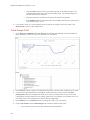
1
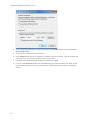
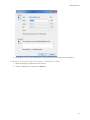
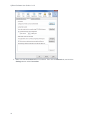
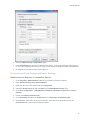
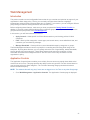
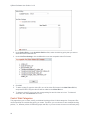
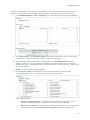
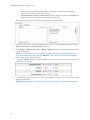
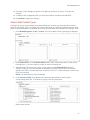
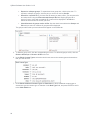
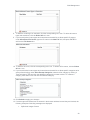
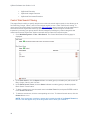
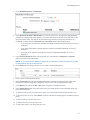
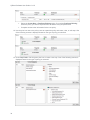
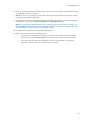
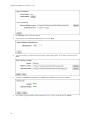
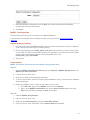
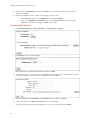
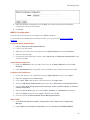
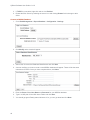
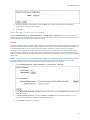
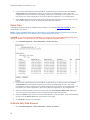
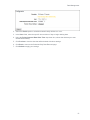
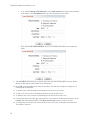
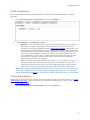
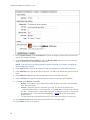
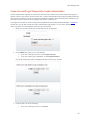
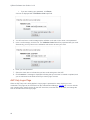
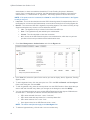
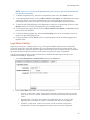
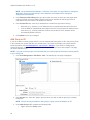
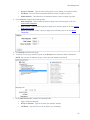
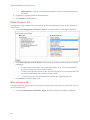
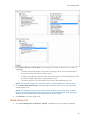
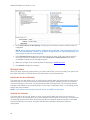
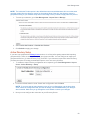
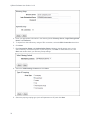
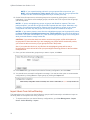
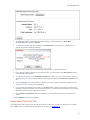
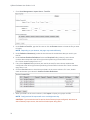
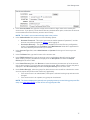
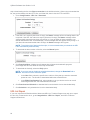
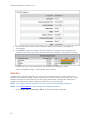
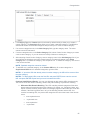
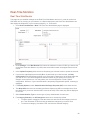
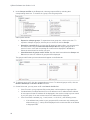
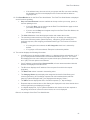
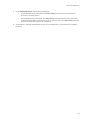
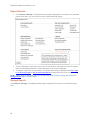
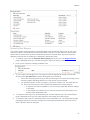
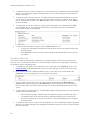
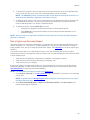
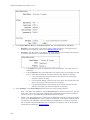
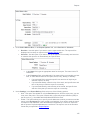
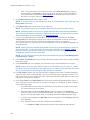
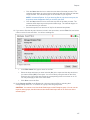
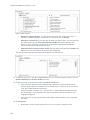
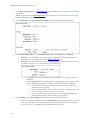
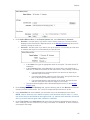
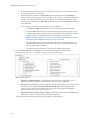
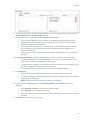
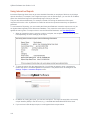
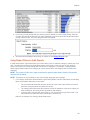
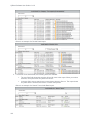
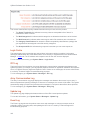
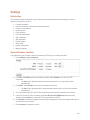
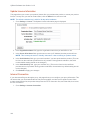
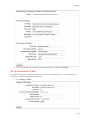
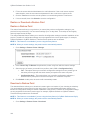
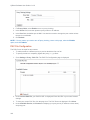
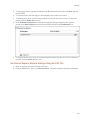
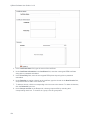
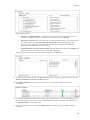
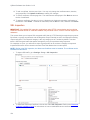
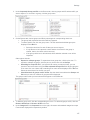
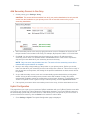
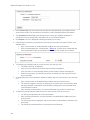
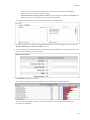
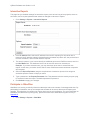
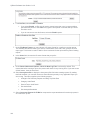
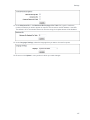
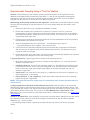
User Management Group or ID Name - Type the name of the group you are adding (for example, Sales). Full Name - This field will be unavailable because it does not apply to groups. E-Mail Address - This field will be unavailable because it does not apply to groups. 4. Under Policies, complete the following fields: Web Categories - Select a blocking policy to apply to the selected group or ID. See Control Web Categories. Web Content - Select a blocking policy to apply to the selected group or ID. See Control Web Content Types. Abuse Thresholds - Select a policy to apply to the selected group or ID. See Abuse Thresholds. 5. Click Submit to add the new group. 6. To add an ID to a group, select the group in the Groups box to which you wish to add the ID. NOTE: IDs can only be added to groups. An ID cannot be added to another ID. 7. Under Add Group or ID, complete the following fields: Type - Select the ID option. Group or ID Name - Type the ID name (for example, bsmith). Full Name - Type the full name of the person you are adding. 65