1
10. SmartRF® Studio for CC2400
10.1
Starting SmartRF® Studio and selecting a CC2400 device
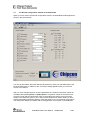
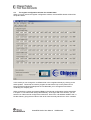
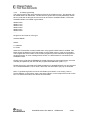
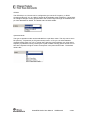
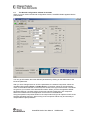
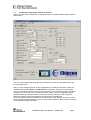
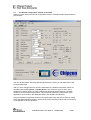
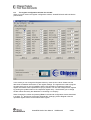
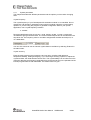
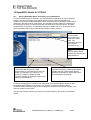
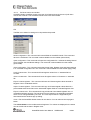
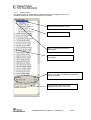
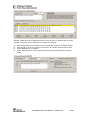
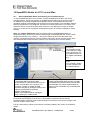
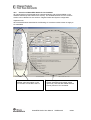
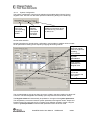
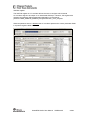
To use SmartRF® Studio for CC2400, click the SmartRF® 03 DK tab in the device manager
window. The device manager of SmartRF® Studio will every other second search for
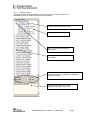
available (connected) CC2400 evaluation boards. All devices and a calculation window will be
displayed in the device list as given bellow. The calculation window allows for parameters to
be configured, but does not communicate with a CC2400 chip. Select the device, and push
the start button to activate it. An alternative is simply to double-click on it. All devices can be
opened simultaneously (return to the device manager to select another).
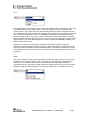
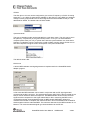
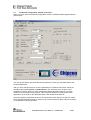
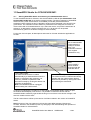
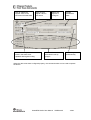
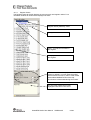
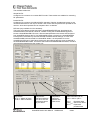
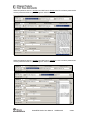
Device list:
All CC2400DK
connected to the
USB port is listed
here. The
Calculation Window
is for register
calculations only.
Start:
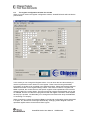
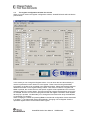
The SmartRF® Studio
window launches with the
selected device.
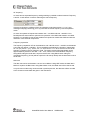
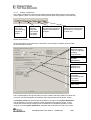
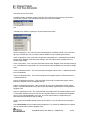
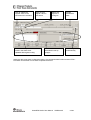
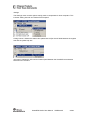
Load USB firmware:
The default USB firmware is loaded
automatically by a Windows driver when the
board is connected to the computer. It is,
however, possible to update the USB
firmware manually by clicking this button and
selecting the desired file.
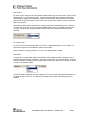
Load FPGA Configuration:
The FPGA firmware is loaded automatically
together with the USB firmware. Manual
download is possible by clicking this button
and selecting the desired file.
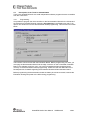
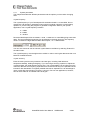
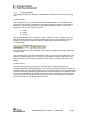
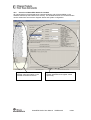
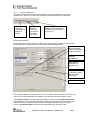
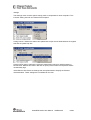
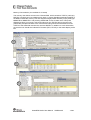
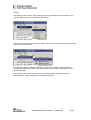
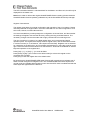
If a device is unplugged by accident or by intent while the SmartRF® Studio window is open,
the window title will display "Lost Device". It is possible to reunite the device with the
SmartRF® Studio window by right-double-clicking on one of them in the device manager, and
then left- double-click the other.
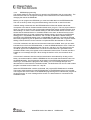
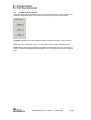
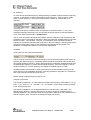
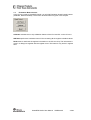
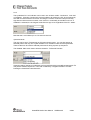
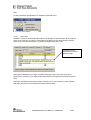
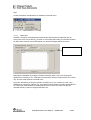
The file version button will list up the version of all files included in this version of SmartRF®
Studio.
SmartRF® Studio User Manual
SWRU070B
62/99