1
Buttons and similar controls
Button controls
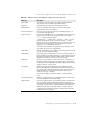
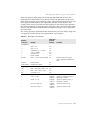
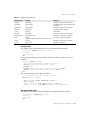
Users click button controls with the mouse to initiate actions. Buttons are labeled
with text that represent the action. The text is specified by assigning a string value to
the Caption property. Most buttons can also be selected by pressing a key on the
keyboard as a keyboard shortcut. The shortcut is shown as an underlined letter on
the button.
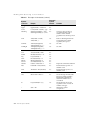
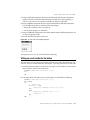
Users click button controls to initiate actions. You can assign an action to a TButton
component by creating an OnClick event handler for it. Double-clicking a button at
design time takes you to the button’s OnClick event handler in the Code editor.
• Set Cancel to True if you want the button to trigger its OnClick event when the user
presses Esc.
• Set Default to True if you want the Enter key to trigger the button’s OnClick event.
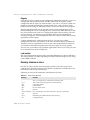
Bitmap buttons
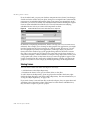
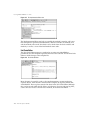
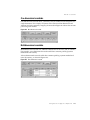
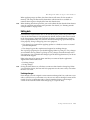
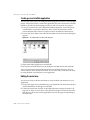
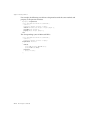
A bitmap button ((TBitBtn) is a button control that presents a bitmap image on its
face.
• To choose a bitmap for your button, set the Glyph property.
• Use Kind to automatically configure a button with a glyph and default behavior.
• By default, the glyph appears to the left of any text. To move it, use the Layout
property.
• The glyph and text are automatically centered on the button. To move their
position, use the Margin property. Margin determines the number of pixels
between the edge of the image and the edge of the button.
• By default, the image and the text are separated by 4 pixels. Use Spacing to increase
or decrease the distance.
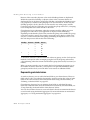
• Bitmap buttons can have 3 states: up, down, and held down. Set the NumGlyphs
property to 3 to show a different bitmap for each state.
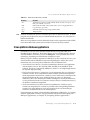
Speed buttons
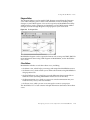
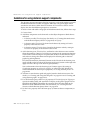
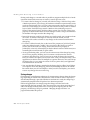
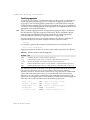
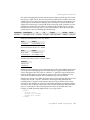
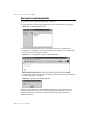
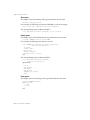
Speed buttons (TSpeedButton), which usually have images on their faces, can function
in groups. They are commonly used with panels to create toolbars.
• To make speed buttons act as a group, give the GroupIndex property of all the
buttons the same nonzero value.
• By default, speed buttons appear in an up (unselected) state. To initially display a
speed button as selected, set the Down property to True.
• If AllowAllUp is True, all of the speed buttons in a group can be unselected. Set
AllowAllUp to False if you want a group of buttons to act like a radio group.
10-8
Developer’s Guide