1
pDoc Pro Client User Manual
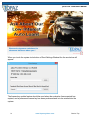
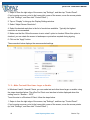
If the user touches the “I do not agree” button, pDoc Pro Client closes the message window so
that the user can continue to read the document, sign it, and fill in form fields.
During the course of signing and entering data into a document, if a user decides they do not
want to complete the form and want to terminate the signing session, they can touch the
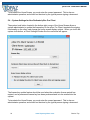
Cancel button, whereupon pDoc Pro Client presents the following window:
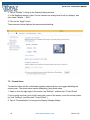
If the user touches the “Yes” button, pDoc Pro Client deletes signatures and data that have
been entered into the document, notifies the pDoc Pro Server that the signing session has
been cancelled, deletes the local copy of the PDF, and shows the Home Screen to await the
next document pushed to it.
If the user touches the “No” button, pDoc Pro Client closes the message window so that the
user can continue to read the document, sign it, and fill in form fields.
The text displayed for the buttons (“Done” and “Cancel”) along with the messages displayed
when the buttons are touched and the button captions in the message windows can be
configured by the Administrator at the pDoc Pro Server.
4.1.4 – Signing Session Timeout
If a user does not complete a signing session within the specified timeout period (the default is
10 minutes), pDoc Pro Client will terminate the session and perform the actions above as if the
user had cancelled the signing session.
4.1.5 – Minimize pDoc Signing Screen
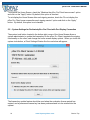
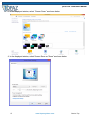
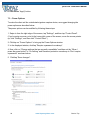
The user can minimize the pDoc Signing Screen by clicking on the Minimize button located on
the bottom right corner of the application. The minimize button is visible only when the pDoc
Pro Client is non-dedicated so that the user can access the desktop to perform other
operations.
14
www.topazsystems.com
Back to Top