1
i
Contents
Contents
Chapter 1
Advanced Navigation
Navigator Window............................................................................................................... 4
Other Kinnexus navigation tools ......................................................................................... 8
Chapter 2
Advanced Searching
Advanced search options on the search Wizard...............................................................
Search Criteria Form.........................................................................................................
Relevancy searches..........................................................................................................
Searching data types ........................................................................................................
Chapter 3
Views
Views ................................................................................................................................
List Views..........................................................................................................................
Comparison Views............................................................................................................
Reports .............................................................................................................................
Report font settings...........................................................................................................
Presentation Views ...........................................................................................................
About Wizards...................................................................................................................
Wizard toolbar...................................................................................................................
Wizard controls .................................................................................................................
Chapter 4
14
16
17
20
23
32
39
46
56
63
76
76
78
Expressions
Creating expressions ........................................................................................................ 87
Putting expressions together ............................................................................................ 91
Useful expressions............................................................................................................ 96
Chapter 5
Listings
Listing portfolios ..............................................................................................................
Adding listings.................................................................................................................
Statuses..........................................................................................................................
Listing photos..................................................................................................................
Data entry pages.............................................................................................................
Chapter 6
104
104
105
106
108
Comparative Market Analyses (CMAs)
Creating a new subject property ..................................................................................... 111
Running a CMA search................................................................................................... 112
ii
CONTENTS
Presenting CMA results .................................................................................................. 113
Chapter 7
Maps
The Mapping Information dialog .....................................................................................
Using mapping to define a search region .......................................................................
Locating properties on an overview map ........................................................................
Adding a map to a report ................................................................................................
Repositioning a mapped property ...................................................................................
Chapter 8
Text Formatting and Page Layout
Color ...............................................................................................................................
Borders ...........................................................................................................................
Borders dialog.................................................................................................................
Fonts...............................................................................................................................
Page layouts ...................................................................................................................
Chapter 9
150
151
153
154
158
Configuration
Selecting a predefined configuration...............................................................................
Creating a new configuration ..........................................................................................
Miscellaneous configuration settings ..............................................................................
View configuration settings .............................................................................................
CMA configuration settings.............................................................................................
Mapping configuration settings .......................................................................................
Mail configuration settings ..............................................................................................
Task Bar configuration settings.......................................................................................
Display and Machine configuration settings....................................................................
Chapter 12
130
131
135
136
144
149
Data Replication
Local Database Server and Client ..................................................................................
Replicating data ..............................................................................................................
Updating the database....................................................................................................
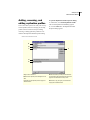
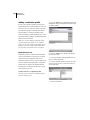
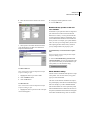
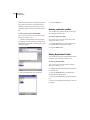
Adding, removing, and editing replication profiles ..........................................................
Local Data Setup CDs ....................................................................................................
Chapter 12
121
123
123
124
126
Internet and Communications
Kinnexus Internet ............................................................................................................
The Internet system tray tab ...........................................................................................
Email...............................................................................................................................
Creating new email messages........................................................................................
Public folders ..................................................................................................................
Public Folder Properties..................................................................................................
Chapter 10
115
118
119
120
120
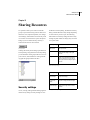
Sharing Resources
159
160
162
164
165
166
170
171
174
iii
Security settings.............................................................................................................. 179
Chapter 13
Personal, User, and Contact Information
Personal Information page..............................................................................................
Change password ...........................................................................................................
User Portfolio ..................................................................................................................
Contact Portfolio .............................................................................................................
Create Contacts ..............................................................................................................
Appendix A
182
182
182
183
183
Operators and Functions
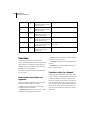
Operators........................................................................................................................ 184
Functions ........................................................................................................................ 185
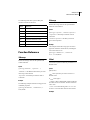
Function Reference......................................................................................................... 186
KINNEXUS 2.0 4
Advanced User’s Manual
Chapter 1
Advanced Navigation
The purpose of this chapter is to show you how data
and resources are organized in Kinnexus, and how
you can use Kinnexus navigation tools to access the
desired information.
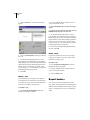
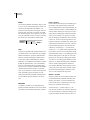
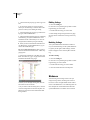
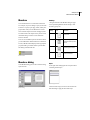
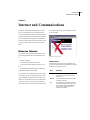
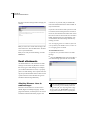
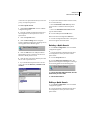
tain all data and resources to which you have access.
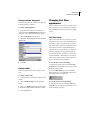
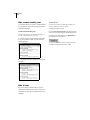
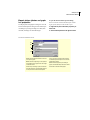
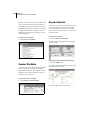
When you first open Kinnexus, the name of the person who is currently logged on appears at the top of
the Navigator Window.
Knowing how data is organized within the program
is helpful in navigating quickly and effectively in
Kinnexus. In order to familiarize you with data organization in Kinnexus, the first section of this chapter
describes the Navigator Window. The Navigator
Window is the only navigation tool in Kinnexus that
displays Kinnexus data in its natural hierarchy and is
available at any point in the program. The remaining
sections in the chapter describe other navigation
tools and show you how to use them.
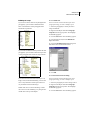
If you expand the current user, a list of the data and
resources available to the current user displays.
Some of the items that appear on this list include the
current user's Listing Portfolio, Email Folders, Contact Information, and the Hot Sheet. Many of the
items on this list can be further expanded to display
additional data and resources. To view the contents
of an item in the navigator window, you click the
small plus sign next to it. This "expands" the item,
displaying any data and resources associated with
the item. You can also "collapse" an item, which
hides any data and resources associated with the
item.
The Kinnexus navigation tools are:
• Navigator Window
• System Trays
• Next Step Bar
• Action Menu
• Most Recently Viewed list
• Action Bar
• Find User and Listing
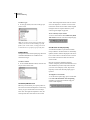
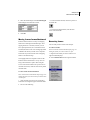
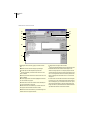
Navigator Window
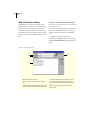
The Navigator Window appears between the system
trays and the System Messages window. The Navigator Window is organized similarly to Windows
Explorer, and functions like a filing cabinet. The
folders and portfolios in the Navigator Window con-
Navigator Window
The items in the second level of the navigator tree
(the level just beneath the current user) are the same
5
CHAPTER 1
Advanced Navigation
for every user. The items in the second level are
basically folders for storing information. The information in the subsequent levels, however, change
from user to user. For instance, every user will have
a Listing Portfolio in the Navigator Window, but the
listings contained in the Listing Portfolio vary from
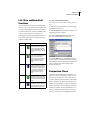
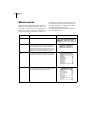
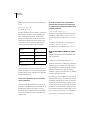
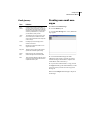
user to user. The following table defines each second
level folder in the Navigator Window:
Second level folder
What it contains
CMA Listing Portfolio
Listings for which you have run CMA
searches
Contact Portfolio
Clients’ and colleagues’ contact information
Hot Sheet
Listings that have been modified since
the last time you logged on
Listing Portfolio
Your inventory
Lost Listing Portfolio
Your listings that have expired or have
been withdrawn
Mail Folders
Your email folders
Personal Information
Information about you (the current
user), such as name, address, phone
number, etc.
Public Folders
Public folders to which you have
access
Search Portfolio
Searches you have saved
Sold Listing Portfolio
Listings you have sold
User Portfolio
User Information about those users for
which you have the authority to make
changes
View Portfolio
Views to which you have access
Web Browser
Access to the Internet
Turning the Navigator Window on
and off
The Navigator Window can be turned on and off
using the View>Navigator command. When the
Navigator is visible, a check mark appears next to
Navigator in the View Menu. When the Navigator
Window is disabled, no check mark appears.
The following sets of instructions show you how to
use the Navigator Tree to navigate Kinnexus.
To turn the Navigator on or off:
1 Click View>Navigator.
Expanding and Collapsing the Navigator tree
Clicking the ’+’ next to any branch in the navigator
window expands that branch of the tree. Clicking the
’-’ collapses that branch of the tree. If you have
expanded as much as there is to show in branch, the
’+’ simply disappears when you click it.
KINNEXUS 2.0 6
Advanced User’s Manual
To expand a Navigator tree branch
1 Click the + sign next to the branch you want to
expand. The + sign converts to a - sign and the
branch expands.
To collapse a Navigator tree branch
1 Click the - sign next to the branch you want to
collapse. The - sign converts to a + symbol and the
branch collapses.
Jumping to a new location using
the Navigator Window
You can use the Navigator window to jump to a new
location in the program. Clicking directly on a
branch takes you to the place in the program represented by the branch. The following instructions use
the Listing Portfolio as an example of a location you
can jump to using the Navigator Window.
To jump to a new location using the Navigator
Window:
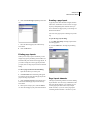
1 Expand the current user branch.
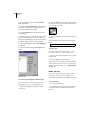
2 Expand the Listing Portfolio. Your listing inventory displays in the tree, but the view in the main
window doesn’t change.
7
CHAPTER 1
Advanced Navigation
3 Click directly on the Listing Portfolio icon.The
main window changes to show you your Listing
Portfolio.
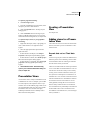
Tree icon
What it represents
Wizard
Web page
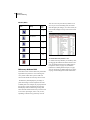
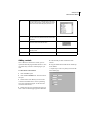
Navigator Window icons defined
Navigation Window tree icons
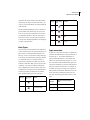
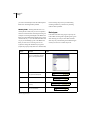
Each branch in the tree has an icon. The following
table contains each icon and what each one represents. Since the system administrators have the ability to change the icons, this reference might contain
different icons than the ones you see on your screen.
Tree icon
What it represents
The Home Page
A Folder or Portfolio
Report
Listview
Navigator Window icons defined
KINNEXUS 2.0 8
Advanced User’s Manual
Other Kinnexus navigation tools
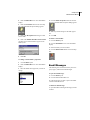
To use the system trays to navigate Kinnexus:
1 Click the desired system tray tab.
Unlike the Navigator Window, the other Kinnexus
navigation tools are only available in certain locations within the program. The following sections tell
you where to find the Kinnexus navigation tools,
and how to use them to get from here to there in
Kinnexus.
System trays
System trays contain commonly used tools and commands. System trays separate tasks and tools into
groups based on the their function. The Listing tray,
for example, has all of the functions and tools that
are relevant to maintaining your listing inventory.
The exception to this rule is the Favorites system
tray. You can decide what commands and tools
appear on the Favorites tray. For more information
on the Favorites tray, see chapter XX. To use a tool
or perform a task in a system tray, you simply open
the desired system tray by clicking the appropriate
system tray tab. Once the tray is open, you click the
icon in the tray that represents the desired task or
tool. System trays are located on the left side of the
Home Page.
2 In the system tray, click the icon representing the
tool or task you wish to use.
9
CHAPTER 1
Advanced Navigation
Next Step Bar (NSB)
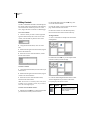
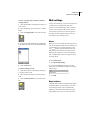
The Next Step Bar (NSB) appears at the bottom of
the main window when the main window contains a
view. The NSB contains buttons representing available commands that change depending on where you
are in the program. For example, the Overview Map
button appears only when a list of search results is
open in the main window.
The placement of buttons on the NSB tells you what
the button does. Buttons on the left of the NSB are
commands. Buttons in the middle of the NSB take
you to new locations in the program. Clicking the
button on the far right of the NSB takes you up one
organizational level in the Navigation Window tree.
If there are more options available than can fit on the
NSB, small arrow buttons let you scroll through all
the NSB buttons.
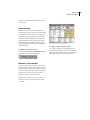
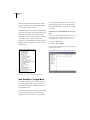
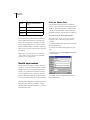
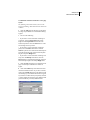
Next Step Bar
Commands
Locations you can jump to
Scroll button
Takes you up one organizational level
Turning the Next Step Bar on and off
The Next Step Bar can be turned on and off using
the View>Next Step Bar command. When the NSB
is visible, a check mark appears next to NSB in the
View Menu. When the NSB is disabled, no check
mark appears.
To turn the Next Step Bar on or off:
1 Click View>Next Step Bar.
KINNEXUS 2.0 10
Advanced User’s Manual
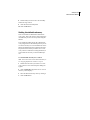
Most Recently Viewed (MRV) list
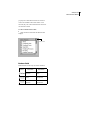
To view the MRV:
Kinnexus keeps track of everywhere you have been
in the program and allows you to return to any step
along the way. Instead of having to click the Back
and Forward buttons repeatedly, you can use the
Most Recently Viewed list to go directly to the
desired location.
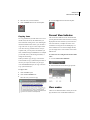
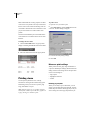
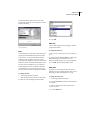
1 Click the current location title. The MRV list
displays.
With the exception of the Home Page, the Most
Recently Viewed (MRV) is found in the upper left
corner of each Kinnexus page. The list usually displays the current location only, but if you click the
name of the current location, a drop down list containing all the locations you have visited during the
current session displays.
Returning to a previously visited location
using the MRV list
The MRV list contains a list of the locations you
have visited so far during the current Kinnexus session. You can click on any of the items in the list to
return to that location. The MRV list can contain up
to fifteen locations. Use the Back button if a location
you have previously visited does not appear on the
MRV list.
To return to a previously visited location:
1 Click the current location title.
2 On the MRV list, find the location you want to
return to.
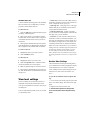
Current location title
3 Click the desired location on the MRV list dropdown list.
Back and Forward menu
Most Recently Viewed list
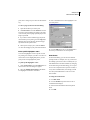
The View menu contains options for moving back
and forward in Kinnexus. The Go Back and Go Forward menu options can be very useful, because the
MRV list and Back and Forward buttons are unavailable from the Home Page. In order to return to a
11
CHAPTER 1
Advanced Navigation
location you visited before or after visiting the
Home Page you must use a command on the View
menu.
The View menu has two navigation options: Go Forward and Go Back. Go Forward enables only after
you have gone back using the menu option, MRV
list, or the Back Button on the Action Bar. Go Forward takes you to the location you visited after visiting the current location for the first time. For
example, say you open your View Portfolio and then
open a List View within the Portfolio. If you return
to the View Portfolio, you can click View>Go Forward to get back to the List View.
Go Back takes you to the location you were at just
before you visited the current page. The Go Back
option is not available from the logon Home Page.
To go back or forward using the View menu:
1 Do one of the following:
• To return to the location you visited after visiting
the current location for the first time, select View>
Go Forward.
• To return to the last location you visited, click
View>Go Back.
Action Menu
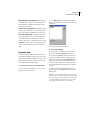
The Action Menu contains a list of available commands for the current location. These commands are
identical to the commands located at the left of the
Next Step Bar.
To perform a task using the Action Menu:
1 Click the Action menu.
2 Select the desired task from the pop-up menu.
KINNEXUS 2.0 12
Advanced User’s Manual
Action Bar
button on the Action Bar, the List View will print.
The following table defines each button on the
Action Bar:
The Action Bar contains commands that affect the
data in the main view. For example, if there is a List
View in the main window and you click the Print
A
B
C
D E
F G
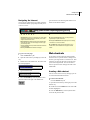
A Current View Indicator Tells you the name of the
view in the main window. Clicking the Current View Indicator displays all available views and allows you to
select one.
B View Mode Lets you choose a mode (preview or
draft) in which to display view data.
C Zoom Makes the data in the main view larger or
smaller. The ’+’ button makes the data larger, the ’-’ button makes the text smaller. You can also click the percentage between the ’+’ and ’-’ signs and select the
desired zoom from the pop-up menu that appears.
D Save Saves the information currently in the main
window.
E Print Prints the view in the main window.
H
I
J
K
L
M
F Attach View
Automatically attaches the view currently in the main window to an email message which
you can then address and send.
G Connect Connects your computer to the Kinnexus
server.
H View Highlighters Lets you hide records that have
been highlighted a certain color.
I Highlighter Selection Reveals a list of highlighter
colors you can apply to selected records.
J Back Returns you to the last page you viewed.
K Forward Takes you to the next screen. Only
enabled after you click the Back button.
L Cancel Cancels the current action.
M Home Page Returns you to the Home Page.
ACTION BAR
To Do List
The To Do List appears on the right side of the
Home Page. It contains a list of tasks you perform of
check frequently, like the Hot Sheet, new email, and
saved searches.
When you click an item in the To Do List, you are
taken to the place in Kinnexus where that item is
managed. For example, if you click on the Hot Sheet
item in the To Do List, Kinnexus opens the Hot
Sheet, which contains a list of new and modified
listings.
The To Do List items can link to the following
items:
• The Hot Sheet
• New Email messages
• Your listings that are about to expire
• New results for saved searches
To Do List
• Internet pages
13
CHAPTER 1
Advanced Navigation
To use the To Do List:
1 If you are not currently on the Home Page, click
the Home Page button on the Action Bar.
2 Click the item in the To Do List that you would
like to open.
Finding
The Kinnexus find features allow you to easily
retrieve data about individual users and listings. For
example, if you need the phone number of another
realtor in your board, you can enter the realtor's
name in the Find User wizard, and Kinnexus will
retrieve that user's contact information. Finding a
listing is much the same, except that instead of locating a Kinnexus user, you can locate an individual
listing.
To find a user:
1 Click the Tools tab.
2 Click the Find User icon.
3 Enter as much information as you can about the
user in the fields on the first wizard page.
4 Click the Next button.
5 From the window at the left of the page, select
the user you are trying to find. The fields on the right
of the page automatically fill in.
6 Click the Finish button. The selected user’s personal information appears.
To find a listing:
1 Click the Tools tab.
2 Click the Find Listing icon.
3 Enter as much information as you can about the
listing in the fields on the first wizard page.
4 Click the Next button.
5 From the window at the left of the page, select
the listing you are trying to find. The fields on the
right of the page automatically fill in.
6 Click the Finish button. The selected listing displays.
KINNEXUS 2.0 14
Advanced User’s Manual
Chapter 2
Advanced Searching
This chapter shows you how to use the following
Kinnexus advanced searching options:
•
Search Options Page
• Search Criteria Form.
• Relevancy
• Data types
Search Options page features
On the Search Options page you select which record
type and Wizard you wish to use, and set your
advanced search options using the controls at the
bottom of the Wizard. If you want to create a saved
search or run a relevancy search, you must select
these features from the Search Options page.
Because this chapter assumes familiarity with
searching basics, please refer to the Searching chapter in the Beginner’s Manual if you are not yet comfortable searching in Kinnexus.
Advanced search options
on the search Wizard
In A Beginner’s Guide to Kinnexus manual, you
learned how to run basic searches in Kinnexus using
a wizard. Because of the introductory nature of A
Beginner’s Guide to Kinnexus, there were several
features on the first page of the basic search Wizard
that were not described. The following paragraphs
show you how to use the features on the first page of
the search Wizard, known as the Search Options
page.
To open the Search Options page:
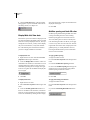
1 Click the Search tray tab.
2 In the Search tray, click the New Search icon.
The search Wizard opens at the Search Options
page.
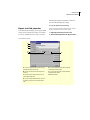
Search Options page
Type
The Type window, containing all the different record
types available, is displayed at the left side of the
Search Options page. Select the record type you
wish to search. Most record types describe property
types, such as Commercial and Residential. If you
wish to search across all property types, select Common Listing from the Type window.
15
CHAPTER 2
Advanced Searching
To select a type:
1 In the Type window, select the record type you
wish to search.
search. Items assigned the lowest value are considered of no importance—whether or not the search
meets those criteria does not matter. Items assigned
the highest value are required. Relevancy is discussed at greater length on page XX.
To use relevancy in your search:
1 Place a check mark in the Use Relevancy With
This Search check box on the Search Options page.
Note: If you choose Cross Property from the Type
window, you will not be able to add type-specific
fields to your search results, or change the search
results List View to a property-type-specific form.
Available Wizards
The right side of the Search Options page shows the
customized Wizards that are available for the
selected record type.
To select a wizard:
1 In the Available Wizards window, select the wizard you want to search with.
Save this search for auto prospecting
A saved search remains in your Search Portfolio
until you delete it. Saved Searches are continuously
updated, and new results are displayed in the To Do
List. You can return to a saved search to review the
list of results. You must be online to work with
saved searches.
Most of your searches should be temporary
searches. Temporary searches don't clutter the server
with information you don't really need. Each time
you create a new temporary search, the previous
temporary search of the selected property type is
replaced.
To designate a saved search:
1 On the Search Options page, place a check mark
in the Save This Search For Auto Prospecting
checkbox. If you leave the checkbox empty, the
search will be temporary.
Use Relevancy with this search
Relevancy searches allow you to specify which criteria in the search are most important. In a relevancy
search, you give each desired criterion an importance value. The higher the importance value, the
more important the criteria item is to the overall
KINNEXUS 2.0 16
Advanced User’s Manual
Maximum number of results
When running a search, you can limit the number of
search results to a specific number. We recommend
limiting the number of search results particularly
when you are running a relevancy search.
tion of what a Search Criteria Form may look like,
although the forms vary from board to board:
To limit the number of search results:
1
Do one of the following
• Click the Maximum number of results dropdown arrow and select a number from the dropdown menu.
• Click in the Maximum number of results field
and type the desired number.
Search Criteria Form
You access the Search Criteria Form by clicking the
Exit to Form button on the Basic Search Wizard.
The Search Criteria Form can contain many more
search criteria fields than the Basic Search Wizard.
If you do not find a search field on the Wizard,
chances are better that it is on the Search Criteria
Form.
The Search Criteria Form resembles a data entry
page and consists of criteria fields into which you
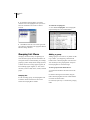
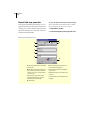
can enter search criteria. Search Criteria Form criteria fields lie between brackets. This is a sample por-
Search Criteria Form
To open the Search Criteria Form:
1 Click the Exit to Form button on the search
Wizard.
The Search Criteria Form appears. Any information
you have already entered into search Wizard fields
before you clicked the Exit To Form button displays
in the appropriate field(s).
Entering data on the Search Criteria
Form
Just like in the Wizard, each criteria field on the
Search Criteria Form is designed to accept criteria of
a certain data type. For example, let’s say the Zip
field on the Search Criteria Form is a text box. To
17
CHAPTER 2
Advanced Searching
enter a zip code into the field, you click in the Zip
field and type the desired zip code.
2 Enter the desired data. If you are not sure how to
enter data for the field’s data type, see Data Types on
page XX.
3 If the field is a list box, feature box, or Boolean
field, click the Finish button on the pop-up dialog.
Returning to the search Wizard from
the Search Criteria Form
Entering text into a Search Criteria Form field
Let’s also say that the Area field is a listbox. When
you click the Area field, a listbox pops up. You can
then select the desired area from the list and then
close the box.
Once you have entered all the desired criteria on the
Search Criteria Form, you can run the search from
the Search Criteria Form or the Wizard. Whether
you are in the form or the Wizard doesn’t matter;
Kinnexus searches the criteria entered on both form
and Wizard. If you entered different information for
the same field on the Wizard and Search Criteria
Form, the Wizard searches for the last criteria you
entered before running the search.
To return to the search Wizard from the Search
Criteria Form:
Finish button
1 Click the Criteria Wizard button on the Next
Step Bar.
To run a search from the Search Criteria Form
1 Click the Go button on the Next Step Bar.
Entering list box data into a search criteria list box
To enter data in the Search Criteria Form:
1 Click between the brackets of the desired field,
or use the TAB key to navigate between fields. You
can edit as many fields as you wish.
Relevancy searches
Relevancy searches are an advanced way of searching the Kinnexus database. In a relevancy search,
you give each criterion an importance value. The
higher the importance value assigned to a criteria
KINNEXUS 2.0 18
Advanced User’s Manual
field, the more important the criteria item is to the
overall search.
About relevancy
When you run a relevancy search, Kinnexus performs the search in two parts. First, Kinnexus finds
all the listings that match the required criteria. Second, Kinnexus goes through each of the potential
results and compares them against the importance
values assigned to the non-required criteria. Kinnexus awards points to listings according to how
well they match the importance values assigned to
the search criteria.
To designate a relevancy search:
1 Select the Use relevancy with this search check
box on the Wizard Search Options Page.
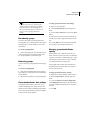
Relevancy score indicator
You can assign relevancy values in a basic search
Wizard or a Search Criteria Form. When you designate a relevancy search, Kinnexus places the relevancy score indicator at the top left of all fields on
the Wizard or form. This way, you can tell at a
glance the relevancy value of any field.
Note: On the Search Criteria Form, relevancy score
indicators appear only above fields that contain
some data.
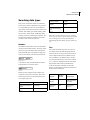
Search criteria page with relevancy indicators
To assign or change a relevancy value:
1 Click the relevancy score indicator above the
desired field. Clicking the relevancy score indicator
toggles through the relevancy scores. Keep clicking
until you arrive at the desired relevancy value.
19
CHAPTER 2
Advanced Searching
Relevancy Values
Symbol
Meaning
Point
value
No Importance
1
Low Importance
4
Medium Importance
9
High Importance
16
Very High Importance
25
You can even sort by the relevancy field in a List
View. If you sort in descending order, the results
with the highest percentages, (or in other words, the
best matches) display at the top of the list of search
results.
To add the Relevancy field to a view
Required
Relevancy database field
The Field Chooser contains a Relevancy field. Adding the Relevancy field to a view containing relevancy search results shows you how well each
search result matches the relevancy search criteria.
The Relevancy field displays the percentage of
points each listing received compared to the total
available points. For example, if a property meets all
the relevancy search requirements, the relevancy
field displays 100% for that listing. Listings that
don’t match the search and relevancy criteria as well
receive lower percentages, such as 74%, or 30%,
depending on the relevancy points they received.
1 Add the relevancy field like you would any other,
by dragging the field from the Field Chooser to the
view. For detailed instructions on adding fields to
Comparison Views, see page XX, for detailed
instructions on adding fields to Reports, see page
XX. For instructions on adding fields to List Views,
see page XX in the Beginner’s Guide to Kinnexus.
KINNEXUS 2.0 20
Advanced User’s Manual
Searching data types
Each search criteria field, whether on a Wizard or
Search Criteria Form, is designed to accept criteria
of a certain data type. There are several different
types of data you can enter in Kinnexus search criteria fields. Search data types include numbers, dates,
text, list boxes, feature boxes, and Boolean fields.
Entering criteria for each data type is different. The
following section defines each data type and tells
you how to enter criteria for each one.
Listings over $500,000
> 500000
Listing over $100,000 and under
$200,000
(this > 100000) && (this <
200000)
Listings where current price is
greater than the initial listing
price
current price > listing.listprice
Numbers
Note: When entering numbers as prices, you don't
have to type the currency sign or commas. If the field
has been designated a currency field, Kinnexus
automatically fills in the dollar sign and commas for
you.
Numbers
Two different controls allow you to search numbers:
the range control and the text box. The range control
allows you to put a minimum value in the left box,
and a maximum value in the right box. Range controls are not available on the Search Criteria Form.
Range control
A text box has only one field and allows numbers
and expressions to be used as criteria.
Text
Text can be entered into text boxes. To enter text,
you simply click in the field and type the desired
characters. However, using text as a search criteria
can be complicated because to a database, Maple
Street and Maple St. are different streets. To help
you search text effectively, you can use an asterisk
(*), or ‘wild card’. Placing an asterisk at the beginning and end of the search text tells Kinnexus,
"Look for this pattern somewhere in the field."
Below are some examples of how the wild card can
be used when searching text.
Text box
Below are some examples of how numbers and
expressions can be used in text boxes. More information on expressions can be found in the Expressions chapter, page xxxx.
To get this
Enter this in Price field
Listings between $100,000 and
$200,000
100000-200000
Listings less than $200,000
< 200000
Numbers
To get this
Enter this in
Street field
Possible matches
All Listings on
King Drive
*King*
King Drive, King Dr.,
King Street, Buckingham
Rd., Kingsbury
All Listings on
King, Cedar, or
Sherwood
*King*, *Cedar*,
*Sher*
King Drive, Cedar Ave.,
Sherman, Shertliff,
King’s Court
Text
21
CHAPTER 2
Advanced Searching
To get this
All listings beginning with King
Enter this in
Street field
King*
Possible matches
items you want to search for. You can select as many
checkboxes as you want.
King Lane, King’s Court,
King Street, Kingsbury
Text
Dates
Kinnexus allows you to search for specific dates and
date ranges. Dates can be entered into text boxes.
Below are some examples of how to search for
dates.
To get this
Enter this in Sold Date field
Listings sold from Oct. 1 to Dec.
31, 1999
10/1/99 - 12/31/99
Listings sold since November 1
> Nov 1
Listings sold in the last three
months
current-3m
Dates
List box
Feature Boxes
The feature box interface is similar to the list box
interface, but there are three states to feature box
checkboxes. Clicking a checkbox changes the type
of mark in the box.
Feature
What it means
Search function
Note: If you don't enter a year value when entering a
date, Kinnexus assumes you are searching the current year.
I have no preference on
this feature.
Does not affect the
search
I definitely want this
feature
All search results will
have this feature
List Boxes
I definitely don't want
this feature
No search results will
have this feature
A list box presents a list of checkbox options. When
searching list boxes, you designate which list box
Feature boxes
Match control
A match control appears at the top right corner of
every feature box. Using the match control, you can
designate how many of the selected items in a feature group the search must match.
You can have Kinnexus match 1, 2, 3, or All
selected items in a feature box. If All is selected, a
KINNEXUS 2.0 22
Advanced User’s Manual
property has to meet all the feature box criteria in
order to be included in the search results. If 1 is
selected, only one of the selected features in the feature box has to match.
To select a match control value:
1 Click the match control until the desired value
displays.
Match control
Boolean fields
Boolean fields contain only one feature checkbox.
Feature
Boolean
What it means
Search function
I have no preference on
this feature.
Does not affect the
search
I definitely want this
feature
All search results will
have this feature
I definitely don't want
this feature
No search results will
have this feature
KINNEXUS 2.0 23
Advanced User’s Manual
Chapter 3
Views
Views
Views are convenient, easy-to-read formats for
viewing data in Kinnexus. Some views are tailored
for clients, while other views are geared towards the
Realtor. This chapter gives you an overview of how
views are created, stored and managed.
you select, edit, and group information, and resemble Reports in that they are attractively laid out for
distribution to potential buyers. Items in a Comparison View are displayed in rows horizontally, rather
than vertically in columns.
In total, there are four different views: View Portfolio
List Views
List Views present data in rows and columns that
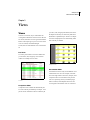
you can select, edit, and group. A list of search
results is an example of a List View.
Comparison View
List View
Comparison Views
Comparison Views combine the functionality of a
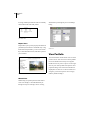
List View with the presentability of a Report. Comparison Views resemble List Views in that they let
Presentation Views
A Presentation View is really several different views
combined into one view. For example, a Presentation View might contain a List View, a Report, and a
Comparison View. A Presentation View presents
each view separately, but lets you add title pages,
tables of content, and boilerplate forms to tie the
views together. Presentation views are convenient
24
CHAPTER 3
Views
for longer, detailed presentations and are commonly
used in MLS books and CMA packets.
Wizard takes you through the process of adding a
listing.
Presentation View
Report Views
Reports allow you to present property information to
potential buyers in attractive and useful ways. Using
the Kinnexus Report Editor, you can create custom
flyers, data information sheets, and other reports for
your customers
Report view
Wizard Views
Wizards help you perform particular tasks in Kinnexus. For example, a search Wizard leads you
through the steps of a running a search. A listing
Wizard view
View Portfolio
The View Portfolio contains all the views to which
you have access. Next to each view in the portfolio
the view's dataclass and security access appears.
Double-click on any view to open it. You can rightclick any view in the portfolio and open the view's
properties dialog. Views in the View Portfolio are
displayed in tree form. To see the views that are in
categories, you need to open the view's category
folder by double-clicking it.
KINNEXUS 2.0 25
Advanced User’s Manual
3 Select the desired view type from the View Type
window.
4 Click the Next button.
5 Click the Category drop-down menu and select a
category from the drop-down menu, or you can click
the Category field and type a new category if you
would like the view to be assigned a category. Leaving the Category field blank means that the view will
show up independently in the View Portfolio.
Selecting a category places the view in a category
folder in the View Portfolio.
Creating a new view
You can create a new view in Kinnexus at any time.
Most users will have the ability to create new views,
although it is possible that your system administrator
has disabled the Create View icon.
To create a new view:
1 Click the Tools tray tab.
2 Click the Create View icon. The New View Wizard appears.
6 Click in the Description field and enter a
description for your view. This description becomes
the name of the new view.
7 Select a dataclass for the view from the View
Dataclass window. The view you are creating will be
available only for the dataclass you select on this
step.
8 In the Availability Status window, select those
data types you would like available for viewing with
the Presentation View. The Availability Status
checkboxes represent types of data you can view in
Kinnexus, such as data entry, search result, and
search criteria data. For example, if you select the
Search Results Summary checkbox, the view you
26
CHAPTER 3
Views
are creating will be available when you are viewing
search results.
Editing existing views
You can edit the properties of any existing view to
which you have adequate security access. For example, you can change the name or width of a view.
To edit an existing view:
1 Click the Tools tray tab.
2 Click the View Portfolio icon.
9 Click the Save button. Your new view saves in
the View Portfolio.
3 Select the view you want to edit.
4 Click the Properties button on the Next Step
Bar.
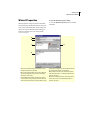
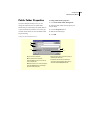
VIEW PROPERTIES
A
B
D
C
E
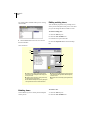
A Change the view’s category by clicking the Category
drop-down arrow and selecting the desired category from
the drop-down menu.
B Change the view’s description by clicking in the description field and typing a new description.
C Select different availability status options by placing and
removing checkmarks next to the desired checkboxes.
D Change the view’s width and height by typing the desired
values in the Width and Height fields. Width and height are
measured in inches.
E Change the view’s border settings by clicking the Borders
button.
Deleting views
To delete a view:
You can delete any view to which you have adequate
security access.
1 Click the Tools tray tab.
2 Click the View Portfolio icon.
KINNEXUS 2.0 27
Advanced User’s Manual
3 Select the view you want to delete.
4 Click the Copy button on the Next Step Bar.
4 Click the Delete button on the Next Step Bar.
Copying views
It is very possible that you will come across a view
that has some, but not all, the elements that you
need. Instead of creating a new view containing all
the desired elements from scratch, you can make a
copy of the view. A copy is an exact replica of the
view. Since the copy is identical to the view you
copied it from, you can preserve the elements you
want, and make changes and additions. For example
you can add, remove, and rearrange the fields, or
change the font settings.
When you make a copy, the copy is saved in the
View Portfolio as Copy of followed by the name of
the view you copied. For instance, if you copy a
view called Residential Flyer, the copy is saved as
Copy of Residential Flyer.
Current View Indicator
The Current View Indicator on the Action Bar tells
you at a glance the name of the view that is currently
displayed in the main window. If you click the Current View Indicator, a complete list of the views
available for viewing the current data displays. To
select a different view in which to display the data,
you can simply select a view from the Current View
Indicator list.
To select a new view using the Current View Indicator:
1 Click the Current View Indicator.
2 Select the desired view from the pop-up menu.
To copy a view:
1 Click the Tools tray tab.
2 Click the View Portfolio icon.
3 Select the view you want to copy.
View modes
There are two different modes in which you can display a Kinnexus view: Draft Mode and Preview
28
CHAPTER 3
Views
Mode. Draft Mode fits as many properties or fields
on the screen as is possible. The only constraints are
the size of the screen and the zoom being used. Preview Mode is like Print Preview in Windows. It lets
you preview what the view will look like when
printed.
To print a View:
1 Open the view you want to print.
2 Click File>Print or click the Print button on the
action bar. The Print dialog will appear.
The mode is determined by the View Mode button
on the toolbar. It is located left of the Current View
Indicator.
To change the view mode:
1 Click the View Mode button. A pop-up menu
displays containing Draft Mode and Preview Mode.
2 Select the desired mode from the pop-up menu.
3 Select the desired printing settings.
4 Click OK.
Kinnexus print settings
While printer selection, page range and number of
copies are standard print settings, the Kinnexus Print
dialog contains some settings that are unique to Kinnexus. These settings are:
• Page Layout
• Highlighter Selection
Printing views
You can print any Kinnexus view. Clicking
File>Print or clicking the Print button bring up the
Print dialog, where you can select a printer, page
range, and number of copies.
Note: Kinnexus pages are very graphics intensive,
and may take a while to print. The more graphics on
a page, the longer it will take to print.
• Format
Printing page layouts
When you are ready to print a document, you can
simply open the Print dialog and click OK. The document will print with the current page layout. If you
wish to change the current page layout before you
KINNEXUS 2.0 29
Advanced User’s Manual
print, there is a Page Layout control on the Print dialog.
3 Place a checkmark next to each highlighter color
you want printed.
To select a page layout from the Print dialog:
1 Open the document you wish to print.
2 Click File>Print or click the Print button on the
action bar. The Print dialog box appears. The name
of the currently selected page layout displays in the
Page Layout field.
3 If you wish to select a different page layout for
the document you are printing, click the Page Layout drop-down arrow and select the desired page
layout from the drop-down menu.
4 When you are ready to print, click the OK button. The selected page layout prints with document.
Print specific highlighter colors
You can use highlighters to select specific records
for printing. For example, if you have a List View in
which some rows are highlighted yellow, you can
print just the rows highlighted in yellow.
To print specific highlighter colors:
1 Click the File>Print or click the Print button on
the action bar. The Print dialog box appears.
2 Select the Include Selected Rows radio button.
The highlighter checkboxes will enable.
4 Click the OK button. The records highlighted in
the colors you selected are sent to the printer.
Print format
From the Print dialog, you can choose a different
printing format. For example, let’s say you have the
Print dialog open and a List View created by the system administrator in the main window. By changing
the Format setting on the Print dialog, you can print
the view in a Comparison View you have created, or
in any other available format, even though you still
have the system administrator’s List View in the
main window.
To change the Print format:
1 Click File>Print.
2 Click the Format drop-down menu. A list of
available formats displays.
3 Select the desired format from the drop-down
menu.
4 Click OK.
30
CHAPTER 3
Views
Emailing views
If your Kinnexus server is attached to the Internet,
you can email any Kinnexus view as an attachment.
To email a view:
and any message you want to send with the attachment.
8 When you are ready to send the message, click
the Send button on the email message. Your message, including the attachment, will be sent to the
addressee.
These instructions assume that a view is currently
open.
1 Press the Send button on the Action Bar. The
Mail Attachment Properties dialog appears.
2 Click the Attachment Style drop-down menu
and select the desired attachment type. (for descriptions of the attachment types, see pageXX.)
3 If the view you are sending is a List View or
Comparison View, and you want to send only certain
listings in the view based on highlighter color, click
the Include Selected Rows radio box. Place checkmarks next to each highlighter style you would like
included in the attachment.
Export view data to a different format
Kinnexus lets you copy data from a view and place it
in another format. For example, you can take data
from a list view and place it directly into a Microsoft
Excel spreadsheet without you having to retype a
single line. You can also save your data in the native
format of Top Producer, as an HTML document, or
in plain ASCII text format. The process of placing
Kinnexus data in an outside format is called exporting.
4 If desired, choose a different format into which to
display the view by clicking the Format drop-down
arrow and selecting the desired view.
Common file export formats
5 If desired, select a different page layout for the
attachment by clicking the Page Layout drop-down
arrow and selecting the desired page layout.
HTML Web browsers read HTML documents.
Selecting this option copies the current view and
associated data to a web page.
6 Click OK. A blank email message containing the
current view as an attachment appears.
ASCII text ASCII text is a standard DOS text file.
Selecting this option saves a copy the current view
and associated data as a word processing document.
This option is available only for List Views.
7 Complete the email message as if it were any
other email message: Type an address, subject line
The list below contains descriptions of common file
export formats. Your system administrator can add
other file export formats as they become available. If
you are exporting to a 3rd-party format, (e.g., TopProducer, Realty Tools, Online Agent, Real Edge)
and you are not sure which export format to use,
contact the 3rd-party vendor.
KINNEXUS 2.0 31
Advanced User’s Manual
Microsoft Excel Spreadsheets Selecting this
option imports the copied view data directly into a
Microsoft Excel spreadsheet. This option is available only for List Views.
1 Click File>Export. The Export Format dialog
appears containing a list of the export formats available to you.
Top Producer Tag Format Selecting this option
saves the view data in the native format of Top Producer. This option is available only for List Views.
Kinnexus Tag Format All Kinnexus servers can
share data between servers. This format helps system administrators move data from one server to
another. This option is available only for List Views.
Pictures This option saves all selected photos in a
view to a specified directory. The native format is
jpeg.
2 Select the desired export format.
3 Do one of the following:
Exporting data
The Export Format dialog box helps you get Kinnexus data into another program. You can view the
Export Format dialog by clicking File>Export. The
following directions show you how to export your
data using the Export Format dialog.
To export Kinnexus data to an outside format:
To export data to an outside format, a view must be
displayed in the main window.
4 If you wish to export all rows in the current
view, select the Include All Rows radio button.
5 If you have highlighted rows in the current List
View or form view and wish to export only highlighted rows, select the Include Selected Rows radio
button. Once you click this radio button, several
checkboxes below will enable. Click in the checkbox or checkboxes that describe the rows you wish
to export.
6 When you have selected the information you
wish to export, click the Export button. A Save As
dialog opens.
Note: If you selected Microsoft Excel as your export
format, the Save As dialog will not appear. Microsoft
Excel will simply open a spreadsheet containing the
exported information. You may then save the document using Microsoft Excel’s save command.
32
CHAPTER 3
Views
7 Click the Save in drop -down arrow and select the
location where you want the document saved.
Manipulating List View columns
In this section you will learn some advanced methods for manipulating columns in a List View. If you
do not find the information you need in this section,
check the Column Manipulation chapter in the A
Beginner's Guide to Kinnexus. The instructions in
this section assume you are looking at a List View.
Rename column headers
8 In the File name field of the Save As dialog, type
a name for your document.
9 When you have selected a name and location,
click the Save button on the Save As dialog box.
The document containing the exported information
saves to the location you specified. You can open the
document and edit it as you wish.
List Views
List Views present data in columns and rows. Kinnexus gives you a great deal of control over the data
in your List Views. Using Kinnexus functionality,
you can:
By default, the name of the field you dragged from
the Field Chooser when adding the column is also
the name of the column header. Once you have
added the column, you can change the column
header name to anything you want.
To rename a column header:
1 Right click the column header you would like to
rename.
2 Select Properties from the right-click menu. The
Column Settings dialog appears.
3 Click in the Description field. Delete the old column header name and type in the name you desire.
• Change the appearance of data in List Views by
changing the font settings and using highlighters
• Alter List View organization and functionality
through grouping and applying mathematical functions
Creating a List View
To create a List View see Creating a new view on
page XX.
4 Click the OK button.
KINNEXUS 2.0 33
Advanced User’s Manual
Change column alignment
The data in any List View column can be right justified, left justified, or centered.
To change column alignment:
1 Right-click in the column you would like to
realign and select Column Settings from the rightclick menu. The Column Settings dialog appears.
2 Click the Alignment drop-down box.
3 Select the desired alignment from the dropdown menu.
Changing List View
appearance
You can control the font, font size, and font color of
data in List Views. You can also set spaces between
lines and determine which data you want to display
or hide.
List View fonts
There are two kinds of text in a List View: row text
and totals text. Row text is the actual information in
the columns. Totals text appears at the top and bottom of the columns and gives you totals information
about all the records in a column. Mathematical
functions, such as average and sum, are considered
totals text. Although you change font settings for
row text and totals text separately, you will use the
Font Format dialog in both instances. The only difference between setting row fonts and totals fonts is
how you get to the Font Format dialog.
4 Click OK.
To open the Row Font Format dialog:
Column width
1 Right-click the List View and select List View
Properties from the right-click menu. The List View
Properties dialog appears.
You can change the width of any column in a List
View.
2 Click the Row Font button. The Font Format
dialog appears. If you are unfamiliar with Font Format dialog controls, see chapter XX.
To change column width:
1 Right-click on the column whose width you want
change.
2 Select Column Settings from the right-click
menu.
3 Click in the Width field and type in the desired
width for the column. Width is measured in inches.
4 Click the OK button.
To open the Totals Font Format dialog:
1 Right click the List View and select List View
Properties from the right-click menu. The List View
Properties dialog will appear.
34
CHAPTER 3
Views
2 Click the Totals Font button. The Font Format
dialog appears. If you are unfamiliar with Font Format dialog controls, see chapter XX.
click again in the box to replace the checkmark and
display the totals again.
4 Click OK.
Gridline spacing and back fill color
Display/Hide List View data
Kinnexus lets you choose whether to display or hide
List View information. By default, both row text and
totals text are always displayed. However, when presenting data in List Views, you may want to display
only row text information, or only totals information. The following sets of instructions will show
you how to display and hide List View data.
Gridline spacing and alternating backfill color make
viewing and reading List Views less confusing.
Gridline spacing places a line between each List
View row, making each row easier to identify and
read. Alternating back fill color allows you to apply
a color to every other row in the List View. Alternating back fill color has the same visual purpose as the
gridline spacing - it visually delineates each row,
lessening the likelihood that you will confuse data
from one row with another.
To display/hide rows
To apply gridline spacing:
1 Right-click the List View and select List View
properties from the right-click menu.
1 Right-click the List View.
2 Locate the Display Rows checkbox. If there is a
checkmark in the checkbox, it means that row text is
currently displayed. To hide row text, remove the
checkmark by clicking the box. Simply click again
in the box to replace the checkmark and display the
row text again.
2 Select List View Properties from the right-click
menu.
3 Select the Gridline Row Spacing checkbox.
4 Click in the Gridline Spacing field and type the
amount of space you want between each gridline.
Gridline spacing is measured in inches.
3 Click OK.
5 Click OK.
To display/hide totals
To apply alternating back fill color:
1 Right-click the List View.
1 Right-click the List View.
2 Select List View Properties from the right-click
menu.
2 Select List View Properties from the right-click
menu.
3 Locate the Include grand totals checkbox. If
there is a checkmark in the checkbox, it means that
totals text is currently displayed. To hide totals text,
remove the checkmark by clicking the box. Simply
3 Select the Alternating Back Fill Color checkbox.
KINNEXUS 2.0 35
Advanced User’s Manual
4 If you want to change the back fill color, use the
color control to the right of the checkbox.
3 Click the desired highlighter color from the dropdown menu.
5 Click the OK button.
Using highlighters in List
Views
Highlighters let you create visual separations and
allow you to hide or show specific properties. There
are five different highlighter styles that you can
choose from: red, yellow, green, black (normal), and
strike-out.
Highlight rows
In order to highlight a row, the row must be selected.
There are three ways to select columns:
• Single row: Click a row to select it. This method
selects only a single row. If any other rows were previously selected, they will be deselected
• Multiple rows: Click each row you want to select
while holding down the CTRL key.
Un-highlight rows
You can remove highlighting from any row or group
of rows.
To un-highlight rows:
1 Select the rows you want to un-highlight.
2 Click the Highlighters button. A drop-down
menu appears that allows you to select a marker
color.
3 Click the black marker.
• Range: Click the first item in the desired range.
Hold down the SHIFT key and click the last item in
the desired range. All listings in the range are
selected.
To highlight rows:
1 In the List View, select the row(s) you would like
to highlight.
2 Click the Highlighters button on the Action Bar.
Hide highlighted rows
You can hide any highlighted List View rows based
on their highlight color.
To hide highlighted rows:
1 Click the Highlight Filters button on the Action
Bar.
36
CHAPTER 3
Views
2 In the Marker Selection dialog, click in the
checkbox next to the highlighter color you want to
hide. The checkmark in the check box will be
removed.
To enable the Grouping Bar:
1 Click View>Grouping Bar. The Grouping Bar
appears directly above the column headers.
3 Click OK. To make the rows visible again, simply replace the checkmark in the appropriate Marker
Selection dialog checkbox.
Grouping List Views
Adding a group
Grouping is an advanced way of organizing List
Views. Kinnexus groups all items with similar values together under a common heading. For example,
grouping by status visually divides listings by status,
so that all of the active listings appear together, all
the sold listings appear together, etc. This section
will show you how to add, remove, reorder, and hide
groups.
Adding a group to a List View is very similar to adding a column—you simply drag a field from the
Field Chooser to the Grouping Bar on the List View.
You can add up to four grouping fields. Groups on
the Grouping Bar are sorted left to right.
Grouping Bar
In order to manage groups, the Grouping Bar must
be enabled. All the instructions in this section
assume the Grouping Bar is enabled.
To add a group from the Field Chooser:
1 Find the desired field in the Field Chooser and
click it.
2 Without releasing the mouse button, drag the
field to the Grouping Bar above the column headers.
3 Release the mouse button.
4 If desired, repeat steps 1-3 to add more grouping
fields.
KINNEXUS 2.0 37
Advanced User’s Manual
If a field you want to group by is already
a column in the List View, simply drag the
column header to the Grouping Bar. Hold
down the CTRL key while dragging the column to the Grouping Bar if you want the column to be both a grouping field and a
column.
Re-ordering groups
If you have more than one grouping field in the
Grouping Bar, you can change the order of grouping
fields just like you would change the order of column headers.
To reorder grouping fields:
1 On the Grouping By bar, click the field you want
to move and drag it to the desired position on the
bar. Grouping fields are sorted left to right.
Removing groups
You can remove any group field from the Grouping
Bar.
To remove a grouping field:
1 Click the unwanted field name in the Grouping
Bar and drag it to a location about an inch below the
column headers.
2 Release the mouse button. The group disappears.
Group header/footer font settings
Changing the group header or footer text is very
similar to changing the text of the List View rows.
Header text is the common heading title that appears
above a list of grouped listings. Footers text appears
at the bottom of each grouped list.
To change group header/footer font settings:
1 Right click a group header.
2 Select Group Properties from the right-click
menu.
3 Click the Header Font button or the Footer Font
button.
4 Select the font, font size, font color, and any special effects you want to apply to the header or footer
text.
5 Click the OK button on the Font Format Dialog
box and the List View Properties Dialog box.
Changing group header/footer
spacing
Kinnexus allows you to add extra space above or
below a header or footer. Space above is called leading space; space below is called trailing space. Adding extra space makes the List View more readable
by visually dividing the list into groups.
The grouping itself provides some visual division,
but adding some extra space before each group creates an even better effect.
To change group header/footer spacing:
1 Right-click a common heading in the List View.
2 Select Group Properties from the right-click
menu.
3 Click in the Header or Footer Leading Space
and Trailing Space fields and type the desired measurements. Leading and Trailing space is measured
in inches.
4 Click OK.
38
CHAPTER 3
Views
Hide common heading rows
To hide all rows:
You can hide all the rows under a common heading
in a grouped List View while leaving the summary
information displayed.
For these instructions you should be looking at a
List View that has at least one group.
To hide common heading rows:
For these instructions you should be looking at a
List View that has at least one group.
1 Double-click the common heading name of the
rows you would like to hide. The rows under the
heading disappear.
2 To bring the rows back, double-click the group
title again.
Hide all rows
If you are creating a statistical Report, you can
quickly hide all of the detail rows in the entire List
View and leave only the group headers and footers
displayed.
1 Right-click the List View.
2 Select List View Properties from the right-click
menu. The List View Properties Dialog box appears.
3 Remove the check mark next to Display Rows
by clicking on the check mark.
4 Click the OK button. All rows in the List View
are hidden, but group titles remain visible.
KINNEXUS 2.0 39
Advanced User’s Manual
List View mathematical
functions
Using the mathematical functions available in Kinnexus, you can create custom statistical reports. You
can apply a mathematical function to any column in
a List View. There are five functions available: Sum,
Count, Average, Sum Percent, Count Percent.
Although you can apply mathematical functions to
any column, most functions are helpful only when
applied to number fields..
Function
Icon
These instructions assume you are looking at a List
View.
1 Right-click the column header you want to apply
a mathematical function to.
2 Select Properties from the right-click menu. The
Column Properties box appears.
3 Click the Totals Type drop-down menu and
select the desired mathematical function.
What it does
Sum
Adds all values in a column. If the List
View is grouped, the sum of each
common heading appears beneath
the common heading list. The grand
total appears at the bottom of the List
View.
Average
Finds the average value for a column.
If the List View is grouped, the average of each common heading
appears beneath the common heading list, and the overall average
appears at the bottom of the List
View.
Count
To select a mathematical function:
Counts how many entries there are in
a column. If the List View is grouped,
the number of items under each common heading is displayed at the bottom of the common heading list. The
overall count of List View items
appears at the bottom of the List
View.
Percent
Determines the percent of the sum of
the items under each common heading in relation to the sum of the entire
column. Most useful when grouping is
used.
Count Percent
Determines the percent of the number
of items under each common heading
in relation to the entire record count.
Most useful when grouping in used.
4 Click the OK button. A mathematical function
symbol appears in the column header after selecting
a mathematical function. Clicking the mathematical
function symbol in the column header rotates
through the functions.
Comparison Views
Comparison Views combine the functionality of a
List View with the presentability of a Report. Comparison Views resemble List Views in that they let
you select, edit and group information, and resemble
Reports in that they are attractively laid out for distribution to potential buyers. Items in a Comparison
View are displayed in rows horizontally, rather than
vertically in columns. Despite this difference in orientation, Comparison Views function in much the
same way as List Views. Using Kinnexus function-
40
CHAPTER 3
Views
ality, you can manage the data in Comparison Views
by manipulating rows, changing the view appearance, using highlighters, and creating expressions.
To add a row:
These instructions assume a Comparison View is
currently open.
1 Expand the Other table in the Field Chooser.
2 Find the photo field you would like to add.
Manipulating Comparison
View rows
3 Click the desired field without releasing the
mouse button.
In this section you will learn some methods for
manipulating rows in a Comparison View. The
instructions in this section assume you are looking at
a Comparison View.
4 Drag the cursor to the place among the row headers where you want the photo row to appear.
Add rows
Remove a row
To add a column to a Comparison View, the Field
Chooser must be visible.
You can remove any row in a Comparison View.
To add a row:
1 Click the row header of the row you wish to
remove without releasing the mouse button.
These instructions assume a Comparison View is
currently open.
1 In the Field Chooser, find the field you would
like to add.
2 Click the desired field without releasing the
mouse button.
3 Drag the cursor to the place among the row headers where you want the row to appear.
4 Release the mouse button when a red line
appears.
5 Release the mouse button when a red line
appears.
To remove a row
2 Drag the cursor into the Comparison View window and release the mouse button.
Reorder rows
You can reorder any of the rows in a Comparison
View.
To reorder rows:
These instructions assume a Comparison View is
currently open.
Add a photo row
1 Click the row header of the row you wish to reorder without releasing the mouse button.
Adding a photo row is just like adding any other
field. Photo fields are found in the Other table in the
Field Chooser
2 Drag the cursor to the place you would like the
row to appear.
3 When a red line appears, release the mouse button.
KINNEXUS 2.0 41
Advanced User’s Manual
Resize rows
Rename row headers
You can resize a row horizontally or vertically.
However, if you adjust one row horizontally, all
rows in the Comparison View will be resized.
To resize a row:
By default, the name of the field you dragged from
the Field Chooser when adding the row is also the
name of the row header. Once you have added the
row, you can change the row header name to anything you want.
These instructions assume a Comparison View is
currently open.
To rename a row header:
1 Place your mouse pointer over any edge of the
row header you want to resize. Notice that the
mouse pointer changes from a white arrow to a black
double-pointed arrow.
2 When you see the double-pointed arrow, hold
down the left mouse button and drag the mouse.
Depending on where you move your mouse, the row
header will become larger or smaller.
These instructions assume a Comparison View is
currently open.
1 Right-click the column header you would like to
rename.
2 Select Row Properties from the right-click
menu. The Comparison View Row Settings dialog
appears.
3 Click in the Description field. Delete the old row
header name and type in the name you desire.
Change column height
You can adjust the height of any Comparison View
row.
4 Click OK.
To change column alignment:
These instructions assume a Comparison View is
currently open.
1 Right-click the row whose height you want to
change.
2 Select Row Properties from the right-click
menu.
3 Click in the Height field and type the desired
row height. Row height is measured in inches.
Change vertical row alignment
You can vertically align row data at the top, center,
or bottom of the row.
To change vertical row alignment:
These instructions assume a Comparison View is
currently open.
1 Right-click the row you would like to realign.
2 Select Row Properties from the right-click
menu.
4 Click OK.
42
CHAPTER 3
Views
3 Click the Vertical drop-down arrow.
4 Select the desired alignment from the drop-down
menu.
4 Select the desired alignment from the drop-down
menu.
5 Click OK.
5 Click OK.
Change horizontal row alignment
The data in any Comparison View row can be right
justified, left justified, or centered.
To change horizontal row alignment:
These instructions assume a Comparison View is
currently open.
1 Right-click the row you would like to realign.
2 Select Row Properties from the right-click
menu. The Comparison View Row Settings dialog
appears.
3 Click the Alignment drop-down arrow.
Changing Comparison
View appearance
You can control the font, font size, font color, and
style effects of data in Comparison Views. You can
also set spaces between lines and determine which
data you want to display or hide.
Comparison View fonts
There are two kinds of text in a Comparison View:
Row text and Header text. Row text is the actual
information in the columns. Header text consists of
the row names that appear to the left of the Comparison View. Although you change font settings for
row text and header text separately, you will use the
Font Format dialog in both instances. The only difference between setting row fonts and header fonts
is how you get to the Font Format dialog.
There are two places you can set Comparison View
font settings. In the Properties dialog, you can set
KINNEXUS 2.0 43
Advanced User’s Manual
default fonts for the entire Comparison View. In the
Row properties dialog, you can change the font settings for individual rows.
To open the Row Font Format dialog:
2 If you are changing the font of just one header,
click the Header button. If you are changing the
font of all the headers in the Comparison View, click
the Default Header button. The Font Format dialog
appears. If you are unfamiliar with Font Format dialog controls, see chapter XX.
These instructions assume a Comparison View is
currently open.
1
Do one of the following:
• To change the font of just one row in the Comparison View, right-click the row whose font you want
to change and select Row Properties from the rightclick menu.
• To change the font of all the rows in the Comparison View, right-click anywhere in the Comparison
View and select Properties from the right-click
menu.
2 If you are changing the font of just one row, click
the Row Font button. If you are changing the font of
each row, click the Default Font button. The Font
Format dialog appears. If you are unfamiliar with
Font Format dialog controls, see chapter XX.
3 Click OK.
Alternating backfill color
Alternating backfill color makes viewing and reading Comparison Views less confusing by allowing
you to apply a color to every other row in the Comparison View. Alternating backfill color visually
delineates each row, lessening the likelihood that
you will confuse data from one row with another.
To apply alternating back fill color:
These instructions assume a Comparison View is
currently open.
To open the Header Font Format dialog:
These instructions assume a Comparison View is
currently open.
1 Right-click the Comparison View.
2 Select Properties from the right-click menu.
3 Select the Alternate Backfill Color checkbox.
1 Do one of the following:
• To change the font of just one header in the Comparison View, right-click the header whose font you
want to change and select Row Properties from the
right-click menu.
• To change the font of all the headers in the Comparison View, right-click anywhere in the Comparison View and select Properties from the right-click
menu.
4 If you want to change the backfill color, use the
color control to the right of the checkbox.
5 Click OK.
44
CHAPTER 3
Views
Page break with each line
To adjust spacing between Report rows:
Comparison Views consist of horizontal rows of
reports. It is possible, using the Page Break With
Each Line checkbox, to print only one row of reports
per page.
These instructions assume a Comparison View is
currently open.
To set a page break with each line:
3 Enter the desired space in the Spacing Between
Reports field. Space between reports is measured in
inches.
1 Right-click the Comparison View.
1 Right-click the Comparison View.
2 Select Properties from the right-click menu.
2 Select Properties from the right-click menu.
3 Place a checkmark in the Page Break With
Each Line checkbox by clicking it.
4 Click OK.
4 Click OK.
Borders
Report width
You can adjust the width of the reports contained in
each Comparison View row. You can make the
reports wider for emphasis, or you can make them
narrower so more reports fit on the page.
To adjust Report width:
These instructions assume a Comparison View is
currently open.
1 Right-click the Comparison View.
2 Select Properties from the right-click menu.
3 Enter the desired Report width in the Report
Width field. Report width is measured in inches.
Spacing between reports
You can adjust the space between Report rows.
You can place borders around row headers and data
rows. The only thing difference between adding borders to row headers and data rows is how you get to
the Borders dialog.
To open the Header Borders dialog:
These instructions assume a Comparison View is
currently open.
1 Do one of the following:
• To set a border for just one header in the Comparison View, right-click the header for which you want
to set a border and select Row properties from the
right-click menu.
• To set a border for all the headers in the Comparison View, right-click anywhere in the Comparison
View and select Properties from the right-click
menu.
2 If you are setting a border for just one header,
click the Header Border button. If you are setting a
border for all the headers in the Comparison View,
click the Default Header Border button. The Bor-
KINNEXUS 2.0 45
Advanced User’s Manual
ders dialog appears. If you are unfamiliar with Borders dialog controls, see chapter XX.
Selecting Comparison View records
In order to highlight a Report, the Report must be
selected. There are three ways to select reports:
• Single Report - Click a record to select it. This
method selects only a single record. If any other
records were previously selected, they will be deselected
To open the data row Borders dialog:
These instructions assume a Comparison View is
currently open.
1 Do one of the following:
• To set a border for just one data row in the Comparison View, right-click the row to which you want
to add a border and select Row Properties from the
right-click menu.
• To set a border for all the data rows in the Comparison View, right-click anywhere in the Comparison View and select Properties from the right-click
menu.
2 If you are setting a border for just one header,
click the Header button. If you are setting a border
for all the headers in the Comparison View, click the
Default Header button. The Borders dialog appears.
If you are unfamiliar with Borders dialog controls,
see chapter XX.
• Multiple Report -Click each Report you want to
select while holding down the CTRL key. Click
again on a Report to deselect it.
• Range - Click the first record in the desired range.
Hold down the SHIFT key and click the last record
in the desired range. All records in the range become
selected.
Highlight records
To highlight records:
These instructions assume a Comparison View is
currently open.
1 In the Comparison View, select the record or
reports you would like to highlight.
Using highlighters in Comparison Views
Highlighters let you create visual separations and
allow you to hide or show specific reports in a Comparison View. There are five different highlighter
styles that you can choose from: red, yellow, green,
black (normal), and strike-out.
2 Click the Highlighters button on the toolbar.
46
CHAPTER 3
Views
3 Click the desired highlighter color from the dropdown menu.
Un-highlight records
You can remove highlighting from any record or
group of records.
2 Click in the checkbox next to the highlighter
color you want to hide. The checkmark in the check
box disappears.
3 Click the OK button. To make the records visible
again, simply replace the checkmark in the appropriate Marker Selection checkbox.
4 Click OK.
To un-highlight reports:
Reports
These instructions assume a Comparison View is
currently open.
Reports allow you to present property information to
potential buyers in attractive and useful ways. Using
the Kinnexus Report Editor, you can create custom
flyers, data information sheets, and other reports for
your customers. The Report Editor also allows you
to modify existing reports, granted you have adequate security access. Kinnexus gives you compete
control over the size, layout, and content of your
reports.
1 Select the record or records you want to un-highlight.
2 Click on the Highlighters button. A drop-down
menu appears that allows you to select a marker
color.
3 Click the black marker style.
Hide Highlighted records
This chapter will show you how to:
You can hide any highlighted records based on their
highlight color.
• Create a new Report resource and modify an
existing Report
• Add, remove, and size Report pages
To hide highlighted records:
• Manipulate Report frames
These instructions assume a Comparison View is
currently open.
• Add text, map, and graphics fields to the Report
1 Click the Set Highlight Filter button.
• Add borders around reports, pages, frames, and
paragraphs
KINNEXUS 2.0 47
Advanced User’s Manual
Creating a new Report
resource
The first step in designing your own custom Report
is creating the Report resource. Once the resource is
created, you can add pages, frames, text, maps, and
graphics to the Report. For instructions on how to
create a new Report resource see Creating a new
view on page XX.
Modifying an existing
Report
You can modify a Report that has already been created using the Report Editor. Modifying an existing
Report can save you a lot of time. For example, perhaps you like the layout of an existing Report, but it
doesn't contain all the fields you need. If you have
adequate security rights, you can add fields to the
existing Report, while maintaining the same basic
layout. Your security rights will appear between
brackets to the right of each Report in the Presentation Portfolio. See Sharing Resources on page XX
for an explanation of the different security levels.
To modify an existing Report:
1 Click the Tools tray tab.
2 Click the View Portfolio icon. The View Portfolio will open.
3 Find the Report you want to modify in the View
Portfolio window and double-click it. The selected
Report opens.
4 Make the desired changes to the Report.
5 When you are through modifying the Report,
click the Save button on the toolbar.
• If you have Write Access to the Report you are
modifying, your changes will be saved.
• If you have Copy Access to the Report you are
modifying, you will be prompted to save the Report
under a different name.
48
CHAPTER 3
Views
Report toolbar
tion tells you what each button on the Report toolbar
does. See the page number referred to in the illustration for instructions on how to use each command.
Reports in the View Portfolio have a unique tool bar.
The Reports toolbar contains commands for designing and formatting reports. The following illustraREPORT TOOLBAR
A
B
C D
E
F
G
H
I
J
A
Lets you change the style of the selected text. Page XX.
G
Changes the indentation of the selected text. Page XX.
B
Allows you to change the font of the selected text. Page XX.
H
Applies bullets or numbers to the selected text.
C
Lets you change the font size of the selected text. Page XX.
I
Moves frames forward and back. Page XX.
D
Allows you to change the color of the selected text.
J
Adds a frame to the Report. Page XX.
E
Changes the font effects for the selected text. Page XX.
K
Adds a page to the Report. Page XX.
F
Changes the alignment of the selected text. Page XX.
Report pages
You can adjust Report pages to best meet your
needs. You can add and remove Report pages, adjust
the page size, and add a page border.
K
1 Click the Add Page icon on the tool bar. A new
page will be added to the end of the Report.
Adding pages
Removing pages
By default, reports have only one page when they
are created. When you have more information than
can fit on one page, you can add one or more additional pages to your Report until you have sufficient
room for your data presentation.
You can delete any page from a Report except the
first page.
To add a page:
1 Right-click the page you want to delete and
select Delete Page from the right-click menu.
These instructions assume that the Report you want
to add a page to is open.
To remove a page:
These instructions assume that the Report you want
to remove a page from is open.
KINNEXUS 2.0 49
Advanced User’s Manual
Sizing pages
Adding frames
You can easily resize Report pages to make them
bigger or smaller. The only limitation in resizing a
page is that Kinnexus cannot create pages of different sizes within the same Report. If you resize one
Report page, all of the pages in the Report will
resize to the same dimensions.
The Add Frame button on the toolbar makes it very
easy to add frames to a Report page. You can add as
many frames to a page as you want.
To resize a page:
1 Click the Add Frame button on the tool bar. A
new frame appears in the top left corner of the form.
These instructions assume that you are currently
looking at the page you want to size.
To add a frame:
These instructions assume that the Report page you
want to add a frame to is open..
1 Right-click the page and select Report Properties from the right-click menu. The Report Properties dialog appears.
2 Type the desired page dimensions in the Width
and Height fields.
Moving Frames
Once you have added a frame, you can move it to a
different location on the same page. You cannot,
however, drag a frame to a different page.
To move a frame:
These instructions assume that the Report page containing the frame you want to move is open.
3 Click OK.
Report frames
Frames are a graphical way of arranging text, photos, and maps on a form. Before you can add any
information to a Report, you must create a frame to
contain it. Frames make it easier to edit your forms
because the frames are not dependent on one
another. This means that you can edit one frame
without affecting the other frames on the Report.
1 While holding down the CTRL key, click the
frame you want to move and drag it to the desired
location on the page.
2 When the frame is in the desired location, release
the CTRL key and the left mouse button.
Sizing frames
If you don’t like the default frame size, you can resize a frame to any rectangular shape that fits within
the Report page boundaries.
To size a frame:
These instructions assume that the Report page containing the frame you want to size is open.
50
CHAPTER 3
Views
1 Click the frame you want to size. Six or eight
dots appear around the perimeter of the frame. The
dots are used to size the frame.
2 Place your mouse over one of the dots. A sizing
arrow appears.
1 Click in a frame. If there are adjacent frames,
joining boxes appear.
2 Click in the joining box. A check mark appears.
Placing a check mark in the box designates that the
frame is “joined” with the adjacent frame.
3 When you see the double pointed sizing arrow,
click and drag the frame to the desired size.
4 Release the mouse button.
Frame margins
Each frame has internal margins dictating how close
text can come to the inside edge of the frame.
To adjust frame margins:
Joining frames
Adjacent frames can be joined. When you resize a
frame that has been joined to another, both frames
adjust in size, so that the two frames don’t overlap.
To join frames:
These instructions assume that the Report page containing the frame you want to join is open.
These instructions assume that the Report page containing the frame whose margins you want to adjust
is open.
1 Right-click the frame whose margins you want to
change and select Frame Properties from the popup menu. The Frame Format Dialog box appears.
KINNEXUS 2.0 51
Advanced User’s Manual
2 Enter the desired margins in the Frame Margins
fields. Margins are measured in inches.
• To move the frame forward, click the up arrow on
the format bar.
• To move the frame backward, click the down
arrow on the format bar.
3 Click OK.
Moving frames forward/backward
Kinnexus allows frames to overlap. Overlapping
frames have advantages and disadvantages. Overlapping frames are convenient, because you can
have superimposed text, like a watermark. On the
downside, Kinnexus can't create overlapping frames
in HTML. This means you will receive unpredictable results if you attach a form with overlapping
frames to an email message.
Overlapping frames are assigned an order so that
Kinnexus knows which frame is on top. You can
bring a frame forward or push it back using the
arrows on the format toolbar. The up arrow moves
the frame to the front, while the down arrow pushes
the frame back.
To move frames forward/backward:
These instructions assume that the Report page containing the frame you want to move forward or backward is open.
1 Click the frame you want to move forward or
backward. The sizing dots appear around the frame.
2 Do one of the following:
Removing frames
You can easily remove a frame from a Report.
To remove a frame:
These instructions assume that the Report page containing the frame you want to remove is open.
1 Right-click the frame you wish to remove. The
right-click menu displays.
2 Select Delete Frame from the right-click menu.
52
CHAPTER 3
Views
Report fields
Once you have added a frame or frames, you can
add actual property information fields to your custom Report. You simply add the fields from the Field
Chooser that describe the property information you
want on your Report.
You can add text, photos, maps, graphs, and graphics fields to frames on a Report page. You can add
several text fields to the same frame, but photo, map,
graphs, and graphics fields must have their own
frame.
To add a text field to a frame:
These instructions assume that the Report you want
to add a text field to is open.
1 Find the desired text field in the Field Chooser
and click it without releasing the left mouse button.
2 Drag the selected field from the Field Chooser
into the desired frame and release the left mouse button.
Note: Make sure a small white box containing a plus
sign appears just below the cursor before you
release the left mouse button. Otherwise, the field
will not be added to the frame.
To add a map*, photo, graphics, or graph field to
a frame:
*You can add only one map per Report.
1 Create a frame for the field if you have not
already done so. Remember, map, photo, graphics,
and graph fields must have their own frame.
2 Find the desired map, photo, graphic, or graph
field in the Field Chooser and click it without releasing the left mouse button.
3 Drag the selected field from the Field Chooser
into the frame and release the left mouse button.
Note: Make sure a small white box containing a plus
sign appears just below the cursor before you
release the left mouse button. Otherwise, the field
will not be added to the frame.
To remove a field from a frame:
1 Click the right end of the field you want to
remove.
2 Press the BACKSPACE key until the field has
been deleted.
KINNEXUS 2.0 53
Advanced User’s Manual
default format. All Report fields that contain text
have the same Field Properties dialog.
To open the Field Properties dialog:
Report text field properties
In the Field Properties dialog, you can apply default
settings to the text fields on a Report. For example,
you can set a default relevancy value, or specify a
These instructions assume that the Report containing the text field you want to edit is open.
1 Right-click the text field you want to edit.
2 Select Field Properties from the right-click menu.
FIELD PROPERTIES DIALOG
A
B
C
D
E
F
G
A If you want to change the name of the field, click in the
E If you want to require that data be entered into the field,
Description field and type the new name.
select the Required Entry checkbox.
B If desired, click in the Expression field and type a new
F If you want to make the contents of the field uneditable,
expression.
select the Read Only checkbox.
C If desired, click the Formatting drop-down arrow and
G Additional constraints.
select a different default format.
D If you want to change the default relevancy value, click
the Relevancy drop-down arrow and select the desired
value.
54
CHAPTER 3
Views
Report field map properties
To open the Report Field Map Properties dialog:
In the Report Field Map Properties dialog, you can
apply default settings to a map field on a Report. For
example, you can select a default rotation and zoom,
specify the starting location of the map, and choose
a default feature demographic.
These instructions assume that the Report containing the map field you want to edit it is open.
3 Right-click the map field.
4 Select Field Properties from the right-click menu.
REPORT FIELD MAP PROPERTIES DIALOG
F
G
A
B
C
D
E
H
A Select a demographic feature form the Feature
E Click the Legend Type drop-down menu and
drop-down menu.
select a location for the map legend.
B Select the Force Fixed Location checkbox and
F Select a default map rotation from the Rotation
enter the address you want the map to automatically center on. You can use a complete address,
or a city or zip code.
H Select a default map zoom from the Zoom drop-
C Click the Label Type drop down menu and
select the desired label type. See page XX for
detailed description of each label type.
D Label expression
drop-down menu.
down menu.
I Click the Font button to set font properties for the
map legend.
KINNEXUS 2.0 55
Advanced User’s Manual
Report picture (photos and graphics) properties
The Report photo and graphics settings are set in the
Picture Field Properties dialog. Picture Field Properties dialog let you assign an image to a field, name
the field, and assign it a maximum height
To open the Picture Field Properties dialog:
These instructions assume that the Report containing the picture field you want to edit is open.
5 Right-click the picture field whose properties you
want to edit.
6 Select Field Properties from the right-click menu.
.
PICTURE FIELD PROPERTIES DIALOG
A
B
C
D
A Click in the Description field and enter a new name
for the photo or graphic.
B Click in the Max. Height and type a value representing how high the photo or graphic can be. Max. Height
is measured in inches.
C If the field you are editing is a photo, click the Database photo radio button. Click the Database photo button drop-down arrow and select the desired photo
format. If you want to require that a photo is entered
into the field every time the Report is used, select the
Required Entry checkbox.
D If the field whose properties you are editing is a
graphic, select the Static bitmap radio button. Click the
Browse button to select the desired graphic.
56
CHAPTER 3
Views
Report font settings
There are two ways to change font settings when
creating a Report. You can change font settings
using the Font Format dialog, or you can use the formatting toolbar. The toolbar contains the same controls as the Font Format dialog, but is generally
easier to use
reports. You can align text using the justification
buttons on the Report toolbar.
Button
Alignment
What it does
Left
Pushes the text flush against the left
border of the frame.
Right
Pushes the text flush against the right
border of the frame.
Center
Centers text within the frame
Full
Inserts spaces into a line so the text
is flush against both the left and right
text margins.
To open the Font Format dialog:
1 Select the text whose font you want to change.
2 Right-click on the screen and select Text Properties from the right-click menu. The Font Format dialog appears. If you are unfamiliar with Font Format
dialog controls, see chapter XX.
To use the Font settings toolbar:
1 Select the text whose font settings you want to
change.
2 Click the appropriate button on the toolbar and
select the desired setting from the drop-down menu.
For example, if you want to change the font size button, click the Size button and select a size from the
drop-down menu.
Report paragraph settings
Paragraph settings in Kinnexus allow you to justify
text, set tabs and indents, place information in numbered and bulleted lists, and place borders around
paragraphs.
Align text
The justification controls in Kinnexus allow you to
choose how you want to align the text in your
Alignment options
To align text:
These instructions assume that the Report whose
paragraph settings you want to modify is open.
1 Highlight the text you wish to justify.
2 Click the desired justification button on the
Report toolbar. The text will align according to the
justification you specified.
Tab stops
You can use tab stops to align paragraphs at specific
places. Tabs are especially helpful when you are presenting information in columns because you can use
the tabs to quickly and accurately align the text in
each column.
To set a tab you define a tab stop and then apply the
tab in the document by pressing the TAB key on the
keyboard.
KINNEXUS 2.0 57
Advanced User’s Manual
Defining tab stops
If you want to use the same tab stop throughout the
paragraph(s), you can define a default tab value.
Here is an illustration of what paragraphs with a
default tab stop look like:
To set a default tab:
These instructions assume that the Report whose
paragraph settings you want to modify is open.
1 Select the paragraph(s) to which you want to
assign a default tab.
2 Right click the Report and select Paragraph
Properties from the pop-up menu. The Paragraph
Format dialog appears.
3 Click the Tabs button. The Tabs dialog appears.
4 If not already selected, click the Default tab
stop: radio button.
5 Click in the Default tab stop field and type the
desired tab. Tabs are measured in inches.
If you wish to use different tab stops within the same
paragraph(s), you can define custom tab stops. Here
is what paragraphs with custom tab stops look like:
6 Click OK.
To set custom tabs in the Tab dialog:
You can choose from five kinds of tab stops: Left,
Right, Center, Decimal and Indenting. You can also
select a tray tab leader to fill the space between a
tray tab and the character following it.
Default tabs can be set in the Tab dialog. Custom
tabs can be set in the Tab dialog or by using the horizontal ruler at the top of the Report.
These instructions assume that the Report whose
paragraph settings you want to modify is open.
1 Select the paragraphs you want to assign a tab to.
2 Right click the Report and select Paragraph
Properties from the pop-up menu. The Paragraph
Format dialog appears.
3 Click the Tabs button. The Tabs dialog appears.
58
CHAPTER 3
Views
4 If not already selected, click the Custom tab
stops: radio button.
5 Click in the Custom tab stops field and type the
desired tab. This will be the first tab in the paragraph. Tabs are measured in inches.
2 Click the Tab button at the far left of the horizontal ruler until it changes to the type of tab you want
(e.g., left, right, centered).
6 Click the Add tab button to add the tab to the
custom tab list.
7 Repeat steps 5-6 for every tab you wish to set in
the selected paragraph(s). The order in which you
enter each custom tab stop is the order in which the
tabs will be applied in the selected paragraph(s).
3 Click the horizontal ruler where you want to set a
tab stop.
4 Repeat steps 2-3 for each tab stop you want to
define.
8 Select a tab alignment from the Tab Alignment
radio buttons.
9 Select a tab leader from the Tab Leader radio
buttons.
To apply a tab:
These instructions assume that the Report whose
paragraph settings you want to modify is open.
1 Click the place in the paragraph where you want
to insert a tab.
2 Press the TAB key on the keyboard.
Note: If you press the TAB key and nothing happens,
it means that no tab has been set for the paragraph
and that you need to define one. See Defining Tabs
on page XX..
Editing tab stops
These instructions assume that the Report whose
paragraph settings you want to modify is open.
10 Click OK.
You can edit the placement of existing tray tab stops.
To set custom tabs using the horizontal ruler:
These instructions assume that the Report whose
paragraph settings you want to modify is open.
1 Select the paragraph(s) to which you want to
assign a tab.
To edit a tab stop:
1 Do one of the following:
• To edit custom tab stop, simply click the tab stop
on the horizontal ruler and drag it to the desired
location.
KINNEXUS 2.0 59
Advanced User’s Manual
• To edit a default tab stop, open the Tab dialog and
change the value in the Default Tab Stop field to
the desired value.
Deleting tab stops
You can delete tab stops. Deleting tab stops removes
them from the Report completely.
To delete a tab stop:
These instructions assume that the Report whose
paragraph settings you want to modify is open.
First Line
The first line indent style indents the first line of a
paragraph. Each subsequent line in the paragraph
returns to the left margin. This is the standard indent
style for letters.
Hanging indent
A hanging indent is the exact opposite of a first line
indent. A hanging indent has the first line against the
left margin, and all subsequent lines are indented.
1 Do one of the following:
• To delete a custom tab stop, simply click the tab
stop and drag it onto the Report.
• To delete a default tab stop, open the Tab dialog
and delete the value in the Default Tab Stops field.
Outline
The outline style moves the entire margin in for each
level of an outline.
To apply a special indent:
Paragraph indentation
The left and right indents of a paragraph determine
where a paragraph's left and right edges are positioned. You can use paragraph indents to manipulate
the way information is presented in your reports.
1 Select the paragraph(s) you want to apply a special indent to.
2 Right click the Report and select Paragraph
Properties from the drop-down menu. The Paragraph Format dialog will appear.
These instructions will show you how to use the
indent feature on the Format Toolbar. You can also
use the Indent and Spacing dialog box. Those
instructions are in the Special Indents section that
follows.
Special indents
There are three special indent patterns available in
Kinnexus that are also available in most word processors. Kinnexus supports the first line, hanging,
and outline indent styles.
3 Click the Spacing and Indent button. The Spacing and Indent dialog will appear.
4 Click the Special drop-down arrow. A dropdown list of available special indents will appear.
60
CHAPTER 3
Views
5 Select the desired special indent from the dropdown list.
2 Click the Number/Bullet button. The Bullet and
Numbering Settings dialog box appears.
3 Click the desired bullet or numbering style by
clicking it.
6 If you selected First Line or Hanging indent,
click in the By field and enter an indent value.
Indents are measured in inches.
7 Click OK.
4 Click the Bullet and Numbering Settings OK
button.
5 Click the Paragraph Properties OK button.
Numbers and bullets
You can add numbers or bullets to existing lines of
text. Numbers and bullets allow you organize the
text in your reports and emphasize important information. Numbers and bullets appear at the beginning
of paragraphs, and you can choose from several different styles.
Selecting a numbering or bullets style:
You can designate which style—numbers or bulletsyou wish to use in the Numbering and Bullet Settings dialog. You can even choose between several
bullet styles and numbers styles.
To select a number/bullet style:
1 Right-click the Report and select Paragraph
Properties from the pop-up menu. The Paragraph
Format dialog appears.
Applying numbers or bullets to a list
Once you have selected a style, you can apply numbers or bullets to the text in your reports using the
Number/Bullet button on the Report Toolbar.
There is only one button on the Report toolbar for
both numbers and bullets. If you click the Numbers/
Bullet button, the number or bullet style you last
used is applied to the selected text.
To add bullets or numbered lists to text:
1 Highlight the paragraph(s) you want to format
with bullets or numbered lists.
2 Click the Number/Bullet button on the Report
Toolbar.
KINNEXUS 2.0 61
Advanced User’s Manual
Report styles
A style assigns a group of font and paragraph settings to text in one simple process. For example, perhaps you want to make the property address on your
Report stand out. You can create an Address style
that specifies 20 pt font size, Times New Roman
font, and center alignment. Instead of setting the font
size, font, and alignment each time you want to
make an address stand out, you can simply apply the
Address style.
You can create as many styles as you want. The following sections will help you apply, modify, and
create styles. Each set of instructions assumes that
you are currently editing a form.
3 Select the style you desire from the pop-up
menu.
Note: If you have edited the paragraph or font characteristics by hand, the style is designated as Custom.
To apply a style:
1 Do one of the following:
• If you are applying a style to one line only, click
in the line you want to change.
Create a new style
You can create as many styles as you want. Follow
these instructions to create a new style.
• If you are applying a style to more than one line,
highlight the lines you want to change.
To create a new style:
2 Click the Style button on the Report Toolbar. A
pop-up menu containing a list of available Styles
appears.
1 Click Tools>Styles Management. The Style
Management Dialog box appears.
62
CHAPTER 3
Views
2 Click the Add button. The Style Format Page
appears.
2 From the Available Styles window, select the
style you would like to edit.
3 Click the Properties button. The Style Format Page
appears.
4 If you want to change the name of the style, click in the
Description field and type the new style name.
5 Use the Style Format Page buttons to set the
Font, Borders, Tabs, Indent/Spacing, and Number/
Bullet settings for your style. The Style Format Page
buttons function exactly like the Paragraph Format
buttons. If you are unsure how to set font, border,
tray tab settings, etc., see Font Settings on page XX
and Paragraph Settings on page XX.
6 When you are through making modifications to
the style, click OK.
3 Click in the Description box and type a name for
the style.
4 Use the Style Format Page buttons to set the
Font, Borders, Tabs, Indent/Spacing, and Number/
Bullet settings for your style. The Style Format Page
buttons function exactly like the Paragraph Format
buttons. If you are unsure how to set font, border,
tray tab settings, etc., see Font Settings on page XX
and Paragraph Settings on page XX.
5 Click OK.
Delete a Style
If you have created a style that you are no longer
using, you can delete it at any time. Follow these
instructions to delete a style.
To delete a style:
1 Click Tools>Styles Management. The Style
Management dialog will appear.
2 From the Available Styles window, select the
style you would like to delete.
3 Click the Delete button.
Modify a style
You can modify any existing style, providing you
have adequate access. Most likely, you will be able
to edit only the styles you have created. Follow these
instructions to modify an existing style.
To modify a style:
1 Click Tools>Styles Mangement. The Style
Management Dialog box appears.
Report borders
You can place a border around a Report, Report
page, frame, and/or paragraph. The only thing that is
different between adding a border to a Report, page,
frame, or paragraph is how you get to the Borders
dialog.
KINNEXUS 2.0 63
Advanced User’s Manual
To open the page Borders dialog:
1 Click File>Page Layout.
2 From the Available Page Layouts window, select
the layout you want to add a border to.
3 Click the Properties button. The Page Layout
dialog appears.
Creating a Presentation
View
See Chapter XX.
4 Click the Borders button on the Page Layout
dialog. The Borders dialog opens. If you are unfamiliar with Borders dialog controls, see chapter XX.
To open the Report, frame, or paragraph Borders dialog:
Adding views to a Presentation View
1 Right click the Report, frame, or paragraph you
want to add a border to. The right-click menu
appears.
This section discusses views with current and fixed
data sets, and shows you how to add them to a Presentation View.
2 Select the appropriate menu option from the
right-click menu:
• To add a border to the Report, select Report
Properties. The Report Properties dialog appears.
Current data set vs. Fixed data
set
• To add a border to a frame, select Frame properties. The Frame Properties dialog appears.
A data set is a group of records in the database that is
defined by search criteria. Running a search in Kinnexus assembles a data set consisting of items that
meet the search criteria you entered.
• To add a border to a paragraph, click Paragraph
properties. The Paragraph Properties dialog
appears.
3 Click the Borders button. The Borders dialog
opens. If you are unfamiliar with Borders dialog controls, see chapter XX.
Presentation Views
A Presentation View is really several different views
combined into one view. For example, you can add a
List View, Report, and Comparison View to a presentation. You can also add title pages, tables of content, and boilerplate forms to tie the views together.
Presentation views are convenient for longer,
detailed presentations and are commonly used in
MLS books and CMA packets.
There are two kinds of data sets used in presentation
views: current data sets and fixed data sets. The current data set is the list of records you are currently
viewing. A list of search results from a search you
have just run is an example of a current data set. A
fixed data set is a set of search criteria that is stored
with the Presentation View. The difference between
the two data sets is that current data sets are constantly updated, assuring that views with current
data sets always contain the most recent information. Fixed data sets are permanently associated with
the Presentation View. Once a fixed data set has
been added to a Presentation View, it never changes
unless you delete it.
64
CHAPTER 3
Views
Because current and fixed data sets behave differently, it is important to know which kind of data set
the view you are adding contains.
Telling the difference between current and fixed data
set views is very simple. Open a Presentation View
in the View Portfolio or Design mode. The View
Chooser appears at the left of the window. Click the
+ sign next to (Current data set) in the View
Chooser. A list of all available current data set views
displays. All other views in the View Chooser have
fixed data sets.
in the View Portfolio at any time. To add views in
Design mode you must be in a Presentation View
that contains some data—a search results summary,
for instance.
To add views to a presentation in the View Portfolio:
These instructions assume that you have access to a
Presentation View. If you do not have access to a
Presentation View, you will need to create one.
4 Click the Tools tray tab.
5 Click the View Portfolio.
6 Locate the Presentation View to which you want
to add a view or views.
7 Double-click the Presentation View to open it.
View Chooser showing views containing current data sets.
View Portfolio vs. Design Mode
To create a presentation, you combine several views
into one by dragging desired views, such as List
Views, reports, title pages, and tables of content, to
the Presentation View.
There are two places in Kinnexus where you can add
views to a presentation: The View Portfolio and
Design Mode. You can add views to a presentation
KINNEXUS 2.0 65
Advanced User’s Manual
8 Locate the view you want to add in the View
Chooser.
Arranging the views in a
Presentation View
You can rearrange the order of views you have
added to a Presentation View.
To rearrange views:
To rearrange the views, you must be looking at the
presentation in the View Portfolio or looking at a list
of search results in a Presentation View in design
mode.
1 Highlight the view you want to move.
2 Use the LEFT and RIGHT arrow keys on the
keyboard to move the view into the desired position.
9 Click the desired view and drag it to the Presentation View window.
Deleting the Views in a
Presentation View
You can delete any view from a Presentation View.
To delete a view:
In order to delete a view, you must be looking at the
presentation in the View Portfolio, or looking at a
list of search results in Presentation View in Design
mode.
To add views to a presentation in Design mode:
These instructions assume you are looking at search
results in a Presentation View.
1 If the current view is not a Presentation View,
click the Current Form Indicator and select a Presentation View.
2 Right-click the screen.
3 Select Design mode from the right-click menu.
4 Locate the view you want to add in the View
Chooser.
5 Click the desired view and drag it to the Presentation View window.
1 Highlight the view you want to delete.
2 Press the DELETE button on the keyboard.
66
CHAPTER 3
Views
Presentation level settings
Presentation level settings affect the entire presentation, including all the views. Using the presentation
settings, you can assign a category, description, and
page layout to a presentation. You can also determine the availability status of the presentation and
organize the presentation data sets.
Presentation level settings are found on the Presentation properties dialog. To open the Presentation
Properties dialog, you must have the Presentation
View open in the View Portfolio or be looking at list
of search results in a Presentation View in Design
mode.
To open the Presentation Properties dialog:
These instructions assume that you are in a Presentation View in the View Portfolio or you are looking
at a list of search results in a Presentation View in
Design Mode.
1 Right-click the Presentation View.
2 Select Properties from the right-click menu.
PRESENTATION PROPERTIES
A
B
C
-
E
F
D
A
If you want to change the category for your Presentation View,
D A list of available data sets appears in the Available Data Sets win-
select a different category from the Category drop-down menu or click
in the Category field and type in a new category.
dow. You can add, delete, or edit the properties of the available data
sets. For more information, see pageXX.
B If you want to change the description of the Presentation View, click
E If you want to use the current page layout, select (Current Page
in the Description field and type a new description.
Layout) from the Page Layout drop-down menu. If you want to use a
different page layout for the presentation, select New Layout from the
Page layout drop-down menu.
C The Availability Status checkboxes represent types of data you can
view in Kinnexus, such as data entry, search result, and search criteria
data. Select those data types you would like available for viewing with
the Presentation View. For example, if you select the search results
summary checkbox, the Presentation View will be available when you
are viewing search results.
F If the current data set is a result of a CMA search, and you would
like to include the CMA subject property in the presentation, select the
Include Master Record checkbox.
KINNEXUS 2.0 67
Advanced User’s Manual
Available data sets
A list of available data sets appears in the Available
data sets window. You can add, delete, or edit the
properties of the available data sets.
To add a data set:
1 Click the Add button on the Presentation Properties dialog. A Wizard appears.
2 Enter search criteria as you would in a normal
search Wizard. The new data set will be comprised
of items that match the search criteria you enter in
the Wizard.
3 When you have finished entering search criteria,
click the Go button. The Wizard closes and the new
data set appears in the Available data sets window.
To remove a data set
1 Highlight the data set you want to remove.
2 Click the Remove button.
• Section view A section view has a data set associated with it. Examples of section views include List
Views, Comparison Views, reports, etc.
• Title Page view A Title page view is a title page
template that you can customize to fit the needs of
your particular Presentation View.
• Table of Contents view A Table of Contents
view is a Table of Contents template, which like the
Title page view, you can customize.
• Form view A form view has no data set associated with it. Forms are essentially boilerplate—you
must enter any information you want to appear on it.
For example, you might want to create a form view
containing a realtor name or company information.
Note: You can also add an Index to a presenation by
adding a List View with index-approriate fields, such
as Index Page Number, Listing number, or City to
the end of the presenation. Select the Include in
Index checkbox on the Presentation Section Properties dialog of all other section views in the presentation.
To edit a data set
1 Highlight the data set you want to edit.
2 Click the Properties button. A Wizard containing the selected data set's criteria appears.
3 Make any desired changes to the search criteria.
4 When you have finished editing the search criteria, click the Go button. The Wizard closes and your
changes save.
View level settings
View level settings let you alter the properties of
individual views in the Presentation View. Each
view type in a Presentation View has its own properties dialog box.
There are four different possible views you can add
to a Presentation View:
Section View Settings
The Presentation Section Properties dialog allows
you to determine the content and appearance of data
in Presentation Views, List Views, Comparison
Views, and Report Views. When they appear in presentation views, these views referred to as "sections."
To open the Presentation Section Properties dialog:
1 Click a section view whose properties you would
like to view and/or change. The selected view highlights.
2 Right-click the selected section view.
3 Select Section Properties from the right-click
menu. The Presentation Section Properties dialog
opens.
68
CHAPTER 3
Views
PRESENTATION SECTION DIALOG
A
B
C
D
E
G
H
I
J
K
L
F
A Change the section view title by typing a new name in the Title
field.
B Determine how the section title will appear by selecting the
desired title option from the Title Options drop-down menu.
C The Data set field tells you what data set this section uses. This
field is not editable.
D The View field contains the name of the view this section uses. This
field is not editable.
E Limit the displayed data to items that are highlighted a certain color.
For more information, see page XX.
F Determine the sort order of the information in the selected Report
view. For more information, see page XX.
G
Select the Include in TOC checkbox if you want the section view
title to appear in the Presentation View table of contents.
H Select the Include in Index checkbox if you want the listings in the
selected section view to appear in the index.
I Change the title font using the Title Font button.
J Select a page layout that will apply only to the selected section view.
K Determine what data set information will be displayed in the
selected view using expressions. For example, perhaps the data set
associated with the current section contains property listings of all statuses. You can organize the section view so that only active and sold
listings are displayed in the Presentation View. For more information,
see page XX.
L Limit the results count after data set restrictions have been applied.
For example, say you set a restriction that restricts the data in the section to sold listings only. If you set the limit result count to 20, only the
first 20 sold listings will display (as opposed to displaying the first 20
listings in the data set.) The Limit Result Count checkbox and field are
only enabled when there are some Data set restrictions.
KINNEXUS 2.0 69
Advanced User’s Manual
Data set restrictions
Data set restrictions allow you to determine what
data set information will be displayed in the selected
view. For example, perhaps the data set associated
with the current section contains property listings of
all statuses. You can organize the section view so
that only active and sold listings are displayed in the
Presentation View.
To add a data set restriction:
You can add as many data set restrictions as you
wish.
1 Click the Add button to the left of the Data set
restrictions field. A Presentation Restriction Expression dialog appears.
or by using the Restriction Expression right-click
pop-up menu.
Limit Result Count
The Limit Result Count checkbox and field are only
enabled when there are some Data set restrictions.
Limiting result count in the Presentation section
properties dialog limits the results count after data
set restrictions have been applied. For example, say
you set a restriction that restricts the data in the section to sold listings only. If you set the limit result
count to 20, only the first 20 sold listings will display (as opposed to displaying the first 20 listings in
the data set.)
2 Do one of the following:
To set the result count:
• Click in the Restriction Expression field and type
in a restriction expression
1 Place a check mark in the Limit Result Count
checkbox by clicking it.
• Right-click the Restriction Expression field and
select a restriction expression from the pop-up
expression list.
2 Click in the Limit Result Count field and type
in the desired number of results.
3 Click OK.
To remove a data set restriction:
1 Highlight the data set restriction you want to
remove in the Data Set Restrictions field.
2 Click the Remove button to the left of the Data
set restrictions field.
To change data set restriction properties:
1 Highlight the data set restriction whose properties you want to change.
2 Click the Properties button to the left of the Data
Set Restrictions field. The Presentation section
restriction dialog containing the selected expression
appears.
3 Make any desired changes to the expression by
typing changes in the Restriction Expression field
Highlighter restrictions
To the right of the Data Set Restrictions field is a
field containing highlighter checkboxes. These
checkboxes function much like the data set restrictions, in that they allow you to limit what data displays in the selected view. For example, you can
choose to display only those section items that are
highlighted in green or red, or you can choose to display all section items except those that are green or
yellow. By default, all checkboxes, and therefore all
items regardless of highlighter color, are selected for
display in the view. Each checkbox has a highlighter
color or style that it represents. If you remove the
check mark from the box, all items that are highlighted in the highlighter color or style that the
checkbox represents will be hidden in the view.
70
CHAPTER 3
Views
Because you cannot highlight items in the Presentation View, you must select another view to highlight
items. Once items have been highlighted, you can
return to the Presentation View Presentation Section
properties dialog and set restrictions according to the
section items' highlighter color.
To use the default sort order:
To set highlighter restrictions:
2 Click the Add button. The Sort Order Propertries
dialog displays.
1 Click the Current Form indicator. A list of
alternate views displays.
10 Select the Use The Default View Sort Order radio
button.
To set your own sort order,
1 Select the Specify A Sort Order For The Section Data Set radio button.
2 Select any view in the Current Form Indicator
that is not a Presentation View.
3 In the alternate view, highlight any desired items.
4 When you have finished highlighting items, click
the Current form indicator and select the Presentation View you are working on.
5 Right click the Presentation View and select
Design mode from the right-click menu.
6 Highlight the section to which you are applying
highlighter restrictions.
7 Right-click the highlighted section and select
Section properties from the right-click menu.
8 Remove the check mark from each checkbox that
represents a highlighter color or style you wish to
hide in the Presentation View.
9 Click the OK button.
Sort order
Sort order determines how the information in a
selected Report is organized. For instance, a Report
view can be sorted first by area, then by street, and
then by price. Sorts are set with expressions, and are
only available for Report views. You can use the
default sort order or set your own sort order.
3 Click in the Description field and type a description of the sort order you want to create.
4 Click the Page Break Options drop-down arrow
and select the desired page break option.
5 To select font settings for page break font, click
the Page Break Font button
6 Select the desired sort settings from the checkboxes located below the Sort Expression field:
• Include Guide Words Guide words appear at the
outer-top corner of Report pages. They are references to the data contained on each page. If you
selected the Guide words checkbox for the City,
Price and Area sort expressions mentioned above,
guide words would appear in the following format
on the Report pages: Middleton, 175,000 - 183,500,
515 Southwood Drive.
• Include in Table of Contents If you select this
checkbox the sort expression will be available for
inclusion in the Presentation View table of contents.
• Sort in descending order By default, sort orders
are sorted in ascending order. Select this checkbox if
you want the sort order sorted in descending order.
7 Do one of the following:
KINNEXUS 2.0 71
Advanced User’s Manual
• If you want to sort by a date field, select the Date
Field radio button. Click the Date Field drop-down
menu and select the date field you want to sort by.
Click ther Group By drop-down menu and select
what date part you want to group the sort order by.
• If you want to sort by a numeric field, select the
Numeric Field radio button. Click the Numeric Field
drop-down menu and select the numeric field you
want to sort by. If you want the listings in the sort
order to be grouped, click in the Group Size field
and type the number of listings you want in each
group.
• If you want to sort by an expression, click the
Expression radio button.
• If you want to sort by the default data set sort
order, click the Sort Only radion button.
8 Click OK.
9 Repeat steps 1-7 for each sort order you want to
create. Report items are sorted in the order the sort
orders are added.
72
CHAPTER 3
Views
Title page settings
This dialog allows you to format your presentation
title page
To open the Title page settings dialog:
These instructions assume you are in a Presentation
View, in design mode.
1 If there is no title page view in the Presentation
View, drag a title page view from the View Chooser
to the Presentation View.
2 Highlight the title page.
3 Right-click the highlighted title page and select
Section Properties from the right-click menu.
.
TITLE PAGE SETTINGS
A
B
C
A Type the desired title for your title page in the Title field.
B Select a page layout for the Title Page from the Page
Layout drop-down menu.
Adding, removing, and editing
title page sections
Title sections are titles that can be added to the title
page. There are four different title sections you can
add: The Presentation Title, the Preparer’s Name,
the Date, and a customized Expression.
C Select the title sections you want to appear on the title
page using the buttons to the right of the Title Sections window. See page XX for a detailed description and set of
instructions.
The following sets of instructions show you how to
add, remove and edit these title sections.
To add a title section to a title page:
These instructions assume the Title Page Settings
dialog is open.
1 Click the Add button to the right of the Title Sections window.
KINNEXUS 2.0 73
Advanced User’s Manual
2 Click the Section Type drop-down arrow.
3 Do one of the following:
• If you want the name of the presentation to appear
on the title page, select Presentation Title from the
drop-down menu.
• If you want the name of the preparer of the presentation to appear on the title page, select Preparer’s Name from the drop-down menu.
• If you want the date to appear on the title page,
select Date from the drop-down menu.
• If you want to specify a custom title section, such
as your phone number or address, to appear on the
title page, select Expression from the drop-down
menu and enter the desired expression into the
Expression field.
4 Click the Justify settings drop-down menu.
5 Click the desired justfication for the selected title
section.
6 If desired, click the Font button to specify new
font settings for the selected title section.
7 Click OK.
8 Repeat steps 1-6 until you have added all the
desired title sections.
To remove a title page title section:
These instructions assume the Title Page Settings
dialog is open.
1 In the Title Section window, select the title section you want to remove.
2 Click the Remove button to the right of the Title
Sections window.
To edit a title page title section:
These instructions assume the Title Page Settings
dialog is open.
1 In the Title Section window, select the title section you want to edit.
2 Click the Properties button to the right of the
Title Sections window.
3 Make any desired changes to the title section
properties.
4 When you are through making changes to the
selected title section, click the OK button.
74
CHAPTER 3
Views
Table of Contents settings
To open the Table of Contents Settings dialog:
This dialog lets you set up the Presentation View
table of contents. You can select a Tabel of Contents
title, and select which headings and titles will be
included in the table of contents. You can also assign
the dot leader, as well as an indent value to each title
or header you choose to include in the Table of Contents.
These instructions assume you are in a Presentation
View, in design mode.
1 If there is no Table of Contents page view in the
Presentation View, drag a Table of Contents page
view from the View Chooser to the Presentation
View.
2 Highlight the Table of Contents page.
Right-click the highlighted Table of Contents page
and select Section Properties from the right-click
menu.
.
TABLE OF CONTENTS SETTINGS
A
B
D
C
A Enter a title for the table of contents.
B Choose a Page Layout from the Page Layout drop-down
menu.
C Select which Report sort order items you would like to include
in the table of contents. Recall that you selected which sort order
items would be available for inclusion in the Table of Contents in
the Presentation section properties dialog. For instructions on
how to format sort order items in the Table of Contents, see page
XX.
D Click the Title Font button to select the desired font for the
Table of Contents.
KINNEXUS 2.0 75
Advanced User’s Manual
Format table of contents
You can add a dot leader, specify and indent, and
change the font of any title or header available for
inclusion in the Table of Contents.
7 Click the Font button to change the font settings
for the selected sort order title.
To format Table of Contents titles or headers:
The Presentation Form Properties dialog lets you
select a title and page layout for the selected form.
3 From the Included items window, select the sort
order you would like to format.
4 Click the Properties button. The Presentation Contents Page Item Properties dialog appears.
5 Click the Leader Type drop-down arrow and select
the desired leader type from the drop-down menu.
6 Click in the Indent Width field and type the desired
indent. Indent width is measure in inches.
Form settings
To open the Presentation Form Properties dialog:
8 In design mode, right-click the form whose settings you would like to change.
9 Select Section Properties from the right-click
menu.
PRESENTATION FORM PROPERTIES
C
A
B
D
E
A Type a title for the form.
B Determine how the from title will appear by selecting
the desired titled option from the Title Options dropdown menu.
C Select the Include in TOC checkbox if you want the
form title to appear in the Table of Contents of the presentation.
D Change the title font settings by clicking the Title Font
button.
E Select a page layout that will apply only to the
selected form view from the Page Layout drop-down
menu.
76
CHAPTER 3
Views
About Wizards
Creating a new Wizard
record
The Searching chapter in the Beginner’s Guide to
Kinnexus shows you how to use Wizards to perform
searches. This section shows you how to create your
own search Wizard. Creating your own search Wizard gives you complete control over what fields,
controls, and settings a Wizard uses.
Creating a new search Wizard record creates a page.
This page is the first page of the Wizard. Once the
initial Wizard page has been created, you can add
more pages to it.
To create a new Wizard record See Creating a new
view on pageXX.
There are four search Wizard creation topics covered
in this section:
• Creating a new search Wizard record
• Managing search Wizard controls
Wizard toolbar
• Managing search Wizard pages
Wizards in the View Portfolio have a unique toolbar.
The Wizard toolbar contains commands for designing and formatting wizards. THe following graphic
tells you what each button on the Wizard toolbar
does. See the page number referred to in the table
below the graphic fro instructions on how to use
each command
• Setting search Wizard properties
WIZARD TOOLBAR
A
B
C
D
E
F
G
H
I
A Click to add a new page to the end of the Wizard.
F Click to open the control properties for the current or
B
Click to delete a page from the end of the Wizard.
selected Wizard control.
C
D
Click to edit the current or selected Wizard page.
Click to open the Wizard Properties dialog box.
E Click to open the page properties for the selected or
current Wizard page.
G Click to set tabs for the selected control(s).
H Click to add a text control to the current Wizard page.
I Click the desired alignment button to align the selected
control(s).
KINNEXUS 2.0 77
Advanced User’s Manual
Wizard pages
The following sets of instructions show you how to
add, delete, and edit Wizard pages. Setting branches
for Wizard pages is also briefly discussed.
2 Click the Delete Page button on the toolbar. The
last page of the Wizard will be removed.
Adding search Wizard pages
Editing Wizard pages
When you add a new Wizard page, the page is added
to the end of the Wizard. The number of pages you
can add to a Wizard is unlimited.
You can edit the contents and settings of individual
Wizard pages.
To add a page to the Wizard:
1 Click the last Wizard page.
To edit a Wizard page:
1 Select the page you want to edit.
2 Click the Edit Page button on the toolbar.
3 Make any desired changes to the page.
4 When you are through making changes, close the
page.
2 Click the Add Page button on the toolbar.
Branching Wizards
Deleting search Wizard pages
You can remove the last page of the Wizard, but
Kinnexus does not allow you to remove pages from
the middle of the Wizard.
To remove a Wizard page:
1 Click the last Wizard page.
Normally a search Wizard has only one line of progression: from the first page to the last page. It is
possible, however, to have the Wizard page progression branch based on a particular value. For example, a Wizard could be constructed to offer different
pages if the person indicated they wanted to search
sold properties. If you would like to set a branch in
your Wizard, see the chapter on branching in the
Administrator’s Manual.
78
CHAPTER 3
Views
Wizard controls
Wizards are made up of database fields placed on a
Wizard page. Each database field has a control associated with it. A control is a tool for entering data.
Text boxes, list boxes, combo boxes, and Boolean
fields are all examples of controls. For example, per-
haps the City field in your database is a combo box.
If you add the City field to your Wizard page, the
City field will appear as a combo box into which
users can enter the desired city value.
The following table contains a list of controls and
how they might be used:
Wizard Control
How it is used
Edit
Useful for searching text, numbers, and dates.
Range
A range control has a minimum box and a maximum box. If you enter
a value only in the left field, Kinnexus searches for listings that are
equal to or greater than the value. If you enter a value only in the
right field, Kinnexus searches for listings that are equal to or less
than the value. If you enter values for both fields in a range control,
Kinnexus searches for listings that fall within the two values.
Combo
Combines a text box with a list of search items. You can either search
by typing data into the text box or by selecting an item from the list.
Feature
Searches Boolean and feature fields. An 'x' means you don't want the
item. A check mark means you want the item. An empty box means it
doesn't matter whether the property has the item or not.
Wizard controls
Example
KINNEXUS 2.0 79
Advanced User’s Manual
List
Used to search items in a list. A checkmark next to an item means
you want to search for the item. An empty checkbox next to an item
means it doesn’t matter whether the property has the item or not.
Key
Functions much like a list control, except that the list of options in a
key control come from key identifications that link to another table in
the database.
Static text
Allows you to add text, such as a set of instructions, to the Wizard.
Users will not be able to edit static text controls.
Bitmap
Allows you to place graphics on the Wizard. Users will not be able to
edit bitmap controls.
Map
Allows you to use a map to designate a search area.
Wizard controls
Adding controls
Once a Wizard record has been created, you can
open the Wizard edit page and add controls to it. You
can add as many controls to a Wizard page as you
want.
To add controls to the Wizard:
1 Click the Tools tray tab.
2 Click the View Portfolio icon. The View Portfolio opens.
3 Find the name of the Wizard you want to add
controls to and double-click it. Icons representing
each page of the Wizard appear. To the left of the
icon is the Field Chooser.
4 Double-click the icon representing the page you
want to edit. The Wizard page appears in edit mode.
5 Find the field you want to add in the Field
Chooser.
6 Drag the field from the Field Chooser and drop it
on the Wizard.
7 Repeat steps 5-6 for every field you wish to add
to the Wizard page.
80
CHAPTER 3
Views
Editing Controls
You have considerable freedom in determining how
the controls will look on the Wizard. The following
sets of instructions will show you how to re-size,
move, align, and remove controls on a Wizard page.
To re-size a control:
1 Click the control you wish to resize. Eight dots
appear around the field, one at each corner of the
control, and a dot half way between each corner.
2 While still holding down the CTRL key, click
one of the selected controls.
3 Drag the control to a new location on the Wizard
page. All the selected controls move.
4 When the controls are in the desired position,
release the left mouse button and the CTRL key.
To align controls:
1 Click a control that is already at the desired size
and alignment.
2 Using the left mouse button, click one of the
dots.
3 Without releasing the left mouse button, drag the
field to the desired size.
4 When the control is at the desired size, release
the left mouse button.
2 Hold down the CTRL key on the keyboard and
select the controls you want to align.
To move a control:
1 Using the left mouse button, click the control you
wish to move.
2 Without releasing the left mouse button, drag the
control to the desired location.
3 When the control is in the desired location,
release the left mouse button.
Note: You can move a control anywhere on the form,
including on top of another control, but you cannot
move the control off the form.
To move several controls at once:
3 Click the desired alignment button on the toolbar.
The first alignment tool you select is the anchor.
Everything keys off the first control.
Button
Alignment
What it does
Left
Aligns the left side of all the selected
controls with the left side of the first
control you selected.
1 Hold down the CTRL key on the keyboard while
you click all the controls you want to move.
Alignment options
KINNEXUS 2.0 81
Advanced User’s Manual
Button
Alignment
What it does
Right
Aligns the right side of all the selected
controls with the right side of the first
control you selected.
Center
Centers all of the selected controls
with the center of the first control you
selected.
Horizontal
Puts the selected controls on the
same horizontal line as the first control you selected.
Editing control captions
Each control has a default caption. For example, the
price field control might have ‘Price’ as the default
caption. If you want the caption to read ‘List Price’
instead of just ‘Price’ you can make that change in
the Control Properties dialog.
Field caption
Align
Changes the alignment of the
selected controls to match the alignment of the first control you selected.
To edit a control field caption:
1 Double-click the field whose caption you wish to
edit. The Control Properties dialog box appears.
2 Click in the Caption field and make any changes
to the field caption you desire.
Align and
SIze
Changes the size and alignment of
the selected controls to match the
size and alignment of the first control
you selected.
3 When you are through making changes to the
caption, click the OK button.
Vertical
Places the selected controls at equal
distances below the first control you
selected in the order the controls
were selected.
Changing field control type
Alignment options
The control type of a field determines how you enter
data into that field. For example, if the Price field is
a range control, you can enter two values, but if the
Price field is an Edit control, you can only enter one
value. You can change the default control type of a
field after you have added it to the Wizard from the
Field Chooser.
Not all control types are available for each data type.
The following table contains the control types available for each data type.
Aligned controls
To remove controls from the Wizard:
1 Click the control you wish to delete.
2 Press the DELETE button on the keyboard.
Data type
Possible controls
Integer
Edit Control, Range Control
Real
Edit Control, Range Control
Text
Edit Control
Control types available for each data type
82
CHAPTER 3
Views
Dates
Edit Control
Lists
Combo Control, List Control
Boolean
Check Control
Features
Control types available for each data type
To change the control type:
1 Click the Tools tray tab.
2 Click the View Portfolio icon.
3 In the View Portfolio, double-click the Wizard
containing the field whose control type you want to
change.
4 Double-click the control whose control type you
want to change. The Control Properties dialog
appears.
5 Click the Type drop-down arrow. A drop-down
menu containing a list of available control types will
appear.
You create a range control with two fields by dragging a field from the Field Chooser to the Wizard.
This will be the primary field for your range control.
With the Control Properties box, you will assign a
second field to the second box of the range control.
To create a range control with two fields:
1 Click the Tools tray tab.
2 Click the View Portfolio icon.
3 In the View Portfolio, double-click the Wizard
containing the field whose control type you want to
change.
4 Drag the field that you wish to be the lower, or
minimum, number of the range to the search Wizard
page from the Field Chooser.
5 Double-click the field you just placed on the
Wizard. The Control Properties box appears.
6 Click the Type drop-down arrow and select
Range Control from the drop-down menu. Notice
that as you make the change, the Secondary Field
window becomes enabled.
6 Click the control type you wish to apply to the
selected field.
7 Click the OK button.
Creating range controls with two
fields
If your board has defined minimum and maximum
range fields, range controls can be set to search two
different fields—one for the minimum field, and one
for the maximum. This is helpful for commercial
realtors who are searching Maximum Square Feet
and Minimum Contiguous Square Feet.
7 Open the tables at the bottom of the dialog box to
select the secondary field. Clicking the plus sign
reveals the fields in the table.
KINNEXUS 2.0 83
Advanced User’s Manual
8 Find the field you want to use as the secondary
field in the range control.
9 Click the desired secondary field.
10 Click the OK button.
Setting the default relevancy
Each control field on a Wizard has a default relevancy value. This is the relevancy value assigned to
the field when you do a relevancy search using this
Wizard.
Every field in the Field Chooser has a default relevancy assigned to it in the Field Properties. If you do
not set the relevancy for a control field in the search
Wizard, the default relevancy assigned in the Field
Properties will be used. If you choose to set a relevancy value for a field when creating the Wizard, it
will override the relevancy set in the Field Properties.
To set the default relevancy for a control:
Note: These instructions assume that the Wizard you
are assigning default search values to is open.
1 Double-click the control you want to set a relevancy value for. The Control Properties dialog box
appears.
2 Click the Relevancy drop-down arrow. A list of
relevancy values displays.
3 Select the desired relevancy value by clicking it.
4 Click the OK button.
KINNEXUS 2.0 84
Advanced User’s Manual
Wizard Properties
To open the Wizard properties dialog:
Wizard properties settings are found in the Wizard
Properties dialog. The Wizard Properties dialog contains several controls that allow you to manage your
Wizard. To open the Wizard Properties dialog you
must have a Wizard open in the View Portfolio.
1 Click the Wizard Properties button on the Wizard toolbar.
WIZARD PROPERTIES
A
B
C
E
D
A If you want to change the description of the Wizard, click in the
Description field and type a new description.
with the Wizard. For example, if you select the Search Wizard checkbox, the Wizard will be available for running searches.
B If you want to change the Wizard’s category, select a different cat-
D To set default search values for any of the fields on the Wizard,
egory from the Category drop-down menu or click in the Category
field and type in a new category.
use the Default Value buttons. For a detailed description and set of
instructions, see page XX.
C The Availability Status checkboxes represent types of data you
E If you want to change the Wizard icon, click the Change Icon but-
can view in Kinnexus, such as data entry, search result, and search
criteria data. Select the data type you would like available for viewing
ton and select a new icon. For a detailed description and set of
instructions, see page XX.
KINNEXUS 2.0 85
Advanced User’s Manual
Set default search values
Default search values allow you to set search criteria
on a search Wizard behind the scenes. Perhaps you
want the users of your Wizard to search active and
contingent properties only. One way to keeps users
from searching other statuses is to set the Status
default search value. If you set the default Status
search value as Active and Contingent, the Wizard
will search active and contingent listings only—the
user will not have the option of searching any other
statuses.
Default search values can also help you save time. If
you always search in the same city, or within the
same price range, you can set default search values
for these fields when creating your Wizard. By setting default search values, you don’t have to take the
time to enter these values on your Wizard every time
you run a search.
mation on how to enter default values in the Default
Value field.
5 Click the OK button on the Wizard Default
Value dialog box.
To set a default search value:
Note: These instructions assume that the Wizard you
are assigning default search values to is open.
1 Click the Wizard Properties button on the toolbar.
6 Click the OK button on the Wizard Properties
dialog box.
2 At the bottom of the Wizard Properties dialog
box, click the Add button to add a new default
value. The Default Wizard Value dialog box appears.
3 Select the field you want to assign a default
search value to from the Field window.
4 Click in the Default Value field and type the
desired default value. See Entering default search
values for different data types on this page for infor-
Entering default search values for different data types
The following tables show you how to enter default
values for different data types in the Default Value
field.
Field
Sample default
value
Acres
>5
What happens
Searches all listings with
more than five acres.
Examples of default values for numbers
KINNEXUS 2.0 86
Advanced User’s Manual
Change Wizard icon
Field
Sample default
value
Area
1, 3-7, >13
Searches areas 1,3,4,5,6,7,
and all areas 13 and greater.
Price
100000-200000
Searches only the listings in
the specified price range.
What happens
Examples of default values for numbers
When you create a Wizard, a default icon is assigned
to it. Wherever you see the name of the Wizard, the
icon is displayed with it. You can replace the default
icon with the another graphic.
To change a Wizard icon:
These instructions assume that the Wizard whose
icon you want to change is open.
1 Click the Wizard Properties button.
Sample
default value
Field
City
Remarks
2 Click the Change Icon button.
What happens
3 In the Open dialog, select the desired file.
*Flint*,
*Blanc*
Finds all listing that have ‘Flint’ or
‘Blanc’ anywhere in the text of the
City value.
4 Click Open.
*Fixer*, *TLC*
Finds all listings with *Fixer* or
*TLC* in the remarks.
Examples of default values for text
Field
Sample
default value
Lastmod
Current-3d
Searches only the listings that have
been modified in the last three days.
Activation
Jan 1, 1999 -Jan 31, 1999
Searches only the listings activated
during January of 1999.
What happens
Examples of default values for dates
Field
Sample default
value
Status
1
Searches only listings with the status value of 1.
Style
11
Searches only those listings whose
style value is 11.
What happens
Examples of default values for lists
5 Click the Open OK button.
6 Click the Wizard Properties OK button.
KINNEXUS 2.0 87
Advanced User’s Manual
Chapter 4
Expressions
Because your database contains a limited number of
fields, you may find yourself wanting information
that does not have a corresponding field in the database. For example, perhaps you are looking at a list
of residential search results, and you want to know
the price per bedroom for the properties in the view.
If your database doesn’t have a price per bedrooms
field, how do you get that information? By using
expressions. Expressions let you combine database
fields and other expression components to create
your own evaluations.
Using an expression, you can, for example, combine
the Price field and the Bedrooms field to come up
with a Price Per Bedrooms value. This expression
value will display as an expression field, which
looks very similar to the regular database fields on
your view.
The difference between in database and expression
fields is that expression fields are not stored in the
database. You can save an expression only in the
view in which it was created. If you create the Price
Per Bedrooms field in a List View, and then change
the view, you will have to create the expression all
over again in the new view.
This section defines expressions and shows you how
to create them. Expressions are useful only in Kinnexus views. You can create expressions for List,
Report, Presentation, and/or Comparison views.
Creating expressions
With the exception of sort order expressions in Presentation views (see page XX), you must use an
existing field on a view as a starting point for creating an expression. For example, to create a Price per
square foot expression, you must have the Price or
Square Feet field on the view. If neither field is on
the view, you need to add one of the fields to the
view from the Field Chooser.
Each field in the database is already an expression.
What you want to do is change the existing expression so that it conveys a different value. To change a
field's expression value, you need to find its Expression field. The Expression field contains the current
expression. Once you change a database field’s
expression, that field ceases to be a database field,
and becomes an expression field.
To change the expression in the Expression field,
you can either click in the Expression field and type
the desired expression terms directly into the
Expressions field, or you can right-click the Expressions field and select the desired expression terms
from the Available Elements tree. Expressions are
read left to right.
Expression field
88
CHAPTER 4
Expressions
9 If desired, click in the Description field, and
type a new name for the field.
Available Elements tree
To create a List View field expression:
7 Right-click the column header representing the
field whose expression you would like to change.
10 Do one of the following:
• Right-click the Expressions field and doubleclick the desired expression term in the Available
Elements tree. The selected expression term appears
at the beginning of the expression.
• Click in the Expressions field and type the
desired expression term.
8 Select Properties from the right-click menu.
KINNEXUS 2.0 89
Advanced User’s Manual
11 Repeat step 4 until the expression functions in
the Expression field represent the desired expression
value.
7 Click OK.
To create a Report field expression:
1 In the View Portfolio, open the view you want to
create an expression for.
2 On the report, right click the field whose expression you would like to change.
12 Make any necessary changes to the expression in
the Expression field, such as adding parentheses, or
adjusting term order.
13 Click OK.
To create a Comparison View field expression:
1 Right -click the row header representing the field
whose expression you would like to change.
2 Select Row Properties from the right-click
menu.
3 Select Properties from the right-click menu.
4 If desired, click in the Description field, and
type a new name for the field.
3 If desired, click in the Description field, and
type a new name for the field.
4 Do one of the following:
• Right-click the Expressions field and doubleclick the desired expression term in the Available
Elements tree. The selected expression term appears
at the beginning of the expression.
• Click in the Expressions field and type the
desired expression term.
5 Repeat step 4 until the expression terms in the
Expression field represent the desired expression
value.
6 Make any necessary changes to the expression in
the Expression field, such as adding parentheses, or
adjusting term order.
5 Do one of the following:
• Right-click the Expressions field and doubleclick the desired expression term in the Available
90
CHAPTER 4
Expressions
Elements tree. The selected expression term appears
at the beginning of the expression.
7 Make any necessary changes to the expression in
the Expression field, such as adding parentheses, or
adjusting term order.
8 Click OK.
To open the Presentation properties dialog:
For more detailed information about Presentation
view expressions, see page XX.
1 In the Presentation view, right click the section
view whose expression you would like to set.
• Click in the Expressions field and type the
desired expression term.
6 Repeat step 4 until the expression terms in the
Expression field represent the desired expression
value.
2 Select Section Properties from the right-click
menu.
3 Do one of the following:
• Right-click the desired sort order expression field
and double-click an expression term in the Available
Elements tree.
KINNEXUS 2.0 91
Advanced User’s Manual
• Click in the desired sort order expression field
and type an expression term.
Putting expressions
together
Expressions are very advanced and complicated features—if you are not already comfortable using
them, creating effective expressions will probably
require some practice. However, there are some
things you can do to make learning expressions a little easier:
• Become familiar with the different expression
components—what each component does by itself,
and what it does when combined with other expression components. Expressions are nothing more than
expression components strategically combined.
• Learn to recognize different data types. Kinnexus
terms can be in text, integer, real, currency, Boolean,
or date format. These formats are called data types.
4 Repeat step 4 until the expression terms in the
Expression field represent the desired expression
value.
• Become familiar with type conversion precedence. Type conversion precedence determines the
data type of an expression's evaluation. Knowing the
type conversion precedence guarantees that your
evaluation results in the desired format.
• Make sure you know the order of operations. The
order of operations determine in what order the
expression is evaluated. A misplaced parenthesis
can completely alter the outcome of an expression.
Expression components (terms
and operators)
5 Click OK.
There are six components that you can use in creating new expressions: fields, constants, functions,
tags, variables, and operators. Fields, tags, constants,
and functions are called terms. Operators specify a
logical or mathematical evaluation of one or two
terms. Strategic combinations of these terms and
operators result in powerful expressions. The following sections define each component and show
you how to use each one in expressions.
92
CHAPTER 4
Expressions
Fields
You are already familiar with fields as they are used
in views. City is a field. Listing Date is a field. You
can add any existing field in the database to an
expression. Field expression terms appear in the following format: table.field. For example, to include
the current listing price of a property in your expression, you would add common.currentprice, drawing
the current price value from the common table.
Fields
Tags
A tag lets you get data from a database field, even if
you don't know the correct field name. For example,
number of bedrooms is a popular residential field.
However, the field containing the number of bedrooms value could be called Bedrooms, NumberBedrooms, or even #Bdrms in the database. To make
finding the right field easier, your system administrator can create a Bedrooms tag. A Bedrooms tag
lets you retrieve exactly the same data as the number
of bedrooms field, but the tag has a very obvious
name, so you don't have to search for the right field
name. Essentially, tags provide aliases for commonly used fields with potentially confusing names.
You can add any tag in the database to an expression.
Constants
A constant is a number or text string that doesn't
depend on variable information. There are two kinds
of constants: literal constants and numeric constants.
Literal constants
Literal constants must always be surrounded by quotation marks. The quotation marks let Kinnexus
know to display what lies between them literally. An
example of a literal constant is a symbol added to the
end of a number. Perhaps you want a percent sign to
appear after the selling agent commission field on a
report you are creating. Let's say that in your database, the selling agent commission value is stored as
common.sac. To insert a percent sign after the selling agent commission you add the SAC field to your
report using the Field Chooser. You click in the SAC
Expression field, placing the cursor directly after
common.sac. You then type + "%" field so that
Common.sac + "%" appears in the Expression field.
If you use this report to view a listing whose selling
agent commission value is 12, the selling agent commission value appears on the report as 12%. If the
listing you are viewing has a selling agent commission value of 7, the selling agent commission value
appears as 7%. While the selling agent commission
value is variable, meaning that the commission
value changes depending on what property you are
viewing, the percent sign remains constant, regardless of the actual selling agent commission value.
The "%" is the constant in the expression.
Numeric constants
Numeric constants do not use quotation marks and
can be mathematically combined with other terms.
Suppose, for instance, you want to determine the
percent of sale price to original list price for some
listings. You would use this expression:
(Common.listprice / common.soldprice) * 100
The 100 is the constant in the expression. While the
List price and Sold price change from listing to listing, the 100 remains the same. If the list price was
KINNEXUS 2.0 93
Advanced User’s Manual
$275, 000 and the property sold for $260,000, you
would get a value of 94.54. If you wanted a percent
sign to display after the value, you would use this
expression:
Constants
You would then get 94.54%.
Functions
Functions are calculation tools that help you retrieve
and manipulate data. Functions are used in data type
conversion, string manipulation, date calculations,
and other miscellaneous programs. For example, the
@Money function lets you convert an integer
expression value to a currency value. The @UpCase
function lets you convert all the characters in a text
string to uppercase.
All functions are distinguished by a @ symbol followed by parentheses. Within the function parentheses you place arguments to be evaluated by the
function. Commas should always separate arguments within functions.
Function
A complete list of available functions, containing
descriptions and examples, is available in Appendix
A.
Operators
Expression operators specify a logical or mathematical evaluation to be performed on one or two terms.
Among other things, operators let you add two terms
together, divide two terms by each other, and determine which term of the two is the greater. For example, you could use the division operator to find the
price per bedroom value:
Operator
Order of operations
The following expressions have been applied to a 2
bathroom, $125,000 residential property:
Common.price*2/common.numberbathrooms+3 =
$25,003
(Common.price*2)/common.numberbathrooms+3 =
$250,000
Common.price*2/(common.numberbathrooms+3) =
$83,333
Although each of the above expressions contain
exactly the same terms and operators, each expression returns a different evaluation. The difference in
the evaluations can be accounted for by the order of
operations The order of operations determines in
what order the terms in an expression are evaluated.
Three different rules govern the order of operations:
First order of operations rule: Operator precedence
determines the order in which terms are evaluated.
7+4*6=?
94
CHAPTER 4
Expressions
Which is the correct answer to the above expression,
a or b?
a) 7 +4 = 11. 11*6 = 66.
Third order of operations rule: If parentheses are
enclosed in other parentheses, the enclosed terms
are evaluated from the innermost parentheses to the
outermost parentheses.
b) 4*6=24. 24+7=31
(3+(7- (2+3*6) +2*5)-7+1) = ?
In order to determine the correct answer, you need to
know operator precedence. In any expression, the
terms combined by the operator with the lowest
operator precedence value are the first to be evaluated, the terms with the next lowest operator precedence value are the second to be evaluated, and so
on. The operator precedence order is as follows:
The inner most parentheses contain the expression
that must be evaluated first: (2+3*6)=18+2=20
Now the expression looks like this: (3+(7-20+2*5)7+1)
The next set of parenthesis to be calculated is (720+2*5) = 7-20+10=-13+10=-3
The expression is now reduced to (3-3-7+1) = -6
Operator
Operator precedence
value
*, /, %
1
+, -
2
==, >, < , <>, >=, <=
3
&&, ||
4
Operator precedence values
The correct answer to the above expression is b, 31
because according to the order of operations, multiplication and division (1) takes place first, then addition and subtraction (2).
Second order of operations rule: Terms in parentheses are evaluated first.
The second order of operations lets you use parentheses to override the first order of operations rule. If
the example used above were written (7+4)*6=?,
the correct answer would be 66, because according
to the order of operations, items in parentheses are
evaluated first.
Order of operations in Kinnexus expressions
The following Kinnexus expression illustrates the
order of operations:
common.price/common.numberbedrooms +5
Apply this expression to a 4 bedroom, $125,000 residential property. According to the order of operations, multiplication and division take place before
addition and subtraction. So first, $125,000 is
divided by 4, giving you $18,000. Then 5 is added to
this figure, giving you $18,005.
But perhaps you want to add the 5 to the number of
bedrooms before the price is divided by the number
of bedrooms. Although the first order of operations
says that the division must take place first, you can
use the second order of operations that says terms in
parentheses are evaluated first. To add five to number of bedrooms before division takes place, you can
place common.numberbedrooms +5 in parentheses:
Common.price/(common.numberbedrooms+5)
KINNEXUS 2.0 95
Advanced User’s Manual
Applied to the same 4 bedroom, $125,000 residential property, this expression first adds 4 and 5, giving you 9. 9 is then divided by $125,000, making the
result $10,500.
Knowing and manipulating the order of operations
greatly enhances the effectiveness of your expressions. If your expression evaluations are not what
you think they should be, check the expression to
make sure you have set up the order of operations
correctly. One misplaced parenthesis can change the
outcome of an expression.
Data type
Field Chooser
icon
Definition
Boolean
A true/false statement
Boolean
Group
A list of true/false statements
Integer
Any number except for decimals
Real
Decimal numbers (excluding
currency)
Expression term data types
Data Types
Open the Field Chooser and look at the small icons
next to each field. The icons represent data types. An
ab icon next to a field means that field has a text
data type. A 123 icon represents an integer data type.
Every term in an expression has a data type, whether
it is a database field, or a constant text string. A
term's behavior depends on its data type, but also
depends on what other data types are present in the
expression. A currency term behaves differently
when combined with a text term than it does when
combined with an integer term. Recognizing different data types helps you decide how to combine
terms of different data types in an expression.
Data type
Field Chooser
icon
Type conversion
In order for an expression to make an evaluation, all
constants and fields within an expression must be of
one data type, i.e., all constants and fields in an
expression must be Boolean, or all constants and
fields in an expression must be integers, etc. If you
have constants or fields of different data types in an
expression, a default type conversion will take place
when you evaluate the expression. For example, if
you add a text string to an integer in an expression
field and click the OK button, Kinnexus converts the
entire expression, including the integer term, to a
text value. The data type precedence order is as follows:
Definition
Text
Any text string
Currency
Numbers with currency symbols and decimal points
Data type
Data type conversion precedence
value
Text
1
Currency
2
Data type conversion precedence
Expression term data types
96
CHAPTER 4
Expressions
Data type
Data type conversion precedence
value
Real
3
Integer
4
Boolean
5
Data type conversion precedence
In any expression, the term with the lowest precedence number is the default conversion data type.
Say you have an expression containing a currency
term (2) and an integer term (4). Currency has the
lowest precedence number, so the entire expression
will convert to a currency value when the expression
is evaluated.
Note: A type conversion function overrides all precedence order. See page XX for more information
about type conversion functions.
Price per Square Foot
This expression returns the price per square foot
value. In order to get this value, the expression must
divide the square feet by the price. This means that
you will use two field names—the Price field and
the Square Feet field—and one operator for division.
To create a price per square feet expression
These instructions assume you are in a List View,
Comparison View, or Report View that contains
some data.
1 If the Price field is not already on the view, add it
from the Field Chooser.
2 Open the Price field's settings dialog (see page
XX).
3 If desired, click in the Description field and type
a new description.
Useful expressions
This section shows you how to combine terms and
operators to create some useful expressions. Going
through the process of creating these expressions
will give you a good idea of how terms and operators are combined to create expressions. Once you
become comfortable combining expression components, you can begin creating your own expressions.
The field names used in these examples may not be
the same as those used in your database, but you
should be able to adapt these examples to your database field names easily.
4 Place the cursor at the end of the expression in
the Expression field.
KINNEXUS 2.0 97
Advanced User’s Manual
5 Type the division operator.
2 Place the cursor at the beginning of the expression in the Expression field.
3 Type @integer.
6 Type the square feet field name.
4 Place parentheses around the rest of the expression.
7 Click OK button.
Price per square foot variation
According to type conversion precedence, the value
returned by the price per square foot expression was
in currency format. Using a type conversion function, you can change the price per square foot value
to another data type. For instance, you can use the
@integer function to convert the value to an integer.
To convert the price per square foot value to an
integer:
1 Complete the To create a price per square feet
expression instructions on page XX through step 6.
5 Click OK.
Price per bathroom
This expression returns the price per bathroom. If
your database has a bathrooms field, then the steps
for creating price per bathrooms expression are
almost identical to the price per square foot expression. You simply divide the number of bathrooms
field by the price field. In many databases, however,
bathrooms are separated into full and half bathrooms, or upper level and main level bathrooms.
98
CHAPTER 4
Expressions
This example will show you how to add bathrooms
fields to get a total bathrooms field, which you can
then divide by the price.
5 Place the cursor at the end of the expression and
type the addition operator.
To create a total bathrooms expression
These instructions assume you are in a List View,
Comparison View, or Report View that contains
some data. This example uses fields from a database
that places bathrooms into half and full bathrooms
fields.
6 Type the Half bathrooms field name.
1 If the Full Bathrooms field is not already on the
view, add it.
2 Open the Full Bathrooms field settings dialog.
(See page XX).
7 Click OK.
To create a Price per bathrooms expression
1 Complete the To create a price per bathrooms
expression instructions on page XX through step 6.
2 Place the cursor at the beginning of the expression in the Expression field.
3 In the Availabe Elements tree, double-click the
price field name.
3 If desired, click in the Description field and type
a description.
4 Right-click the Expression field.
KINNEXUS 2.0 99
Advanced User’s Manual
4 Double-click the division operator.
1 If the Street Number field is not already on the
view, add it.
2 Open the Street Number field settings dialog.
5 Place parentheses around both bathrooms fields.
6 Click OK.
Address
In most databases, the address of a property is rarely
in one field. Usually each address component, such
as street number, street name, city, and zip code, is a
separate field in the data base. This example shows
you how to combine address component fields into
one field containing a complete address.
To create an address field:
These instructions assume you are in a List View,
Comparison View, or Report View that contains
some data.
100
CHAPTER 4
Expressions
3 If desired, click in the Description field and type
a new description.
10 Double-click the City field in the Available Elements field.
4 Right-click the Expression field.
11 Click OK.
5 Double-click the addition operator in the Available Elements field.
6 Type a set of quotation marks containing an
empty space. (This will place a space between the
street number and the street name.)
7 Double-click the Street Name field in the Available Elements field.
8 Double-click the addition operator in the Available Elements field.
9 Type a set of quotation marks containing an
empty space.
Address field
Days on market
This example shows you how to use the @Datediff
function to get information about how many days a
withdrawn or expired listing was on the market. In
order to get this information, you will use a function,
KINNEXUS 2.0 101
Advanced User’s Manual
a date format constant, and two fields. Terms within
the function are separated by commas.
7 Between the function parentheses, type the
datepart that calculates the date difference in days
between quotation marks.
To create a withdrawn or expired date difference
expression:
These instructions assume you are in a List View,
Comparison View, or Report View that contains
some data.
1 If the Last Modified field is not already on the
view, add it.
2 Open the Last Modified field settings dialog.
8 Type a comma.
9 Move the Last Modified Date field name into the
parentheses following the datepart comma.
3 Click in the Description field and type a new
field name.
4 Right-click in the Expression field.
5 In the Expression pop-up window, double-click
the @DataDiff function.
10 Type a comma.
11 Double-click the List Date field name in the
Available Elements field.
6 Delete everything between the @datediff parentheses.
12 Click OK.
102
CHAPTER 4
Expressions
Days on market variation
The expression above returned the days on market
value for expired and withdrawn listings. You would
have used a different expression to get days on market for a sold listing, and yet another expression to
get days on market for an active listing, because
each status requires a different days on market
expression. To create an expression that can find out
the status of each listing in a view and evaluate the
days on market for each one regardless of status, you
can use the @Case function. The @Case days on
market expression is long, and looks like this:
@case(common.status, 0, @datediff (dd, @currentdate, common.listdate), @datediff (dd, @currentdate, common.listdate), @datediff (dd,
common.contractdate, common.listdate), @datediff
(dd, common.contractdate, common.listdate), @datediff (dd, common.solddate, common.listdate),
@datediff (dd, common.lastmod, common.listdate),
@datediff (dd, common.lastmod, common.listdate))
This expression contains the status field (common.status), which determines the status of each listing. The expression also contains the days on market
expression for each status. Each days on market
expression must be placed in the expression according to its status value.
Each status is assigned a value. If a listing is Contingent, and the contingent status has a value of 3, the
contingent expression will hold the number three
position in the @case function. For example, if the
@case function ascertains that the first listing in a
view is contingent, it uses the expression in the number three position and returns the days on market for
that listing. If the next listing in a view is Active
(active has a status value of 1), the function ascer-
tains that the listing is active and uses the expression
in the number 1 position and returns the days on
market for that listing.
The following table shows you the different statuses,
their associated values and the days on market
expression for each status. Your board may use different status values than those used in the table. Your
system administrator can provide you with a list of
your board’s status values.
Status
Status
value
Days on Market expression
Pre-active
0
0
Active
1
@datediff (dd, @currentdate,
common.listdate)
Hold
2
@datediff (dd, @currentdate,
common.listdate)
Contingent
3
@datediff (dd, common.contractdate, common.listdate)
Pending
4
@datediff (dd, common.contractdate, common.listdate)
Sold
5
@datediff (dd, common.solddate,
common.listdate)
Expired
6
@datediff (dd, common.lastmod,
common.listdate)
Withdrawn
7
@datediff (dd, common.lastmod,
common.listdate)
Status values and Days on Market expressions
To create an all-status Days on Market field:
1 If the Last Modified field is not already on the
view, add it.
2 Open the Last Modified field settings dialog.
3 If desired, click in the Description field and type
a new description.
4 Delete the expression in the Expression field.
KINNEXUS 2.0 103
Advanced User’s Manual
5 Right-click the Expression field.
6 Select the @case function from the Expressions
window.
7 Between the @case function parentheses, type
the Status field name followed by a comma.
8 Following the status field name and comma,
enter the @datediff functions for each status.
9 Click OK.
KINNEXUS 2.0 104
Advanced User’s Manual
Chapter 5
Listings
This chapter will overview the functions associated
with adding and updating listings. You have a great
deal of control over your listings, but, as with everything else in Kinnexus, the ability to edit and maintain listings is governed by rights granted by your
system administrator. You will be able to perform
certain functions described in this section only if the
system administrator has granted you permission.
The Sold Listing Portfolio contains the
sold listings for which you were the
listing agent. The Sold Listing Portfolio
does not contain the listings for which
you were the selling agent.
The Lost Listing Portfolio contains the
once-active listings that didn't sell. The
listings in this portfolio include expired,
withdrawn or deleted listings.
Listing Portfolios
This chapter shows you how to:
• Open and view your listing portfolios
• Add listings
• Add photos to listings
• Enter information about your listings on data
entry pages
To open a Listing Portfolio:
1 Click the Listing tray tab.
2 In the Listing tray, click the icon representing the
portfolio you want to open.
Adding listings
Listing portfolios
Your listings are contained in listing portfolios.
There are three different portfolios and each portfolio contains a different listing type. Simply doubleclick a listing in a listing Portfolio to open it. The
following table cotains a brief description of each
listing portfolio and the kinds of listings each contains.
Portfolio
What it contains
The Listing Portfolio contains your
active, contingent, on hold, pending,
and pre-active listings. In other words,
the Listing Portfolio contains your current inventory.
Listing Portfolios
There are three major steps to adding a listing. First,
you enter some basic information about the listing in
a listing Wizard. Second, you enter more detailed
information about the listing on a data entry page.
Third, you assign the listing a status.
Entering detailed information about a listing is
advantageous to you as the listing agent, because the
more information you enter about a listing, the more
likely that listing is to appear in searches.
To add a listing:
3 Click the Listing tray tab.
4 Click the Create Listing icon. The listing Wizard appears.
105
CHAPTER 5
Listings
5 Click the desired property type in the Type window.
Editing listings
6 In the Owner window is a list of people for
whom you can add listings. Click the name of the
person for whom you are adding the listing.
2 Click the icon representing the portfolio containing the listing you want to edit.
7 After designating the property type and the listing agent, click the Next button.
8 Subsequent listing Wizard pages are completely
customized by your system administrator. Enter
information for all of the fields you can. You can
navigate between fields by using the TAB key.
9 When you have entered all the information for
one Wizard page, click the Next button to go proceed to the next Wizard page.
10 Click the Exit to Form button when you have
entered in all the desired information. A data entry
page appears.
11 Enter listing information in the data entry page
fields. See Data entry pages on page XX for more
information about data entry pages.
1 Click the Listing tab.
3 Double-click the listing you want to edit.
4 Make listing changes using the data entry page.
See page XX for instructions on using a data entry
page.
Deleting listings
Your system administrator determines whether or
not you can delete listings. If the system administrator grants you the right to delete listings, a Delete
button will appear on the Next Step Bar of the listing.
To delete a listing:
1 Click the Listing tab.
2 Click the icon representing the portfolio containing the listing you want to delete.
3 Double-click the listing you want to delete.
4 Click the Delete button the Next Step Bar.
Statuses
12 When you are through entering data, click the
Save button on the Action Bar.
13 If you wish to make the listing active, click the
Activate Listing button on the Next Step Bar. See
Statuses on page XX for more information about
listing statuses.
You must assign each listing a status. Until you
assign a listing a status, the listing has a status of
Pre-Active. There are eight default statuses in Kinnexus. Your administrator . The following table contains descriptions of each default status. Because
system administrators can add or remove statuses
KINNEXUS 2.0 106
Advanced User’s Manual
according to the needs of your board, this list may
not coincide exactly with the statuses in your board:
Status
Description
Pre Active
Not on the market. Only your
own searches will match your
pre-active listings.
Active
On the market. Searchable.
Contingent
Under contract, but still accepting other offers. Searchable.
Hold
Temporarily off market. Mark a
listing on hold when you are
unable to show a property temporarily for whatever reason.
Searchable.
Pending
Under contract and not accepting other offers. Searchable.
Sold
Closed listings. Searchable.
Expired
Expired listings. Searchable.
Withdrawn
Listings that were taken off the
market before the expiration
date. Searchable.
Listing statuses
To assign a status to a listing:
1 Click the Listing tray tab.
2 Click the Listing Portfolio.
3 Open the listing whose status you want to change.
4 On the Next Step Bar, click the icon representing
the status you want to apply to the listing.
Listing photos
Kinnexus allows you to add photos to your listings.
Kinnexus can read most photo formats, such as
jpeg., bmp., gif., and others. Your system administrator has determined the number of photos you can
add for each listing. In order to add a photo to a listing, you must have the photo saved as a file.
Kinnexus displays the actual size of photos as long
as they are not larger than your screen. If a photo's
actual size is larger than the size of your screen, Kinnexus will make the photo smaller so that the entire
photo will fit on your screen.
Picture Information dialog
Each listing has a certain number of fields available
for photos. In the Picture Information dialog, you
can assign photos to each of the available photo
fields. These fields are usually descriptively named,
for instance, Exterior 1 and Interior 2 are examples
of some of the photo fields you could have available.
Once a photo has been assigned to a photo field, any
time you add that photo field to a view, the assigned
photo will display.
To open the Picture Information dialog:
1 Click the Listing tray tab.
2 Click the Listing Portfolio.
3 Double-click the listing whose photo(s) you want
to manage.
107
CHAPTER 5
Listings
4 Click the Photobook button on the Next Step Bar.
PICTURE INFORMATION DIALOG
A
B
C
F
E
D
A
Click the Open button to add a photo to the selected
photo field. See To add a photo a photo to a listing on
page XX for detailed instructions.
B
Click the Save button to save any changes you have
made to the photos in the Picture Information dialog.
C
Click the Zoom In button to view the actual size of the
photo in the selected photo field.
To add a photo to a listing:
These instructions assume that the Picture Information dialog is open.
1 Click the Photobook button on the Next Step
Bar. The Picture Information dialog appears.
2 Click the photo field you want to add a photo to.
3 Click the Open button at the top left of the Picture Information dialog box. An Open dialog box
appears.
4 Use the Open dialog box to select the photo file.
5 Once you have selected the desired photo file,
click the Open button.
6 Repeat steps 5-8 for each additional photo you
want to add.
D
Select the Photo field you want to add, edit, or
remove a photo from.
E
Click the Print button to print all the photo fields in the
Photo Information dialog.
F
Click the Delete button to delete the photo in the
selected photo field.
KINNEXUS 2.0 108
Advanced User’s Manual
Data entry pages
Data entry pages contain fields into which you enter
further information about your listings. This section
will show you how to enter data into fields on data
entry pages. You will also learn about the different
field and data types you will encounter on data entry
pages.
To save changes:
1 Click File>Save or click the Save button on the
Action Bar.
To edit data:
1 Open the data entry page containing the information you want to edit.
2 Scroll through the data entry page until you find
the field you want to edit.
3 Click in the field. Any information already in the
field will highlight.
4 Enter the desired data. Any previously information will be deleted and the new information will
display in the field.
5 To save changes to the listing, click File>Save or
the Save button on the Action Bar.
Field types
Date entry page
Entering data
To enter data in a data entry field, you can either
click in the top-right corner of a field, or use the
TAB key to tab through the fields. TAB takes you to
the next field. SHIFT+TAB takes you to the previous
field.
To enter data:
1 Click in the top right corner of the Data Entry
field.
2 Enter data for the field.
3 Press the TAB key to go to the next field. Continue entering data for each field until all the
required/desired fields have been entered. You can
skip over fields by pressing the TAB key.
There are three different field types on the data entry
page:
Optional fields You can choose to enter data in
an optional field, or choose to leave the field blank.
Whether or not you enter data in an optional field is
at your discretion. Optional fields are yellow by
default.
Error Fields All error fields have constraints
placed on them. Before you can make a listing
active, all error field constraints must be met. For
example, the Date Sold field could have a constraint
specifying that the date in the Date Sold field must
not be earlier than the Listing Date. To view the constraints placed on an error field, hould the cursor
over the error field. A tool tip will appear informing
109
CHAPTER 5
Listings
but the warning will prevent you from making
unwitting mistakes in your data entry. Warning
fields are blue by default.
you of the constraints placed on the field. Required
fields have red backgrounds by default.
Warning fields Warning fields also have constraints placed on them, but you are not required to
meet the constraints before activating the listing. An
example of a warning field might be the Bathrooms
field. The system administrator might assign a range
of bathrooms, say 1-10, to the bathrooms field. This
way, if you accidentally type 74 in the Bathrooms
field, you will receive a warning. You are not
required to change the information you typed in
(maybe the property really does have 74 bathrooms)
Data Type
Description
Boolean
Checkboxes that allow you to specify
’Yes’ or ’No’. A checkmark in a checkbox
means Yes. An empty checkbox means
No.
Currency
Edit fields that accept numbers with currency symbols and decimal points.
Date
Edit fields that accept date values.
Date Time
Edit fields that accept both date and time
values only.
Integer
Edit fields that accept any number that
does not contain decimals.
Data entry page data types
Data types
Each field on the data entry page accepts only one
kind of data. Knowing and recognizing each type of
data will help you verify accurate data and make
data entry easy. The following are the different types
of data you can enter on a data entry form:
Example
KINNEXUS 2.0 110
Advanced User’s Manual
Real (2 decimal)
Edit fields that accept decimal numbers
with up to two decimal spaces.
Real (4 decimal)
Edit fields that accept decimal numbers
with up to four decimal spaces.
String
Edit controls that accept text values.
Percentage
Edit controls that accept percent values.
Data entry page data types
KINNEXUS 2.0 111
Advanced User’s Manual
Chapter 6
Comparative Market Analyses
(CMAs)
Creating a CMA in Kinnexus involves three major
steps. During the first step, you create the subject
property if the property does not already exist as a
listing. On the second step, you run a search for
properties comparable to the subject property. The
third step lets you present your results in an attractive, easy-to-read CMA presentation. These steps
must be done in sequence, but they don't have to be
completed in one Kinnexus session. For example,
you could create the CMA subject property in one
session, and run the CMA search during a later session.
CMA searches and presentations are saved with the
subject property they are associated with in the
CMA Portfolio on the Listing tray. If you delete a
CMA subject property from the CMA Portfolio, the
associated search and presentation are also deleted.
Creating a new subject
property
The subject property is the property for which you
are doing the CMA. You can either use an existing
listing as the subject property, or you can create a
new subject property. Creating a new subject property is very similar to adding a new listing. First you
enter some information about the subject property
on a Wizard page. You then fill out more informa-
tion about the property on a criteria page. Finally,
you save the subject property in your CMA portfolio. If you are using an existing listing as your subject property, skip to Running a CMA search on page
XX. To create a new CMA subject property, follow
the steps below:
To create a new CMA subject property:
6 Click the Listing tray tab.
7 Open the CMA Wizard by clicking the Create
CMA icon.
8 Fill out the Wizard criteria fields with information about the subject property.
112
CHAPTER 6
CMAs
9 When you have filled out the desired criteria
fields, open the criteria page by clicking the Exit to
Form button.
To run a CMA search from a CMA subject property:
These instructions assume that you have created and
saved the subject property for which you are running
the CMA search.
1 Click the Listing tray tab.
10 Enter any additional information about the subject property on the criteria page.
2 Click the CMA Listing Portfolio icon.
11 Click the Save button on the Action Bar. The
CMA subject property is saved in your CMA Portfolio in the Listing tab.
3 Open the CMA subject property you want to run
a CMA search for by double-clicking it.
Running a CMA search
Once you have created the CMA subject property,
you are ready to search for similar properties. Kinnexus brings up a search Wizard containing criteria
based on the information you entered about the subject property. For example, if the price you entered
for the CMA subject property was $250,000, the
Wizard Price field might have a price range of
$200,000 to $300,000. You are free to edit any of the
Wizard criteria if the ranges are too wide or narrow
for your purposes.
4 Click the CMA Search button on the Next Step
Bar of the open CMA subject property. A Wizard
containing criteria based on the criteria you entered
for the subject property opens.
Running a CMA search brings up a list of properties
that are comparable to the CMA subject property.
These properties are called comparables.
Because of the similarities between CMA subject
properties and regular listings, you can also run a
CMA search from any of the listings in your listing
portfolio.
5 If desired, modify and/or add criteria to the
search Wizard. CMA searches use relevancy. If you
are unfamiliar with relevancy, see page XX.
6 When you are ready to run the CMA search,
click the Go button on the Wizard. A list of comparables displays. The search criteria you used and the
resulting comparables are saved with the CMA subject property in the CMA portfolio.
KINNEXUS 2.0 113
Advanced User’s Manual
To run a CMA search from a listing
These instructions assume that there is at least one
listing in your Listing Portfolio.
tion by making a copy of the view and saving it
under a different name in your View Portfolio.
1 Click the Listing Portfolio icon.
The default CMA presentation is tailored for CMAs,
but can also be used to view any set of search results
in Kinnexus.
2 Open the listing you want to run a CMA search
for by double-clicking it.
The Kinnexus CMA Presentation contains the following items by default:
3 Click the CMA Search icon on the Next Step
Bar of the open listing. A Wizard containing criteria
based on the criteria you entered when you created
the listing opens.
• A title page template containing the title of the
presentation
1 Click the Listing tab.
• A table of contents template containing a table of
contents for the presentation
• A subject property page containing information
about the CMA subject property
4 If desired, modify and/or add criteria to the
search Wizard. CMA searches use relevancy. If you
are unfamiliar with relevancy, see chapter XX.
5 When you are ready to run the CMA search,
click the Go button on the Wizard. A list of comparables displays. The search criteria you used and the
resulting comparables are saved with the listing
property in the Listing portfolio.
Presenting CMA results
From the list of comparables you can decide which
properties you want to use in your CMA presentation. You can also choose any available view for
your CMA presentation, but Kinnexus comes with a
default CMA Presentation View you can use. The
instructions in this section will show you how to use
the default Kinnexus CMA Presentation.
If you do not want to use the Kinnexus CMA Presentation, see Chapter XX for information about
applying other views or creating your own views.
You can also modify the Kinnexus CMA Presenta-
• A CMA search criteria page containing the search
criteria used to find the comparables included in the
presentation
• An Active comparables comparison view
• A Sold comparables comparison view
• An Expired comparables comparison view
To apply the Kinnexus CMA Presentation to a
CMA subject property:
These instructions assume that you have already
created and saved the subject property for which you
are creating a CMA presentation. You must also
have run a CMA search for the subject property.
1 Click the Listing tab.
2 Click the portfolio (CMA Portfolio or Listing
Portfolio) that contains the CMA subject property
you want to create a presentation for.
3 Open the CMA subject property you want to create a presentation for by double-clicking it.
4 Do one of the following:
• If you want to use the comparables from your
original CMA search in the presentation, click the
CMA Comparables icon on the Next Step bar. The
original CMA search results display.
114
CHAPTER 6
CMAs
• If you want to modify the CMA search criteria,
bring up the search Wizard by clicking the CMA
Search icon on the Next Step Bar. When you have
entered criteria and run the search, a list of comparables meeting the modified search criteria displays.
5 From the list of comparables, highlight in yellow
the properties you want to include in the CMA presentation. If you don't know how to highlight items,
see page XX.
6 To open the CMA presentation click the CMA
Presentation icon on the Next Step Bar. When the
presentation first opens, a dialog may appear asking
you enter some additional information about the presentation. Fill out all the information that you can.
The Kinnexus CMA Presentation you have just
opened is saved with the subject property in the
CMA or Listing Portfolio.
7 To preview how the CMA presentation will
look when printed, click the View Mode button
and select Print Preview Mode from the pop-up
menu.
8 To print the Kinnexus CMA Presentation, click
File>Print or click the Print button on the Action
Bar.
To apply the Kinnexus CMA Presentation to
search results:
These instructions assume that a list of search
results is open in the main view.
1 Click the Current Form Indicator.
2 Select the Kinnexus CMA Presentation from the
pop-up menu.
KINNEXUS 2.0 115
Advanced User’s Manual
Chapter 7
Maps
his chapter describes how to use Kinnexus
mapping functionality in searches and forms.
Using the Tiger data mapping information
provided in Kinnexus, you can:
• Click the map in a data entry form.
• Search by geographic area
• Locate List View properties on an overview map
• Add a map to a form
• Reposition mapped properties on a form
The Mapping Information
dialog
Whether you are defining a search region or locating
properties on the overview map, you will use the
Mapping Information dialog. The Mapping Information dialog contains all the controls and features necessary for using maps in searches and forms.
To open the Mapping Information dialog:
1
Do one of the following:
Mapping Information dialog
Mapping dialog buttons
Several buttons appear along the top of the dialog.
The following table contains a description of each
button.
• Click a map in a Search Wizard.
• Click the Overview Map button on a List View of
search results. A map will appear.
Button
What it
looks
like
Zoom Out
Mapping dialog buttons
What it does
Click this button to zoom out on
the map.
116
CHAPTER 6
Mapping
Zoom In
Click this button to zoom in on the
map.
Print
Click this button to print the map.
Clear
Click this button to clear all
selected areas on the map.
Finish
Click this button when you have
completed any changes made to
the map.
Relevancy
(search
maps
only)
Click this button to assign a relevancy level to your map criteria.
This button appears only if you are
using relevancy with the current
search.
Mapping dialog buttons
Demographic mapping features
You can have Kinnexus maps display demographic
information, such as household concentration, population density, and property price. Demographic
mapping features are represented by colors on the
map. A demographic feature key at the top right of
the Mapping Information dialog shows you what
each color means.
To view a demographic feature in a map, select the
desired feature from the drop-down menu on the
Mapping dialog.
To select a demographic mapping feature:
These instructions assume that the Mapping Information dialog is open.
1 Click the demographic feature drop-down arrow.
2 Select the desired demographic feature from the
drop-down menu.
Rotation
You can rotate all map types by degrees, with 0
being true north. You can either select a rotation
degree from the Rotation drop-down menu, or type a
rotation degree directly in the Rotation field.
To set map rotation:
These instructions assume that the Mapping Information dialog is open.
1 Do one of the following:
• Click the Rotation drop-down arrow and select a
rotation from the drop-down menu.
• Click in the Rotation field and type the desired
rotation.
KINNEXUS 2.0 117
Advanced User’s Manual
Zoom
Aside from using the zoom buttons to zoom in and
out on maps, you can also set the zoom by entering a
value in the Zoom field. Zoom is measured in miles
across.
1 Click in the Mapping Information dialog with the
right mouse button.
To set default zoom:
These instructions assume that the Mapping Information dialog is open.
1 Do one of the following:
• Click the Zoom drop-down arrow under the
desired map type and select the desired zoom from
the drop-down menu.
The mapping right-click menu contains the following options:
• Click in the Zoom field under the desired map
type and enter the desired zoom.
• Zoom In Zooms in on the location you rightclicked.
• UnZoom Undoes your last zoom.
• Zoom Out Zooms out on the location you rightclicked.
• View State Redraws the map so that the current
state and its counties are outlined.
• View Country Changes the map to an overview of the United States of America.
Zoom field
Mapping Information right-click
features
The Mapping Information right-click menu contains
several commands that enhance the mapping process.
• Configure Map Brings up a dialog allowing
you turn on and off certain map features. For example, if you do not want highways or airports to
appear on your map, you can specify that preference
in Configure Map dialog. The settings you enter into
the Configure Map dialog applies to the current map
only and will not be saved.
• Look Up Address Brings up a dialog allowing
you to type in any address in the United States.
When you click the OK button, the address you
typed in will be displayed on the map.
• Redraw current map Redraws the current
map.
To view the mapping right-click menu:
• Print Map Prints the current map.
These instructions assume that the Mapping Information dialog is open.
• Copy to Clipboard Copies the current map to
the clipboard, allowing you to paste the map into
other applications.
118
CHAPTER 6
Mapping
Re-sizing the Mapping Information dialog
You may want to resize the mapping Information
dialog to make it bigger or smaller.
To resize the Mapping Information dialog:
3 When you come to the Wizard page containing a
map, click the map. The Mapping Information dialog appears.
4 To select an area on the map, hold down the ALT
key and click the map where you want to begin
searching. A green icon resembling a tack appears.
These instructions assume that the Mapping Information dialog is open.
1 Place your mouse pointer over any edge of the
Mapping Information dialog. Notice that your
mouse pointer changes from a white arrow to a black
double-pointed arrow.
2 When you see the double-pointed arrow, hold
down the left mouse button and drag the mouse to
the right or left. Depending on where you move your
mouse, the dialog will become larger or smaller.
3 When the Mapping Information dialog is the size
you want it to be, release the mouse button.
Using mapping to define a
search region
To define a search region, you will select a map
region on the search Wizard. When you run the
search, only those properties that are within the map
region you selected, and meet any other criteria you
entered on the Wizard, will be returned.
To define a search region using mapping:
These instructions assume you are using a Wizard
with mapping functionality.
1 Open a search Wizard.
2 As you go through the Wizard pages, select any
search criteria, such as Status and Price, you wish to
combine with mapping criteria.
Search selection tack
5 While still holding down the ALT key, click on
the map three more times. Click so that the area you
want to search lies between the tacks. Once there are
KINNEXUS 2.0 119
Advanced User’s Manual
four tacks on the map, the area between the four
tacks is selected.
erties are in the same neighborhood, or which are in
different parts of town. Overview map functionality
allows you to view all of the properties in your
search results List View on a map.
Overview Map button
To view search result properties on an Overview
Map:
These instructions assume you are looking at a
group of search results.
Search selection area
1 Click the Overview Map button on the Next
Step Bar. The Mapping Information dialog containing a map will open. All the properties in the search
result List View will appear on the map.
6 To select more than one map area for inclusion,
repeat steps 4-5.
7 When you have selected the desired map area(s),
click the Finish button or press the ENTER key on
the keyboard. The Mapping Information dialog will
close, but the selected map area(s) will be included
in your search.
8 When you have finished entering all the desired
information in the search Wizard, run the search by
clicking the Go button.
Locating properties on an
overview map
After you have performed a search and received a
list of results, you may want to see at a glance where
the search result properties are located, which prop-
2 Click a property on the map to see its search
result form.
3 When you are through using the overview map,
click the Finish button, or press the ENTER key on
the keyboard. The Overview Map will close.
120
CHAPTER 6
Mapping
Adding a map to a report
You can add a map to a report just like you would
add any other field. For instructions on how to add a
field to a form, see Adding fields to reports on page
XX.
Repositioning a mapped
property
Properties on data entry pages can be repositioned.
If you place a map on a listing, Kinnexus determines
the geographic location of the property based on the
property address you enter. If the address is incomplete or ambiguous, however, Kinnexus will simply
make its best guess as to the location of the property.
Although this means that a property might be misplaced on a map, it is possible to move the property
to the correct location.
To reposition a property on a map:
1 Click the Listings tab.
2 Click the Listing Portfolio icon.
3 Click the listing containing the property you wish
to reposition.
4 Click the map on the data entry form.
5 Identify the correct property location on the map.
6 Single-click on the correct location. The property
moves to the location where you clicked.
7 Click the Finish button or press the ENTER key.
The new property location is saved.
KINNEXUS 2.0 121
Advanced User’s Manual
Chapter 8
Text Formatting and Page Layout
This chapter shows you how to manage the appearance of data in Kinnexus through manipulating
color, font, and border settings.
Because instructions for getting to the color, font,
and borders settings depend on where you are in the
program, you must look in an item's chapter to find
out how to open the appropriate dialog. For example, if you would like to add a border to a Comparison View, you must look in the Comparison View
chapter for instructions on how to open the Comparison View Borders dialog. Once you are in the correct dialog, however, the steps for creating a border
are exactly the same no matter where you are in Kinnexus.
This chapter also shows you how to create and use
page layouts. Page layouts let you set margins and
add graphics, headers, and footers to printable Kinnexus documents.
Color
A color control allows you to change the color of
text and objects. A color control is fairly easy to recognize and looks like this:
Color control
To change a font or object color:
8 Click the Color Control. The Color Selection
palette will open.
9 Double-click the desired text color. Any selected
text or objects will change to the designated color.
10 Click OK.
Add Basic Colors
If you want to use a color that isn't on the Color
Selection palette, you can select different colors
using the Color dialog box. Adding a color replaces
one of the colors on the Color Selection palette.
To add a color:
1 Click the Color control. The Color Selection palette appears.
2 Single-click a color box in the Color Selection
palette. This color will be replaced when you add a
color.
122
CHAPTER 7
Text Formatting and Page Layout
3 Click the Edit Color button.
3 Click the Edit Color button. A Color dialog box
appears.
4 Click the Define Custom Colors button. A color
spectrum will appear.
4 Select the desired color from Basic Colors palette.
5 Click the color spectrum and, while holding
down the mouse button, move your cursor across the
spectrum until the desired color is displayed in the
Color/Solid field. If no color appears in the Color/
Solid field when you move the cursor, lower the
luminance bar value at the right of the spectrum.
5 Click the OK button. The color you selected is
added to the Color Selection box.
Create Custom Colors
If you want to use a color that isn't on either the
Color Selection or Basic Colors palette, you can create your own custom colors. Creating a custom color
replaces one of the colors on the Color Selection
box.
To edit a color:
1 Click the color control.
2 Single-click a color box in the Color Selection
palette. This color will be replaced with your new
color selection.
Under Basic Colors, click the color that
comes closest to the color you want. The
cursor will move on the spectrum to the color
you clicked, and you will be in the general vicinity of the color you want.
6 When the desired color appears in the Color/
Solid field, release the mouse button.
7 Click the Add to Custom Colors button. The
color you just created appears under Custom colors.
8 Click on the OK button. The color you just created will display in the Color Selection box.
KINNEXUS 2.0 123
Advanced User’s Manual
Borders
You can add borders to several items in Kinnexus.
For example, if you are editing a report you can add
a border to a report, report page, frame, and/or paragraph. Other items you can add borders to in Kinnexus include Comparison Views and page layouts.
Settings
Along the left side of the Borders dialog are page
icons representing different border settings. Click
the setting you prefer.
Setting
Icon
Instruction
The instructions in this chapter show you how to use
the Border dialog controls to create useful and
attractive borders.
None
Click this setting if you do not
want a border.
There are several different places in Kinnexus where
you can add borders. When borders are available for
an item, a Borders button displays on the appropriate
properties dialog. A Borders button opens the Borders dialog and looks like this:
Full
Click this setting if you want a
visible border all the way around
the item.
Shadow
Click this option if you want to fill
in the background of the item.
Custom
Click this setting if you want to
create a custom border.
Borders button
Border settings
Borders dialog
In the Borders dialog you can select a border setting,
style and color.
Style
To the right of the Settings options is a Style window
containing borders styles.
Style Settings
Borders dialog
Click the border style you want to use and click the
desired Setting to apply the new border style.
124
CHAPTER 7
Text Formatting and Page Layout
Color
Below the Styles window is a Color control. This
control allows you to select a border color.
4 If desired, use the Preview buttons to edit the
border sides. If a Preview button is depressed, it
means that the border for that side is displayed.
Using the Preview buttons will change the setting to
Custom.
Color control
5 When you are satisfied with how your border
looks, click the OK button. The border you designed
will be applied to the selected item.
Preview
On the far right of the screen are the Preview controls. The Preview controls allow you to preview
what the border will look like.
Fonts
Preview settings
If you don't want every side of the item surrounded
by the border, you can select which sides have borders and which don't. Select and deselect border
sides by clicking the Preview buttons. Any changes
made to the border using the Preview buttons appear
in the Preview window. Using the Preview buttons
automatically changes the setting to Custom.
Font settings let you determine how text will appear
on a page. A font is a set of characters of one face
and dimension, or in other words, an alphabet in
which each character shares the same style and size.
Another word used interchangeably with font is
typeface. Some commonly used fonts are:
Arial font
Times New Roman font
Kaufman font
Courier font
You can change font settings using the Font Format
dialog. The Font Format opens when you click a
Font button. Font buttons are found on certain properties dialogs, and look like this:
To set a border around an item:
1 Click the appropriate Borders button. The Borders dialog opens.
Font button
1 Click the style you want to use for the border.
2 Use the Color control to select a border color.
Changing fonts
3 Click the border setting you want to use. The setting, style and color will preview in the Preview
window.
You have complete freedom in assigning available
font settings to the text on your pages. If you don't
like a font, you can change it to another easily. Font
KINNEXUS 2.0 125
Advanced User’s Manual
settings include font, font size, font color, background color, and effects. Font settings are set in the
Font Format dialog.
8 Click OK.
Font Format dialog
Font
You can change text’s font easily using the Font setting. Keep in mind that Kinnexus does not install
any new fonts—it uses the fonts that are already
available on your computer. If you are creating
forms that others might use, make sure you use standard fonts that are distributed with Windows. If you
use fonts that were installed on your computer by
another program (such as Corel Draw), Kinnexus
will not know how to show those fonts on a computer that doesn't have the same programs installed.
Font size
You can easily make the font size bigger or smaller
using the Size setting.
To change the font size:
These instructions assume the Font Format dialog is
open.
1 Select a font size from the Size list, or click in the
Size field and type the desired font size. The
selected text will change to the size you designated.
2 Click OK. The Font Format dialog closes.
To change the font:
Font color
If you have a color printer, Kinnexus can print in
basically any color. Changing the font color can be a
useful way to make items stand out on a page.
6 Click the appropriate Font button.
To change the font color:
7 Click the desired font in the Font scroll window.
The font you selected displays in the Font field.
1 Click the appropriate Font button.
1 Click the Text Color control. The Color Selector
box appears.
2 Select a color from the Color Selector box, or
create a new color.
3 Click the OK button.
126
CHAPTER 7
Text Formatting and Page Layout
Background Font Color
The default font background is white. It can be
changed, however, to achieve a strong visual effect.
To change the background font color:
1 Click the appropriate Font button.
1 Click the Background Color control.
2 Select a color from the Color Selector box, or
create a new color.
3 Click the OK button on the Font Dialog box.
Font Effects
There are several font effects you can use to emphasize the text on your reports. The following table
shows you the text effects available to you in Kinnexus:
Page layouts
Page layouts are a group of settings that can be
applied to any printable Kinnexus view or form.
Page layout settings include page margins, headers
and footers, and borders. Using page layout settings,
you can add things such as page numbers, company
logos, and decorative borders to your documents.
This chapter will show you how to select page layouts and create new ones. Learning how to use page
layouts will greatly enhance the appearance and
cohesion of your documents.
Selecting a page layout
The currently selected page layout appears on all
printable Kinnexus views or forms. If you want to
use a different layout than the one currently being
used, you must select a different page layout from
the Page Layout Selection dialog. If you do not want
to use a page layout, there is a 'No Page Layout'
option.
Font Effect
What it looks like
Bold
-- Sample Text --
Italic
-- Sample Text --
Underlined
-- Sample Text --
Strikethrough
-- Sample Text --
To select a new page layout:
Superscript
-- Sample Text --
Subscript
-- Sample Text --
3 Click File>Page Setup. The Page Layout Selection dialog appears.
Font Effects
To apply text effects:
1 Click the appropriate Font button.
1 Place a checkmark in the checkbox next to the
desired text effect(s).
2 Click the OK button. The text effect(s) you designated will be applied to the selected text.
KINNEXUS 2.0 127
Advanced User’s Manual
4 Click the Current Page Layout drop-down button.
Creating a page layout
A page layout has three elements: margins, headers
and footers, and borders. You can create a new page
layout by manipulating these elements. Once you
have created an new page layout, you can assign it to
Kinnexus documents.
You create new page layouts in the Page Layout dialog.
To open the Page Layout dialog:
1 Click File>Page Setup. The Page Layout Selection dialog appears.
5 Select the desired page layout from the dropdown menu.
2 Click the Add button. The Page Layout dialog
appears.
6 Click the OK button.
Printing page layouts
When you are ready to print a document, you can
simply bring up the print dialog and click OK. The
document will print with the current page layout. If
you wish to change the current page layout before
you print, there is a Page Layout control on the Print
dialog.
To select a page layout from the Print dialog:
1 Open the document you wish to print.
2 Click File>Print. The Print dialog will appear.
The name of the currently selected page layout displays in the Page Layout field.
3 Click the Page Layout drop-down menu arrow
and select the desired page layout from the dropdown menu.
4 When you are ready to print, click the OK button. The selected page layout prints with document.
Page Layout elements
The Page Layout dialog contains controls for adding
layout elements. You can use any combination of the
three page layout elements—for example, you can
create a page layout that contains only a simple
header or border, or you can create a page layout
containing all three elements—the choice is yours.
128
CHAPTER 7
Text Formatting and Page Layout
In order to give you the complete picture of page
layout creation, the following sets of instructions
show you how to use each control and field on the
Page Layout dialog. Just remember that no element
or field on the Page Layout dialog is required. Use
only those Page Layout controls and fields that suit
your purposes.
Description
In the Description field you name the new page layout to distinguish it from the others.
To name a new page layout:
The following instructions assume you are in the
Page Layout dialog.
3 Click in the Left field and type the desired distance between the left edge of the page and the left
edge of unindented lines.
4 Click in the Right field and type the desired distance between the right edge of the page and the
right edge of unindented lines.
5 Click in the Gutter field and type the distance
you would like to add to the side margin. Gutter
margins are recommended for pages that will be
bound, because they assure that text is not obscured
by the binding.
6 Select the Mirror Margins checkbox. Selecting
this checkbox adjusts the left and right margins so
that when you print on both sides of a page the
inside margins are the same width and the outside
margins are the same width.
1 Click in the Description field and type a name
for the new page layout.
Margins
Margins are the blank space around the edges of the
page. You insert text and graphics in the printable
area inside the margins. You can position some page
layout items, such as headers, footers, and page
numbers, in the margins.
To set the margins for a new page layout:
The following instructions assume you are in the
Page Layout dialog. All measurements are measured
in inches.
1 Click in the Top field and type the desired distance between the top of the page and the first line of
regular text.
2 Click in the Bottom field and type the desired
distance between bottom of the page and the last line
of regular text.
Headers and Footers
You can create header and footer elements that
include text or graphics—page numbers, the date, a
company logo, the document's title or file name, or
the author's name—that are usually printed at the top
or bottom of each page in a document. A header element is printed in the top margin; a footer element is
printed in the bottom margin. You can also use different headers and footers on odd and even pages or
for part of a document.
A list of already existing header and footer elements
appear in the Header and Footer elements field.
There are three different kinds of header and footer
elements: Expressions, Photos, and Bitmaps. You
can add as many header and footer elements as you
wish, but each element must be added separately.
KINNEXUS 2.0 129
Advanced User’s Manual
To add header and footer elements to a new page
layout:
The following instructions assume you are in the
Page Layout dialog. All measurements are measured
in inches.
1 Click the Add button on the Page Layout dialog.
The Page Layout Header or Footer Element dialog
appears.
2 Do one of the following:
• If you want to create an element containing an
expression, select the Expression radio button.
Right-click the Expression field and select the
desired expressions. Click the Font button to select
font settings for the expression.
• If you want to create an element containing a
photo, select the Photo radio button. Click the
Photo drop-down arrow and select the desired photo
from the drop-down menu. Enter the desired photo
height in the photo Height field.
• If you want to create an element containing a bitmap, select the Bitmap radio button. Click the
Browse button to find the desired bitmap. Enter the
desired bitmap height in the bitmap Height field.
3 Click the Page drop-down arrow and select those
pages on which you would like the element to
appear.
4 Click the Location drop-down menu and select
the desired element location. If you select 'Custom',
click in the Custom field and type the distance from
the left margin you would like the element to appear.
If you select a location already occupied by a header
or footer element, the element you are adding will be
placed beneath the previously added element.
KINNEXUS 2.0 130
Advanced User’s Manual
Chapter 9
Internet and Communications
In response to the need among Realtors for easier
ways to communicate and get information, Kinnexus has integrated the Internet and email into the
program. Kinnexus also contains features that allow
you to communicate with groups and individuals
within your board, and to use Kinnexus data in other
programs, such as Microsoft Excel and Top Propducer.
been locked down by the system administrator and
are not available.
Kinnexus Internet
The Internet has been integrated directly into Kinnexus. Integrated Internet in Kinnexus allows you
to:
• Browse web pages
• Create shortcuts to your favorite sites
• Create web reminders that appear in the To Do
List
• Create dataclass links that appear on data entry
pages and individual search results.
It is important to remember that Kinnexus is primarily an MLS system, not an Internet browser. If the
system administrator finds that users surfing unrelated sites on the Internet are using too much bandwidth, access can be restricted. It is possible that
some of the functions described in this section have
Internet browser in Kinnexus
Internet terms
The following glossary has been included in case
you are new to the Internet and unfamiliar with some
of the terms used in this section.
Term
Definition
Browser
Allows you to view the content of web pages. The
default browser used in Kinnexus is Microsoft Internet Explorer 5.0.
Web Page
Documents on the World Wide Web. Every web page
is identified by a unique URL.
URL
Each web page has a specific address, also known
as a URL (Uniform Resource Locator). Typing a URL
into the Address bar and pressing the ENTER key
takes you directly to the page. URLS are also
referred to as web addresses.
131
CHAPTER 9
Internet and Communications
Term
Definition
Link
Text or pictures that have URLs coded into them. You
can tell a web page item is a link by placing your
mouse cursor over it. If the cursor changes to a hand,
the item is a link. Clicking a link takes you to the URL
coded into the link.
The Internet system tray
tab
Commands related to the Internet in Kinnexus are
found in the Internet system tray at the left of the
screen. The following table contains descriptions of
the Internet icon types found in the Internet tray:
Icon
What it does
Clicking the Home Page icon takes you to the board
home page. The system administrator sets the URL
of the home page. Most likely the home page is a
board information page containing notices and information about upcoming board functions.
Clicking the Search Page icon takes you to a search
page containing links to several web search engines.
You can select which search engine you want to use
to search the Internet.
Unlike the Home Page and Search Page icons,
which appear in your Internet tray by default, you create your own shortcuts. Clicking a Shortcut icon
brings up the web page you specified when you created the shortcut. With proper security clearance, you
can create a shortcut that appears on every computer in your office.
Internet system tray icons
To open the Internet system tray:
5 Click the Internet tray tab at the left of the
screen.
Internet Browser
The Kinnexus Internet browser not only lets you
view web pages, but provides you with several tools
for navigating the Internet.
To open the Internet browser:
1 Click the Internet tray tab.
2 Click the Home Page, Search Page or any shortcut icon on the tray tab. The web browser opens in
the main view.
KINNEXUS 2.0 132
Advanced User’s Manual
Navigating the Internet
Across the top of the browser is a toolbar containing
several buttons that let you quickly and easily navi-
gate the Internet. The following table defines each
feature on the Internet toolbar:.
INTERNET TOOLBAR
A
B
C
D
E
F
A The Back button returns you to the last page you viewed. Clicking
the Back Button repeatedly retraces the websites you have visited
during the current Kinnexus session.
B The Forward button enables only after pressing the Back button.
Clicking this button takes you to the next page in a series of pages
you have already visited.
C Clicking the Stop button stops whatever function the web browser
is currently performing.
D Clicking the Refresh button reloads the current page
To go to a new web page:
1 Click the Internet tray tab.
2 Open the web browser by clicking any icon in the
tray.
3 Double-click in the Address bar. The entire URL
becomes highlighted.
4 Type the desired URL.
G
E Clicking the Home Page button takes you to the system home
page defined by the system administrator.
F Clicking the Create Shortcut button begins the process of creating
a new shortcut or a "To Do List" reminder.
G
The Address bar contains the current web address. To go to
another web site, click in the Address bar and type the new web
address
Web shortcuts
If you tend to visit the same web sites frequently,
shortcuts can save you time. When creating a web
shortcut, you assign a URL to a shortcut icon. Then
whenever you click the shortcut icon, the browser
opens to the assigned URL. You save the time it
takes to open the browser and type the URL in the
Address Bar.
Creating a Web shortcut
You can create a short cut to any web page you can
see in the Kinnexus Internet browser.
5 Press the ENTER key on the keyboard or click
the Done button at the right of the Address bar.
To create a Web shortcut
6 Click the Internet tray tab.
7 Open the web browser by clicking any icon in the
Internet tray.
8 Double-click in the Address bar. The entire URL
becomes highlighted.
9 Press the DELETE key on the keyboard. This
clears out the previous URL.
133
CHAPTER 9
Internet and Communications
10 Type the URL you want to make a shortcut to.
11 Press the ENTER key. The web page is loaded.
12 Click the Create Shortcut button on the Internet
toolbar. It is located next to the URL indicator. The
Web Link Properties box appears.
13 Change the description of the shortcut to one or
two words. By default it is the URL, but this generally is too long. The description appears under the
icon in the system tray.
14 Click the OK button. The new shortcut appears
in the Internet system tray.
To delete a web shortcut, web page reminder or
dataclass link:
1 Click Tools>Web Link Management.
2 Select the shortcut you want to delete from the
Available Web Links window.
3 Click the Delete button.
Web page reminders in the
To Do List
Kinnexus can remind you to check a web site by
making a link to the web site appear in the To Do
List. Clicking the link in the To Do List opens the
browser to that address.
Editing a web shortcut
You can edit the name or URL of a shortcut at any
time.
To edit a web page shortcut:
1 Click Tools>Web Link Management. The Web
Link Management dialog box appears.
2 Click the web shortcut you wish to edit.
Creating a web page reminder
You can only create web page reminders for those
URLs that are assigned to shortcuts.
To create a web page reminder:
4 If not already created, create a shortcut to the
web page you are setting a reminder for.
5 Click Tools>Web Link Management. The Web
Link Management dialog box appears.
6 In the list of shortcuts, click the one you would
like to create a reminder for.
3 Click the Properties button.
4 Edit the web shortcut.
5 Click the OK button to save your changes.
Deleting a web shortcut
You can delete any of the shortcuts you have created.
7 Click the Properties button. The Web Link Properties dialog box appears.
8 Select the Global Link radio button.
KINNEXUS 2.0 134
Advanced User’s Manual
9 Click the To Do List Events drop-down arrow
and indicate how often you would like the link to
appear in the To Do List.
3 Click the Properties button.
4 Use the To Do List Events and Start Date dropdown menus to change the frequency of the selected
web page reminder. If you want to remove a link
from the To Do List completely, select None from
the To Do List Events drop-down menu.
5 Click the OK button to save your changes.
Dataclass links
10 Click the Start Date drop-down arrow and select
a date. This will be the date the weblink reminder
begins appearing in the To Do List. You can scroll
the months forward and back until you are able to
click on the correct day. Click a day or press the
ESC key on the keyboard to make the day selection
box disappear.
When you create a dataclass link, you specify what
dataclass the link will apply to, such as Detached
Single Family, Commercial, Rental, etc. The dataclass link appears on data entry pages or individual
search result pages of properties with a matching
dataclass. Clicking the dataclass link brings up the
designated web page displaying information specific
to the property.
Dataclass links are very useful when linked to websites that do calculations. For example, some sites
geographically map properties based on the property
address. If the dataclass link links to a mapping site,
you can specify that the site opens to a map of the
property you are viewing—you don’t have to type in
the property address. Other dataclass-friendly sites
might contain mortgage calculators, or figure area
demographics.
11 Click the OK button.
Creating a dataclass link
Editing a web page reminder:
You can change the frequency a web page reminder
appears in the To Do List.
To edit a web page reminder:
1 Click Tools>Web Link Management. The Web
Link Management dialog box appears.
2 Click the web shortcut with the reminder you
wish to edit.
The first step in creating a dataclass link is selecting
a dataclass for the link. As its name implies, a dataclass link applies to a certain dataclass, such as Residential, Commercial, Rental, etc.
After designating a dataclass, you need to specify
what property information you want the dataclass
link to display. You accomplish this by entering
expressions that represent the desired information in
the Parameters field.
135
CHAPTER 9
Internet and Communications
After creating a dataclass link, the link appears on
the Next Step Bar of every data entry page and/or
individual search result that matches the selected
dataclass. Simply click the dataclass link icon on the
Next Step Bar to open the website.
11 If you want to have the dataclass link available
on individual search result pages, select the Data
Display check box.
12 Click the OK button.
To create a dataclass link:
1 Click Tools>Web Link Management. The Web
Link Management dialog box appears.
Deleting dataclass links
2 Click the web shortcut you want to create a dataclass link for appear in the Web Link Management
window.
To delete a dataclass link:
1 Click Tools>Web Link Management. The Web
Link Management dialog box appears.
You can delete any dataclass links you have created.
3 Click the Properties button.
2 Click the web shortcut with the reminder you
wish to delete.
4 If not already displayed, type the desired dataclass link description in the Description field.
3 Click the Properties button.
5 If not already displayed, type the desired URL in
the URL field.
6 Click the Dataclass Link radio button.
4 Delete the contents of the Dataclass and Parameter fields.
5 Click the OK button.
Email
7 Click the Dataclass drop-down button.
8 From the Dataclass drop-down menu, select the
dataclass you want to apply a dataclass link to.
Every licensed Kinnexus user has a Kinnexus email
account. Kinnexus email is server-based, which
means that you can access your mail from any computer that has Kinnexus installed. You can use your
Kinnexus email account to keep in contact with your
clients and colleagues by sending text messages and
email attachments such as List Views and forms.
This section shows you how to:
9 In the Parameter field, enter expressions representing information you want the website to display.
Right-click the field for a pop-up menu containing
available expression components.
• Create a new email message
10 If you want to have the dataclass link available
on data entry pages, select the Data Entry check
box.
• Manage your mail settings
• Include attachments in your email messages
• Manage your email folders (Inbox, Outbox, Sent
Items, Deleted Items)
KINNEXUS 2.0 136
Advanced User’s Manual
Email glossary
Term
Definition
Email
Address
An email message is similar to a street address. If
you want to send an email message, you must know
the email address of the person you are sending the
message to. Anyone who wants to send you an email
must know your email address. If you do not know
your email address, contact your board.
Attachment
An attachment is a file of any type, such as a document, sound file, picture, or Kinnexus view, that is
sent in an email. An attachment can be sent by itself
or with a message.
Forward
Forwarding lets you send a message you have
received to someone else.
Reply
Replying lets you respond to the sender of a message you have received.
Reply to All
Replying to all lets you respond to the sender and
any others who received the original message.
Mark as
Read
Marking as read any new, unopened message,
makes the message look like it has been opened.
Drafts
Drafts are messages that have not been sent. These
messages are stored in the Drafts folder and can be
completed and sent at any time.
Creating new email messages
To create a new email message:
6 Click the Mail tray tab.
7 Click the New Message icon. A new, blank message appears.
8 Click in the To field and type the email
address(es) of the person or persons you want to
send the message to. Remember to separate each
email address with a semicolon (;).
9 If you wish to send the email as a copy, click in
the Copy field and type the email address(es) of the
person or persons you want to send a copy of the
message to.
10 Click in the Subject field and type a subject for
the message.
137
CHAPTER 9
Internet and Communications
11 Click in the main message window and type your
message.
converter is very accurate, and you will find that
most of the attachments look the same in HTML as
they do in Kinnexus.
If you have a list of search results you want to send
to someone, and are looking at the list of results on
the screen, click the Send View button on the Action
Bar. The List View or search results are converted to
HTML and attached to a new email message. You
can then address the email message and enter any
message you want.
12 If you want to save a draft of the message to finish at another time, click the Save button. The draft
saves to your Drafts folder.
13 If you are ready to send the message, click the
Send button.
Note: Overlapping frames on a Kinnexus form will
cause problems for the HTML converter, as there are
no overlapping frames in HTML.
To attach Kinnexus views:
1 Open the view you want to attach to an email
message.
2 Click the Send View button on the Action Bar. A
new email message opens with the view attached.
Email attachments
An email attachment is a file attached to an email
message. You can attach any Kinnexus view and
files of any type to email messages. For example,
you can attach a Kinnexus List View, or a property
photo to an email message. The recipient of the message can open the attachment and view the List View
or photo. Kinnexus views and other file types are
attached to email messages differently.
Attaching Kinnexus views to
email messages
Kinnexus converts whatever is on the screen to
HTML (Hyper Text Markup Language—the language of the Internet) so another person can view the
information without the Kinnexus program. The
You can send multiple views in one message
by converting views to HTML format and
saving them to file. (See Exporting Data on page
XX) Then follow the To attach files instructions
on page XX to attach the views as separate files.
KINNEXUS 2.0 138
Advanced User’s Manual
Attaching files to email messages
Viewing received attachments
Files are attached to messages in their original format. If you attach a Microsoft Word document to a
message, for example, Microsoft Word opens when
the recipient opens the attachment.
When you receive an email attachment, you can
choose to open the attachment from the email message, or save the attachment on your computer for
later viewing. In order to open the attachment you
must have an application that can read the attachment installed on your computer. For example, if
you receive a Microsoft Excel document as an
attachment, you must have Microsoft Excel installed
on your computer in order to open the attachment.
To attach files:
1 Open the message you want to attach a file to.
You can attach files to new messages and saved
drafts.
2 Click the Attach button on the email message.
To open an attachment from an email message:
1 Open the email containing the message you want
to open.
2 Double-click the attachment. The Open Attachment dialog appears.
3 Select the Open this attachment to view in an
appropriate application radio button.
3 Select the file you want to attach in the Open dialog.
4 Click the Open button on the Open dialog. The
file attaches to the message.
4 Click the Open button.
To save an attachment to file:
1 Open the email containing the message you want
to open.
2 Double-click the attachment. The Open Attachment dialog appears.
5 Repeat steps 2-4 for each file you want to attach.
139
CHAPTER 9
Internet and Communications
3 Select the Save this attachment as a file for
later use radio button.
The following table contains a list of the default
Kinnexus email folders..
Icon
Email Folder
The Inbox folder contains new messages you
haven't read, and any messages you've read but
haven't deleted or moved to another folder. Blue font
marks an unread message. A message is considered
read once it has been opened.
4 Click the Save in drop-down arrow on the Save
As dialog and select the location where you want the
document saved.
The Drafts folder stores messages you are not ready
to send. These messages may be incomplete, or perhaps you are waiting to send them at a later time. You
can open a message in the Drafts folder, complete
the message, and send it.
The Outbox folder temporarily holds messages you
have sent, but have not yet been pulled from your
computer to your email server for delivery. If you are
online, messages will stay in the Outbox for only a
short time. If you are offline, your sent messages will
remain in the Outbox until you go back online.
The Sentbox folder contains copies of all the messages you have sent.
5 Click the Save button.
Email Folders
Kinnexus email contains five default email folders.
These folders help you effectively manage and organize your communications. Each folder contains a
list of categorized email messages. Email folders
function just like List Views and Comparison
Views—you double click an item (in this case an
email message) to open it, you add columns or rows
to an email folder by dragging fields from the Field
Chooser to the column headers or row headers, etc.
When you delete a message in the other email folders, it is moved to the Deleted folder. You can
retrieve any of the messages in the Deleted Folder. If
you delete a message from the Deleted folder, however, the message is permanently deleted and you
will not be able to retrieve it.
Custom email folders
You can also create your own email folders. You get
to decide which messages go in custom folders. For
example, you can create a folder to contain messages regarding a specific property, or messages
from a specific person. You can create as many custom folders as you want.
To create a custom folder:
1 Click the Mail tray tab.
KINNEXUS 2.0 140
Advanced User’s Manual
2 Click the Mail Folders icon. Your mail folders
display.
4 Click the Folder Properties button on the Next
Step Bar. The Mail Folder Properties dialog appears.
3 Click the New Folder button on the Next Step
Bar. The Mail Folder Properties dialog appears.
5 Make any desired changes to the folder properties.
4 Click in the Description field and type a name
for the folder.
6 Click OK.
5 Click in the Include this folder on the task bar
checkbox if you want the folder to appear on the
Mail tray tab.
To delete a custom folder:
1 Click the Mail tray tab.
2 Click the Mail Folders icon. Your mail folders
display.
3 Select the folder you want to delete.
4 Click the Delete Folder button on the Next Step
Bar.
6 Click OK.
To change a custom folder’s properties:
1
Click the Mail tray tab.
2 Click the Mail Folders icon. Your mail folders
display.
Email Messages
3 Select the folder whose properties you want to
change.
The following sets of instructions show you how to
open, reply to, and forward email messages.
To open an email message:
1 Click the Mail tray tab.
2 Click the desired mail folder icon.
3 Find the message you want to open in the folder
contents and double-click it.
To delete an email message:
1 Open the folder containing the message you want
to delete.
141
CHAPTER 9
Internet and Communications
2 Highlight or open the message you want to
delete.
sage.
3 If you highlighted the message, click the Delete
button on the Next Step bar. If you opened the message, click the Delete button on the open message.
To forward an email message:
1 Highlight or open the message you want to forward.
2 If the message is highlighted, click the Forward
icon on the Next Step Bar. If the message is open,
click the Forward button at the top of the message.
A new email message opens. The email address of
the person who sent the original message appears in
the To field. A new email window appears. Re: displays in the Subject field, and the original message
displays in the main message window.
3 Click in the main message window and type your
message.
4 When you are ready to send the message click
the Send button at the top of the message. Your
reply is sent to the address in the To field.
To reply to all:
A new email message appears. Fw: appears in the
Subject field and the original message appears in the
main message window.
3 Click in the To field of the message and type the
email address of the person you want to forward the
message to.
1 Highlight or open the message you want to
respond to.
2 If you highlighted the message, click the Reply
to All button on the Next Step bar. If you opened the
message, click the Reply to All button at the top of
the message.
4 If you wish to add anything to the message, click
in the main message window and type the desired
text.
5 When you are ready to send the message click
the Send button at the top of the message.
To reply to a message:
1 Highlight or open the message you want to
respond to.
2 If you highlighted the message, click the Reply
button on the Next Step bar. If you opened the message, click the Reply button at the top of the mes-
A new email message opens. Every email address in
the To and Copy fields of the original message
appears in the To field. A new email window
appears. Re: displays in the subject field, and the
original message displays in the main message window.
3 Click in the main message window and type your
message.
4 When you are ready to send the message, click
the Send button at the top of the message. Your
reply is sent to the addresses in the To field.
KINNEXUS 2.0 142
Advanced User’s Manual
To move a message from one folder to another
(Change Folder):
1 Open the mail folder containing the message you
want to move.
2 Select the message you want to move to another
folder.
3 Click the Change Folder icon on the Next Step
Bar.
Mail settings
Using your mail settings, you can instruct Kinnexus
to either retrieve messages from other email
accounts or forward all messages sent to your Kinnexus account to another email account. You can
also decide how you want your name to appear in
messages you send, and what email account you
want replies to your messages sent to.
Name
4 In the Change Mail Folder dialog, highlight the
email folder you want to move the selected message
to.
When you receive a message, the name of the person
who sent the message appears in the From field. You
can determine how your name will look in recipients' From field by typing the desired name in the
Mail Settings Name field. A user named Carolyn
Burnham, for example, can choose Carolyn Burnham, Carol Burnham, Cari B. or simply Carolyn as
her sender name.
To set a sender name:
1 Click Tools>Mail settings.
5 Click the OK button.
To mark a message as read:
2 Click in the Name field and type your name
exactly how you would like it to appear on all your
sent messages.
1 Open the mail folder containing the message(s)
you want to mark as read.
2 Select the new message(s) you want to mark as
read.
3 Click the Mark as Read icon on the Next Step
Bar.
3 Click OK.
Reply address
The Reply address field on the Mail Settings dialog
contains the address to which replies to your Kinnexus messages will be sent. The default reply
address is your Kinnexus email address, but your
reply address does not have to be the same as the
143
CHAPTER 9
Internet and Communications
address you sent the message from. You can send a
message from your Kinnexus account, and when the
recipient clicks the Reply button, the default reply
address can be your home email address.
Adding a POP3 profile
In order to have messages from another account forwarded to your Kinnexus account, you must add the
other account as a POP3 server profile.
To set the Reply address:
1 Click Tools>Mail settings.
2 Click in the Reply address field and type the
desired reply address.
3 Click OK.
Additional addresses
In addition to your Kinnexus email account, you
might have an office email account and a home
email account. Instead of having to check three different email accounts every day, you can have Kinnexus automatically retrieve messages from your
other accounts.
Additional POP server profile.
To add an additional POP3 server profile:
1 Click Tools>Mail Settings. The Mail Settings
dialog opens. A list of POP3 server profiles that
have already been added appear in the Additional
POP3 profiles field.
2 Select the Additional POP3 profiles radio button.
3 Click the Add button.
4 Click in the Description field and type a name
for the new profile. The name will distinguish this
profile from other profiles you create.
5 Click in the Reply address field and type a reply
address for messages sent to the profile you are adding.
6 Click in the POP Server field and type the server
name of the profile you are adding.
7 Click in the Account name field and type the
account name.
KINNEXUS 2.0 144
Advanced User’s Manual
8 Click in the Password field and type the password you use to access the account profile you are
adding.
9 If you want messages from the account profile
you are adding to appear in both Kinnexus and the
original account, select the Leave messages on
server checkbox. If you want messages to appear
only in your Kinnexus account, leave the Leave
messages on server checkbox empty.
10 Click OK.
Deleting an additional POP server profile
You can delete any POP3 profile that you have
added.
To delete an additional POP server profile:
1 Click Tools>Mail Settings.
5 Click the Additional POP server profile OK button.
6 Click the Mail Settings OK button.
Forwarding Address
You can automatically forward all your Kinnexus
email to another email account. For example, you
can have all your Kinnexus mail sent to your home
email account.
To set a forwarding address:
1 Click Tools>Configuration.
2 Click the Forwarding Address radio button.
3 Click in the Forwarding Address field and type
the email address you would like your Kinnexus
messages sent to.
2 Select the account you wish to delete in the Additional POP3 profiles window.
3 Click the Delete button.
4 Click OK.
Editing an additional POP server profile
You can edit the properties of any additional POP
server profile that you have added.
To edit an additional POP server profile:
1 Click Tools>Mail Settings.
2 Select the account you wish to delete in the Additional POP3 profiles window.
3 Click the Properties button. The Additional POP
server profile dialog opens.
4 Make any desired changes to the additional POP
server profile.
4 Click OK.
Public folders
A public folder functions much like a bulletin board.
If you are subscribed to a public folder, you can
view all messages that have been previously posted
in that folder. You can also post messages that can be
viewed by everyone else subscribed to that folder.
An Open House folder, where subscribers can view,
post, and receive open house announcements, is an
example of a public folder.
Public folder contents vary from board to board.
Some public folders are available to all members of
the board. Other folders containing group-specific
content are available only to certain users. For
145
CHAPTER 9
Internet and Communications
instance, almost everyone will have access to the
public folders that allow you to send and view messages about open houses or new listings. But more
specific topics, such as commercial real estate and
form design, will have limited membership. The person who creates a public folder (usually the system
administrator) determines who can subscribe to the
folders.
Subscribing and unsubscribing to a public folder
To be able to view and post messages to a public
folder, you must be subscribed to that folder. If you
do not wish to view or receive messages from a
folder you are subscribed to, you can unsubscribe
from the public folder.
To subscribe or unsubscribe to a public folder:
Viewing your public folder
list
It is likely that you have access to more than one
public folder. The Public Folder Management dialog
appears containing a list of the public folders to
which you have access.
To view a list of the public folders available to
you:
5
Click Tools>Public Folders Management.
1 Click Tools>Public Folders Management. The
Public Folder Management dialog appears. A list of
the public folders you have access to displays in the
window. Icons next to each public folder indicate
whether you are subscribed to that public folder.
Subscribed icon
Unsubscribed icon
2 Select the public folder you wish to subscribe or
unsubscribe to.
3 If you are not subscribed to the selected public
folder, and you wish to subscribe, click the Subscribe button. The selected public folder icon will
change to show that you are subscribed.
4 If you are already subscribed to the selected public folder, and you wish to unsubscribe, click the
Unsubscribe button. The selected public folder icon
changes to show that you are unsubscribed.
5 Click the Close button.
Viewing public folder contents and messages
Public folder contents are set up in tree form, meaning that a new message forms a root message. All
other messages relating to the root message appear
KINNEXUS 2.0 146
Advanced User’s Manual
subordinate to the root message. Subordinate messages can respond to the root message or to other
subordinate messages. This way, you can clearly distinguish the original (root) message from its related
subordinate messages.
before. Open, white envelopes represent previously
opened messages.
root message
subordinate
message
To view a public folder message:
In the public folder contents, identify a message you
would like to view and double-click it. The message
opens as an email message.
Public folder contents
To view public folder contents:
1 Click the Mail tray tab. Icons representing the
public folders you are subscribed to appear in the
Mail tray.
2 In the Mail tray, click the desired public folder
icon. The selected public folder and its root messages display.
3 Click the plus sign next to any message to view
any subordinate responses. Closed, yellow envelopes represent messages that have not been opened
If a Public Folder contains new messages, the name of the
folder and the number of new messages in it will display in the
To Do List. To open the folder and view your messages, you
can simply click the folder name in the To Do List.
Creating and sending public folder messages
Several options exist for creating and sending public
folder messages. You can create and post new root
messages and send subordinate responses to the
entire public folder. Using email, you can forward a
public folder message to another individual, or
respond directly to the individual who posted a message. Messages sent via email are not posted to public folders.
147
CHAPTER 9
Internet and Communications
To create a new root message:
To reply to the entire public folder:
1 Click the Mail tray tab. Icons representing the
public folders you are subscribed to appear in the
Mail tray.
1 Select or open the message you want to respond
to.
2 In the Mail tray, click the public folder icon you
wish to view. The selected public folder and its root
messages display.
3 Click the New Message button on the Next Step
Bar. The name of the public folder you are in
appears in the To field.
4 Click in the Subject field of the new email message and type your subject.
5 Click in the message window and type your message.
2 If the message is selected, click the Reply to
Folder button on the Next Step Bar. If the message
is open, click the Folder Reply button at the top of
the message. A new email message opens. The name
of the public folder you are in appears in the To
field. Re: and the subject of the message you are
replying to appears in the Subject: field.
3 Click in the main message window and type your
message.
4 When you are ready to send the message, click
the Send button at the top of the message. The message is sent to the public folder subordinate to the
root message it refers to.
To forward a public folder message to another
individual via email:
1 Highlight or open the message you want to forward.
2 If the message is highlighted, click the Forward
button on the Next Step Bar. If the message is open,
click the Forward button at the top of the message.
6 When you are ready to send the message, click
the Send button at the top of the message. The message will be sent to the public folder and displayed
as a new root message.
A new email window appears. FW: appears in the
Subject field, and the original message appears in
the main message window.
KINNEXUS 2.0 148
Advanced User’s Manual
3 Click in the To field of the message and type the
email address of the person you want to forward the
message to.
4 If you wish to add anything to the message, click
in the main message window and type the desired
text.
5 When you are ready to send the message, click
the Send button at the top of the message. The message is sent to the address in the To field.
To reply via email to an individual who has
posted a public folder message:
1 Highlight or open the message you want to
respond to.
2 If the message is highlighted, click the Reply
button on the Next Step Bar. If the message is open,
click the Reply button at the top of the message.
The email address of the person who sent the original message appears in the To field. A new email
window appears. Re: displays in the subject field,
and the original message displays in the main message window.
3 Click in the main message window and type your
message.
4 When you are ready to send the message, click
the Send button at the top of the message. The message is sent to the email address in the To: field.
KINNEXUS 2.0 149
Advanced User’s Manual
Public Folder Properties
If you have adequate security access, you can
change the name and owner of a public folder,
decide when you want messages in a public folder to
expire, and decide who will have access to the public folder. These features are set in the Public Folder
Properties dialog.
To change Public Folder properties:
1 Click Tools>Public Folder Management.
2 Select the public folder whose properties you
want to change.
3 Click the Properties button.
4 Make the desired changes.
5 Click OK.
PUBLIC FOLDER PROPERTIES DIALOG
A
B
C
D
A Type a name for the public folder.
B Type a description for the public folder.
C Click the Owner drop down menu and select an
owner for the public folder.
D Change the system tray icon for the public folder by
clicking the Change Icon button and selecting the
desired icon from the Open dialog.
E
F
E Type the desired number of days before messages in
the selected public folder expire.
F Automatically subscribe everyone with adequate
security rights to the selected public folder by placing a
check mark in the Auto Subsciption checkbox.
KINNEXUS 2.0 150
Advanced User’s Manual
Chapter 10
Data Replication
Kinnexus data replication software allows you to
download parts of the database to work on offline. If
you have a laptop computer and connect from different locations like work and home, data replication
gives you the freedom to travel and still work with
Kinnexus. If you work on an office network, data
replication lets you share a local offline database
server with your office.
This chapter will show you how to:
• Install Kinnexus data replication software (Local
Database Server and Local Database Client)
• Replicate data by downloading replication profiles
to your computer
• Add, remove, and edit replication profiles
• Install data sets from a Local Data Setup CD
Local Database Server and
Client
In order to replicate data, you need to first install
server software. Kinnexus comes with a local database server called Microsoft Database Engine
(MSDE) that you can install on your laptop or on a
machine in your office network. Microsoft Database
Engine is a free version of SQL server with reduced
features. Within the Kinnexus program, MSDE is
referred to as Local Database Server. We recommend that any computer on which you install Local
Database Server have 64 available megs of RAM.
If you are installing the Local Database Server software for your office, only install the software on one
computer in the network. All other computers on the
network need to install Local Database Client in
order to access the Local Database Server.
Although the Local Database Server is able to support most systems, it has the following limitations:
• Local Database Server cannot support more than
five simultaneous querying users.
• Local Database Server cannot support a database
larger than two gigabytes.
If these limitations are not compatible with your
office, you may need to purchase a complete version
of SQL server from Microsoft in order to replicate
data.
To install Local Database Server:
Install Local Database Server on your laptop or personal computer, or if you are on a network, install it
on one computer in your network.
1 Close any open programs on your computer.
2 Insert the Kinnexus CD into the CD-ROM drive
of the computer. The Kinnexus Setup screen
appears.
151
CHAPTER 10
Data Replication
3 Click Local Database Server on the Setup
screen.
8 When you are ready to install Local Database
Server, click the Go button.
To install Local Database Client:
Install Local Database Client if you share a local
offline database server with your office.
1 Close any open programs on your computer.
2 Insert the Kinnexus CD into the CD-ROM drive
of your computer. The Kinnexus Setup screen will
appear.
3 Click Local Database Client on the Setup
screen.
4 On the Welcome screen, click the Next button.
5 Do one of the following:
• If you want Local Database Server software
installed to the default directory, leave the MSDE
program directory field as it is.
4 Read the licensing agreement. If you agree,
select the Yes, I accept all of the terms of the preceding license agreement checkbox at the bottom
of the agreement.
• If you want Local Database Server software saved
to a different directory, click the MSDE Program
Directory Browse button and select the desired
directory.
6 Do one of the following:
• If you want Local Database Server data installed
to the default directory, leave the MSDE program
directory field as it is.
• If you want Local Database Server data saved to a
different directory, click the MSDE Program Directory Browse button and select the desired directory.
5 Click the Next button.
6 Click the Next button again to begin the installation.
7 When all the components have been installed,
click the Finish button.
Replicating data
7 Click the Next button.
Data Replication involves downloading portions of
the database onto your computer. These ‘portions’
are called replication profiles. You can replicate as
many replication profiles as can fit on your com-
KINNEXUS 2.0 152
Advanced User’s Manual
puter, but you can only replicate one profile at a
time.
Kinnexus will not replicate portions of the database
that have already been replicated. For instance, suppose you replicated a profile called Middleton/Fairview to your computer. Now suppose you also want
to replicate the portion of the database containing
listings for Springfield. The only replication profile
containing Springfield listings is the Middleton/
Springfield profile. Kinnexus recognizes that you
already have the Middleton listings and only replicates the Springfield listings.
Each time you replicate a profile you must perform a
cold start. Once a profile has been replicated, either
by you or another user working on your computer,
you can make changes to the data offline.
After the first replication profile has been replicated
on your computer, Kinnexus will always open
offline. Once Kinnexus opens, you can choose to
continue working offline, or choose to work online.
See Updating the database on page XX for instructions on how to switch from working offline to
online and vice versa.
To replicate (download) a replication profile:
1 Open Kinnexus. If Kinnexus is already open on
your computer, close it and then open it again.
2 At the Kinnexus Logon page, click the Next button. You will receive a warning informing you that
you are about to perform a cold start. Click the Yes
button. The warning closes.
3 Click the Next button on the Welcome to Kinnexus page.
4 The Download Profiles dialog appears. Select the
Select a profile that describes the database portion you want to download radio button.
5 Select the desired replication profile from the
window beneath the radio buttons.
6 Click the Next button.
7 On the Local Database page, select the radio button that describes the kind of local database Kinnexus uses on your computer.
8 Click the Next button.
9 Click the Go button on the Cold Starting page.
153
CHAPTER 10
Data Replication
Updating the database
Once you have made offline changes to data, you
need to update the online database with the changes
you have made to the data in your replication profiles. You will also need to update your replication
profiles with the changes made by other users working both online and offline.
2 Go offline again to receive the changes made to
the database by other users by clicking File>Work
Offline.
To update the online database with changes you
have made offline:
1 Go online by clicking File>Work Online.
Note: Receiving updates to the server can take a
while. If time is a consideration, you are given the
option of downloading changes to the database at a
later time.
Note: Your office can make changes to your listings
at any time. Your office might make a change to a
listing online, and you might make a change to the
same listing offline. If this happens, when you go
back online your change will override the change
made by your office. If both you and the office are
editing the same listing offline, the changes made by
the last user to go back online will override the
changes made by the first user to go back online.
To receive changes made by other users:
1 If you haven’t already, go online to update the
server with your offline changes by clicking
File>Work Online.
KINNEXUS 2.0 154
Advanced User’s Manual
Adding, removing, and
editing replication profiles
This section shows you how to create your own replication profiles, and how to manage your existing
profiles. All the controls necessary for adding,
removing, or editing replication profiles are contained in the Replication Profile Properties dialog.
To open the Replication Profile Properties dialog:
1 In Kinnexus, click Tools>Replication Profiles.
The Current Replication Profile dialog appears.
2 Click the Add button. The Replication Profile
Properties dialog appears.
REPLICATION PROFILES DIALOG
A
B
C
C
D
E
A Type a name for the data set
D Select this checkbox if you want past transactional fields
B Name the new replication profile to distinguish it from the
recording changes made to field included in the data set. See
page XX for more information about history records.
others.
C Add data sets to the replication profile. See page XX for
detailed instructions.
E Select which, if any, photo types you want downloaded.
See page XX for detailed instructions.
155
CHAPTER 10
Data Replication
Adding a replication profile
If none of the replication profiles created by your
system administrator contain the data you need, you
can create your own replication profiles. You create
new replication profiles in the Replication Profile
Properties dialog. Creating a replication profile
involves naming the profile, adding data sets, choosing download history settings, and designating what
photos will be downloaded.
1 Click the Add button on the Replication Profile
Management dialog. The Replication Profile Properties dialog appears.
Note: Once you have added a replication profile,
you must download the profile to your computer
before you can work with the profile offline. Downloading a replication profile is called replication.
See page XX for instructions on how to replicate.
Replication data sets
Replication profiles are made up of downloadable
sections of the database. These sections are called
replication data sets. Replication data sets are
defined by running a search. The search results form
a data set within a replication profile. A replication
profile’s data sets appear in the Replication Data
Sets field. You can add as many data sets to a replication profile as you wish.
2 Click the Add button at the left of the Replication Data Sets field.
3 In the Type window, select the dataclass of the
data you want to download.
4 From the Available Wizards window, select the
wizard you want to use to search for the data you
wish to download.
To add a data set to a replication profile:
These instructions assume the Replication Profile
Properties dialog is open.
5 Click the Next button.
KINNEXUS 2.0 156
Advanced User’s Manual
6 Enter the desired search criteria in the wizard
fields.
7 When you have entered all the desired criteria,
click the Go button. The data set is added to the
Replication Data Sets field.
2 Change any desired replication criteria.
3 Click the OK button.
Download history previous to the cold
start checkbox
Some fields in your replication data sets might have
past transactional records associated with them.
Referred to as ‘history’ records, past transactional
records track changes made to certain fields. Your
system administrator determines which fields have
history records. For example, your system administrator can create a price change history for the Price
field. Opening the Price field’s history will show
you any changes made to the property’s price.
To include history records from before replication:
These instructions assume the Replication Profile
Properties dialog is open.
1 Select the Download history previous to the
cold start checkbox. If you are not interested in history records from before you downloaded the replication profile, leave the checkbox empty.
To delete a data set:
These instructions assume the Replication Profile
Properties dialog is open.
1 Highlight the data set you want to delete.
2 Click the Remove button.
3 Click the OK button.
To edit a data set:
These instructions assume the Replication Profile
Properties dialog is open.
1 Highlight the data set you want to edit. The replication wizard appears.
Photo download settings
You don’t have to download all the photos in a replication profile. You can select which, if any, photo
types you want downloaded.
The name of each dataclass included in the replication profile displays in the Photo Download Settings
field. For example, if you have added Residential
and Commercial data sets to the replication profile,
and both Residential and Commercial data sets contain photos, Residential and Commercial will appear
in the Photo download settings. Next to each data-
157
CHAPTER 10
Data Replication
class that contains photos, selected photo types display between parentheses. If you double-click a
dataclass, a dialog appears, allowing you to select
which photo types to include in the replication profile.
To select a photo type for downloading:
These instructions assume the Replication Profile
Management dialog is open.
1 Double-click the dataclass whose photo download settings you wish to change. The Replication
Profile Photo Options dialog containing photo type
checkboxes appears.
3 Click the OK button.
Deleting replication profiles
You can delete any replication profile to which you
have adequate security access.
To delete a replication profile:
These instructions assume the Replication Profile
Management dialog is open.
1 Select the Replication you want to delete from
the Available Replication Profiles window.
2 Click the Delete button.
Editing Replication Profiles
You can edit the properties of any replication profile
to which you have adequate security access.
To edit a replication profile:
These instruction assume the Replication Profile
Management dialog is open.
1 Highlight the replication profile whose properties
you want to edit.
2 Select the desired photo type checkboxes.
2 Click the Properties button. The Replication
Profile Properties dialog appears.
3 Make any desired changes to the selected replication.
4 When you are finished making changes, click the
OK button.
KINNEXUS 2.0 158
Advanced User’s Manual
Local Data Setup CDs
Local Database CDs contain data sets from the
online database which you can copy to the local
database on your computer. Using Local Data Setup
CDs saves you the time it takes to copy data directly
from the online database during a cold start.
There can be several data sets on each CD, and each
data set must be copied separately. When you copy a
data set, you automatically copy the replication profile that data set belongs to. You will still need to
replicate the replication profile before you will be
able to access the data you copied from the CD.
Local Data Setup CDs are created by and can be
obtained from your system administrator.
To copy online data using a Local Data Setup
CD:
1 Insert the Local Data Setup CD in to the CDROM drive of your computer.
2 Click Local Database Data.
3 Click the Next button.
4 Select the desired data set from the available data
sets window. Notice that the replication profile for
each data set appears to the right of the data set
name.
5 Click in the Destination Local Database Server
field and type the name of the computer on which
the local database resides (your computer name, or,
if you are part of a network, the name of the network
computer on which Local Database Server is
installed.)
6 Click the Next button.
7 Click the Go button to begin the installation.
KINNEXUS 2.0 159
Advanced User’s Manual
Chapter 12
Configuration
This purpose of this chapter is to show you how to
select and create configurations. A configuration is a
group of settings that determines in part how Kinnexus looks and behaves. Your system administrator
has created a default configuration, which is the configuration you see when you open Kinnexus for the
first time.
You do not have the ability to edit the default configuration, but if you want to use different configuration settings, you can create your own
configurations. For example, perhaps you want to
add another task icon to the Favorites tab and change
the default search results summary view. You can
create a configuration containing these settings. You
can also modify the configuration settings of any
existing configuration to which you have adequate
security rights.
In Kinnexus, configurations are made up of seven
different configuration settings. These settings are
listed in the table below, along the with the page
number on which you can find instructions for
changing each setting .
Configuration
setting
Description
Quick Search
Settings
Quick Searches settings let you
create, modify, and delete Quick
Searches.
CMA Settings
CMA settings let you designate
default views for CMA-related
views.
Kinnexus configuration settings
Page
number
Configuration
setting
Description
View Settings
Default View settings let you designate default views for data entry
and search views.
Mapping Settings
Mapping settings let you enable
mapping and set map demographic
features, map rotation, and zoom.
Mail Settings
Mail Settings let you choose default
mail folder views and attachment
types.
Task Bar Settings
Task Bar settings allow you to add
and remove task icons from the
Favorites tab.
Display and
Machine Settings
Display and Machine settings allow
you to choose which tool bars will
be visible when you open Kinnexus.
Display settings also let you designate field color.
Page
number
Kinnexus configuration settings
Selecting a predefined
configuration
It is possible to have several different configurations
available, but you can use only one configuration at
a time. If you want to use a different configuration
than the one that is currently being used, you must
select a different configuration from the User Configuration Management dialog. The User Configuration Management dialog contains a list of
configurations that have already been defined.
160
CHAPTER 12
Configuration
To select an existing configuration:
1 Click Tools>Configuration. The User Configuration Management dialog appears.
2 Click the Add button. The Configuration dialog
appears.
2 Click the Current Configuration drop-down
arrow. A list of existing configuration Displays.
3 Select the desired configuration from the dropdown list.
4 Click OK.
Creating a new configuration
3 Click in the Description field and type a name
for the new configuration.
When you create your own configuration, you determine the default for each of the available configuration settings. You can create as many different
configurations as you want.
To create a new configuration:
1 Click Tools>Configuration. The User Configuration Management dialog appears.
4 Click the button representing the configuration
settings you want to set. For example, if you want to
set mail settings, click the Mail Settings button.
5 Make the desired changes to the selected configuration settings dialog.
6 When you have made the desired changes, click
the OK or Close button on the open configuration
settings dialog.
7 Repeat steps 4-6 for each set of configuration settings you wish to change.
8 Click the Configuration OK button.
9 Click the User Configuration Management OK
button.
KINNEXUS 2.0 161
Advanced User’s Manual
Deleting a configuration
You can delete any configuration you have created,
and any other configurations to which you have adequate security rights.
To delete a configuration:
1 Click Tools>Configuration. The User Configuration Management dialog opens.
2 From the Available Configurations field, select
the configuration you want to delete.
3 Click the Delete button.
4 Click OK.
Editing a configuration
You can edit any configuration you have created,
and any other configurations to which you have adequate security rights.
To edit a configuration:
1 Click Tools>Configuration. The User Configuration Management dialog opens.
2 From the Available Configurations field, select
the configuration you want to edit.
3 Click the Properties button.
4 Make any desired changes to the configuration
settings.
5 Click the Configuration OK button.
6 Click the User Configuration Management
OK button.
162
CHAPTER 12
Configuration
Miscellaneous configuration settings
To open the Misc COnifguration dialog:
Misc configuration settings allow you to create new
Quick Searches, set general defaults for filter settings, Hot Sheet expiration, and To Do List availability.
Click Tools>Conifguration
Misc configuration settings are set in the Misc
Coniguration dialog.
Click the Properties button
From the Available Configurations window, select
teh configuration whose miscellaneous settings you
would like to edit.
Click the Miscellaneous Settings button..
QUICK SEARCH CONFIGURATION DIALOG
C
A
D
B
A
Add, remove, edit, and move your Quick Searches.
C
Select which To Do List items you would like to
See page XX for more detailed instructions.
have available.
B
D
Type the number of days you want listings to
remain in the Hot Sheet.
Managing Quick Searches
To create a Quick Search you simply assign Quick
Search status to an already existing Wizard. Because
the existing Wizard already has a record type associated with it, the Quick Search skips the Search
Options page and opens to the first Wizard search
Select which highlight filters will default to Dis-
played and which will default to hidden. A checkmark
next to a filter means the filter will default to displaued.
No checkmark means the filter will Display to hidden.
page. Skipping to the Wizard search pages is convenient if you tend to use the same Wizards frequently.
Once you have created a Quick Search, an icon representing the search appears on the Search tab. From
then on, all you have to do to open the Quick Search
KINNEXUS 2.0 163
Advanced User’s Manual
is click the icon. Quick Searches always create temporary, non-replicating searches.
8 If you want to limit the number of search results,
do one of the following:
To create a Quick Search:
• Click the Maximum result count drop-down
arrow and select a number from the drop-down
menu
1 Click Tools>Configuration. A list of available
configurations appears.
2 From the Available Configurations field, select
the configuration in which you want to create a
Quick Search.
3 Click the Properties button.
4 Click the Misc Settings button. The Quick
Search Configuration Dialog box containing a list of
existing Quick Search Wizards appears.
• Click in the Maximum result count field and
type the desired number.
9 Click the Add Quick Wizard OK button.
10 Click the Search Configuration OK button.
11 Click the Configuration OK button. A new Quick
Search icon appears in the Search tab.
Deleting a Quick Search
1 Click Tools>Configuration. A list of available
configurations appears.
5 Click the Add button. The Add Quick Search
Wizard dialog appears, containing a list of search
Wizards to which you have access.
2 From the Available Configurations field, select
the configuration in which you want to create a
Quick Search.
6 Click the name of the search Wizard you would
like to create a Quick Search for.
3 Click the Properties button.
7 If you would like the Quick Search to use relevancy, select the Use Relevancy with this search
checkbox.
4 Click the Quick Search Settings button. The
Quick Search Configuration Dialog box containing a
list of existing Quick Search Wizards appears.
5 From the Quick Search Wizards window, select the
Quick Search you want to delete.
6 Click the Remove button.
Editing a Quick Search
1 Click Tools>Configuration. A list of available
configurations appears.
2 From the Available Configurations field, select
the configuration in which you want to create a
Quick Search.
164
CHAPTER 12
Configuration
3 Click the Properties button.
4 Click the Quick Search Settings button. The
Quick Search Configuration Dialog box containing a
list of existing Quick Search Wizards appears.
ison view. The next time you run a search, your
search results will open in the view you selected in
the Default View settings dialog.
In the Default Settings dialog, Kinnexus formats are
broken into two groups: Data Entry Views, and
Search Views. Underneath each category is a list of
formats to which you can assign default views:
5 From the Quick Search Wizards window, select the
Quick Search you want to edit.
6 Click the Properties button.
7 Make the desired changes to the Quick Search settings.
8 Click OK.
View configuration settings
A Beginner's Guide to Kinnexus showed you how to
change a summary of search results from a List
View to a Comparison View using the Current Form
Indicator. But why did the search results open in a
List View in the first place? Why didn't the search
results open in a Photo Summary View instead? The
answer is found in the Default View configuration
settings.
Default views for formats like search and creation
wizards, summary views, details views, and criteria
reports are assigned in the Default View settings dialog.
Let's say that your search results currently open in a
List View created by your system administrator.
Using the Default View settings, you can choose a
different List View as the default view for your
search results, or you can select another kind of view
instead, such as a photo summary view, or a compar-
Format
Example
Creation Wizard
Listing Wizard
Copy Wizard
Copy Listing Wizard
Summary View
Listing Portfolio, User Portfolio,
Search Portfolio
Details View
Individual Listing, Individual
User
Data Entry Views
Format
Example
Search Wizard
Search Wizard
Criteria Report
Search Criteria Page
Summary View
Search results
Details view
Individual search result
Search views
Selecting a default view
Each format has a drop-down menu containing a list
of possible default views for that format. You simply
select the view you want to use as the default from
the drop-down menu. Default views for different
dataclasses must be set separately. For example, you
must assign the default view for a commercial criteria report separately from the default view for a
detached single family criteria report.
KINNEXUS 2.0 165
Advanced User’s Manual
To select a default view:
1 Click Tools>Configuration.
2 From the Available Configurations field, select
the configuration whose default views you want to
change.
3 Click the Properties button.
4 Click the Default View Settings button.
5 From the Dataclasses window, select the desired
dataclass.
6 Click the drop-down arrow of the format whose
default view you would like to set. A list of available
views Displays.
7 From the drop-down menu, select the view you
would like to use as the default.
table below lists the six CMA formats to which you
can assign a default view.
CMA Format
Example
Creation Wizard
Create CMA Wizard
Search Wizard
CMA search Wizard
Search Wizard
CMA search results
Subject View
Subject property
Adjustment table
Price adjustment table
Presentation
CMA Presentation View
CMA formats
Default views for different dataclasses must be set
separately. For example, you must assign the default
view of a Commercial subject view separately from
the default view of a Residential subject view.
To select a default CMA view:
1 Click Tools>Configuration.
8 Click the Default View Configuration Close button.
9 Click the Configuration OK button.
2 Select the configuration whose CMA default
views you wish to modify.
3 Click the Properties button.
4 Click the CMA Settings button.
10 Click the User Configuration Management
OK button.
CMA configuration settings
The CMA Configuration dialog is very similar to the
Default View settings dialog, except that instead of
setting default views for Data Entry and Search formats, you set default views for CMA formats. The
5 Select the desired dataclass from the Dataclasses
window.
166
CHAPTER 12
Configuration
6 Click the drop-down arrow of the CMA format
whose default view you would like to set. A list of
available views Displays.
Enable mapping
7 From the drop-down menu, select the view you
would like to use as the default.
To enable mapping:
8 Click the CMA Settings OK button.
2 From the Available Configurations window,
select the configuration whose mapping you want to
enable.
9 Click the Configuration OK button.
10 Click the User Configuration Management OK
button.
In order for any of the map features discussed in this
chapter to be available, mapping must be enabled.
Mapping is enabled and disabled using the Enable
mapping checkbox in the Mapping settings dialog.
A checkmark in the Enable Mapping field means
that mapping is enabled. No checkmark in the
Enable Mapping field means that mapping is disabled.
1 Click Tools>Configuration.
3 Click the Properties button.
4 Click the Mapping Settings button. The Mapping Configuration dialog appears.
Mapping configuration settings
The Mapping Configuration dialog lets you enable
mapping, choose feature files, and set default settings for search, overview, and details maps.
5 Place a checkmark in the Enable Mapping
checkbox by clicking in the checkbox.
To disable mapping:
1 Click Tools>Configuration button.
2 From the Available Configurations window,
select the configuration whose mapping you want to
disable.
3 Click the Properties button.
4 Click the Mapping Settings button. The Mapping Configuration dialog appears.
Mapping Configuration dialog
5 Remove the checkmark from the Enable mapping checkbox by clicking in the checkbox.
KINNEXUS 2.0 167
Advanced User’s Manual
Mapping data directory
To select the default mapping feature file:
The mapping data directory is where mapping data
is stored on your computer. When you install Kinnexus, a default mapping data directory is selected.
If you want to change the default mapping data
directory, you use the Mapping Data Directory field
in the Mapping Settings dialog
1 Click Tools>Configuration.
2 From the Available Configurations window,
select the configuration whose default feature file
you want to change.
3 Click the Properties button.
4 Click the Mapping Settings button.
To change mapping data directory:
5 Do one of the following:
1 Click Tools>Configuration.
• Click in the Mapping Feature File field and type
the location of the desired feature file.
2 From the Available Configurations window,
select the configuration whose mapping data directory you want to change.
• Click the Browse button next to the Mapping
Feature File field and select the desired feature file.
3 Click the Properties button.
4 Click the Mapping Settings button. The Mapping Configuration dialog appears.
5 In the Mapping Data Directory field, select the
current default mapping data directory.
6 Click the Mapping Configuration OK button.
6 Type the new mapping data directory.
8 Click the User Configuration Management OK
button.
7 Click the Mapping Configuration OK button.
8 Click the Configuration OK button.
9 Click the User Configuration Management OK
button.
Mapping feature file
Mapping feature files contain demographic information about the geographic areas represented on Kinnexus maps. There are several mapping feature files
and each feature file can contain many different
demographic statistics, such as household concentration, population density, and property price.
7 Click the Configuration OK button.
Search, overview, and details map
settings
You can set the default map feature, rotation, and
zoom for search, overview, and details maps. You
can also designate the starting location of search
maps and direct Kinnexus to center search maps on
the area you searched the last time you used a search
map.
Map starting location (search maps only)
Search maps center on the map starting location.
You set a starting search map location by entering an
address in the Map Starting Location field. An
address can consist of a zip code, a city and state, or
168
CHAPTER 12
Configuration
even a street address. For example, if you typed
84058 into the map starting location field and
opened a search map, it would be centered on the
southwest corner of Orem, Utah, where the zip code
is 84058. Unless you specify a starting location for
your search maps, search maps will open to an overview of the United States.
To set a map starting location:
To enable Remember last position:
1 Click Tools>Configuration.
2 From the Available Configurations window,
select the configuration for which you want to
enable Remember Last Position.
3 Click the Properties button.
4 Click the Mapping Configuration button.
1 Click Tools>Configuration.
5 Place a checkmark in the Remember Last Position checkbox by clicking in the checkbox.
2 From the Available Configurations window,
select the configuration whose map starting location
you want to change.
6 Click the Mapping Configuration OK button.
3 Click the Properties button.
7 Click the Configuration OK button.
4 Click the Mapping settings button.
8 Click the User Configuration Management OK
button.
5 Click in the Map Starting Location field and
type an address. When you open a search map in
Kinnexus it will center on the address you enter.
To disable Remember last position:
1 Click Tools>Configuration.
2 From the Available Configurations window
select the configuration for which you want to disable Remember last position.
6 Click the Mapping Configuration OK button.
7 Click the Configuration OK button.
8 Click the User Configuration Management OK
button.
Remember last position (search maps
only)
If the Remember Last Position checkbox is selected,
Kinnexus will remember the feature, rotation, and
zoom you used the last time you used a search map.
When you open a new search map, it will have the
same feature, rotation and zoom as the last map you
used to search.
3 Click the Properties button.
4 Click the Mapping Configuration button.
5 Remove the checkmark from the Remember
Last Position checkbox by clicking in the checkbox.
6 Click the Mapping Configuration OK button.
7 Click the Configuration OK button.
8 Click the User Configuration Management OK
button.
Feature
In the Mapping Feature File field you select which
file of demographic features to use in your maps.
For each type of map (e.g., search, overview, details)
KINNEXUS 2.0 169
Advanced User’s Manual
you can select a default demographic feature. The
default demographic feature will be Displayed when
you first open a map. You can set a different feature
for each map type. For example, you can choose a
population density feature for overview maps, and a
price feature for search maps.
To set default map features:
1 Click Tools>Configuration.
2 From the Available Configurations window,
select the configuration whose default map features
you want to set.
3 Click the Properties button.
4 Click the Mapping settings button.
5 Click the Feature drop-down menu of the
desired map type.
degree from the Rotation drop-down menu, or type a
rotation degree directly in the Rotation field.
To set default map rotation:
1 Click Tools>Configuration.
2 From the Available Configurations window,
select the configuration whose default map rotation.
3 Click the Properties button.
4 Click the Mapping settings button.
5 Do one of the following:
• Click the Rotation drop-down arrow under the
desired map type and select the desired rotation from
the drop-down menu.
• Click in the Rotation field under the desired map
type and enter the desired rotation.
6 Click the Mapping Configuration OK button.
7 Click the Configuration OK button.
8 Click the User Configuration Management OK
button.
6 Select the desired feature from the drop-down
menu.
7 Click the Mapping Configuration OK button.
8 Click the Configuration OK button.
9 Click the User Configuration Management OK
button.
Zoom
You can select a default zoom for each map type.
Zoom is measured in miles across. You can either
choose a default zoom from the Zoom drop-down
menu, or you can click in the Zoom field and type in
the desired zoom.
To set default zoom:
1 Click Tools>Configuration.
2 From the Available Configurations window,
select the configuration whose default zoom you
want to set.
3 Click the Properties button.
Rotation
You can rotate all map types by degrees, with 0
being true north. You can either select a rotation
4 Click the Mapping settings button.
5 Do one of the following:
170
CHAPTER 12
Configuration
• Click the Zoom drop-down arrow under the
desired map type and select the desired zoom from
the drop-down menu.
• Click in the Zoom field under the desired map
type and enter the desired zoom.
3 Click the Properties button. The Configuration
dialog appears.
4 Click the Mail Settings button. The Mail Configuration dialog appears.
5 Click the drop-down arrow next to the mail
folder whose default view you wish to change.
6 Select the desired view from the drop-down
menu.
6 Click the Mapping Configuration OK button.
7 Click the Configuration OK button.
8 Click the User Configuration Management
OK button.
Mail configuration settings
Mail configuration lets you select a default view for
each of your mail folders. You can also select which
attachment type you want to use when sending Kinnexus views via email.
7 Click the Mail Configuration OK button.
8 Click the Configuration dialog OK button.
9 Click the User Configuration OK button.
Selecting an attachment type
Default mail folder views
You can determine the default view for each of your
mail folders. The mail configuration dialog contains
a list of all your mail folders. Beneath each mail
folder is a drop-down field containing a list of possible default views for that folder. To select a new
default view for a mail folder, you simply select the
desired view from that mail folder's drop-down
menu.
To select a default mail folder view:
1 Click Tools>Configuration. The User Configuration Management dialog appears.
2 From the Available Configurations window,
select the configuration whose mail folders you
would like to assign defaults to.
When you send a Kinnexus view via email, the current view is attached to a new email message using
the attachment type specified in the Mail Configuration dialog.
There are three attachment types you can use when
sending Kinnexus views in email.
HTML with server photos
The HTML with server photos attachment type
attaches the view as an HTML document and each
photo in the view as a jpeg. Although each photo in
the view must be sent as a separate attachment, the
recipient of the attachment only needs to click the
HTML view icon in order to open the view and its
associated photos. Keep in mind that views contain-
KINNEXUS 2.0 171
Advanced User’s Manual
ing several photos may take a long time to send,
receive, and open. Online and offline users alike can
open this attachment type.
HTML with inline photos
The HTML with inline photos attachment type
attaches the view as an HTML document, without
attaching any photos. When the recipient opens the
view, the photos associated with view are retrieved
from the KxNet website. The recipient must be
online in order to view the photos associated with
the view. This attachment type is a good alternative
to the HTML with server photos type, because it
takes less time to send, receive, and open.
No attachment
The No attachment type simply sends the view without any photos. Online and offline users alike can
open this attachment type.
To select an attachment type:
1 Click Tools>Configuration. The User Configuration Management dialog appears.
2 From the Available Configurations window,
select the configuration whose attachment type you
like to set.
3 Click the Properties button. The Configuration
dialog appears.
4 Click the Mail Settings button. The Mail Configuration dialog appears.
5 Click the Attachment Type drop down arrow.
6 Select the desired attachment type from the dropdown menu.
7 Click the Mail Configuration OK button.
8 Click the Configuration OK button.
9 Click the User Configuration OK button.
Task Bar configuration settings
In the Task Bar Configuration dialog you can add
and remove tasks from the Favorites tab. You also
designate in what order icons appear in the Favorites
tab. You can also determine which tab is open by
default when you enter Kinnexus.
To add a task icon to the Favorites tab:
1 Click Tools>Configuration. The User Configuration Management dialog opens.
172
CHAPTER 12
Configuration
2 From the Available Configurations dialog, select
the configuration whose Favorites tab you want to
add a task icon to.
6 Click the Add button.
7 Repeat steps 5-6 until you have added all the
desired tasks.
8 Click the User Configuration Management OK
button.
9 Click the Configuration OK button.
10 Click the Task Bar Configuration OK button.
3 Click the Properties button. The Configuration
dialog opens.
4 Click the Task Bar Settings button. The Task
Bar Configuration dialog opens.
To remove a task icon from the Favorites tab:
1 Click Tools>Configuration. The User Configuration Management dialog opens.
2 From the Available Configurations dialog, select
the configuration whose Favorites tab you want to
remove a task icon from.
3 Click the Properties button. The Configuration
dialog opens.
4 Click the Task Bar Settings button. The Task
Bar Configuration dialog opens.
5 From the Current Favorites window, select the
task icon you want to remove from the Favorites tab.
5 From the Available Tasks window, select the task
icon you want to add to the Favorites tab.
6 Click the Remove button.
7 Click the User Configuration Management OK
button.
8 Click the Configuration OK button.
9 Click the Task Bar Configuration OK button.
To reorder task icons on the Favorites tab:
These instructions assume that you currently have
more than one task icon in the Current Favorites
KINNEXUS 2.0 173
Advanced User’s Manual
field. The order of the task icons in the Current
favorites field is the same as the order of the task
icons in the Favorites tab.
1 Click Tools>Configuration. The User Configuration Management dialog opens.
2 From the Available Configurations dialog, select
the configuration whose Favorites tab task icons you
want to reorder.
3 Click Properties. The Configuration dialog
opens.
4 Click the Task Bar Settings button. The Task
Bar Configuration dialog opens.
5 From the Current Favorites window, select the
task icon you want to reorder.
2 Select the configuration whose default tab you
want to set.
3 Click Properties. The Configuration dialog
opens.
4 Click the Task Bar Settings button. The Task
Bar Configuration dialog opens.
5 Click the Default tray drop-down arrow. A list
of the system tabs appears.
6 Click the desired default tab from the drop-down
list. For example, if you want the Search task icons
Displayed when you open Kinnexus, select Search
from the drop-down list; if you want the Listing
icons Displayed when you open Kinnexus, select
Listing from the drop-down list.
6 Do one of the following:
• If you want to move the task icon up, click the Up
button. Keep clicking the Up button until the task
icon is in the desired place.
• If you want to move the task icon down, click the
Down button. Keep clicking the Down button until
the task icon is in the desired place.
7 Click the User Configuration Management OK
button.
8 Click the Configuration OK button.
9 Click the Task Bar Configuration OK button.
7 Click the User Configuration Management OK
button.
8 Click the Configuration OK button.
9 Click the Task Bar Configuration OK button.
To select a default tab:
1 Click Tools>Configuration. The User Configuration Management dialog opens.
174
CHAPTER 12
Configuration
Display and Machine configuration settings
Display and Machine settings let you decide which
tool bars will default as displayed, and which will
default as hidden. You can also set tool bar size,
determine data entry field color, and select print
highlighting.
Display vs. Machine settings
Visible tool bars
There are eight Kinnexus tool bars that can be hidden or displayed when you open Kinnexus. The Display and Machine Configuration Settings dialogs
contain a list of each of these tool bars. Next to the
name of each tool bar is a check box. If you place a
checkmark in the checkbox next to a tool bar, that
tool bar displays when you open Kinnexus. If you
leave a checkbox next to a tool bar empty, that tool
bar hides when you open Kinnexus.
Although Display and Machine settings are very
similar, there is key difference between the two: Display settings affect configurations, while machine
settings affect the local machine. Display and
Machine settings instructions are listed separately in
this chapter.
Display settings
Changes made to the Display settings are changed
for all users of that configuration.
Machine settings
Changes made to the Machine settings are stored on
your machine—you will not be able to use the settings on another computer. Machine settings override the Display settings of the current
configuration. The Machine Settings dialog also has
two buttons that do not appear on the Display Settings dialog: Advanced and Logs. The Advanced
button deals with transport layer settings, which
transport information between your computer and
the server. The Logs button keeps track of information transfers in Kinnexus. You should never need to
adjust these settings unless your system administrator directs you to.
Visible tool bars checkboxes
To select a tool bar for default display (Display):
1 Click Tools>Configuration. The User Configuration Management dialog appears.
2 From the Available Configurations field, select
the configuration whose tool bar settings you want
to change.
3 Click the Properties button. The Configuration
dialog appears.
4 Click the Display Settings button. The Display
Configuration Dialog appears.
KINNEXUS 2.0 175
Advanced User’s Manual
5 Place a checkmark in the checkbox next to each
tool bar you would like displayed by default.
6 Click the User Configuration Management OK
button.
7 Click the Configuration OK button.
8 Click the Display Settings Configuration OK
button.
To select a tool bar for default hide (Machine):
1 Click Tools>Machine Settings. The Display
Configuration dialog appears.
6 Click the User Configuration Management OK
button.
2 Remove checkmarks from the checkboxes next
to each tool bar you want to default as hidden.
3 Click OK.
7 Click the Configuration OK button.
8 Click the Display Settings Configuration OK
button.
To select a tool bar for default display (Machine):
1 Click Tools>Machine Settings. The Display
Configuration dialog appears.
2 Select the Machine Default Visible Tool Bars
checkbox.
Setting tool bar size to current
In A Beginner's Guide to Kinnexus, you learned that
the size of any tool bar in Kinnexus can be adjusted.
However, unless you set the adjusted tool bar
widths, they will revert to their original sizes the
next time you open Kinnexus.
3 Place a checkmark in the checkbox next to each
tool bar you would like displayed by default.
4 Click OK.
To select a tool bar for default hide (Display):
1 Click Tools>Configuration. The User Configuration Management dialog appears.
2 From the Available Configurations field, select
the configuration whose tool bar settings you want
to change.
3 Click the Properties button. The Configuration
dialog appears.
4 Click the Display Settings button. The Display
Configuration Dialog appears.
5 Remove checkmarks from the checkboxes next
to each tool bar you want to default as hidden.
Use current tool bar sizes as default
To save the current tool bar width (Display):
1 Adjust tool bars (e.g., Field Chooser, Next Step
Bar, Navigator Tree) to the desired widths.
2 Click Tools>Configuration. The User Configuration Management dialog appears.
3 From the Available Configurations field, select
the configuration whose tool bar widths you want to
save.
176
CHAPTER 12
Configuration
4 Click the Properties button. The Configuration
dialog appears.
5 Click the Display Settings button. The Display
Configuration Dialog appears.
6 Click the Use current tool bar sizes as default
button.
Data entry field color
In chapter XX of this manual you learn about the
three data entry field types: Optional, Warning, and
Required. The default colors of these fields are yellow, blue, and red, respectively. You can, however,
change the default data entry field colors.
7 Click the User Configuration Management OK
button.
8 Click the Configuration OK button.
9 Click the Display Settings Configuration OK
button.
Data entry field color
To save the current tool bar width (Machine):
1 Adjust tool bars (e.g., Field Chooser, Next Step
Bar, Navigator Tree) to the desired widths.
2 Click Tools>Machine Settings. The Display
Configuration dialog appears.
3 Do one of the following:
• To use the current tool bar sizes, click the Use the
Current Tool Bar Sizes as Machine Default button.
• To use the configuration tool bar sizes, click the
Use Configuration Tool Bar Sizes button.
4 Click OK.
To change data entry field color (Display):
1 Click Tools>Configuration. The User Configuration Management dialog appears.
2 From the Available Configurations field, select
the configuration whose data entry field color you
want to change.
3 Click the Properties button. The Configuration
dialog appears.
4 Click the Display Settings button. The Display
Configuration Dialog appears.
5 Do one of the following:
• If you want to change the color of optional fields,
click the Report Field Back Fill Color field.
• If you want to change the color of warning fields,
click the Report Field Warning Color field.
• If you want to change the color of required fields,
click the Report Field Error Color field.
6 Select a new color for the data entry field using
the color control.
7 Click the Display Settings Configuration OK
button.
8 Click the Configuration OK button.
9 User Configuration Management OK button.
KINNEXUS 2.0 177
Advanced User’s Manual
To change data entry field color (Machine):
1 Click Tools>Machine Settings. The Display
Configuration dialog appears.
2 Do one of the following:
• If you want to change the color of optional fields,
click the Machine back fill color field.
• If you want to change the color of warning fields,
click the Machine warning color field.
• If you want to change the color of required fields,
click the Machine error color field.
3 Select a new color for the data entry field using
the color control.
4 Click OK.
2 From the Available Configurations field, select
the configuration whose print highlighting settings
you want to change.
3 Click the Properties button. The Configuration
dialog appears.
4 Click the Display Settings button. The Display
Configuration Dialog appears.
5 Click the desired highlighter symbol drop-down
arrow.
6 Select the desired symbol from the drop-down
menu.
7 Click the User Configuration Management OK
button.
8 Click the Configuration OK button.
Print Highlighting
Print Highlighting lets you determine how highlighted items will appear when they print. If you
have a color printer, you can print items in color. If
you don't have a color printer, and highlighted items
would be obscured or hard to read, you can select
symbols to represent the highlighted items. You can
also have highlighted items appear as normal items
when printed.
Print Highlighting
9 Click the Display Settings Configuration OK
button.
To select Print Highlighting (Machine):
1 Click Tools>Display Settings. The Display Configuration dialog appears.
2 Select the desired symbol from the drop-down
menu. (If you select Default, Kinnexus uses the
symbol selected in the Display Configuration Settings.)
3 Click OK.
To deselect Print Highlighting (Display):
To select Print Highlighting (Display):
1 Click Tools>Configuration. The User Configuration Management dialog appears.
1 Click Tools>Configuration. The User Configuration Management dialog appears.
KINNEXUS 2.0 178
Advanced User’s Manual
2 From the Available Configurations field, select
the configuration whose print highlighting you want
to change.
3 Click the Properties button. The Configuration
dialog appears.
4 Click the Display Settings button. The Display
Configuration Dialog appears.
5 Remove the checkmark from the Print Highlighting checkbox.
6 Click the User Configuration Management OK
button.
7 Click the Configuration OK button.
8 Click the Display Settings Configuration OK
button.
To deselect Print Highlighting (Machine):
1 Click Tools>Machine Settings. The Display
Configuration dialog appears.
2 Remove the checkmark from the Print Highlighting checkbox.
3 Click OK.
KINNEXUS 2.0 179
Advanced User’s Manual
Chapter 12
Sharing Resources
It is possible to share your resources with other
groups in your board. Among resources that can be
shared are views, replication profiles, user configuration settings, and web links. The easiest way to tell
if a resource can be shared is to open its Properties
dialog. If you see a button that says Security, it
means that the resource can be shared.
the Resource Security dialog. The Resource Security
dialog contains different security settings depending
on what resource you have open. The following
tables define each security setting. Because security
settings for public folders are unique, they are listed
in a separate table.
Security setting
Security button
Clicking the Security button brings up the Resource
Security dialog. Using the Resource Security dialog,
you can determine which groups will have access to
your resources, and what kind of viewing and editing rights the group members will have.
What it allows
Allow access to
this resource
Grants any shared group member the right to
view your resource.
Write Access
Grants any shared group member the right to
make permanent changes to the original
resource.
Copy Access
Grants any shared group member the right to
make a copy of the resource and edit it on
their own computer. Copy access does not
allow group members to change the original
resource.
General security settings
Security setting
Report Resource Security dialog
Security settings
Access, viewing, editing and other sharing rights are
called security settings. Security settings are set in
What it allows
Allow posting of
new messages
Lets all users subscribed to the public folder
to post new messages.
Allow responding
to posted messages
Lets all users subscribed to the public folder
respond to existing public folder messages.
Allow deleting of
owned messages
Lets each user subscribed to the public
folder delete messages that he or she has
authored.
Public folder security settings
180
CHAPTER 12
Sharing Resources
Security setting
What it allows
Shareable resource
Available security settings
Allow deleting of
messages
Lets each user subscribed tot the public
folder delete any messages posted to the
public folder.
Configurations
• Allow access to resource
• Write access
• Copy access
Allow access to
folder properties
Lets all users change the settings in the
selected public folder’s Properties dialog.
Page Layouts
• Allow access to resource
• Write access
Public Folders
• Allow posting of new messages
• Allow responding to posted messages
• Allow deleting of owned messages
• Allow deleting of messages
• Allow access to folder properties
Public folder security settings
Resources that can be shared
The following table contains resources that can be
shared among Kinnexus users. Next to each shareable resource is a list of available security settings
for that resource.
Shareable resource
Available security settings
List View
• Allow access to resource
• Write access
• Copy access
Comparison View
• Allow access to resource
• Write access
• Copy access
Presentation View
Shareable resources and security settings
Selecting security settings
Although the following example shows you how to
designate security settings for a view, the steps for
designating security settings are basically the same
for every resource that can be shared. Just remember
to look for the Security button on the resource's
Properties dialog.
To set security settings for a shared view:
• Allow access to resource
• Write access
• Copy access
1 Click the Tools tray tab.
Report View
• Allow access to resource
• Write access
• Copy access
3 In the View Portfolio, right-click the view
whose security settings you would like to modify.
Wizard View
• Allow access to resource
• Write access
• Copy access
Web Link Properties
• Allow access to resource
• Write access
Replication Profiles
• Allow access to resource
• Write access
Style Management
• Allow access to resource
• Write access
• Copy access
Shareable resources and security settings
2 In the Tools tray, click the View Portfolio icon.
4 Select Properties from the right-click menu. The
View Properties dialog appears.
5 Click the Security button on the View Properties
dialog. The Resource Security dialog opens.
6 Click the plus sign next to a security setting you
wish to modify. A list of checkboxes will display.
Next to each checkbox will be the name of an authorized group.
7 Grant the selected security setting to a group
by clicking in the checkbox next to the group's
name. A checkmark will appear in the checkbox.
Click in the checkbox again to remove the check-
KINNEXUS 2.0 181
Advanced User’s Manual
mark and deny group access to the selected security setting.
8 Repeat steps 9-10 for each security setting you
wish to modify.
9 When you are finished modifying security settings for your shared view, click the OK button.
10 Click the OK button on the View Properties
dialog.
KINNEXUS 2.0 182
Advanced User’s Manual
Chapter 13
Personal, User, and Contact
Information
Using Kinnexus you can view and edit your personal
information, such as your password or phone number, edit the inventory of users to whose records you
have adequate security rights, and create and save
contact information about clients and colleagues.
This chapter shows you how to retrieve, view, and
edit personal, user, and contact information.
getting into and making changes to your inventory.
For this same reason, it is recommended that you
change your Kinnexus password every 2 or 3 weeks.
To change your password:
1 Click Tools>Change Password.
2 Click in the New Password field and type your
new password.
3 Click in the Verify Password field and type your
new password again.
Personal Information page
The personal information page is a data entry page
that contains information about the current user.
Although your board determines what fields are on
the Personal Information page, some fields commonly used on the Personal Information page are
Name, Phone Number, and Office. You can edit data
in the personal information page fields. For information about entering data into data entry page fields,
see page XX.
To open the Personal Information page:
11 Click Tools>Personal Information.
Change password
After logging onto to Kinnexus for the first time,
you were probably instructed to change your password in order to prevent unauthorized users from
4 Click OK.
User Portfolio
It is possible that you have access to inventories
other than your own. The User Portfolio contains a
list of users whose inventories you have access to.
For example, if you have been granted the security
rights to add listings for anyone in your office, the
name of everyone in your office appears in the User
Portfolio.
183
CHAPTER 13
Personal, User, and Contact Information
The User Portfolio is a list view. If you double click
a user record in the User Portfolio, that user’s Personal Information page opens. Below the Personal
Information page on the Next Step Bar are icons representing the selected user’s portfolios. To view or
modify the contents of a user’s inventory, click the
desired portfolio icon.
To open the User Portfolio:
1 Click Tools>User Portfolio.
Create Contacts
A contact is a record containing information about a
client or colleague. A create contact wizard takes
you through the steps of creating a new contact.
Once you have created a contact, it is stored in your
Contacts Portfolio.
To create a new contact:
1 Click Contacts>Create Contact.
2 Fill the desired wizard fields with information
about the contact.
3 Click the Finish button.
Contact Portfolio
A contact is a record containing information about a
client or colleague. Contacts can record names,
phone numbers, addresses, notes, and other contact
information. The Contacts Portfolio ia a view containing a list of your contacts.
4 Enter any additional information on the Contact
Information data entry page.
To open the Contacts Portfolio:
1 Click Contacts>Contact Portfolio.
5 Click the Save button on the toolbar.
KINNEXUS 2.0 184
Advanced User’s Manual
Appendix A
Operators and Functions
This appendix lists each operator and function used
in Kinnexus expressions. You can look up the definition of any Kinnexus operator or function and find
examples of how each term can be used in an
expression.
For more help with operators, functions, and otherexpression terms, see Chapter 4: Expressions.
Operator
Symbol
Operators
Operators let you combine terms within an expression. The following table defines each operator,
shows you the correct operator symbol to use in
expressions, and provides an example of each available operator being used in an expression.
What it does
Example
Addition
+
Adds two terms together. If the terms are
integers, Kinnexus adds the two terms
together. If the terms are text strings,
second string is added to the end of the
first string.
common.listprice+10= 200,010
common.street+Blvd= SundanceBlvd
Subtraction
-
Subtracts two numeric terms and returns
a signed number.
common.listprice-100= $190,000
Multiplication
*
Multiplies two numeric terms together
and returns a signed number.
common.numberbedrooms* 5= 15
Division
/
Divides two numeric terms and returns a
signed number. Divides the first number
by the second number.
common.listprice/common.soldprice= .95
Mod
%
Divides two numeric terms and returns
the remainder.
25%7= 4
Boolean
==
Compares two terms and returns a ‘True’
statement if the terms are true.
Other.photomain=Other.photoexterior= True
Less than
<
Compares two terms and returns a ‘True’
statement if the first term is less than the
second term.
common.numberbathrooms<common.numberbedrooms= True
Greater than
>
Compares two terms and returns a’True’
statement if the first term is greater than
the second term.
common.soldprice>common.listprice= True
Operators
185
APPENDIX A
Operators and Functions
Less than equals
<=
Compares two terms and returns a ‘True’
statement if the first term is less than or
equal to the second term.
common.numbedrooms<=common.numberbathrooms= True
Greater than
equals
>=
Compares two terms and returns a ‘True’
statement if the first term is less than or
equal to the second term.
common.listprice>=common.price= False
Not equals
<>
Compares two terms and returns a True
statement if the first expression is not
equal to the second expression.
residential.bedsbasement<>residentialbedsmain= True
And
&&
Compares two Boolean terms and
returns a ‘True’ value if both the first and
second Boolean terms are true.
(common.listprice>100000)&&(common.soldprice<200000)=
True
Or
||
Compares two Boolean terms and
returns a ‘True’ value if either the first or
second Boolean term is true.
(residential.numberbathrooms>4)||(residential.numberbedrooms>= False
Not
!
Switches the value of a Boolean term.
For example, If a term is true it is
returned as false.
other.exteriorphoto= False
Operators
Functions
Functions are calculation tools that help you
retrieve and manipulate Kinnexus data. The purpose
of this reference is to define each of the functions
available and provide examples of how each function might be used in Kinnexus.
For a basic description of functions and what they
do, see pageXX.
How function descriptions are
organized
To help you find the right function for your needs,
function descriptions follow this format:
• Name The name of the function as you type it
into Kinnexus Expression fields.
• Return value What the function returns, or what
command or action the function performs.
• Syntax The name of the function and all required
arguments in the correct order.
• Arguments A description of each argument in the
function.
• Examples One or more examples showing you
how to use the function.
Functions calling for ‘datepart’
In functions that calculate dates, you may be asked
to enter a datepart. A datepart specifies the time unit
in which the difference between two dates is measured. For example, you can choose to calculate the
time between two dates in days, weeks, months, or
years. Dateparts must be entered between quotation
marks. See the @DateAdd function description on
page XX for an example of how datepart is used in
expressions.
KINNEXUS 2.0 186
Advanced User’s Manual
The following table shows you how date parts
should be entered into functions:
Datepart
What it does
“ss”
Calculates the difference seconds
“mm”
Calculates the date difference in minutes
“hh”
Calculates the date difference in hours
“dd”
Calculates the date difference in days
“mm”
Calculates the date difference in months
“qq”
Calculates the date difference in quarters
“yy”
Calculates the date difference in years
Dateparts
Function Reference
@Average
Returns the average value for the specified field
within the current data set.
Syntax
@Average(“expression”, “inclusion expression”)
“Expression” is the field you want the value to
come from.
“Inclusion expression” is the filter you want to
place on the expression.
Example
This example returns the average price for Active
properties within the current data set, assuming the
active status value is one.
@Average(“common.Price”, “common.status=1”)= $750,000.00
@Average
@Bool
Returns the average value for the specified field
within a dataclass.
Converts the expression within the parentheses to a
Boolean value.
Syntax
@Average(“dataclass”, “expression. . .”)
Syntax
“Dataclass” is the dataclass from which you want
the average value returned.
@Bool(value)
“Expression” is the field you want the value to
come from.
value is the expression you want to convert to a
Boolean value.
If value’s data type is:
Example
The following example returns the average price for
residential properties.
@Average(“Residential”, “common.Price”)=
$235,000.00
• Integer or Real -- Blank fields or fields containing
the value of 0 are cast to False. All other values are
cast to True.
• Text -- Text values starting with a ‘T’ or ‘Y’ are
are cast a s True. All other values are cast as False.
Examples
187
APPENDIX A
Operators and Functions
@Bool(0)= False
The following example assumes that there is a value
in the Fireplace Basement field that is not 0.
@Boolean(Residential.FireplaceBasement)= True
@Office()= False
@Case
(“dd”, common.contractdate, common.listdate),
@datediff (“dd”, common.solddate, common.listdate), @datediff (“dd”, common.lastmod, common.listdate), @datediff (“dd”, common.lastmod,
common.listdate)) = 34
@Changed
Syntax
Returns a ‘True’ value if a record has been changed
since the last time the search has been run, or a
‘False’ value if a record hasn’t been changed since
the last time the search has been run.
@Case(value, value0, value1, value2. . . .)
Syntax
Returns a conditional value based on a variable integer value.
Value is an expression that evaluates to an integer.
Value0 is the expression returned if value evaluates
to 0.
Value1 is the expression returned if value evaluates
to 1
Value2 is the expresion returned if value evaluates to
2.
Note: You can include as many return expressions as
you want.
Example
The following example returns the days on market
value for a Active listing whose list date was 06/29/
99 and assuming the current date is 08/01/99. In
order to get this value, the expression contains the
integer condition value common.status, and a unique
days on market expression for each status. Because
Active has a status value of 1, Kinnexus skips to and
evaluates the expression in the 1st position.
@case( common.status, 0, @datediff ( “dd”, @currentdate, common.listdate), @datediff ( “dd”,
@currentdate, common.listdate), @datediff (“dd”,
common.contractdate, common.listdate), @datediff
@Changed()
Example
The following example returns a changed value for a
record that has been changed since the last time the
search was run.
@Changed()= True
@Count
Counts the number of records for the specified field
within a certain dataclass.
Syntax
@Count(“dataclass”, “expression”. . .)
“Dataclass” is the dataclass from which you want
the count returned.
“Expression” is the value whose records you want
to count.
Example
KINNEXUS 2.0 188
Advanced User’s Manual
The following example counts the number of commercial listings in area 08.
@Count(“Commercial”, “common.area”, “08”)=
17
Syntax
@DataClass()
Example
@Status()= Residential
@Count
Counts the number of records for the specified field
within the current data set.
@DateAdd
Returns a new date value based on adding an interval to the specified date.
Syntax
@Count(“Inclusion expression”)
Syntax
“Inclusion expression” is the value whose records
you want to count.
@DateAdd(unit, date, value)
Example
The following example counts the number of sold
listings in the current data set, assuming the sold
status value is 5.
Unit is the datepart -- the parameter that specifies on
which part of the date to return a new value (e.g.,
months, days, hours, etc.).
Date is an expression that returns a datetime value,
such as a date field, or a date text string.
@Count(“common.Status=5”)= 14
Number is the value used to increment the unit (e.g.,
4 days, 3 years, 18 weeks, etc.)
@CurrentDate
Example
Returns the current date in the default date format.
The following example adds 14 days to a record
whose list date is 4/08/99.
Syntax
@CurrentDate()
Example
This example assumes that the current date is June
23rd, 2000.
CurrentDate()= 06/23/00
@DateAdd(“dd”, Common.ListDate, 14)= 4/22/99
@DateDiff
Returns the number of date and time boundaries
crossed between two specified dates.
Syntax
@DateDiff(unit, date1, date2)
@DataClass
Returns the name of a record’s dataclass.
Unit is the datepart -- the parameter that specifies on
which part of the date to calculate the difference
(e.g., months days, hours, etc.).
189
APPENDIX A
Operators and Functions
Date1 is the beginning date for the calculation.
Date2 is the ending date for the calculation.
Value is the expression you want to convert to a date/
time value.
If value’s data type is:
Example
The following example returns the number of
months an active listing has been on the market.
@DateDiff(“mm”, common.currentdate, common.listdate)= 4
• Text - Casting a text field to a time date is possible if the formatting of the date string is correct. If
the format is not correct, the result of the cast will be
zero. The correct format is to specify a month and
date value with a space or designation between the
numbers. Kinnexus assumes the current year if the
year is not specified.
@DatePart
Examples
Returns the specified datepart of a date.
The following examples convert the various text
strings into dates.
Syntax
@DateTime(“Nov 20, 1999”)= 11/20/99
@Datepart(unit, date)
@DateTime(“June 29, 00”)= 6/29/00
Unit is the datepart you want returned.
@DateTime(“5 9 98”)= 5/9/98
Date is the date from which you want to extract a
datepart.
@DownCase
Example
The following example returns the month datepart
for a listing with the listing date value of ‘08/27/99’.
@DatePart(“mm”, Common.ListDate)= 08
Converts all uppercase letters in a text string to lowercase.
Syntax
@DownCase(string)
@DateTime
Converts the text string within parentheses to a date/
time value. The DateTime function is only useful if
the text string is written in date format.
Kinnexus stores dates in the standard Microsoft
Date/Time format in 4 bytes. It accommodates all
dates up to the year 9999.
Syntax
@DateTime(value)
String is the text you want to convert to lowercase.
Example
The following example returns an all lowercase
value for the text string ‘ROSEWOOD Drive’
@DownCase(“ROSEWOOD Drive”)= rosewood
drive
@Find
Returns the position number of a specified character
in a text string starting from 0.
KINNEXUS 2.0 190
Advanced User’s Manual
Syntax
Format argument
@Find(string, substring)
String is the text string containing the specified character.
What it means
%I
Hour in 12-hour format (01-12)
%j
Day of year as deciml number (001-366)
Substring is the specified character whose position
number within the string you want to find.
%m
Month as decimal number (01-12)
%M
Minute as decimal number (00-59)
Example
%p
This example searches for the position number of
the letter ‘d’ in the string ‘withdrawn’.
Current locale’s A.M/P.M indicator for 12hour clock
%S
Second as decimal number (00-59)
@Find(“withdrawn”, “d”)= 4
%U
Week of year as decimal number, with Sunday as first day week (00-53)
@ForeignDescription
%w
Weekday as decimal number (0-6; Sunday
is 0)
Forthcoming. . .
%W
Week of year as decimal number, with Monday as frist day of week (00-53)
%x
Date representation for current locale
FormatDate
%X
Time representation for current locale
Formats a date value according to the specified format arguments.
%y
Year without centruy, as decimal number
(00-99)
Format arguments
%Y
Year with century, as decimal number
%z
Time-zone name or abbreviation; no character if time zone is unknown
%%
Percent sign
Format argument
What it means
%a
Abbreviated weekday name
%A
Full weekday name
Format arguments
%b
Abbreviated month name
Syntax
%B
Full month name
%c
Date and time representation approriate for
lovale
%d
Day of month as decimal number (01-31)
%H
Hour in 24-hour fromat (00-24)
Format arguments
@FormatDate(Datetime, FormatString)
Datetime contains the format argument(s) that specify which date elements you want to use in the format. Datetime must appear between quotation
marks.
FormatString is the date value you want to format.
Example
191
APPENDIX A
Operators and Functions
The following example converts a Sold Date field
with the date value of ‘08/01/99’ into Weekday
Name, Month Name, Day of Month, and Year with
Century format.
Syntax
@FormatDate ( "%A %B %d ,%Y" , Common.SoldDate )= Sunday August 01, 1999
The following example returns the numeric highlighter value for a record highlighted in green.
@Highlight()
Example
@Highlight()= 3
@GeoCode
Takes a string containing address information and
creates values for the latitude and longitude fields.
@Info
Forthcoming. . . .
Syntax
@GeoCode(string)
String is the address string needed to evaluate a
property’s latitude and longitude.
Example:
@GeoCode(common.Street# common.StreetName,
common.city, common.state, common.zip)
Returns a record’s numeric highlighter value.
Numeric highlighter values
Highlighter value
Normal
0
Red
1
Yellow
2
Green
3
Redlined
4
Numeric highlighter values
Converts the expression within the parentheses to an
integer value.
Syntax
@Integer(value)
value is the expression you want to convert to an
integer.
@Highlight
Highlighter style
@Integer
If value’s data type is:
• Boolean -- casting a Boolean field to an integer
results in a ‘1’ if the Boolean field is True, or a ‘0’ if
the Boolean field is False.
• Text -- The result of casting a text field to an integer varies depending on the text string. If the text
string is a number, the result of the case is the integer
portion of the text. If the string has characters in it,
and starts with ‘T’ or ‘Y’ the value casts to ‘1’. Otherwise, the text value is ‘0’.
• Real -- Casting a real number to an integer results
in the integer part of the amount. No pennies are
included.
Example
KINNEXUS 2.0 192
Advanced User’s Manual
The following example shows a currency field containing $325,000.00 being cast to an integer. Notice
that commas, currency symbols, and decimal points
are removed.
Returns the first (or leftmost) character or characters
in a string.
@Integer(Common.SoldPrice)= 325000@Status()= 4
@Left(string, number)
@IsNull
Number specifies how many characters you want
returned.
Returns a ‘Yes’ value if data has never been entered
for a field, or a ‘No’ value if data has been entered
for a field.
Syntax
@IsNull(value)
Value is the field into which data has or has not been
entered.
Syntax
String is the text string containing the characters you
want to extract.
Example
The following example returns only the 5 leftmost
characters from the text string ‘Moorhead’.
@Left(“Moorhead”, 5)= Moorh
This example returns only the 4 leftmost characters
from the city field with the value of ‘Fargo’.
@Left(Common.City, 4)= Farg
Example
The following example returns a value for the Dishwasher field, which has never had any data entered
into it.
@IsNull(residential.dishwasher)= Yes
@Length
Returns the number of characters in a text string.
Syntax
@Length(string)
Latitude
Returns a property’s latitude.
Syntax
@Latitude()
Example
@Latitude()= 45669152
@Left
String is the text string containing the characters you
want to count.
Examples
The following example returns the number of characters (including spaces) in the text string ‘Rodeo
Drive’.
@Length(“Rodeo Drive”)= 11
This example returns the number of character in the
City field containing the value of ‘Fairview’
@Length(Common.City)= 8
193
APPENDIX A
Operators and Functions
Longitude
Returns the maximum value for the specified field
within the current data set.
Returns a property’s longitude.
Syntax
Syntax
@Longitude()
Example
@Max(“expression”, “inclusion expression”)
“Expression” is the field you want the value to
come from.
@Longitude()= 108770848
“Inclusion expression” is the filter you want to
place on the expression.
LookUpKey
Example
The LookUpKey function is only useful in ImportStudio. See the Administrator’s Manual for more
information about this function.
This example returns the maximum price for an
Active property in the current data set, assuming the
active status value is one.
@Max(“common.Price”, “common.status=1”)=
$750,000.00
@Max
Returns the maximum value for the specified field
within a dataclass.
Syntax
@Mid
Returns a specific number of characters from a text
string, starting at the position you specify.
@Maximum(“dataclass”, “expression. . .”)
Syntax
“Dataclass” is the dataclass from which you want
the maximum value returned.
@Mid(string, number, number)
“Expression” is the field you want the value to
come from.
Example
The following example returns the maximum price
for residential properties.
@Average(“Residential”, “common.Price”)=
$800,000.00
@Max
String is the text string containing the characters you
want to extract.
Number is position of the first character you want to
extract from the text string.
Number specifies how many characters to return
from the text.
Example
The following example removes the first 10 characters from the text string and then displays the next 7
characters.
@Mid(“Rockville Springs”, 10, 7)= Springs
KINNEXUS 2.0 194
Advanced User’s Manual
@Min
@MixedCase
Returns the minimum value for the specified field
within a dataclass.
Capitalizes the first letter in the text string and converts all other letters to lowercase.
Syntax
Syntax
@Min(“dataclass”, “expression. . .”)
@MixedCase(string)
“Dataclass” is the dataclass from which you want
the minimum value returned.
String is the text string you want to partially capitalize.
“Expression” is the field you want the value to
come from.
Example
Example
The following example partially capitalizes the text
string ‘turn right at Tyson’s Corner’.
The following example returns the average price for
residential properties.
@Average(“Residential”, “common.Price”)=
$73,000.00
@MixedCase(“turn right at Tyson’s Corner”)=
Turn right at tyson’s corner
@Null
@Min
Sets the value of a field to null
Returns the minimum value for the specified field
within the current data set.
Syntax
Syntax
@Min(“expression”, “inclusion expression”)
Expression is the field you want the value to come
from.
“Inclusion expression” is the filter you want to
place on the expression.
Example
This example returns the minimum price for an
Active property, assuming the active status value is
one.
@Min(“common.Price”, “common.status=1”)=
$65,000.00
@Null(value)
Value is the value you want to set to null.
Example
This example nulls the value in the Sold Listing
field.
@Null(common.SoldPrice)
@Money
Converts the expression within the parentheses to a
currency value.
Syntax
195
APPENDIX A
Operators and Functions
@Money(value)
Value is the expression you want to convert to a currency value.
If value’s data type is:
• Boolean -- Casting a Boolean field to a money
field results in ‘$1.00’ value if the boolean field is
true, in ‘$0.00’ if the field is false.
@Personal
Returns a True value if a record belongs to the current user, and a False value if a record does not
belong to the current user.
Syntax
• Real - Casting a real number to a money field
results in same value. Any digits less significant
than a penny are truncated.
@Personal()
• Integer - Casting an integer to a money field
results in the same numeric value.
The following example returns a personal value for a
record that belongs to the current user.
• Text - The result of casting a text field to a money
value varies depending on the text string. If the text
string is a number, the result of the cast is the value
of the number. If the text has characters in it, and the
the text field starts with a 'T' or a 'Y', the value casts
to $1.00. Otherwise the text value is $0.00.
Example
The following example casts an integer value of 3 in
the Basement Bedrooms field into a money value.
Example
@Personal()= True
@PhotoCount
Returns the number of photos associated with a
record.
Syntax
@PhotoCount()
@Money(Residential.BasementBedrooms)= $3
Example
@Office
@PhotoCount()= 3
Returns a ‘True’ value if a record belongs to the current users’s office, or a ‘False’ value if a record does
not belong to the current user’s office.
@Real
Syntax
@Office()
Converts the expression within the parentheses to a
real value.
Syntax
Example
@Real(value)
The following example returns an office value for a
record that does not belong to the current user’s
office.
Value is the expression you want to covert to a real
value.
If value’s data type is:
KINNEXUS 2.0 196
Advanced User’s Manual
• Boolean -- Casting a Boolean field to a real number results in ‘1.0’ if the Boolean field is True, or a
‘0’ if the Boolean field is False.
• Text -- The results of casting a text field to an
integer varies depending on the text string. If the text
string is a number, the result of the cast is the number. If the text has characters in it, and the text field
starts with a ‘T’ or ‘Y’, the value casts to a ‘1’. Other
wise, the text value is ‘0’.
• Integer -- Casting an integer to a real number
results in the same number.
• Money -- Casting a money field to a real number
removes currency symbols and commas from the
value.
Example
The following example casts a $295,000 currency
value in the List Price field to a real value.
@Real(Common.ListPrice) =295000.0000
@Right(string, number)
String is the text string containing the characters you
want to extract.
Number specifies how many characters you want to
extract.
Examples
The following example returns only the 3 rightmost
characters in the text string ‘Hearthside’.
@Right(“Hearthside”, 3)= ide
This example returns only the 4 rightmost characters
from the Street field containing the value of ‘Sundowner Blvd’.
@Right(Common.Street, 4)= Blvd
@Status
Returns a record’s numeric status value.
@Relevancy
Status values
Returns the percentage of relevancy points a record
received, compared to the total available relevancy
points.
Status
Pre-active
0
Syntax
Active
1
@Relevancy()
Hold
2
Example
Contingent
3
@Relevancy()= 75%
Pending
4
Sold
5
Expired
6
Withdrawn
7
@Right
Returns the last (or rightmost) character or characters in a string.
Status values
Syntax
Syntax
Status value
197
APPENDIX A
Operators and Functions
@Status()
@Sum
Example
Returns the sum value for the specified field within a
dataclass.
This example returns a numeric status value for a
Pending record.
@Status()= 4
Syntax
@Min(“dataclass”, “expression. . .”)
@StripVowels
“Dataclass” is the dataclass from which you want
the sum value returned.
Removes all vowels from a text string.
“Expression” is the field you want the value to
come from.
Syntax
@StripVowels(string)
Example
String is the text string from which you want to
remove vowels.
The following example returns the sum price for residential properties.
Example
@Sum(“Residential”, “common.Price”)=
$4,225,300.00
The following example strips the vowels from the
value in the City field, which in this example is
‘Hearthside’.
@StripVowels(common.city)= Hrthsd
@Sum
Returns the sum value for the specified field within
the current data set.
@StripWhiteSpace
Syntax
Removes all spaces from the text string.
@Sum(“expression”, “inclusion expression”)
Syntax
“Expression” is the field you want the sum value to
come from.
@StripWhiteSpace(string)
String is the text from which you want spaces
removed.
“Inclusion expression” is the filter you want to
place on the expression.
Example
Example
This example removes all spaces from the text string
‘Forest River Rd’.
This example returns the sum price for Active properties within the current data set, assuming the
Active status value is one.
@StripWhiteSpace(“Forest River Rd”)= ForestRiverRd
@Sum(“common.Price”, “common.status=1”)=
$1,328,000.00
KINNEXUS 2.0 198
Advanced User’s Manual
@Text
Example
Converts the expression within the parentheses to a
text value.
This example shows you an expression in which the
trimleft function was not used, and then shows you
the trimleft function used with the same expression.
Syntax
Without Trim left function:
@Text(value)
Value is the expression you want to convert to a text
value.
"*" +" " + "Sale" = * Sale
With TrimLeft function:
"*" @TrimLeft ( " " + "Sale" )= *Sale
If value’s data type is:
• Boolean -- Casting a Boolean value to a text value
results in the word ‘True’ if the Boolean value is
true, or in the word ‘False’ if the Boolean value is
False.
• Real -- Casting a real number to a text value
results in a text string of the number.
• Integer -- Casting an integer to a text value results
in a text string of the number.
• Money -- Casting a money value to a text value
results in a text string of the amount.
@TrimRight
Removes any white space from the end of the text
string within the parentheses.
Syntax
@TrimRight(string)
String is the text string from which you want to
remove white space.
Example
Example
The following example casts an integer value of 4 in
the number bedrooms field to a text field. There is
no visual difference between the integer and text
value.
This example shows you an expression in which the
trimright function was not used, and then shows you
the trimright function used with the same expression.
@Text(Common.NumberBedrooms)= 4
Without TrimRight function:
" " + "Sale"+”*” = Sale *
@TrimLeft
With TrimRight function:
@TrimRight( "Sale"+” “ )+ "*" = Sale*
Removes any white space from the beginning of the
text string within the parentheses.
Syntax
@TrimLeft(string)
String is the text string from which you want to
remove white space.
@Truncate
Removes all decimal characters from a real number,
or returns a specific number of decimal points from
a real number, starting at the position you specify.
Syntax
199
APPENDIX A
Operators and Functions
@Truncate(number)
OR
@Truncate(number, number)
Number is the real number containing decimal characters you want to remove.
Number is the number of decimal characters you
want to remain in the real number.
The following example removes all decimal characters form the real number ‘2.3434’
@Truncate(2.3434)= 2
This example leaves one decimal point in the real
number ‘1.2345’.
@Truncate(1.2345, 1)= 1.2
@UpCase
Returns a text string in all capital letters
Syntax
@UpCase(String)
String is the text string you want to change to all
capital letters.
Examples
The following example returns the text string ‘Sold’
in all capital letters.
@Upcase(“Sold”)= SOLD
This example returns the text value ‘remax’ from the
Agency field in all capital letters.
@UpCase(Common.Agency)= REMAX
200
A
Additional addresses 143
Address 99
Advanced Navigation 4
Alignment
List View columns 33
Report paragraphs 56
Wizard controls 80
Appendix 184
Attachments
Default attachment types 170
In Email messages 137
Available Wizards 15
B
Backfill color
Comparison Views
List Views 34
Borders 123
Report Views 62
Bulleted lists 60
43
C
CMA 112
CMA subject property 111
Creating 111
CMAs 111
CMA Presentation 113
Color 121
Adding 121
Background font 126
Change font or object color 121
Custom 122
Font 125
Colors 121
Columns
Comparison Views
change column height 41
List Views 32
Column alignment 33
Rename column headers 32
Width 33
Comparison View 23
Fonts 42
Comparison Views 39
Add rows 40
Back fill color 43
Column Height 41
Expression 41
Highlighters 45
Page break with each line 44
Photo rows 40
remove rows 40
Report width 44
Resize rows 41
Spacing between reports 44
Config, machine 174
Configuration 159
CMA settings 165
Creating 160
Deleting 161
Editing 161
Machine settings 174
Mail settings 170
Mapping settings 166
Maps
rotation 169
Zoom 169
Quick Searches 162
Selecting 159
Task bar settings 171
Views 164
Constants
expressions 92
Contact Portfolio 183
Contacts
Create 183
Portfolio 183
Controls 78
adding 79
Align 80
align 80
captions 81
change type 81
default relevancy 83
editing 80
move 80
range controls with two fields 82
remove 81
resizing
80
D
Data Sets 155
Data sets 63, 67, 69
Data Types
Listings 109
Searching 20
Data types
expression type conversion 95
expressions 95
Dataclass links 134
Days on market 100
Download history previous to the
cold start 156
E
Email 135
Adding POP3 profile 143
Additional addresses 143
Attachments 137
change folder 142
Create messages 136
Custom 139
Default folder views 170
delete message 140
folders 139
forward message 141
Glossary 136
Mark as read 142
open message 140
reply all message 141
reply message 141
Email settings 142
forwarding address 144
Reply address 142
sender name 142
Exporting 30
Expressions 87
Components 91
components 91
Creating 87
data types 95
order of operations 93
201
INDEX
useful expressions
96
F
Favorites
Add task to tray 171
reorder task icons 172
System tray 8
Feature demographics
default map configuration settings
168
Selecting feature files 167
Selecting on Mapping dialog 116
Fields
expressions 92
Fonts 124
Background color 126
change 125
Comparison Views 42
Font color 125
font effects 126
List Views 33, 37
size 125
Frames 49
Adding 49
Adding fields to 52
Joining 50
Margins 50
Moving 49
moving 49
Moving forward/backward 51
Removing 51
Sizing 49
Functions
expressions 93
G
Graphs
Adding 52
Grouping Bar 36
Groups 36
Add 36
Header and footer fonts 37
Header and footer spacing 37
Hide rows 38
remove 37
reorder 37
H
Highlighters
Comparison Views 45
Hide highlighted recoreds 46
Highlight records 45
Unhighlight records 46
List Views 35
Hide highlighted rows 35
Highlight rows 35
Un-highlight rows 35
Machine settings
Print Highlighting (Local)
177
Presentation Views
Highlighter restrictions 69
Print Highlighting (Configuration)
177
I
Internet 130, 131
browser 131
Dataclass links 134
glossary 130
Navigation 132
Web page reminders 133
Web shortcuts 132
L
Limit result count 69
list view, grouping bar 36
List Views 23, 32
Back fill color 34
Change column alignment 33
Column width 33
columns 32
display/hide, 34
gridline spacing 34
grouping fonts 37
Groups 36
highlighters 35
Rename column headers 32
Listing
Status 104
Listing Portfolio 104
Listings 104
add photos 106
adding 104
data entry pages 108
Data types 109
edit 105
entering data 108
field types 108
Portfolios 104
Local Data Setup CDs 158
Lost Listing Portfolio 104
M
Machine
data entry field color 176
default tool bars 174
Print highlighting 177
Tool bar size 175
Machine settings
Configuration 174
Local 174
visible toolbars (local) 174
Maps 115
adding 120
data directory 167
defining a search region 118
disable 166
enable 166
116,
Feature demographics
168
Feature files 167
Overview map 119
Remember last position 168
repositioning 120
resize dialog 118
right-click menu 117
rotation 116
Starting location 167
zoom 117
Margins
Frames 50
Mark as Read 142
Mathematical functions 39
202
Maximum number of results
16
N
Navigator Window 4
Numbered Lists 60
O
Operators
expressions 93
Order or operations 93
Overview Map 119
P
Page break with each line 44
Page layout 126
create 127
elements 127
print 127
select 126
Pages
Reports 48
Adding 48
Adding frames to 49
Removing 48
Sizing 49
Wizards
add 77
delete 77
edit 77
Paragraph indentation 59
Password
Change 182
Personal Information page 182
Photos
Add photo field to a report 52
Add photo row in Comparison
View 40
Listings 106
Replication download settings
156
POP3 profile 143
Presentation Views 23,
63
add views 63
arrange views 65
create 63
data set restrictions 69
datasets 63
delete views 65
highlighter restrictions 69
limit result count 69
presentation properties 66
section view settings 67
sort order 70
title page settings, 72
TOC settings 74
view portfolio and design mode
64
View properties 67
Price per bathroom 97
Price per square foot 96
Public folder, replying 146
Public Folders 144
Create message 146
forward 147
Open a message 146
properties 149
Public folder list 145
reply 147, 148
Subcribing
and
unsubscribing
145
viewing messages 145
Q
Quick Search
162
R
Relevancy 15, 17, 19
Default 83
Score indicator 18
Remember last position 168
Replication 150
Adding replication profiles 155
download replication profiles
152
editing replication profiles 157
Local data setup CDs 158
Local database client 151
Local Database Server 150
Replication profiles 154
replication profiles
data sets 155
delete 157
download history previous to
the cold start
156
history records 156
photo download settings 156
Updating the database 153
replication, rep profiles, deleting
156
Report
Add map, photo, graphics, or graph
field to a report 52
Report Views 24, 46
add fields 52
borders 62
bulleted lists 60
create 47
edit 47
field properties 53
fields
remove 52
fonts 56
frames 49
numbered lists 60
Paragraph alignment 56
paragraph indentation 59
picture properties 55
styles 61
apply 61
create 61
delete 62
edit 62
tabs 56
Reports
Tabs 56
Reports Views
add fields 52
pages 48
toolbar 48
Reports, fields, picture properties 55
reprt, paragraph settings 56
Rotation
Default 169
203
INDEX
Mapping dialog 116
Rows
Comparison Views
Add 40
Add photo row 40
Change horizontal row alignment 42
Change vertical row alignment
41
Remove row 40
Rename row headers
Reorder rows 40
Resize rows 41
Row font 43
41
V
View Portfolio 24
Views 23
copying 27
creating 25
curent view indicator 27
delete 26
edit 26
Emailing 30
exporting 30
modes 27
printing 28
Set default views 164
S
W
Saved searches 15
Search criteria form 16
Open 16
Return to search wizard 17
Run search 17
Searching 14
Data types 20
Sold Listing Portfolio 104
Spacing between reports 44
Starting location 167
Status 105
Web page reminders 133
Web shortcuts 132
Wizard Views 76
branching 77
change wizard icon 86
controls 78
create 76
default sesarch values 85
pages 78
properties 84
Z
T
Tabs 56
Tags
expresssions 92
Task Bar
Favorites tab 171
Remove task from Favorites 172
Task Bar settings
Add task to Favorites tray 171
select default tab 173
Type 14
U
User portfolio
182
Zoom
Default 169
Mapping dialog
117