1
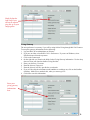
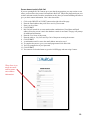
Report Permissions
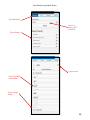
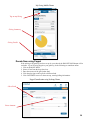
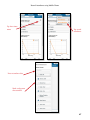
2. Giving Report – mark this box if the staff member will be allowed to view the Giving Report,
which shows the last 12 weeks of giving totals as well as a break down of totals by fund.
3. Giving Last Week – mark this box if the staff member will be allowed to view the Giving Last
Week report on the home page for staffConnect. This report shows Actual vs Budget amounts
for Last Week and Year to Date.
4. Attendance Report – mark this box if the staff member will be allowed to view the attendance
headcounts for the last 12 weeks.
5. Attendance Last Week – mark this box if the staff member will be allowed to view the
attendance counts from last week.
6. By Service – mark this box if the staff member is allowed to view worship service attendance
through the Attendance Report or Attendance Last Week.
7. All Departments or Select Departments – choose the Department attendance that the staff
member will be allowed to view in the Attendance Report and Attendance Last Week graph.
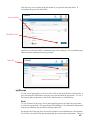
8. Combined Report - mark this box if the staff member will be allowed to view the Combined
report. This report graphs giving vs attendance. If the staff member does not have access
to the Giving Reports and Attendance Reports they will not be able to access the Combined
Report.
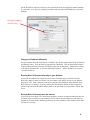
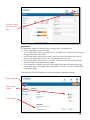
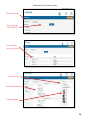
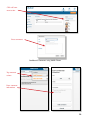
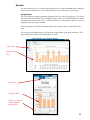
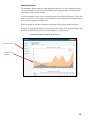
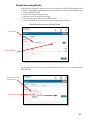
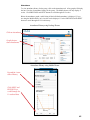
Click Permissions
menu
Choose Staff member
Mark permissions for that
staff member
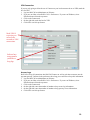
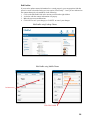
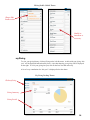
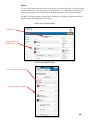
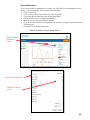
Profile Permissions
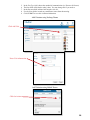
9. Can Edit Profiles – mark this box if the staff member will be allowed to update
congregational profile information such as address, phone etc.
10. View Visits – choose My Visits, All Visits or None based on the visitation information this
staff member will be able to access.
11. Add Visits – mark this box if this staff member will be allowed to enter visitation information.
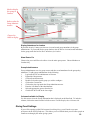
12. View Confidential Comments – mark this box if the staff member will be allowed to view
confidential comments.
13. Add Confidential Comments – mark this box if the staff member will be allowed to enter
confidential comments.
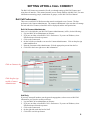
Click the SAVE CHANGES button when you have marked the appropriate permissions.
17