1
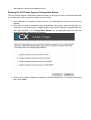
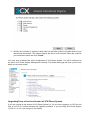
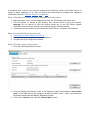
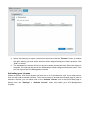
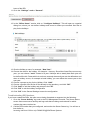
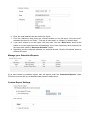
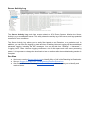
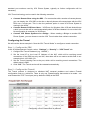
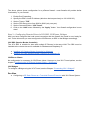
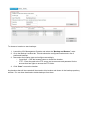
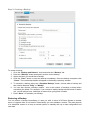
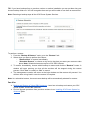
where “1000” is the internal number of the line configured to receive calls from the VoIP Gateway or VoIP Provider and <sip:789456123@3CXPhone System> i s the content of the “To” header of the INVITE, i.e. the intended recipient. (Note logging level should be set to Medium or Verbose to see additional messages.) 3. Now analyse the “ To ” header carefully and ensure that the DID number you have dialled is present in the “ To ” header: <sip:789456123@3CXPhone System>. 4. If you see a text ‘Review invite & adjust source identification’, you need to configure Source identification. See the chapter “ Configuring a VoIP Provider / SIP Trunk ” for more information. Exporting & Importing DIDs Exporting DIDs If you need to export your Inbound Rules to a .CSV file format to either save them as backup or to make changes to them, follow these steps: 1. Log into the 3CX Management Console. 2. Click on the “Inbound Rules” node and select the DID’s that you want to export. 3. Click on the “Export” button to begin exporting your DID rules. 4. Select a location and a file name for your exported DID rule file and click “ Save ”. Your rules will be exported and saved in the CSV file. Importing DIDs If you want to create multiple DID rules you can do so by creating the necessary fields on a CSV file using the correct format, then importing them back into 3CX by using the import function. To import your DIDs into 3CX from a CSV file follow these steps. 1. Log into the 3CX Management Console. 2. Click on the “Inbound Rules” node and click on the “Import” button. 3. Browse to the file that contains the DID rules that you want to import, select it and click “Open” . 4. The rules will be imported in 3CX Phone System. See Creating and Importing DIDs for more information. Caller ID Reformatting (Caller ID ReWrite) Here you can find more information about Caller ID Reformatting See Also ● ● ● See our Outbound Rules – A Complete Example of how to create an outbound rules See Configuring a VoIP Provider / SIP Trunk for more information on source identification. See how to create Extension Groups to add to outbound routes.