1
MOSFET Models
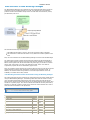
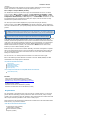
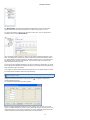
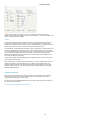
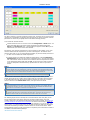
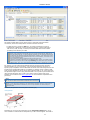
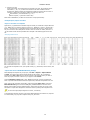
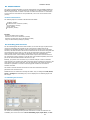
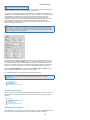
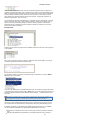
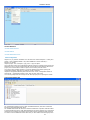
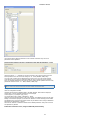
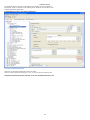
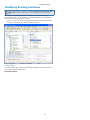
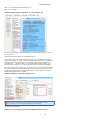
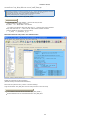
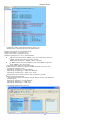
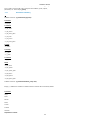
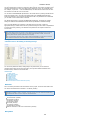
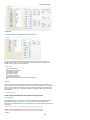
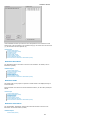
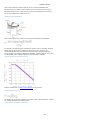
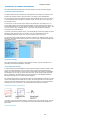
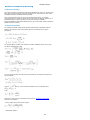
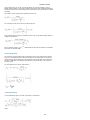
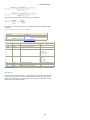
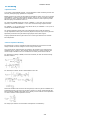
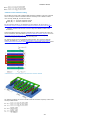
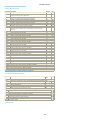
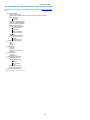
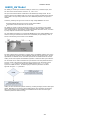
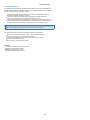
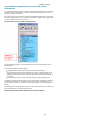
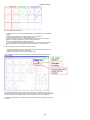
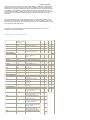
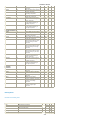
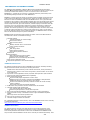
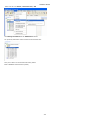
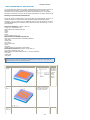
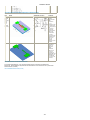
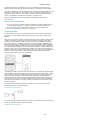
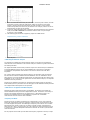
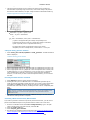
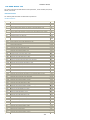
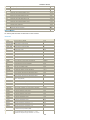
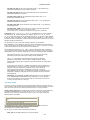
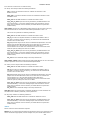
The Measurement node shows the predefined measurement sets as well as setups
already selected for the specific measurement. To add a setup, click the + icon.
You will be prompted to select a setup and enter a name for it. The new setup will be
included in the tree below Measurement.
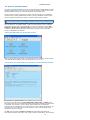
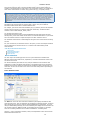
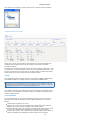
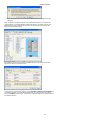
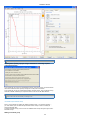
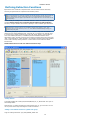
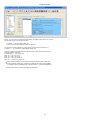
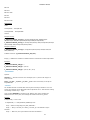
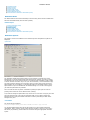
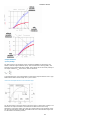
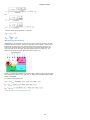
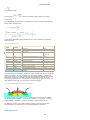
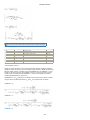
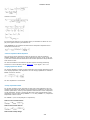
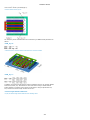
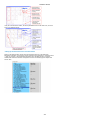
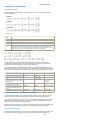
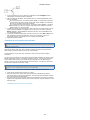
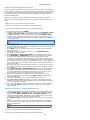
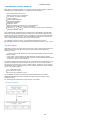
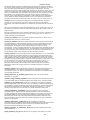
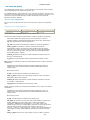
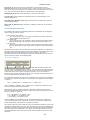
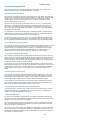
There are fields named Compliance, where you may define compliance settings for your
SMU. The settings are in Ampere (A) and are valid for all measurements defined. That is,
you cannot define a compliance setting for the drain voltage source in one measurement
and another one for the next measurement. The values are shown for reference only
inside the different measurements.
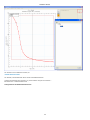
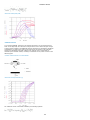
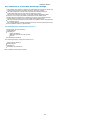
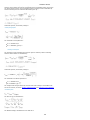
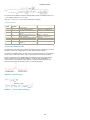
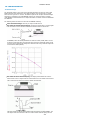
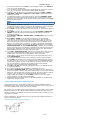
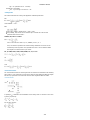
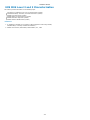
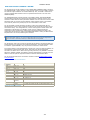
To the right of the compliance definition area, there is a field to be activated if you would
like to use the Safe Operation Area (SOA), limiting the power delivered by the SMU to the
drain of the DUT. There are choices
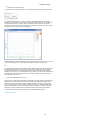
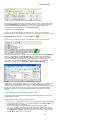
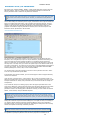
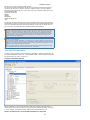
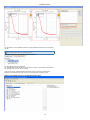
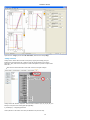
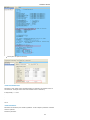
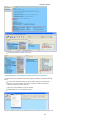
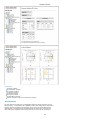
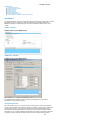
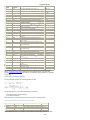
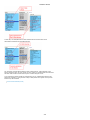
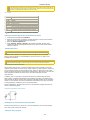
If you select one of the measurement setups inside the tree, the folder changes to reflect
the measurement conditions valid for the selected setup.
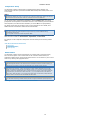
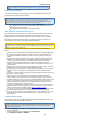
Setups not assigned to a Measurement Set will be deleted on opening a project! The same is valid for
Measurement Sets not used!
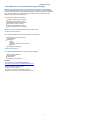
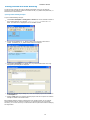
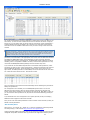
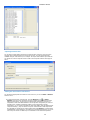
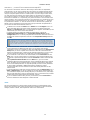
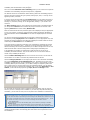
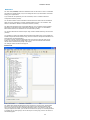
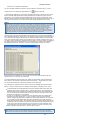
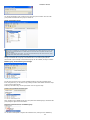
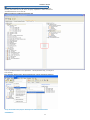
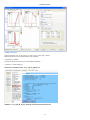
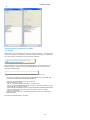
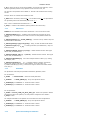
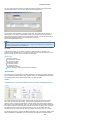
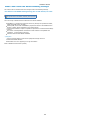
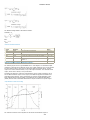
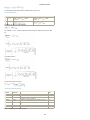
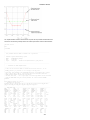
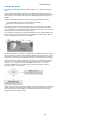
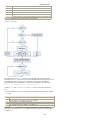
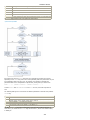
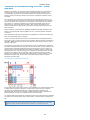
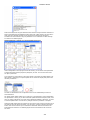
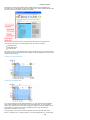
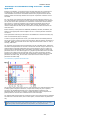
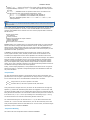
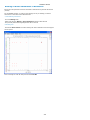
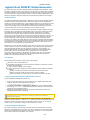
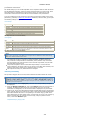
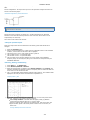
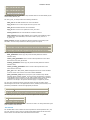
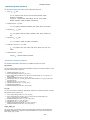
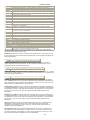
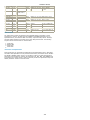
To assign a setup to a Measurement Set, select Measurements from the tree. Now you can
configure the measurement sets by clicking the icon
Configure Measurement Set.
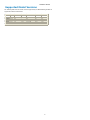
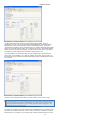
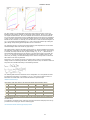
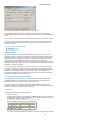
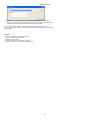
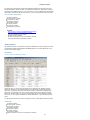
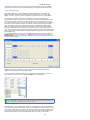
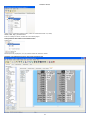
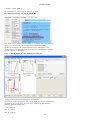
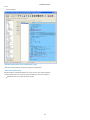
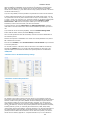
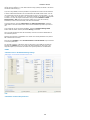
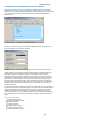
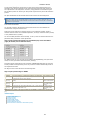
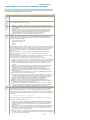
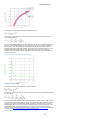
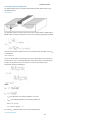
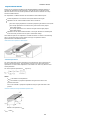
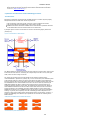
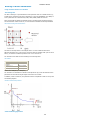
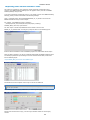
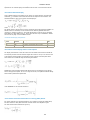
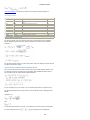
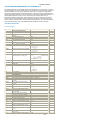
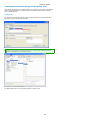
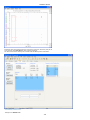
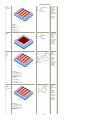
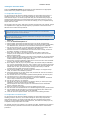
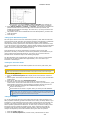
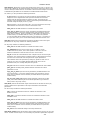
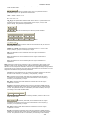
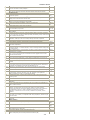
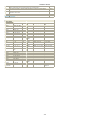
The Configure Measurement Set window appears.
or selecting Configuration >
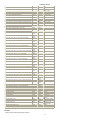
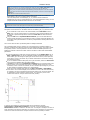
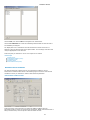
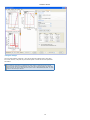
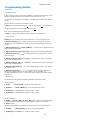
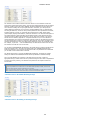
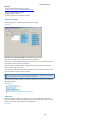
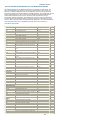
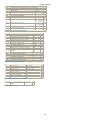
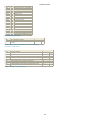
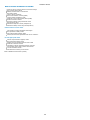
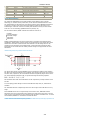
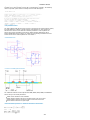
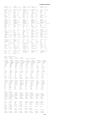
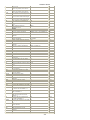
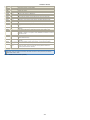
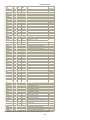
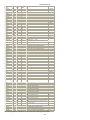
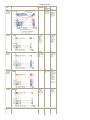
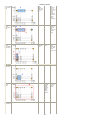
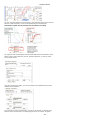
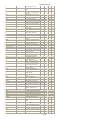
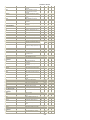
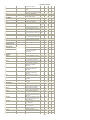
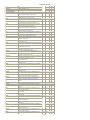
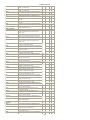
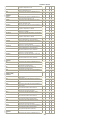
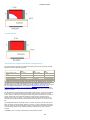
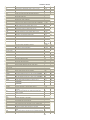
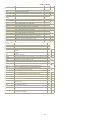
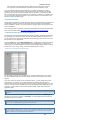
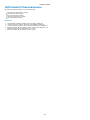
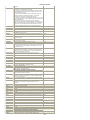
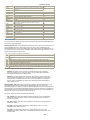
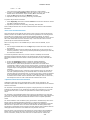
Add your setups to predefined measurement sets or define your own sets. As you will
notice, the default settings are greyed out, they cannot be changed. However, there is an
unlock field where you can remove the locking. You will be noted that devices cannot be
used for extraction if idvd and idvg measurements are not performed.
17