1
Chapter
Configuring the Wireless Device
Upgrading to Cisco Unified Software
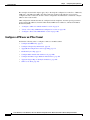
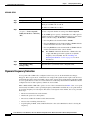
For more information about the WLC discovery process, see Cisco Wireless LAN Configuration Guide
at Cisco.com:
http://www.cisco.com/en/US/docs/wireless/controller/4.0/configuration/guide/ccfig40.html
Prior to the Upgrade
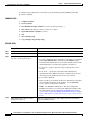
Perform the following steps.
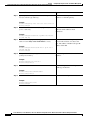
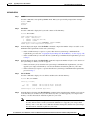
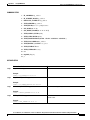
1.
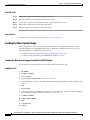
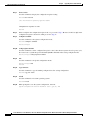
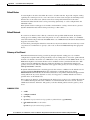
Ping the WLC from the router to confirm IP connectivity.
2.
Enter the service-module wlan-ap 0 session command to establish a session with the access point.
3.
Confirm that the access point is running an autonomous boot image.
4.
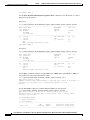
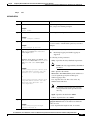
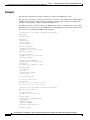
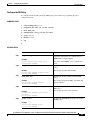
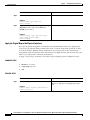
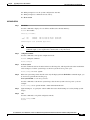
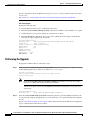
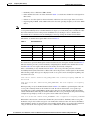
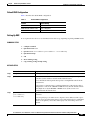
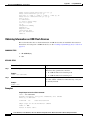
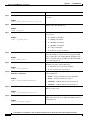
Enter the show boot command on the access point to confirm the mode setting is enabled. The
following is sample output for the command:
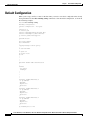
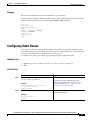
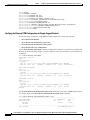
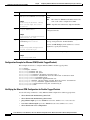
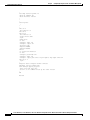
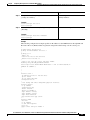
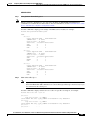
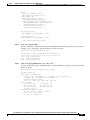
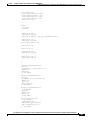
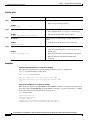
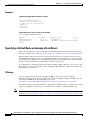
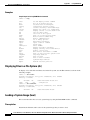
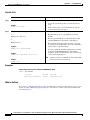
Autonomous-AP# show boot
BOOT path-list:
flash:ap801-k9w7-mx.124-10b.JA3/ap801-k9w7-mx.124-10b.JA3
Config file:
flash:/config.txt
Private Config file: flash:/private-config
Enable Break:
yes
Manual Boot:
yes
HELPER path-list:
NVRAM/Config file
buffer size:
32768
Mode Button:
on
Performing the Upgrade
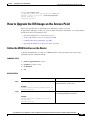
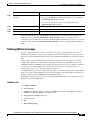
To upgrade to Unified software, follow these steps:
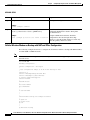
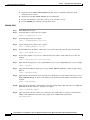
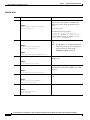
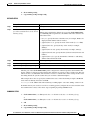
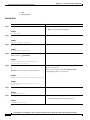
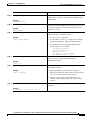
Step 1
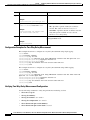
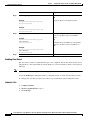
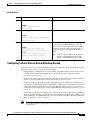
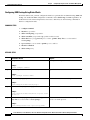
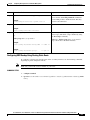
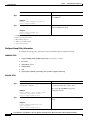
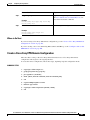
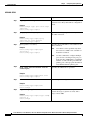
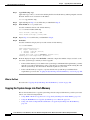
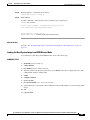
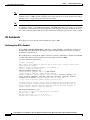
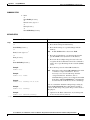
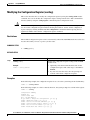
Issue the service-module wlan-ap 0 bootimage unified command to change the access point boot image
to the Unified upgrade image, which is also known as a recovery image.
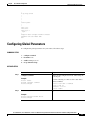
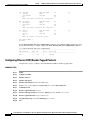
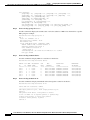
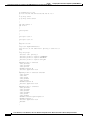
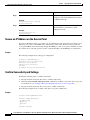
Router# conf terminal
Router(config)# service-module wlan-ap 0 bootimage unified
Router(config)# end
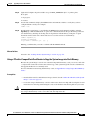
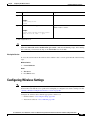
Note
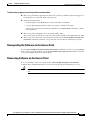
If the service-module wlan-ap 0 bootimage unified command does not work successfully,
check to see whether the software license is still eligible.
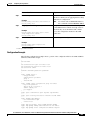
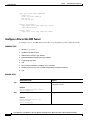
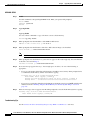
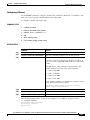
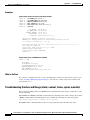
On the access point console, use the show boot command to identify the access point’s boot
image path:
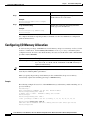
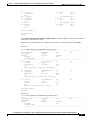
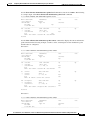
autonomous-AP# show boot
BOOT path-list:
flash:/ap801-rcvk9w8-mx/ap801-rcvk9w8-mx
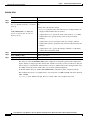
Step 2
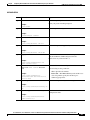
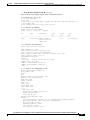
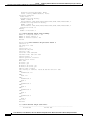
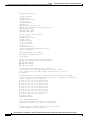
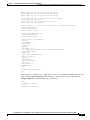
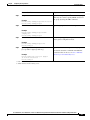
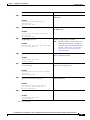
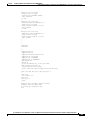
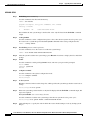
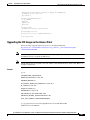
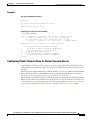
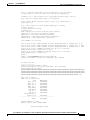
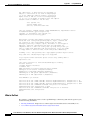
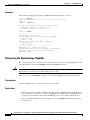
Issue the service-module wlan-ap 0 reload command to perform a graceful shutdown and reboot the
access point and complete the upgrade process. Session into the access point and monitor the upgrade
process.
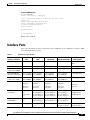
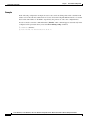
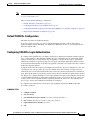
See the “Cisco Express Setup” section on page 210 for details about using the Web-based configuration
page to configure the wireless device settings.
216
Cisco 3900 Series, Cisco 2900 Series, and Cisco 1900 Series Integrated Services Routers Generation 2 Software Configuration Guide
OL-20696-04