1
Appendix B: Abaqus/CAE: A BASIC TUTORIAL
2
3
1
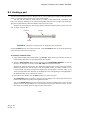
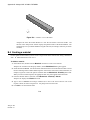
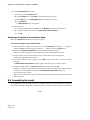
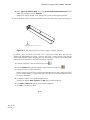
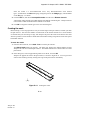
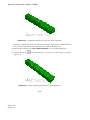
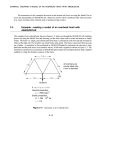
Figure B–6
Isometric view of the beam.
Abaqus/CAE stores the model database in a new file and returns to the Part module. The
title bar of the Abaqus/CAE window displays the path and name of the model database. You
should always save your model database at regular intervals (for example, each time you switch
modules).
B.4 Creating a material
For the cantilever beam tutorial you will create a single linear elastic material with Young’s modulus of
209 × 103 MPa and Poisson’s ratio of 0.3.
To define a material:
1. In the Model Tree, double-click the Materials container to create a new material.
Abaqus/CAE switches to the Property module, and the Edit Material dialog box appears.
2. Name the material Steel. Use the menu bar under the browser area of the material editor to reveal
menus containing all the available material options. Some of the menu items contain submenus; for
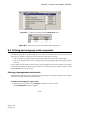
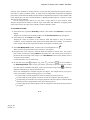
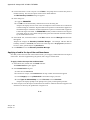
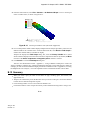
example, Figure B–7 shows the options available under the Mechanical→Elasticity menu item.
When you select a material option, the appropriate data entry form appears below the menu.
3. From the material editor’s menu bar, select Mechanical→Elasticity→Elastic.
Abaqus/CAE displays the Elastic data form.
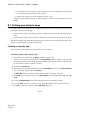
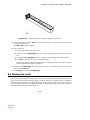
4. Type a value of 209.E3 for Young’s modulus and a value of 0.3 for Poisson’s ratio in the
respective fields, as shown in Figure B–8. Use [Tab] to move between cells.
5. Click OK to exit the material editor.
B–8
Abaqus ID:
Printed on: