1
7 Automatic Firmware Upgrade
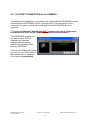
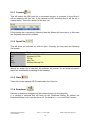
When you connect (see section 5.3.1) to the camera for the First time after installing
new software it may also be necessary for some, or all, of the camera FIRMWARE to
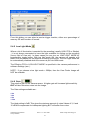
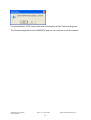
be upgraded. If this is the case then you will see the Firmware Upgrade window
appear as shown below :
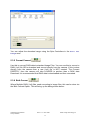
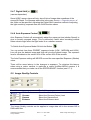
To proceed with the Firmware Upgrade you should press OK. If you CANCEL the
process at this stage then the camera may not function correctly. In most cases,
unless instructed otherwise by a NAC engineer, you should press OK.
The Software will now check which firmware requires and update and will also verify
that the correct firmware upgrade is available.
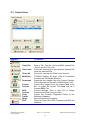
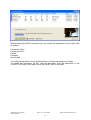
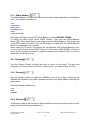
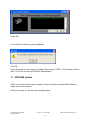
One it is ready to perform the upgrade you will see a confirmation message. This is
the final opportunity to cancel the Firmware Upgrade. The Confirmation message is
shown below.
At this point you MUST make sure the power to the camera is secure. If you are
using BATTERY power you should NOT PROCEED with the upgrade and should re
start the process using MAINS power.
After Clicking OK the Upgrade process begins
HotShot SC User Manual
Jimmy Robinson
Rev 1.1.1.9 –Nov 2008
52
© NAC Image Technology Inc