1
TimeStorm User’s Manual
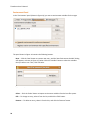
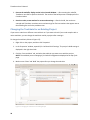
Setting up a target requires information for the following three tabs:
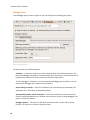
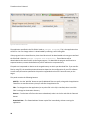
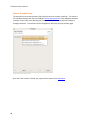
TAB 1: Download — How to download files to the target (shown in Figure 7),
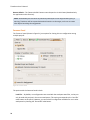
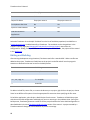
TAB 2: Execute — How to communicate to execute on the target (shown in Figure 8) and
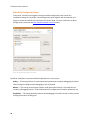
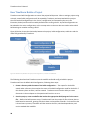
TAB 3: Raw Log — How to test the connectivity between the host and the target (shown in Figure 9).
TAB 1: Download
TimeStorm allows files to be downloaded to the target in a few different methods. You will be
prompted to select one of the options below.
FTP – Files will be downloaded from the host to the target using FTP.
SCP – Files will be downloaded from the host to the target using SCP.
NFS – TimeStorm will copy the files locally in the target Root File System (RFS) mounted over
NFS.
None – The host will be connected to the target, but no data will be downloaded. You can then
do any needed downloading using the console.
FTP/SCP Settings
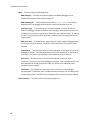
The corresponding fields for both the FTP and SCP options (shown in Figure 7) are as follows:
IP Address — Enter either the IP address or the hostname of the target. If you use a
hostname, your network must include access to a Domain Name Server (DNS) lookup
facility.
User Name — Enter the user name for FTP or SCP login on the target, as appropriate.
Password — Enter a non-blank password for FTP or SCP login, as appropriate.
Destination Directory — Enter the path to which the files will be transferred on the target.
FTP settings sometimes restrict the location of files copied to a directory under the home
directory of the user. Therefore, the actual destination directory depends on the
configuration of your FTP software. In some cases, directories specified in this panel are
appended to the user’s home directory on the target. Ensure the user name that you
specified has read/write permissions to the destination directory.
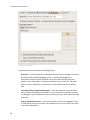
Link to Execution — When this checkbox is selected, all of the information listed in the fields
corresponding to the FTP or SCP option is automatically entered into the fields in the
Execute tab. Those fields are not editable in the ‘Execute’ tab when this checkbox is
16