1
Lock Keys
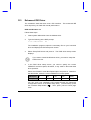
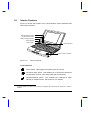
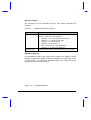
The keyboard has three lock keys which you can toggle on and off. When
you activate a lock key, the corresponding LED lights up.
Table 1-2
Lock Key Descriptions
Key
Description
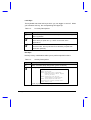
@
When the Caps Lock indicator is on, all alphabetic characters typed
are in uppercase.
-[
When the Scroll Lock indicator is on, the screen moves one line up or
down when you press w or y. It does not work with some
applications.
-]
When the Num Lock indicator is on, the embedded keypad is in
numeric mode. The keys function as a calculator (complete with
arithmetic operators).
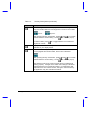
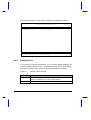
Hot Keys
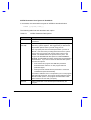
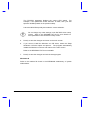
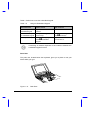
Hot keys or key combinations allow you to perform special functions.
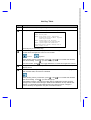
Table 1-3
Hot Key Descriptions
Key
Description
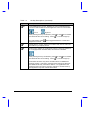
m
Setup Accesses Setup during POST (power-on self test).
-l
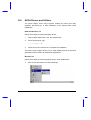
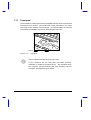
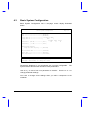
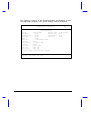
Hotkey Help Displays a list and description of all hot keys.
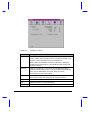
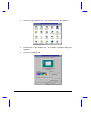
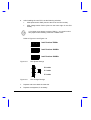
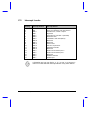
Hotkey Help
<Fn><F1>
This help screen.
<Fn><F2>
Adjusts display controls.
Toggle between
brightness and contrast for STN LCD.
control only for TFT LCD.
Brightness
<Fn><F3>
Switches display to LCD, CRT or Both.
(Some LCD displays do not support Both mode)
<Fn><F5>
(Optional) Adjusts audio volume control.
Press <Fn><Left arrow> to decrease, <Fn><Right arrow> to
increase, <Fn><Esc> to close.
Press any key to exit hotkey help.
Getting Started
1-19