1
159
You can include Vector AM tokens in the
LULOGON command line. For example, the
following command line specifies the access
details for Client PCs:
•
Persistent drive mappings that attempt to
access an unavailable server or that require a
changed password.
LULOGON /INSTALL “$ACCOUNT$” /MESSAGE
/LOCKOUT
Any of these problems can cause an installation
failure. If the failure occurs when the Client’s
keyboard and mouse are locked, use the following
method to restore the PC.
Using LULOGON on Windows 95, 98 and Me
1 On another PC, run RegEdit.
LULOGON operates without problems on
Windows 95, 98 and Me Clients, enabling you to
distribute MSI packages to these platforms using
the same Package Definitions. (However, you
should always test such distributions before
deployment.)
2 Choose Connect Network Registry in the
Registry menu to open the input-locked PC’s
Registry.
Troubleshooting Windows Installer Installations
During a Windows Installer installation, the Client
is normally rebooted twice. The LULOGON
command disables the Client’s keyboard and
mouse following the first reboot, while the
Windows Installer installation is carried out using a
privileged user login. When the Client PC is
automatically rebooted again, keyboard and
mouse input is restored.
Problems with a Windows Installer installation,
particularly during the input-lockout session, can
occur for the following reasons:
•
3 Locate the following Registry Key:
HKEY_LOCAL_MACHINE\SYSTEM\
CurrentControlSet\Services\Kbdclass.
Change the Start value to 1 to enable keyboard
input.
4 Locate the following Registry Key:
HKEY_LOCAL_MACHINE\SYSTEM\
CurrentControlSet\Services\Mouclass.
Change the Start value to 1 to enable it.
5 Choose Disconnect Network Registry in the
Registry menu to close the remote connection,
then exit RegEdit.
6 Reboot the locked PC using a remote shutdown
utility, or by manually switching it off and on.
The PC should now be unlocked.
The Windows Installer installation has tried to
use an incorrect or out-of-date password.
Always check the user name and password
used to connect to the Administrative Installation Point kit before performing an installation.
This procedure does not guarantee recovery in all
situations and is provided for illustration only.
•
The appearance of unexpected dialogs that
require user input, such as notice messages
about software licensing.
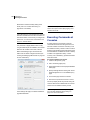
Saving Package Definitions
•
Unexpected messages that require a response,
such as anti-virus software notices.
After creating or modifying a Package Definition,
click the Save button in the toolbar to save your
changes. Alternatively, if you click another