1
Introduction
The remote control software allows to connect one or more multimeter-DMG series multimeters (DMK32,
DMK62, DMK40, DMK22, DMK52, DMG210, DMG300, DMG700, DMG800) to one PC, and provides the
following functions:
• Graphically show the measures read from the multimeters, in the form of ‘virtual’ instruments (gauges,
bar graphs, displays, counters and more).
• Periodically sample a set of measurements defined by the user and save them on disk in different
formats (MS-Access, ASCII text, MS-Excel).
• Periodically sample the multimeter energy meters value and save them in a database. Automatically
calculate the energy consumption between on sample and the following.
• Plot graphs of the sampled measures.
• Apply alarm thresholds to the sampled measures.
• Save on disk the alarm and event sequence happened in the multimeters network.
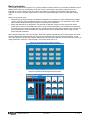
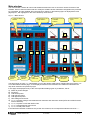
• Show a ‘virtual’ front panel of the multimeter, with the possibility to view all the readings and to click on
the pushbuttons.
• Show, modify, save on disk, reload and print the multimeter setup settings.
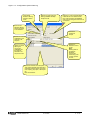
• Display a graph of the voltage and current harmonic content, using the FFT readings supplied by the
multimeter.
• Customize the software pages, inserting indicators linked to measurements, background pictures, fixed
texts, command buttons and more.
• Change the language of the software menus and commands, selecting among Italian, English, French,
German and Spanish.
Minimum PC hardware requirements
•
•
•
•
•
•
Windows 95/98/2000/XP operative system.
Graphic card with minimum resolution of 800x600, 1024x768 or more recommended.
One free serial interface port (COM:)
64Mb of RAM
Pentium-like processor or faster
CD-ROM drive for installation
Installation
To proceed with the installation, it is necessary that the PC is already working with the operative system and
to have the CD ROM for the software setup.
It is also recommended that the user has at least a minimum experience with PCs and Windows
environment.
To install the software:
1.
2.
3.
4.
Close all active applications
Insert the CD in the drive and wait for its recognition.
Launch Setup.exe.
A dialog box will appear asking for the directory where to install the program. State the new name, if any,
in the space.
5. Follow the step-by-step instructions
6. If at the end of setup process the installation program asks to reboot the Pc, execute this procedure.
MSGB105$0500.doc
30.10.2009
P. 2 / 39