1
Communication menu
Online
The Communication-Online menu allows to re-establish the serial link after it has been stopped by the user
with the Offline command. When clicking Online, the software executes a complete scan of all configured
multimeter, to verify their status.
Offline
With communication-Offline the user has the possibility to temporarily suspend the serial communication link
between the PC and the multimeter network. When the software is in Offline mode, all indicators are shown
in a disabled status and Alarm checking and Data log are suspended.
This command is to be used when, for instance, it is necessary to modify the network wiring or when
multimeter are to be switched off. The System Offline status is displayed on the main page Toolbar (at the
bottom of the main window).
The system passes automatically in Offline mode when the user opens the Configuration window or the
Page editor.
Modem Call
To connect to one or several multimeter via a couple of modems, it is necessary to select the Modem
connection checkbox in the Configuration-Options-General window. Selecting modem communication will
automatically change the communication protocol used by the software, from the standard Modbus RTU to
Modbus ASCII, which can be used with modems. From the user point of view, the difference between those
two protocols is only a little slower speed in case of the ASCII protocol, due to its length that is double than
the RTU and the modem modulation that requires also a certain amount of time.
When the program is configured for modem communication (see Configuration-Options-General window) it
automatically shows the modem call dialog after it has been started, because it is not possible to
communicate with the multimeter before dialing the phone number of the remote modem. The same window
can be opened manually using Communication-Modem call menu or the dedicated pushbutton on the
toolbar.
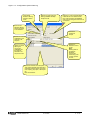
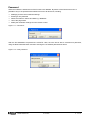
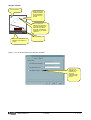
Figure 8.3 - Communication-Modem call
Once the window illustrated has been opened, from the pull-down box choose the name of the installation
with which you want to be connected. The names entered in the Modem index during configuration will be
displayed. Once the choice has been made, the corresponding phone number appears in the box below.
Click the Dial button to start the connection procedure.
At this point the program will instruct the modem to make the call. While waiting, the sliding blue bar of the
maximum time allowed for making the connection will be seen (1 minute). The modem called will take the
line and exchange the usual handshaking messages with the answering modem. At the end of this
procedure, if everything has been carried out correctly, the PC status bar will show a message informing the
user that connection has taken place and the program will switch automatically to the Online mode. If any
errors occur, carefully check the connections and if necessary follow the Troubleshooting guide given in
appendix A of this manual. Normally connection is not critical since very common and absolutely standard
procedures are used. With the Break button it is possible to block the calling procedure, while Hang up ends
a communication already in progress.
Hang up
This command interrupts a modem connection, closing the telephone line. It is the equivalent of hanging up
the handset in an ordinary phone call. It is carried out automatically every time you exit the program.
MSGB105$0500.doc
30.10.2009
P. 20 / 39