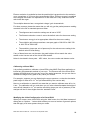
1
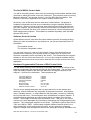
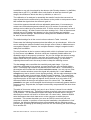
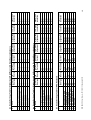
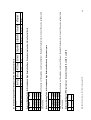
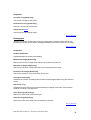
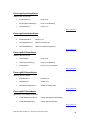
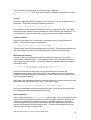
│ └DigitalPort
└TotalPressure
RGAConnection
This is the starting point for all interaction between an application and the RGA. In order to
make the component easy to use in as many languages as possible all events for all of the
RGA objects are fired from this object. The CLASSID of the object is
RGAComms.RGAConnection, the following code snippets show how to create the object in
various languages.
VB (ensure the DLL is added to the references for the project)
Dim WithEvents myRGA As RGAConnection
Set myRGA = New RGAConnection
myRGA.Connect(“127.0.0.1”)
VBScript (running under WScript)
Dim myRGA
Set myRGA = WScript.CreateObject(“RGAComms.RGAConnection”,”myRGA_”)
myRGA.Connect(“127.0.0.1”)
Sub myRGA_Connected(bConnected)
If bConnected Then
MsgBox “Connected successfully to sensor at 127.0.0.1”
Else
MsgBox “Failed to connect to sensor 127.0.0.1”
End If
End Sub
C++ (using Visual C++ with COM smart pointers)
#import "RGAComms.dll"
using namespace RGACommsLib;
IRGAConnectionPtr pRGAConnection;
HRESULT hRes = pRGAConnection.CreateInstance(__uuidof(RGAConnection));
if(hRes==S_OK)
{
printf(“Created RGAConnection object OK\n”);
}
else
{
printf(“Failed to create RGAConnection [0x%x]\n”,hRes);
}
Back to Object tree
Properties
SelectedSensor As RGASensor [Read-Only]
The selected sensor if the connection is to a sensor server, or the actual sensor if the
connection is to a dedicated sensor like eVision or MicroVisionIP. Upon connecting to a
sensor server this property will be NULL and the program must decide which sensor to select
by checking the SensorCount, SensorSerialNo and SensorName properties. Having decided
which sensor to select the Select method should be used to select the sensor for this
connection.
MKS RGA SDK User Manual – SP104015.100 September 2005
24