1
Pharmacy Plus Software
Copyright © 2006
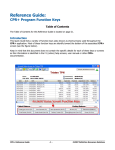
[F6] – REFILLS PENDING SCREEN
By pressing the [F6] “The Refill key”, we can view and/or refill prescriptions or partial quantities remaining.
To select a Prescription, press the [Enter] key. Once you have selected all the Rx from the pending refills, the Rx
information will be summarized.
On a refill practically all of the information is already filled, including any price adjustments since the last fill.
However, you can always change any information. Once you are done entering prescriptions/refills, press [F10] key
to save and print your work.
Note: “Original” is the date of the original Rx, “Refilled” is the date of the last refill, “LPrice” is the price changed on the last refill, “RL” is the
number or Refills Remaining, a + in this column represents unit quantities pending.
[F7] SUBSTITUTE
You can request to see all substitutes of the drug highlighted by pressing the [F7] key or if the drug
selected is a BRANDED drug the system will ask if you would like to see a list of substitutes available. The
substitute list contains inventory on-hand quantity and comparables as a percent of savings against the
drug you had originally selected.
[F8] SWITCH
Use the Switch key [F8] to quickly switch to work with another patient while you are in the middle of
entering prescription(s). Two switch options are available as follows:
1. You can request to view another patient’s history. This can be used to quickly answer a patients
question by reviewing the patient’s history. Once you are done, the system will take you right back to
where you were.
2. You can request to place the entire screen on hold (all the prescriptions you are currently working with)
in order to be able to work with another more urgent patient. Later you can re-call the work placed on
hold by selecting your work from the “modify prescription” screen (follow the screen prompt).
Tip: There is no limit to the number of work you can place on hold.
8