1
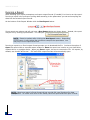
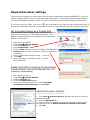
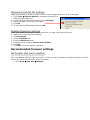
Required browser settings There are three changes you must make to your browser settings before using WebFOCUS on a non Columbia College computer. This will ensure the best performance. All settings are applied automatically for Columbia College computers. When using IE 7.0 or above you may need to display the Menu bar. If your Menu bar isn't visible, click on the Tools drop-down arrow (near the upper-right-hand corner of the browser) and select Menu bar. A check mark next to an item indicates that the menus are turned on. Set Columbia College as a Trusted Site You must add Columbia College as a trusted site in Internet Explorer for reports to pull valid and accurate data. Not adding Columbia College as a trusted site may cause report data to be inaccurate. 1. 2. 3. 4. 5. 6. Open Internet Explorer. Click Tools Internet Options. Click the Security tab. Click Trusted Sites. Click the Sites button to open the Trusted Sites dialog box. Uncheck Require server verification (https://) for all sites in this zone. 7. In the Trusted Sites dialog box type: *.ccis.edu 8. Click Add. 9. Under Websites you should now see *.ccis.edu as a trusted site. Enable automatic prompting for Downloads Internet Explorer may block downloads from automatically downloading. 1. 2. 3. 4. 5. Open Internet Explorer Click Tools Internet Options. Click the Security tab. Click the Custom Level button. Scroll to the Downloads Section. Under Automatic prompting for file downloads, select Enable. Advanced browser settings 1. Click Tools Internet Options. Windows will open the Internet Options dialog box. 2. Click the Advanced Tab. 3. Scroll through the Settings list and in the Browser section select the check box next to Reuse windows for launching shortcuts. 4. Click OK.