1
8. SPECIFIC OPERATION GUIDES
BMW
How to control
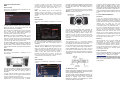
The menu of the Gateway 500s is displayed on the
iDrive or the radio screen.
In order to select a menu item, press and hold
(about 3 seconds) the next track ( |) button. You
can get back to the previous menu level if you do
the same procedure with previous back (| ) button.
Note: The Gateway menu can be reached by
‘Magaz.’ button as well where you can use side
navigation buttons also however for browsing and
selecting the same buttons needs to be used as
above.
The music playback and settings are controlled from
the radio, but it is also possible to select the next or
the previous track from the steering wheel (if
available).
You can enter the Gateway main menu by selecting
‘Changer’ by the upper side button and then select
‘Menu’ by using the rotary knob.
11. DISCLAIMER AND WARRANTY
Disclaimer
Porsche
If your car’s electrical system begins to behave
erratically, please disconnect the Gateway interface
physically immediately and have it checked by your
installer. Dension and its authorized distributors and
retailers are not liable for any incidental
consequential or indirect damages or loss and do
not assume liability for any diagnostic fees.
How to control
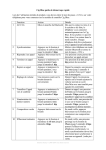
The menu of the Gateway is displayed on the PCM
radio.
The music playback and settings are controlled from
the radio or iDrive controller, but it is also possible to
select the next or the previous track from the
steering wheel buttons (if available).
Turn left or right the MMI rotary controller for
browsing. Press the same button to select a song or
enter a menu. Alternatively you can use the next
track (>) button to enter or select, if hold it for 3
seconds. You can get back to the previous menu
level, if you select the first menu item in the list (at
the top) or if you press and hold the previous track
(<)button.
You can enter the Gateway main menu by selecting
disc 6 where you can toggles between different
sources or browse and select different music. For
more information, please Check section #5.
Browsing is possible on non-iDrive cars, by the
next or previous track buttons. In order to select a
menu item, press and hold the Fast Forward button
(about 3 seconds). Press and hold the Fast Rewind
if you want to get back to the previous menu.
On iDrive based system turn the iDrive controller left
or right for browsing. Press the iDrive to select a
song or enter a menu, slide the controller UP and
push the iDrive controller to get back to the previous
menu.
Mercedes-Benz
How to control
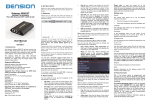
The menu of the Gateway is displayed on the
Comand radio. .
The music playback and settings are controlled from
the radio, but it is also possible to select the next or
the previous track from the steering wheel (if
available).
You can enter the Gateway main menu by selecting
‘CD List’ and then ‘Menu’ by the right rotary knob.
When you entered to the Gateway Menu you can
Toggle between the different menu options by the
next (>) or previous track (<) buttons. In order to
select a menu item, press and hold (about 3
seconds) the next track (>) button. You can get
back to the previous menu level if you do the same
procedure with previous back (<) button.
9. CONNECTOR PORT
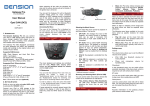
The Connector Port is a convenient glovebox
mounted port for USB and AUX input (3.5mm) and it
has a MODE selector switch and a reset button.
Use the Mode selector button and set Bypass mode
to reach the original CD-Changer functionalities if
present. Please note: You don’t need to use that
mode button on Audi with MMI High (colour) system.
The Connector Port has a reset button for the rare
occasion when a full hardware reset of the Gateway
is necessary.
How to control
The menu of the Gateway is displayed on the MMI
screen.
You can enter the Gateway main menu by pressing
the disc 6 where you can toggles between different
sources or browse by artist, album etc.
Toggling between different menu options is possible
with the next ( |) or previous track (| ) buttons.
The use of handheld devices while driving may be
subject to government legislation. Please ensure
that your use of the Dension device complies with
applicable traffic laws. Dension does not assume
liability for any events resulting from the illegal or
irresponsible use of handheld devices while driving.
Dension reserves the right to modify its products or
specifications without prior notice.
Warranty
Dension devices carry a one-year limited warranty
that protects you from defects in material and
workmanship of products sold by Dension or its
authorized distributors and retailers. Dension does
not warrant any installation work or assume liability
for any damage caused due to negligence, improper
installation or operation. For warranty claims, proof
of purchase is required
Further assistance
If you need further assistance in using your Dension
product, please contact your local supplier or visit
www.dension.com and click on ‘Support’.
Please check the download section for the latest
firmware version and product documentation, as
these may provide additional features or easier use
of the product.
AUDI
The music playback and settings are controlled from
the radio, but it is also possible to select the next or
the previous track from the steering wheel (if
available).
In order to switch to Bypass mode, turn the mode
selector button to Bypass, then fully turn off the
engine remove the ignition key and wait for the
electronics to switch off completely (Blue LED on the
Connector Port turns OFF). To get back to Active
mode, turn everything off completely till the car goes
to sleep and select Active mode on the Connector
Port.
10. SERVICING A CAR
MOST optical system based vehicles have complex
system management capabilities, and servicing may
involve using a diagnostic computer.
To avoid conflict with such diagnostics devices, you
can use the switch on the Connector Port to put the
Gateway in Bypass mode, which temporarily
disables the operation of the Gateway. For normal
use put the switch to Active mode.