1
Displaying the Teacher Screen on the students’ screens
This function will allow you to display the teacher PC screen onto the students’ screens. It is
very useful if you want the students to work on an Internet page without having access to
the Internet for instance. During the broadcasting, the students’ mouse and keyboard are
blocked.
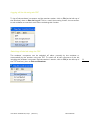
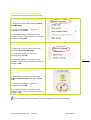
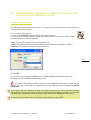
x To show your screen to one student
1. Right-click on the student desk and select
Show screen.
2. To stop showing your screen, deselect
Show Screen from the same menu.
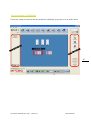
x To send your screen to a group
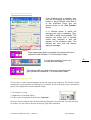
1. Right-click on the Group functions bar
and select Screen To Group.
20
2. To stop the function, deselect Screen To
Group from the same menu.
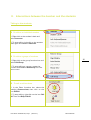
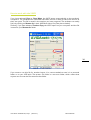
x To send your screen to all students
1. Select the heading Communicate in the
Class functions bar, then click on Screen To
All.
2. To stop the function, right-click on Screen
To All, then click Release Screen To All.
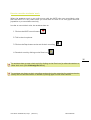
In all cases described above the student desk icons change to indicate that they are
receiving the function.
User Manual AVIDAnet 350/ Tenjin
(version1.2)
Televic Education