1
G E E V S
S E R V E R
&
C L I E N T
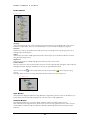
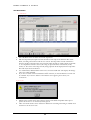
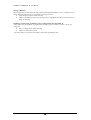
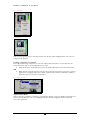
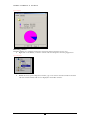
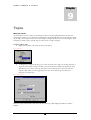
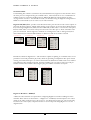
Folders Window
Fig. 6 Tree View
All Clips
This is the master Clip store, where all video Clips on the disks are viewed. Within this section, there
will also be Clip Folders. These are user-defined and are used for media management purposes.
Searches
Searches are used for the quick location and retrieval of stored Clips and to speed up the process of
making Tapes and Sequences.
Tapes
Virtual Tapes are used in VTR replacement mode. Virtual Tapes are controlled via Remote Control
using Sony RS-422 protocol.
Sequences
Sequences are used for multiple Clip playback with loop and event controls.
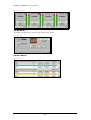
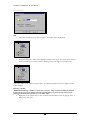
Current Folder
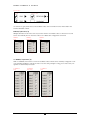
Shown as a blue icon, the Current Folder is where any newly captured Clips will appear. These will still
be displayed within All Clips, and Folders are merely an organisational method.
is where Clips are being
Note: Current Folder is where Clips will be stored; an open Folder
viewed.
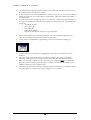
Sub Clips will be saved to a location determined in Client Preferences. See Chapter-15
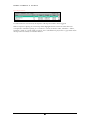
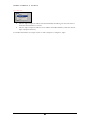
Fig. 7 Make Current
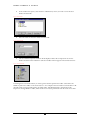
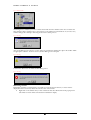
Clips Window
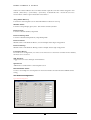
The information displayed within the Clips Window is dependent upon the nature of the Directory or
Folder being viewed and is fully detailed in the relevant section of this publication.
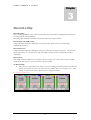
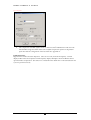
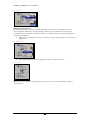
Channels Window
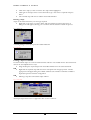
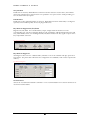
This Window displays the currently available Channels within GeeVS™ and their status.
Each Channel has an assigned colour, which can be seen in the top right hand corner, and is used as a
visual indication within the Clip and Sequence Windows indicating which Channel a Clip has been
loaded to.
5