1
Visual Data Editor
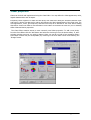
Mostly the measurement data stored in the database is automatically collected without any human
intervention. It could however, that those measurements are not what they supposed to be, because
of equipment malfunctioning or any other exceptional reason. The ‘Visual Data Editor’ can be used to
manually correct your measurements quick and easily in a graphical manner.
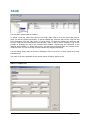
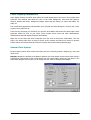
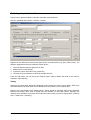
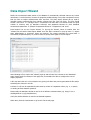
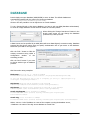
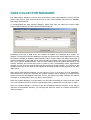
Each location has its own ‘Editor’. To pop-up the ‘Editor’, select a location from the ‘Location’-list and
select ‘Visual Data Editor’ from the ‘Edit->Locations’ or pop-up menu. To edit data, administrator or
supervisor rights are required.
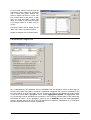
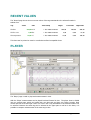
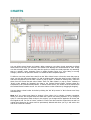
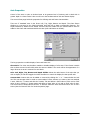
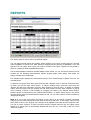
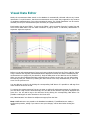
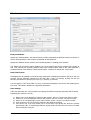
Before you can edit measurements of a tag you have to select the tag from the ‘Tag to edit’ list. When
a tag is selected the originally collected data will be displayed as a blue line and the modified/current
measurements as a purple line (the data line). Only the data points of the data line can be modified.
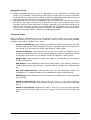
When you are done modifying/verifying a tag and want to continue to the next, you can either select
the next tag with your mouse or by clicking the ‘Alt’ & ‘Down arrow’ keys simultaneously or ‘All’ & ‘Up
arrow’ for the previous one.
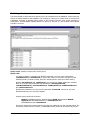
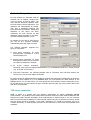
You can add tags to the list by clicking the corresponding ‘Add’-button. It’s possible to add tags from
other locations to the list as well.
To compare the measurements of the tag you want to edit/verify with measurements of a similar tag,
you can select a tag from the ‘Reference tag’ list. The data of the reference tag will be displayed as a
green line. You can add a tag to the reference list by clicking the corresponding ‘Add’-button. Its
possible to add tags from other locations to the list as well
Only ‘Administrators’ are allowed to add/remove tags to/from the lists.
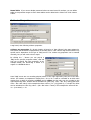
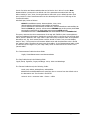
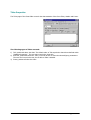
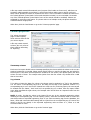
Note: Modifications are not posted to the database immediately. If modifications are made, a
confirmation question, asking if you want to save your changes, will be raised when closing the
‘Editor’.
Page 41 of 60