1
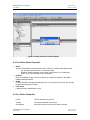
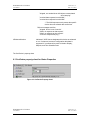
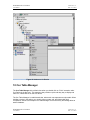
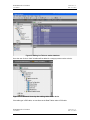
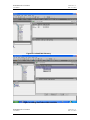
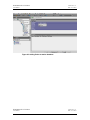
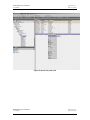
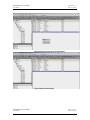
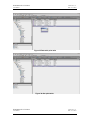
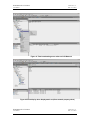
NIAGARA AX CCN Driver User Manual Version No.: 1.0 Date: 11/11/2010 2 Niagara AX platform The CCN driver functions either on Windows operating systems, starting with Window 2000 Service Pack 3 and beyond or on QNX operating system. This means the station must run on a Win-32 based platform, such as a JACE-NXS or -NX, AX Soft JACE, or a PC especially licensed for the CCN driver or in hard JACE like JACE-2, -4, or -5 and -6 series controller. Note: This driver supports the single CcnNetwork trunk per station. 3 Quick Start This section briefly describes how to start with Niagara AX CCN driver. Create a station from Niagara workbench and do the following. Open the “ccn” palette and find the CCN Network object. Paste a CcnNetwork object under the driver’s node in your station. From CCN network’s “Ccn Network View” edit the bus and element ranges. Enter the correct comm. port into the field Comm Port. Note: User should enter only the available ports on a JACE. Open the CcnDeviceManager view by double-clicking the CcnNetwork object just added to the station. o Click the “Discover” button to discover the devices which are available under CCN Network. o Select and add the CCN device/s you wish to integrate. Once a device/s is added, navigate to the “points” folder under the device and double click the point’s folder to display the CCN “Table Manager” view. o Click the “Discover” button to discover the tables available under a particular device o Select and add Tables to the database. The tables will be added in categorized manner. Once the table group/s is added, navigate to the table under a particular table group. The table can be of type PIC/POC/FID. For a PIC table do the following Double click on PIC table. It loads the “Point List Manager” view. o Click the “Discover” button to discover the points which are available under that PIC table. o Select and add the CCN point/s you wish to integrate. For a POC table do the following Double click on POC table. It loads the “DataTableManager” view. o Click the “Discover” button to discover the Data Tables which are available under that POC table. o Select and add the CCN Data Table/s you wish to integrate. o Double click on DataTable which is added under POC table. It loads the “Data Point List Manager” view o Click the “Discover” button to discover the points which are available under that Data table. o Select and add the CCN point/s you wish to integrate. NIAGARA AX CCN Driver User Manual Version No.: 1.0 Date: 11/11/2010