1
HomeRunner User Manual
Introduction
Welcome to HomeRunner User Interface Software. With HomeRunner, you can create
any number of control “screens” using image files (jpg, gif, bmp, etc.) for “backgrounds”
and control “buttons.” If you have no image files yet, you can simply select a color for
each screen background and choose from the included button images in the HomeRunner
“Buttons” folder.
If you plan to use photos or other image files for backgrounds, copy them to your
HomeRunner “Backgrounds” folder (C:\Stargate\HomeRunner\Backgrounds). It is best to
use photos with the same resolution as the pc touch screen or monitor (e.g. 1024 x 768).
Higher resolution images will work but may take longer to load when switching screens
(depending on the speed of the computer). If you plan to use icons or other image files for
button images, copy them to your HomeRunner “Buttons” folder
(C:\Stargate\HomeRunner\Buttons). Buttons can also be transparent to allow the
background image to show through and be used as a control surface. Buttons will reduce
in size slightly when clicked or touched, giving the appearance of a button being pressed.
You can change the background and button images at any time. Once you have created
your control screens, you save them all as a “layout” in the HomeRunner “Layouts”
folder (C:\Stargate\HomeRunner\Layouts). When you launch HomeRunner, it will recall
the last layout that was running. You can define any of the screens as the “default screen”
which will be the first screen to appear.
Initial Set Up and Configuration
HomeRunner is created using Microsoft .NET and should operate on any platform that
supports the full .NET Framework (Windows PC: Windows 98 and newer).
The following steps will guide you through downloading, installing and initial
configuration of HomeRunner.
1. Download the HomeRunner installer from http://www.WebXpander.net/
2. Unzip the downloaded file and run HomeRunnerSetup.exe
3. Install the program into the default folder (C:\Stargate\HomeRunner) or you may
select a different folder if you prefer
4. Double-click the HomeRunner icon on your desktop or select it from the Start
Menu to start HomeRunner
5. The first thing you will need to configure is the address of your Web Xpander
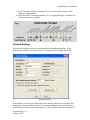
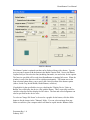
6. Click the Network Settings icon on the HomeRunner toolbar located at the
bottom of the screen (see Fig. 1)
7. Select Setting Number 1, enter a Setting Name (i.e. Home), and enter your Web
Xpander IP Address (default = 192.168.0.5), Web port (default = 80), and User
Name / Password (default = webx / webx)
8. Click "Test Connection" to confirm that you have entered the correct information
and to verify a successful connection
Document Rev. 1.0
February 2007