1
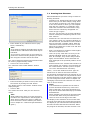
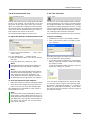
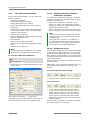
Fluorescence Filter
-
-
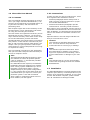
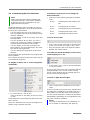
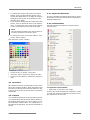
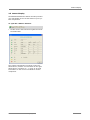
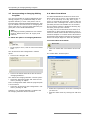
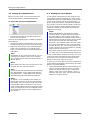
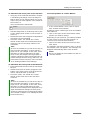
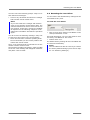
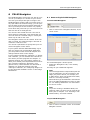
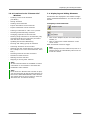
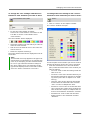
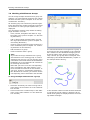
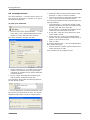
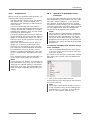
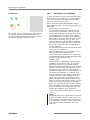
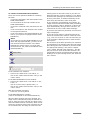
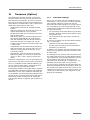
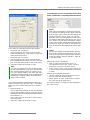
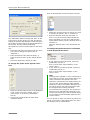
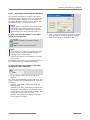
"Filter Colors (and Names)" list: Information
about the existing filters (up to six, if a Ludl filter wheel is installed, up to eight if a microscope filter wheel is installed).
You can make or change any entry yourself in
the "Color" column (refer to chapter 12.8.2
"Specifying Names for the Fluorescence
Excitation Filters", for instructions on how to
proceed).
If you have installed a microscope filter wheel,
the names that were specified in the control
program for the microscope appear in the
"Name" column. If you have installed a Ludl filter wheel, this column is empty.
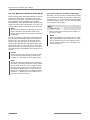
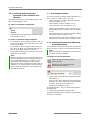
12.8.3 Selecting a Fluorescence Excitation Filter
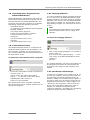
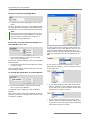
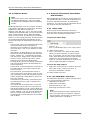
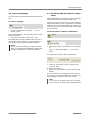
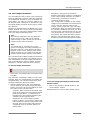
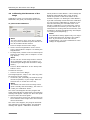
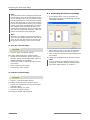
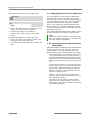
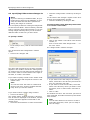
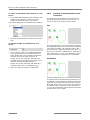
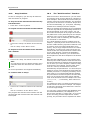
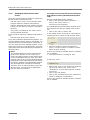
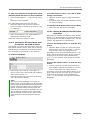
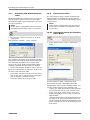
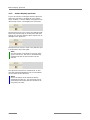
The fluorescence excitation filter can be selected
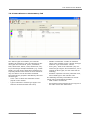
separately via the drop-down list "FL".
•
•
In the "Setup" menu, click on menu item
"Filter ... ".
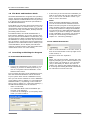
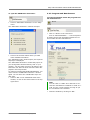
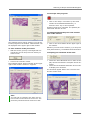
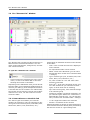
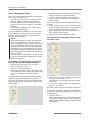
The "Fluorescence Filter" window will open.
12.8.2 Specifying Names for the
Fluorescence Excitation Filters
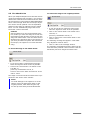
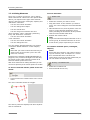
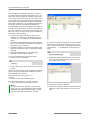
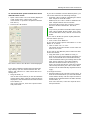
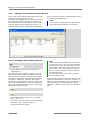
You can specify names for your installed fluorescence excitation filters (e.g color names). If you
subsequently select an excitation filter the names
you specified will appear in the selection list.
•
In the "Setup" menu, click on menu item
"Filter ... ".
The "Fluorescence Filter" window will open.
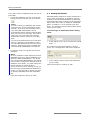
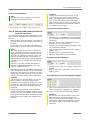
• In the table, double-click in the row of the filter
for which you want to change the color information contained in the "Color" column.
• Enter the desired name for the filter.
• Repeat for all filters which you want to rename.
• To confirm your change, click "OK".
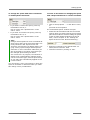
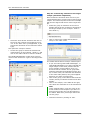
•
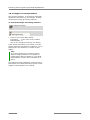
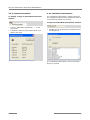
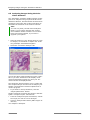
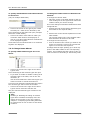
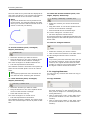
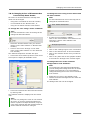
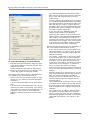
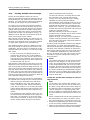
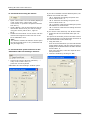
Open the drop-down list "Actual Position" and
select the desired position.
In the drop-down list all possible filter settings
are listed. If you have entered names for the filters as described in chapter 12.8.2 "Specifying
Names for the Fluorescence Excitation Filters",
the names will be listed, otherwise they will be
numbered from 1 to 6.
The filter wheel will move automatically to the
selected filter position.
The window will close.
PALM RoboSoftware 3.1-0106 (EN)
133