1
Adjusting the Reflector Offset
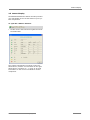
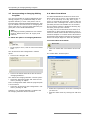
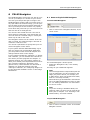
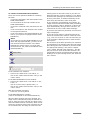
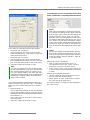
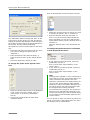
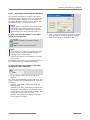
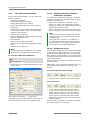
12.9.2 Changing a Settings Record
12.10
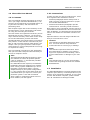
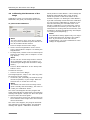
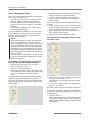
You can change a settings record at any time. To
do so, proceed as for creating a new record:
• In the "Setup" menu, click on menu item
"Fluorescence ... "
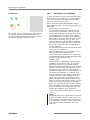
If you have set or changed a reflector for fluorescence, the microscope image on the monitor may
appear to be shifted slightly, although the stage
has not been moved. If you now draw elements
and then change the reflector again, your
elements will not be positioned correctly. The
automatic laser functions will then not process
exactly the areas you wish.
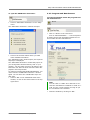
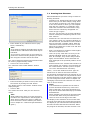
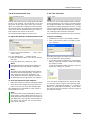
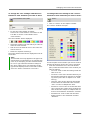
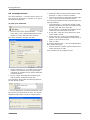
This opens the "Fluorescence" window.
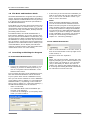
• Double-click on the row in the table containing
the settings record that you want to change, or
click once in this row and then click on the
"Change" button.
You must compensate for this by setting the Reflector Offset. With that you move all existing elements.
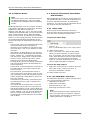
Note!
Please note that on adjusting the Reflector
Offset all existing elements are really moved,
not only the elements drawn with fluorescence illumination. If you wish to draw elements under normal as well as fluorescent
lighting you should first check whether the
Reflector Offset is set correctly.
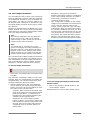
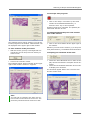
This opens the "Fluorescence Entry" window.
• Make your changes as described above and
click on "OK" to close the window.
The window will close, the changed entry will
appear in the table of the "Fluorescence" window.
• Close this window as well by clicking on "OK".
The window will be closed, your changed entry will
be saved.
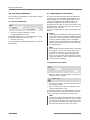
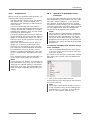
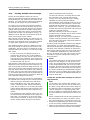
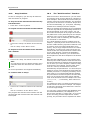
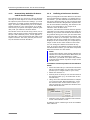
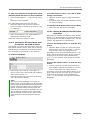
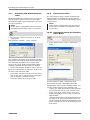
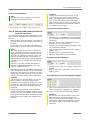
12.9.3 Deleting a Settings Record
•
In the "Setup" menu, click on menu item
"Fluorescence ... "
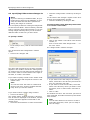
This opens the "Fluorescence" window.
• Click on the row in the table containing the settings record that you want to delete.
•
Click on "Delete".
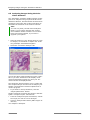
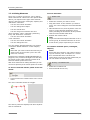
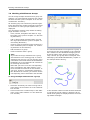
It may be possible that you do not see the structures of the elements with normal illumination. In
this case you have to draw a reference element on
a point of your sample, that is to be seen with both
types of illumination.
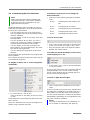
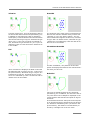
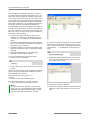
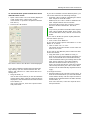
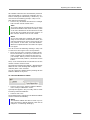
To adjust the Reflector Offset:
•
The selected settings record will be deleted.
• Close the "Fluorescence" window by clicking on
"OK".
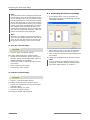
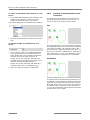
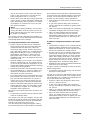
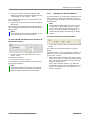
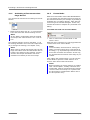
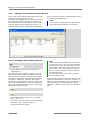
12.9.4 Changing the Sequence of
Entries in the List
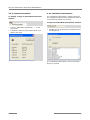
•
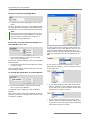
In the "Setup" menu, click on menu item
"Fluorescence ... "
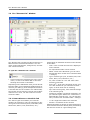
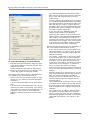
This opens the "Fluorescence" window.
Adjusting the Reflector Offset
•
•
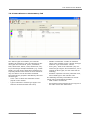
Draw the required elements with fluorescence
illumination. Draw at least one element on a
point, that is to be seen with normal illumination, also. Suitable for this is any type of element, for example "Freehand" or "Dot" (refer to
chapter 7.2.3 "The Freehand Tool" or chapter
7.2.7 "The Dot Tool"). This element serves as a
reference for the Reflector Offset.
Switch off the reflector and the fluorescence
illumination.
Move the stage so that the reference element
and the corresponding point on your sample is
displayed on the monitor.
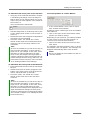
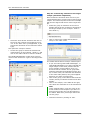
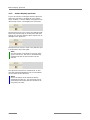
Pointer Tool
•
•
•
Click on the row in the table that contains the
record you want to move up or down.
Click on the "Up" or "Down" button depending
on the direction in which you want to move the
entry.
•
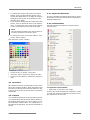
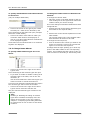
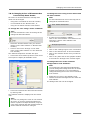
If it is not yet active, select the Pointer Tool in
the Graphic Toolbar.
Click on menu item "New Reflector-Offset" in
the "Setup>Calibration" menu.
The entry will be moved, all entries will be renumbered.
136
PALM RoboSoftware 3.1-0106 (EN)