1
METERS
January 22, 2013
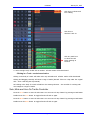
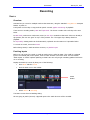
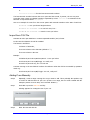
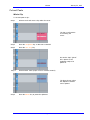
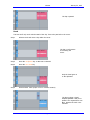
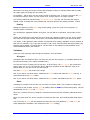
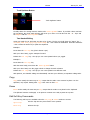
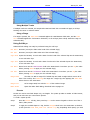
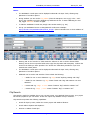
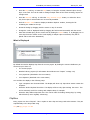
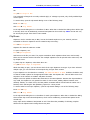
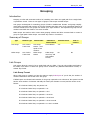
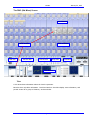
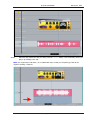
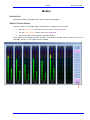
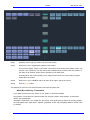
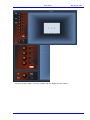
If you leave blanks to the right of a resizable bus, it will consume the blanks before starting to push
other channels to the right.
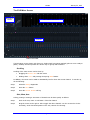
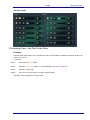
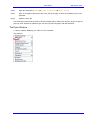
Using the Meters Menu
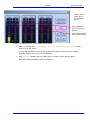
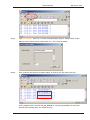
Step 1
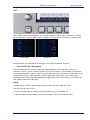
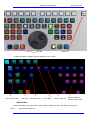
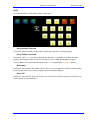
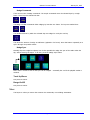
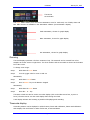
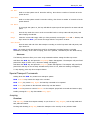
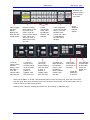
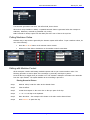
Press the Meters button in the Setup Megamode.
Step 2
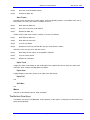
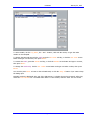
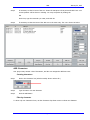
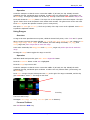
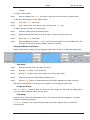
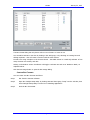
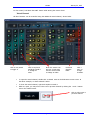
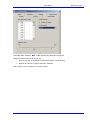
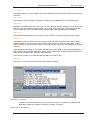
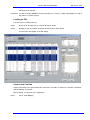
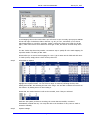
Press the assign meters soft key. This displays the Patch I/O page.
Step 3
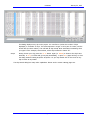
Use the Patch I/O page as described in the previous section.
Peaks
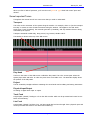
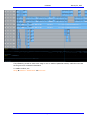
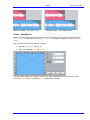
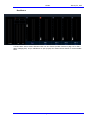
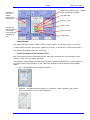
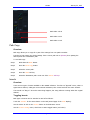
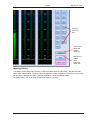
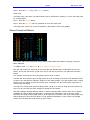
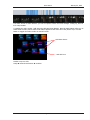
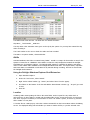
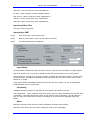
The numeric peak levels displayed on the mixer display bus meters have a variable threshold. The level
at which these values are displayed can be set in the C:\Program
Files\ Fairlight\FMC\Data\System_Variables.txt file. Edit the following line in the file:
PEAK_DISPLAY_LIMIT,950
The value is from 0 to 1000 in 0.1dB steps where 1000 = full scale level. In the example above the
value of 950 will cause the numeric display to first be shown when the signal level reaches -5dB below
full scale. 970 will set the threshold to -3dB, 990 will set the threshold to -1dB, and so on.
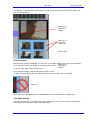
Clear Peak
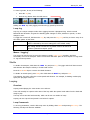
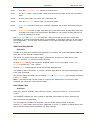
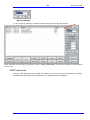
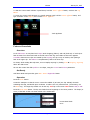
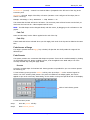
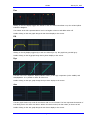
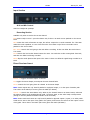
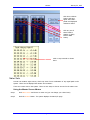
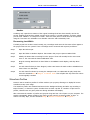
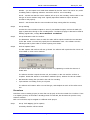
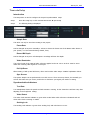
Signal levels in excess of 0dB full scale are indicated by a fixed orange peak hold display. To reset the
peak hold display:
Step 1
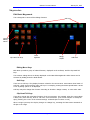
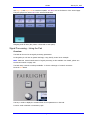
Press the Meters button in the Setup Megamode.
Step 2
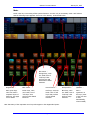
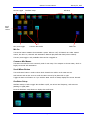
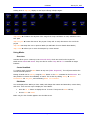
Press the Clear Peak soft key.
You can also clear peaks using the Clear Max button on the Master Screen Meters.
Peak Hold Time
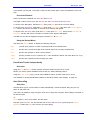
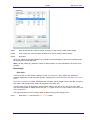
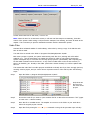
Peak hold time can be set in the Meters Menu as follows:
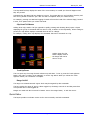
Step 1 Press the Meters button in the Setup Megamode.
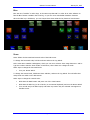
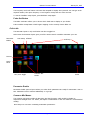
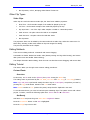
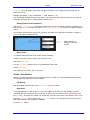
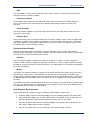
Step 2 Press the {Peak Hold} soft key repeatedly to choose Off, Short, Long or Permanent peak hold.
Overload Hold Time
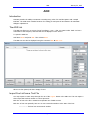
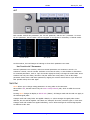
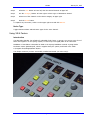
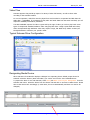
Overload hold time can be set in the Meters Menu as follows:
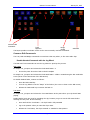
Step 1 Press the Meters button in the Setup Megamode.
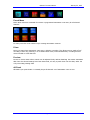
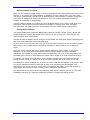
Step 2 Press the {Over Hold} soft key.
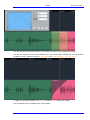
Step 3 Use the Jog Wheel to change the overload hold time.
Page 255