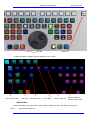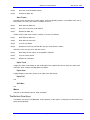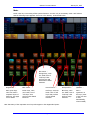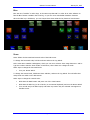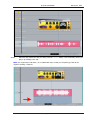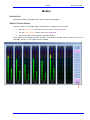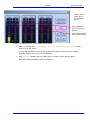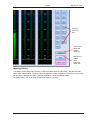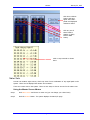
1
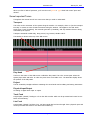
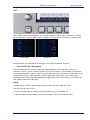
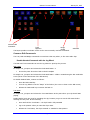
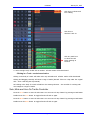
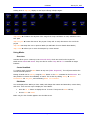
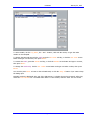
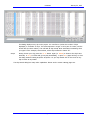
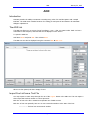
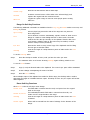
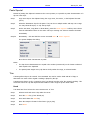
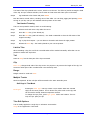
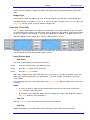
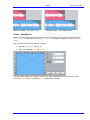
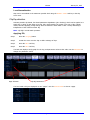
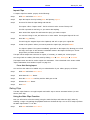
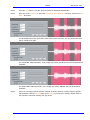
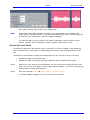
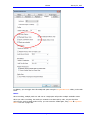
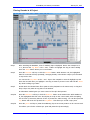
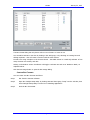
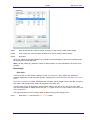
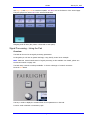
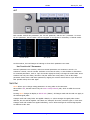
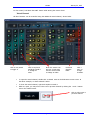
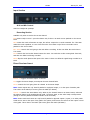
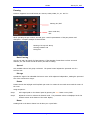
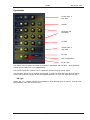
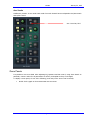
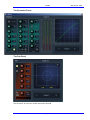
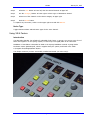
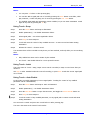
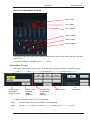
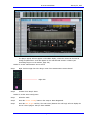
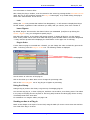
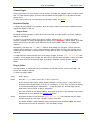
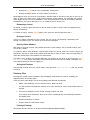
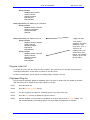
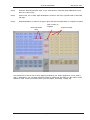
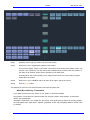
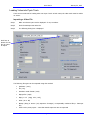
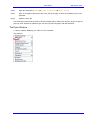
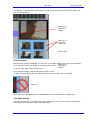
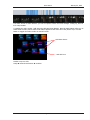
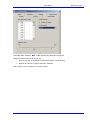
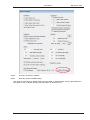
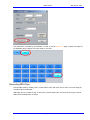
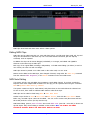
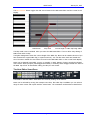
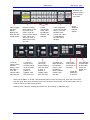
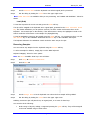
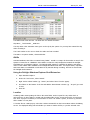
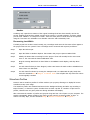
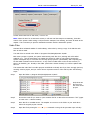
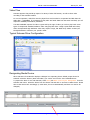
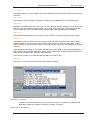
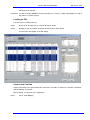
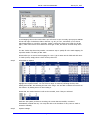
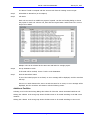
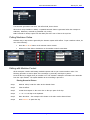
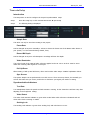
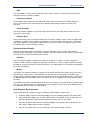
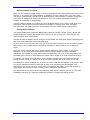
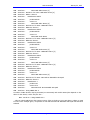
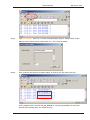
HUI S LAVE MODE January 22, 2013 CID_SW_MACKIE_INPUTS CID_SW_MACKIE_AUDIO_TRACKS CID_SW_MACKIE_AUDIO_INSTRUMENT CID_SW_MACKIE_AUX CID_SW_MACKIE_BUSSES CID_SW_MACKIE_OUTPUTS CID_SW_MACKIE_USER CID_SW_MACKIE_OPTION CID_SW_MACKIE_SAVE CID_SW_MACKIE_UNDO CID_SW_MACKIE_CANCEL CID_SW_MACKIE_SOLO CID_SW_MACKIE_DROP CID_SW_MACKIE_CYCLE CID_SW_MACKIE_DISPLAY_SMPT E You may add any of these to your remap file, and assign them to any Dream II key. For help with Dream II key assignment, please consult your Fairlight customer support organization. Remap to Macros One easy way to get more power from HUI keys is to map them to your macros. An example of a mapping line that does this: CID_SW_MACKIE_F1,CID_SW_M_1 CID_SW_MACKIE_INPUTS,CID_SW_BANK_1 Using macro and bank assignments you can get access to 27 macro keys. Identifying Keys On some HUI controllers, the key labelling may not match the list above. You can find out the name of any HUI key using the following method: Step 1 Step 2 Start the system and load a project (can be empty) Start the MSAT application StartAll ProgramsFairlightFMCFMC UtilsFMC Step 3 If you see this error message at any time, click OK (it doesn’t mean anything is wrong) Step 4 Click buttons at the top of the MSAT screen so that Msg Gen is on, Msg Sys is off, and All Para is off, as shown below. Page 325