1
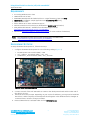
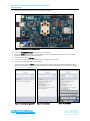
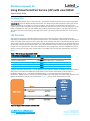
Using Virtual Serial Port Service (vSP) with smart BASIC Application Note REQUIREMENTS PC running Windows XP or later UWTerminal 6.50 or later DVK-BL600 Development Kit loaded with at v1.2.54.0 firmware or later (see Note) upass.vsp.sb smart BASIC sample application and cli.upass.vsp.sblib library USB A to mini B cable iPad 3/ iPhone 4S or newer with BT4.0 support Internet connection on iOS device (to download the BL600 Serial application) DVK_BL600 User Manual – Available from the EWS Support Center: https://laird-ews-support.desk.com/?b_id=1945#docs FTDI Drivers http://www.ftdichip.com/Drivers/VCP.htm (for some versions of Windows) Note: The latest BL00 firmware and upgrade documentation is available here: https://laird-ews-support.desk.com/?b_id=1945#docs DEVELOPMENT KIT SETUP To setup the BL600 development kit, follow these steps: 1. Configure the BL600 development kit to the following settings (Figure 2): DC/USB power source switch (SW4) – USB VCC_1V8/VCC_3V3 switch (SW5) – VCC_3V3 CR2033/VCC_3V3/1V8 switch (SW6) – VCC_3V3/1V8 Figure 2: Switch and jumpers position 2. Connect one end of the mini USB cable to CON4 on the development board and the other end of the cable to your PC. 3. Follow the on-screen prompts. Depending on your version of Windows, you may need to install the FTDI drivers. When complete, the development board appears in the Windows device manager as a USB Serial Port. Note the COM port number. 4. Extract UWTerminal to a selected folder and run UwTerminal.exe. Embedded Wireless Solutions Support Center: http://ews-support.lairdtech.com www.lairdtech.com/bluetooth 2 Laird Technologies Americas: +1-800-492-2320 Europe: +44-1628-858-940 Hong Kong: +852 2923 0610