1
1.6. The content area
•
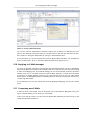
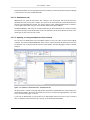
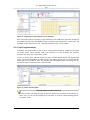
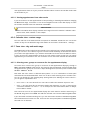
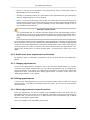
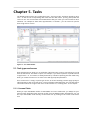
The Tasks module pane shows the current tasks i.e. today's tasks, tasks for the next two
days, tasks for next week or later. For each task the subject, date and priority is shown.
•
The InfoStore module pane shows the current InfoStore entries i.e. InfoStore entries from
your own InfoStore and from other users' shared InfoStore folders.
Following functions are accessible from the module panes:
•
Clicking on the title bar of a module pane opens the respective module.
•
Clicking on a module pane entry opens the respective module and shows the entry in the
detail view.
•
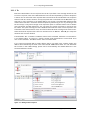
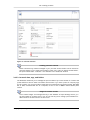
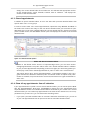
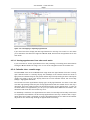
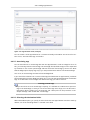
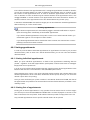
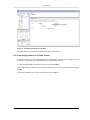
If you move the mouse pointer over a module pane entry a hover is shown after a short delay.
Information on hovers can be found in Section 1.6.2, “Hover”
The module panes can be customized:
•
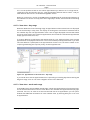
You can change the width of a module pane. To do so use the drag point between the
module panes.
•
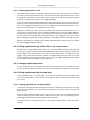
You can change the position of the module panes. To move a module pane click on the Move
icon and drag the pane to the wanted position. As you move the mouse you will see the layout
changes. To finish, release the mouse button.
•
You can determine which module panes to display and the number of elements to be displayed
in a module pane. For more information please read the Options chapter.
•
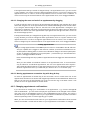
You can integrate UWA modules in module panes. An UWA module dynamically displays information from the internet like your local weather forecast. Information on how to set up
and display UWA modules can be found in Section 8.7.2, “UWA Modules”
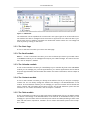
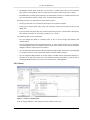
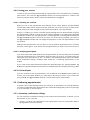
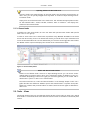
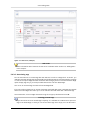
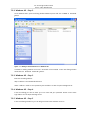
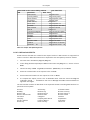
1.6.2. Hover
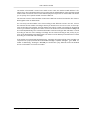
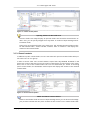
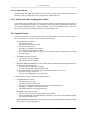
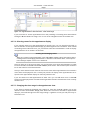
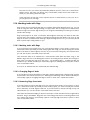
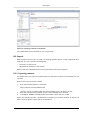
Figure 1.7. Hover in a module pane
A hover displays details on the entry the mouse pointer hovers over.
© Copyright Open-Xchange Inc. 2009
19