1
Draw Filled Shape
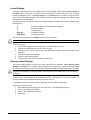
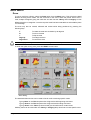
This gives a menu containing the options Poly Line, Square, Rectangle, Diamond, Circle,
Ellipse, Arc, Triangle, Angled Square, Pentagon, Hexagon, Octagon, Star and Curve. [See the
relevant option in the sub-menu Draw Shape in the Draw Menu for more details on drawing the
shape]. These shapes can be filled with a solid colour or pattern, [see Fill Style in the Draw menu
for details on setting fill styles].
Adding Filled Shapes To A Design
1. Set the required Fill Style.
2. Select Draw Filled Shape from the Draw menu - a sub-menu is given.
3. Select the required shape - a cross-hair cursor is given.
4. Position the shape in the required position.
5. To finish the option, press the RIGHT mouse button.
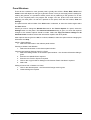
Auto Shading
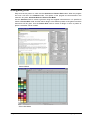
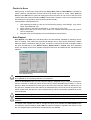
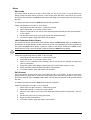
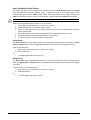
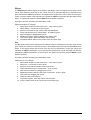
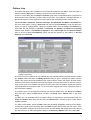
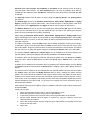
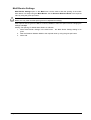
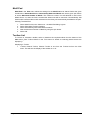
Auto Shading will allow automatic shading of areas created in one colour to be made in different
styles. Select Auto Shading from the Draw menu and a dialog is given. Select the Select Area
button and the dialog disappears giving the design area and a cross-hair cursor to click on the
required area, the Auto Shading dialog returns. The preview will update, if no colours are selected
then it will be black. Select the Select Colours button, this gives the Wool Charts dialog from
which the required colours should be chosen. Select the required type of shading from Ripple,
Light Source, Top/Bottom or Left/Right. If Light Source is chosen, the position of the light
source can be changed by clicking on the required position on the preview using the LEFT mouse
button. Select the Reverse Colours checkbox to change the order of the colours from darkest first
to lightest first. Gradual Change will make the edges between colours softer and more random,
thus removing the banding effect.
Other options that are given are OK, to shade the area, Cancel, to leave the option without
shading and Help.
Auto Shading Dialog
64 • Draw Menu
Easy Knit