1
Changing Order Of The Palette
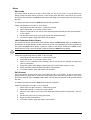
1. Select Palette from the Palette menu - a sub-menu is given.
2. Select Sort - the Sort dialog is given.
3. Select the required sort from the down list.
4. Select OK.
Sorting A Palette With Colours From More Than One Range
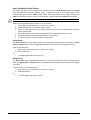
1. Select Palette from the Palette menu - a sub-menu is given.
2. Select Sort - the Sort dialog is given.
3. Set the sort to either Number or Chart Order from the down list - the Sort Order dialog is
given.
4. Change the range order by using Move Up or Down as required.
5. Select OK.
6. Select OK.
Refresh Colours
This option will adjust the colours in the palette to match the colours in a wool chart. This is useful if
either the wool chart has been updated or the colours in the design have been changed and need
to be reset. Once Refresh Colours has been selected from the Palette sub-menu select the
required chart from the drop down list.
Refreshing The Colours In A Palette
1.
2.
3.
4.
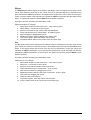
Select Palette from the Palette menu - a sub-menu is given.
Select Refresh Colours - the Refresh Colours dialog is given.
Select the required chart from the drop down list.
Select OK.
Most Recently Used Palette File List
A list of the last five palette files that have been used is given at the end of the Palette sub-menu.
Select the required file by clicking on it or pressing the relevant number.
Selecting A Palette From The Recently Used File List
1. Select the Palette sub-menu, then the required file from the list given at the bottom of the
menu.
Or
1.
Select the Palette sub-menu, then press the number corresponding to the required file.
Symbols and Wools
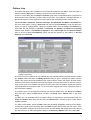
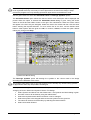
The symbols and wool names that have been assigned by Easy Knit can be altered by using
Symbols and Wools in the Palette menu. This will bring up the list of colours, names and symbols
used within the current design. If the information does not fit on one screen then use the slider to
see the rest. Also given is the radio button Embroidery which will give the information for the
relevant stitch types when selected.
To have the information for Current Colour or All Colours displayed select the required radio
buttons.
To modify the names of the colours, select the required name by using the mouse and then its
contents can be changed. To modify the symbols being used, use the mouse to select the symbol
you wish to change and then the new symbol from the list of available symbols. The symbols that
are highlighted in yellow are the symbols that are currently in use, if a symbol is duplicated then it
will be highlighted in red. The program will assign symbols according to the brightness of the
colour, the darker the colour a more solid symbol/style is used.
Easy Knit
Palette Menu • 77