1
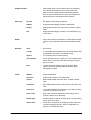
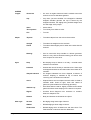
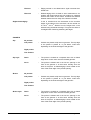
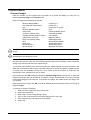
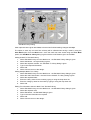
Edit Motif Library Dialog
Other options that are given are Close, to leave when finished making changes and Help.
The option to enter any new motif into a library will be offered when saving a motif by using the
Save Motif option from the Motif menu. Once the motif has been saved using the Save Motif
option, the Add Motif to Library dialog is given with the motif filename given as the Title.
Adding A Motif To The Motif Library
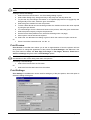
1. Select Edit Motif Library from the Motif menu - the Edit Motif Library dialog is given.
2. Select Add button - the Open dialog is given.
3. Select the required motif file - the Add Motif To Library dialog is given.
4. Type in the required information.
5. Select OK.
6. Select Close to return to the design.
Adding Multiple Motifs To A Library
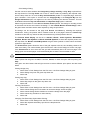
1. Select Edit Motif Library from the Motif menu - the Edit Motif Library dialog is given.
2. Select the Add Folder button - the Add Folder Of Motifs To Library dialog is given.
3. Select the required folder.
4. Enter the Library name for the motifs by typing or using the drop down list.
5. Enter the Category name for the motifs by typing or using the drop down list.
6. Select OK.
Editing The Information About A Motif From The Motif Library
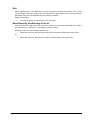
1. Select Edit Motif Library from the Motif menu - the Edit Motif Library dialog is given.
2. Select the required motif.
3. Select Edit button - the Edit Motif dialog is given.
4. Type in the new information as required.
5. Select OK.
6. Select Close to return to the design.
Easy Knit
Motif Menu • 69