1
*gajendra* D:/Thomson_Learning_Projects/Garrigus_163132/z_production/z_3B2_3D_files/Garrigus_163132_ch16.3d, 14/11/08/16:25:58, 16:26, page: 632
632
SONAR 8 Power!: The Co mprehensive Guide
Not only do you have access to these functions, but also by utilizing System Exclusive messages,
you can send all the data from the MIDI instruments and devices in your studio to SONAR to be
stored in your projects. Why is this capability important? Because you can set up all your equipment with specific settings for a project, store the data in the project, and then send the data
back to the devices at the beginning of your next recording session. This means that the next
time you open the project, you can have all the equipment in your studio set up automatically,
and you won’t have to touch a single knob.
The Sysx View
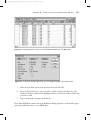
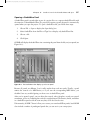
SONAR gives you access to System Exclusive data via the Sysx view (see Figure 16.1). Using the
Sysx view, you can store up to 8,191 banks, each of which can contain any number of System
Exclusive messages (limited only by the amount of memory in your computer system). For example, you could dedicate a different bank to store the data for each separate piece of equipment in
your studio. You could also store different sets of patch data for a single MIDI instrument in
separate banks. Then, at different times in your project, you could send specific patch data to
change the sounds in the instrument for that part of the song.
Figure 16.1 The Sysx view lets you store System Exclusive data within the current project.
Receiving System Exclusive Data
To store System Exclusive data in a bank in the Sysx view, you need to do a data dump. Essentially, the MIDI device from which you want to grab data dumps (or sends) it to your computer
to be stored in one of the Sysx view banks.
The Record System Exclusive Setting Be sure to check SONAR’s global MIDI options to see
whether the Record System Exclusive Data setting is activated. To do so, choose Options
4 Global to open the Global Options dialog box and then select the MIDI tab. In the
Record section, click System Exclusive to place a check mark next to it. If this setting
isn’t turned on, SONAR will block all incoming System Exclusive data. By default,
SONAR has this option activated.