1
SQ 1600 User’s Manual
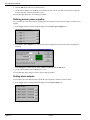
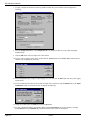
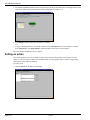
5. The 1 Text and 0 Text columns show the text that will be displayed when this input is in the high and low states
respectively. Make entries as shown in the following illustration for inputs 1 to 4:
6. In the Display column, deselect the checkboxes for inputs 5
to 8.
7. To apply a meaningful name to the channel, double-click the Description entry for the channel (it currently
shows Channel 29). Type Input monitor, and this should be shown as the new description.
The event channel configuration is now complete.
Setting an action
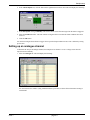
The actions capability of Setwise for Windows allows you to maximise the potential of the SQ 1600. For this
sample, we will set a high level alarm. You should note that you can program complex actions to trigger alarms
under only the exact required conditions.
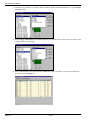
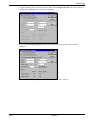
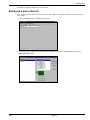
To set the action:
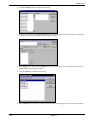
1. click the Actions tab to display the following:
page 6-10
issue 1