1
T3 User Manual
6 Using the Web App
6-1 Web App Overview
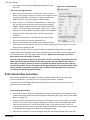
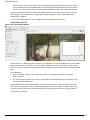
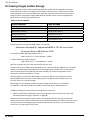
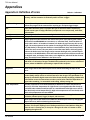
The Web Application is a utility built to the TS3 which makes control of the camera possible by any
networked computer running an Internet Browser. No software needs to be loaded on the computer. It
provides the user all the utility vailable through the buttons and touch screen of the TS3.
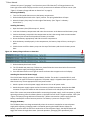
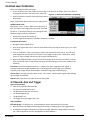
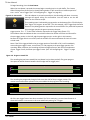
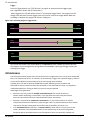
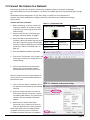
Enter the Web App by typing either the network-connected TS3’s camera name or IP address into the
address bar of an internet browser (See “3-5 Using the TS3 with a PC” on page 17 .
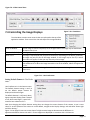
Figure 6-1: Address bar (Chrome)
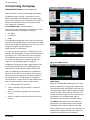
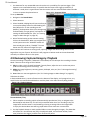
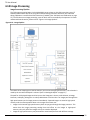
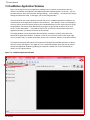
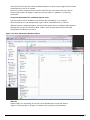
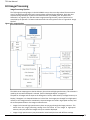
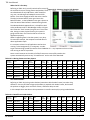
The Application Window is comprised of:
•
A Control Bar at the top, which includes Arm and Trigger buttons as well as the Battery Icon
•
6 Application Tabs, including the Camera Tab, Storage Settings Tab, Record Settings Tab,
Record Control Tab, Display Settings Tab, and the Video Review Tab, which is present only
when there is captured video available for Review.
•
The Tabs Pane. When you click on a Tab it will open vertically along this pane. Tabs beneath
the opened one will slide down the pane.
•
The image area. This is where Live or Captured imagery appears.
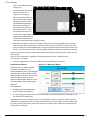
In the figure below, TS3_12 is connected in Live Mode.
Notice that the Camera Name is displayed in brackets [ ] on the Camera Tab and that the
camera’s mode of operation (in this ase “Live View” is listed there as well. The Trigger Button is
absent because the camera has not yet been armed. The Review Tab is also absent as there is no
video to review.
Figure 6-2: Application Window Camera Tab