1
Agresso User Manual –Purchasing Officer
4.3 Printing a Copy of a Single Purchase Order
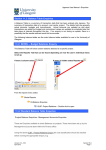
1. Access the ‘Entry/Amendment of a Purchase Order’ screen by clicking on:
AGRESSO Logistics
Purchasing
Purchase Orders
Print Purchase Order
Print Copy Purchase Order
2. In row 14 Type the first order number to be printed in ‘Order number from’ and
In row 15 the last order number to be printed in ‘Order Number to’. Tab out of the field.
3. In row 26 Change the name from yours to the actual Purchasing Officer who approved the
Purchase order.
4.
Press ‘Save’
or press F12.
5. Agresso will allocate an ‘order’ number to the report. Note this down.
6. To check on the progress of this ‘ordered report’, click on the ‘Maintenance of Ordered
Reports’ icon.
7. The screen will look like this:
Version 1.0 –553
February 2010
Section Four
Page 2