1
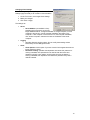
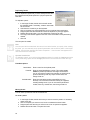
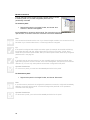
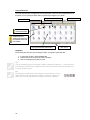
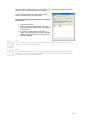
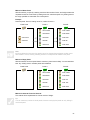
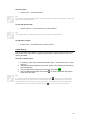
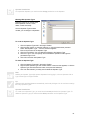
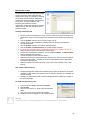
To save review to a text file:
1. (Optional) select the entries you want to save.
2. Choose “Save As…” from the File menu.
3. To save all events, click the All Entries radio button. To save the events you selected in
step 1, click the Selected Events radio button.
4. (Optional) enter a name for your file.
5. Click Save.
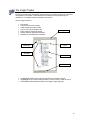
Moving The Review Pointer
If the Insight comms task is reset, then Insight cannot determine which review entries have not
been processed. In this case, it is possible to move the review pointer manually.
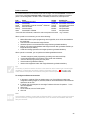
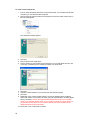
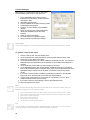
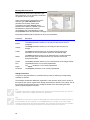
To move the review pointer:
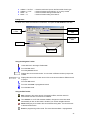
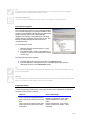
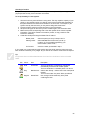
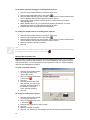
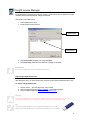
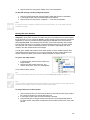
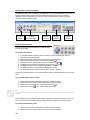
1. Right click the panel in the Insight Toolbar and choose “Review” in the menu that
appears, then choose “Move Back…”.
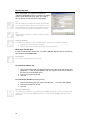
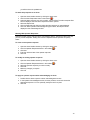
2. Enter how far back you want to move the review pointer.
3. Click Close.
Warning
Moving the review pointer may cause duplicate review entries to be recorded. This feature is
recommended for experts only.
Basic Reports
Insight includes report templates for most common reporting activities, including user access,
door access and alarm reports. Refer to the table below.
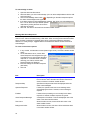
I want to…
Create a report showing all review events.
Create a report showing all comms task triggers.
Create a report showing all XMIT events.
Create a report showing user activity.
Create a report showing door activity.
Create a report showing lift activity.
Create a time on site report.
Create a report showing events matching a
complex filter.
This is achieved by…
Use the all events report.
Use the all alarms report.
Use the XMIT alarms report.
Use the user access report.
Use the door access report.
Use the lift access report.
Use the time on site report.
Create a filter stack report.
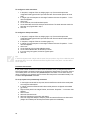
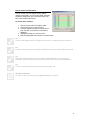
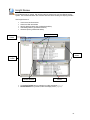
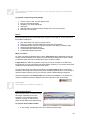
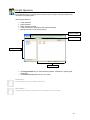
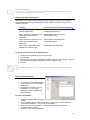
To generate a basic report:
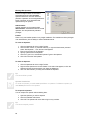
1. Select the desired report from the Reports menu.
2. Specify the criteria for your report.
3. Click OK. Insight generates the report.
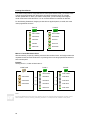
Tip
You can copy all or part of the report into the Windows clipboard. Select the portion you want to
copy, then choose “Copy” from the Edit menu, or press CTRL+C. Formatting will be preserved if
you paste the report into a compatible application such as Microsoft® Word.
66