1
ATOMOS SHOGUN STUDIO
USER MANUAL
EDITION 1: NOVEMBER 2015
Have you registered your Shogun Studio yet?
Upgrade to 3 year warranty now
Register now to receive communication on all future updates
Web: www.atomos.com Sales: [email protected] Support: [email protected]
*Subject to change without notice
Atomos Shogun Studio – User Manual Edition 1: November 2015
1
Contents
Safety Instructions
Warranty & Conditions
3
5
Introduction4
1. What’s included
2. What you also need
Spinning Disk Drives (HDD)
Mechanical Shock and Vibration
5. Connecting and powering up
Power ON/Power OFF
6. Shogun Studio connections
7. Master Caddy II and Screw Mounts
Master Caddy II / Screw Mounts / Modularity
8. Using the Shogun Studio
4K SDI Cables
4. Attaching Rack Ears and Feet
Backing up and archiving
3. Mounting disks in the Master Caddy II
Solid State Drives (SSDs)
Using the Shogun Studio
9
10
10
11
13
13
14
14
Input Menu
18
Audio panel
20
14
15
17
Storage Capacity Indicator / Formatting HDD/SSD / Unit Name 19
Before recording / Choosing your recording format
21
21
SmartControl / 6 ways to start recording
22
Luma Overlay / RGB Parade / Vectorscope
24
Focus Assist / Zebra / False Color
26
Waveform Monitoring
Monitor Assist
Anti-shock technology
Display option menu
File Recovery
23
25
27
28
29
29
31
31
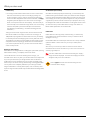
•Always make sure that the Shogun Studio is mounted securely and is
unable to fall onto anyone nearby. This is especially important when
there are children present who might be tempted to pull on cables.
•Always ensure that cable runs to the Shogun Studio are clearly visible
and do not present a trip hazard.
• Do not place on uneven or unstable surfaces.
•Do not insert anything but Shogun Studio Master Disk caddies in the
Master Disk slot on the front of the Shogun Studio.
•Do not touch the Shogun Studio’s screen with sharp, metallic or abrasive
objects.
• Do not expose to strong electrical or magnetic fields.
• Do not expose to or use near liquids, rain or moisture.
•Do not dispose of the Shogun Studio in municipal waste and do not
incinerate it, always follow local regulations for safe disposal.
Care of disk drives
Spinning disks and SSDs are very sensitive to damage from static electricity.
Please observe all the usual ESD precautions when handling them.
Please see the section Mechanical shock and vibration later in this manual
for information about how to handle and care for your disk drives.
SDI Cables
Please remember that SDI cables use locking connectors and will not
simply pull out if they are jerked or tripped over. They are therefore a
significant trip hazard to your equipment, which may be damaged if the
cables are misused.
HDMI cables
Please remember that HDMI cables do not use locking connectors and will
simply pull out if they are jerked or tripped over. Please ensure your cables
make a secure connection and avoid flexing them excessively to maintain
reliability.
User Manual Conventions
32
To keep things simple but clear, we’ve only adopted two conventions
in this manual:
12. Record mode options
35
11. HD Pulldown
13. Playback & Playout
14. Connecting and Editing
34
37
40
exFAT compatibility
40
NLE Support
Transferring files
Importing / Import into Final Cut Pro
SmartLog with FCPX
40
41
42
43
16. Technical Specifications
44
Updating AtomOS (Firmware)
*Subject to change without notice
An important note or warning
40
15. Software Upgrades
A helpful tip, suggestion or something to note because it’s not
obvious at first.
40
Connect to Input
Using the Shogun Studio safely
Although the Shogun Studio is very lightweight compared to all the devices
it replaces, it is still a solid object that could cause injury if misused.
10. Timecode
8
16
Screen lock / Shogun Studio Info
Exporting .xml
7
File Naming / Date & Time / Display Options
Home Screen / Menu functions
7
14
SmartLog
6
Category 3: Main Controls, REC, PLAY & MENU
Blue Only / Grid Lines / Focus Assist Settings
6
14
6
Category 1: Operating Settings
Category 2: Shot Setup & Monitor Tools
9. Monitoring and Recording
6
The Shogun Studio is designed to a high standard but there are some
things you should be aware of to prolong the life of the unit and for
your own safety.
43
Atomos Shogun Studio – User Manual Edition 1: November 2015
2
Warranty & Conditions
Notice
Copyright © 2015 ATOMOS Global Pty Ltd (‘referred to as ATOMOS’).
All rights reserved. All information in this document is subject to change
without notice. No part of the document may be reproduced or transmitted
in any form, or by any means, electronic or mechanical, including
photocopying or recording, without the express written permission
of ATOMOS. A reference to ATOMOS includes its related entities,
subsidiaries and parent company.
Trademarks
Shogun Studio and ATOMOS are registered trademarks of ATOMOS.
Apple, the Apple logo, AppleShare, AppleTalk, FireWire, iPod, iPod
Touch, Mac, and Macintosh are registered trademarks of Apple Inc. Final
Cut Pro, QuickTime and the QuickTime Logo are trademarks of Apple
Inc. DNxHD, DNxHR and Avid logo are registered trademarks of Avid
Technology, Inc. All other trademarks are the property of their respective
holders.
International Hardware Limited Warranty
ATOMOS warrants that:
• Main product, not including TFT/LCD, or any external accessories,
will be free from defects in materials and workmanship for a period of
1 years from the date of purchase, the user may upgrade to a 3 year
warranty upon registering their product at www.atomos.com
• The TFT/LCD, HDD/SSD Docking Station, Master Caddy II and Cable will
be free from defects in materials and workmanship for a period of 1 year
from the date of purchase.
This warranty is exclusively for the benefit of the original purchaser and is
not assignable or transferable.
If during the warranty period the product is shown to be defective
ATOMOS may at its option:
a) replace the goods or supply equivalent ones,
b) repair the goods,
c) pay the cost of replacing the goods or of acquiring equivalent ones and
d) paying the cost of having the goods repaired;
The customer must notify ATOMOS of any defect in the goods in writing
prior to the expiry of the warranty periods set out above. The customer
will be solely responsible for returning the goods to ATOMOS or its
authorized distributor. Upon acceptance of a warranty claim by ATOMOS,
where ATOMOS repairs or replaces the goods, it will be responsible for
reasonable shipping costs incurred in sending the goods to the Customer,
provided that customer is located in a country in which ATOMOS has an
authorized distributor or repair centre or agent.
Warranty Exclusions
This warranty applies only to defects in workmanship and does not cover
defects caused by:
• Neglect;
• Improper or negligent acts or omissions;
• Repairs or attempted repairs;
• Tampering with or modification of the goods;
• Connection to incompatible equipment or power sources;
• Exposure to water or weather;
• Exposure to magnetic fields or corrosive liquids or substances;
• Physical damage
Except as stated in this warranty, Atomos, it’s vendors, agents, resellers
and distributors disclaim in their entirety all other warranties, express or
implied, including without limitation all warranties of merchantability or
fitness for a particular purpose. The remedies outlined in this warranty
are the exclusive remedy a customer from defective goods, which are
subject to the warranty.
*Subject to change without notice
Atomos does not warrant that the goods will operate in a manner that is
error free, or uninterrupted. The goods are not intended to be the primary
or only data storage device for data – customers are solely responsible
for back up and protection of data.
Software License Agreement
IMPORTANT, PLEASE READ CAREFULLY. THIS IS A LICENSE
AGREEMENT.
This ATOMOS software, related documentation, any included sample
images files (the “Software”), is protected by copyright laws and
international copyright treaties, as well as other intellectual property laws
and treaties. The Software is licensed, not sold.
This End User License Agreement (“EULA”) is a legal agreement between
you (either an individual or a single entity) and ATOMOS with regard to
the copyrighted Software provided with this EULA. Use of the Software
provided to you by ATOMOS in whatever form or media, will constitute your
acceptance of these terms, unless separate terms are provided
by the software supplier, in which case certain additional or different
terms may apply. If you do not agree with the terms of this EULA, do not
download, install copy or use the Software. By installing, copying or
otherwise using the Software, you agree to be bound to the terms of this
EULA. If you do not agree to the terms of this EULA, ATOMOS is unwilling
to license the Software to you.
1.Eligible licensees. This Software is available for license solely to
purchasers of the ATOMOS Shogun Studio, who have purchased a
unit manufactured by ATOMOS Shogun Studio and purchased through
an ATOMOS authorized reseller, with no right of duplication or further
distribution, licensing or sub-licensing.
2.License Grant. ATOMOS grants you a personal, non-transferable and
non-exclusive right to use the copy of the Software provided with this
EULA. You agree you will not copy the Software except as necessary
to use it with the ATOMOS Shogun Studio. You agree that you may
not copy the written materials accompanying the Software. Modifying,
reverse engineering, translating, renting, copying, transferring or
assigning all or part of the Software or any rights granted hereunder,
to any other persons or reverse engineering the hardware on which
the Software runs, is strictly prohibited. The software is license, not
sold. You acknowledge that no title to intellectual property in the
Software is transferable to you. You further acknowledge that title and
full ownership rights to the Software will remain the exclusive property
of ATOMOS and/or its suppliers, and you will not acquire any rights
to the Software, except as expressly set forth above. All copies of the
software will contain the same proprietary notices as contained in or on
the Software. All title and copyrights in and to the Software (including but
not limited to any images, animations, video, audio, text incorporated),
the accompanying printed materials, and any copies of the Software are
owned by ATOMOS or its suppliers.
3.Reverse engineering. You agree that you will not attempt, and if you are
a corporation, you will use your best efforts to prevent your employees
and contractors from attempting to reverse compile, derive circuits,
modify, translate or disassemble the Software and/or the Atomos Shogun
Studio in whole or in part. Any failure to comply with the above or any
other terms and conditions contained herein will result in the automatic
termination of this license and the reversion of the rights granted
hereunder by ATOMOS.
ATOMOS reserves the right to terminate this license without prejudice to
any additional recourse ATOMOS may have against you if you violate any
of its terms and conditions.
Registration + Warranty Upgrade
Standard warranty is 1 year. Register to upgrade your warranty to
3 years. Visit: www.atomos.com/registration
Atomos Shogun Studio – User Manual Edition 1: November 2015
3
Introduction
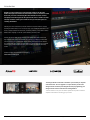
Building on the architecture of the Shogun platform, the Shogun
Studio leverages the features and functions found on cameras to build
them into your rack. Harnessing the latest 4K/HD recorder, monitor
and playback technologies the Shogun Studio offers a feature set that
will help facilities existing HD workflows and provide the option for
creating 4k Masters.
Following the same core Atomos principles of Record, Playback, Monitor and Edit
the Shogun Studio allows you to over come many of the challenges faced with in live
events, outside broadcast environments, production galleries, post production facility
MCR, ProAV / Signage, on set DIT, sports officiating and many more.
Atomos defined the ability to migrate away from MPEG based GOP codecs with
high levels of compression and reduced color accuracy by capturing content direct
from the sensors of any camera that outputs a clean feed such as studio cameras
and outputs from vision mixers and even RAW out puts from large sensor Cinematic
cameras in to visually lossless edit ready Apple ProRes and Avid DNx edit ready
codecs.
Software updates and information is available at:
www.atomos.com/support
The Shogun Studio comes with a standard 1 year warranty on all parts
and accessories. You can upgrade to a 3 year warranty on the main
Shogun Studio unit alone (excluding IPS screens) by registering your
Shogun Studio online at www.atomos.com/registration
This will enable us to let you know about updates to the product and other
important information surrounding your purchase.
*Subject to change without notice
Atomos Shogun Studio – User Manual Edition 1: November 2015
4
What’s Included
Shogun Studio is supplied with the equipment listed below. Additional
Master Caddy II, Spyder Calibrator and HDMI cables are available from
your local Atomos Reseller.
Atomos does not include storage and your package will not
contain any spinning disks or SSDs. You can buy these locally to
keep running costs as low as possible.
For recommend drives, refer to the Technical Specifications
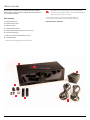
Box Contents:
of this manual. For the most up-to-date information please visit:
1. 1x Shogun Studio Unit
http://www.atomos.com/drives
2. 2x Rack ears with screws
3. 5x Master Caddy II
4. 4x Rubber feet with screws
5. 2x large rubber feet (for elevating the front of the unit)
6. 1x Screen cleaning cloth
7. 2x IEC power cable (or external PSU for Japan)
8. 1x QuickStartGuide
* Contents may differ slightly from those shown here.
1
6
3
5
4
2
7
*Subject to change without notice
Atomos Shogun Studio – User Manual Edition 1: November 2015
5
What you also need
Widely available 2.5” drives are the basic storage medium for 4k Monitor
recorder. We work closely with all the leading drive manufacturers to
qualify as many options as possible. Hard drives / HDD or Spinning disk
can only be used for HD recording. Solid State Drives / SSD are required
for 4K recording or for more demanding production environments that may
not be suited to HDDs.
See the section below about when you should consider using SSDs.
Mechanical Shock and Vibration for Spinning Disk HDD’s
Hard disks are precision mechanical devices that need to be handled
carefully. The use of mechanical drives or Solid State drives will vary
depending on the intended filming application.
We can’t give rigid guidelines because there are so many different kinds
of drives, each which has different mechanical properties. You may find
variations between drives of the same type.
What we have found is that mechanical drives are suitable for most
purposes that don’t involve harsh vibration or mechanical shocks. We
would not advise using mechanical disks if there is a likelihood that they
might be dropped onto a hard surface.
Here are some things that you should bear in mind when using
spinning disks:
• Even though spinning drives can withstand substantial shocks
when they are not in use, they are more vulnerable when running.
Harsh treatment that may not actually damage the drive may interrupt
recordings at a much lower level of severity. We recommend that you
experiment with your drives by testing them in the conditions that you
Which drives should you use?
There are so many drives available, and newer models appear all the
normally work in.
•Do not bang or jolt the Shogun Studio while recording.
time. We are not able to test all drives but here are some guidelines.
• Do not use spinning drives (HDD) for recording 4k video
Spinning Disk Drives (HDD) are recommended for recording up to
• You will find noticeable differences in the ability of drives to withstand
1080p30/1080i60 HD video only
shock and to continue recording during vibration and movement.
Solid State Drives (SSDs) are recommended for recording up to
4kUHDp30 and 4kDCIp30 from RAW
Speed and reliability are the main factors. Here are a few things to
bear in mind:
•Disk drive data rates tend to be given in megabytes per second,
and codec data rates are normally given in megabits per second.
It’s very easy to get confused. But there’s no need to be, because all
you have to do to convert megabits to megabytes is divide by 8. So if
you’re recording at 220 megabits per second, that’s going to result in
220/8 megabytes per second, which is 27.5 megabytes per second.
•We recommend at least 7200 RPM drives. Just remember that the
higher the bit-rate of the codec you’re using, the faster the drive
needs to be, with 4K recording your data rate is four times from that
of HD recording, please ensure your drive is capable of keeping up
with 4K write speed requirements.
Atomos regularly test hard drives – please check this link before
purchasing drives: http://www.atomos.com/drives
*Subject to change without notice
Atomos Shogun Studio – User Manual Edition 1: November 2015
6
What you also need
File Recovery
4K SDI cables (not included)
•Your Shogun Studio is able to detect when the drive is under stress
SDI cables are robust physically and electrically: you should rarely have
and it will recover from any break in a recording by waiting until
problems with signal transmission unless your cables are either damaged
the drive is ready to continue, and then resuming from that point. If
or too long. Please remember that SDI cables use locking connectors and
frames have been dropped because of shock or vibration, a “Skippy”
will not simply pull out if they are jerked or tripped over. They are therefore
Kangaroo symbol will appear on the home screen on the Shogun
a significant trip hazard, and also a hazard to your equipment, which may
Studio, in the top left hand corner of the display. This means that you
be damaged if the cables are mishandled or of a low grade. Please ensure
will not normally have to restart the Shogun Studio, even if a recording
you test and check your SDI cables for 4k, for longer runs cables of a
has been interrupted by mechanical disruption to the disk drive.
Belden 1694A specification are recommended.
(see Monitoring and Recording : Anti-shock technology for more
information)
Taking into account most usage scenarios, we think that mechanical
disks will be suitable in the majority of cases when recording up to
1080p30 HD. Spinning disks are most sensitive when they are rotating.
It is obviously best to avoid dropping them but many disks now have a
“drop detector” that will lock the most fragile mechanical parts in place
and protect them from surprisingly hard knocks. We recommend that
if you want to experiment with this, you do so with a drive that doesn’t
contain the day’s shoot!
Backing up and archiving
Remember that no storage medium, including tape, optical disks, spinning
disks and flash memory, is completely immune from failure.
You should bear this in mind when deciding how to manage your
recorded content. At the very least, you should consider the consequences
HDMI cables
HDMI cables are robust physically and electrically: you should rarely
have problems with signal transmission unless your cables are either
damaged or too long.
Not all HDMI cables are created equal and there are a variety of different
qualities available. Please make sure you test your cables prior to
shooting.
Also check your connectivity at both the camera connector and the
recorder/monitor connector to make sure you have a firm connection to
avoid any signal drop out.
If the SDI / HDMI cable is removed while recording the “Skippy”
image will also be displayed. To remove touch Skippy and he will
disappear ready for his next notification.
for you and your business if your storage medium were to suffer from a
sudden failure, and you should back up your content accordingly. Hard
drives that you can use for archiving are becoming increasingly affordable.
You may find that it is completely feasible for your to keep your master
Refer to page 31: Atomos Anti-shock technolog for more
information about “Skippy”.
Shogun Studio disks on a shelf (just like tapes!), and, as a backup, store
copies on large hard drives, RAID arrays, Network Attached Storage (NAS)
or LTO.
*Subject to change without notice
Atomos Shogun Studio – User Manual Edition 1: November 2015
7
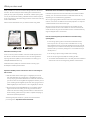
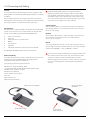
3. Mounting disks in the Master Caddy II
Mounting drives in the Master Caddy II
Insert the disk into the caddy, and secure with four screws. The caddy is
light and the disk just needs to be held securely. Don’t over-tighten the
screws. There are no connections to make because sliding the caddy
into the Shogun Studio or the Docking station makes all the connections
Spinning disks and SSDs are very sensitive to damage from
static electricity. Please observe all the usual precautions
when handling them, especially DO NOT EVER touch the exposed
SATA connector as static electricity may be harmful
to your disk.
for you.
The Master Caddy can’t be inserted the wrong way round. Always make
Master Caddy II drives are backwards compatible with previous
sure that the disk connector faces the slot in the Shogun Studio. You
Atomos recorders, however Master Caddy 1 is not forward
have to be quite firm to push the Master Caddy II into place, but don’t
compatible with the Shogun Studio due to the compact latch design.
push too hard, just in case something isn’t set up or aligned properly.
There is very little that can cause problems and the most likely thing is
that the Master Caddy isn’t properly flush with the drive inside. A quick
visual check will confirm this.
1
Carefully assemble the
Master Caddy II and disk
Insert screw
Align all parts
2
Insert screw
Ensure all 3 parts aligned
and insert 4 x screws (supplied)
Do not over-tighten screws or
alignment can not be guaranteed.
We suggest squeezing the corners
together near the screw you are
tightening for optimal fit.
*Subject to change without notice
Atomos Shogun Studio – User Manual Edition 1: November 2015
8
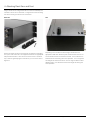
4. Attaching Rack Ears and Feet
Shogun Studio can be configured for both rack mount and desktop use. Included in the box are 4 x small feet, 2 x large feet and rack ears along
with all the mounting screws for these accessories.
Rack ears
Feet
Remove the metal rack ears and screws from the protective packaging.
Depending on the intended use of the Shogun Studio select the
Line up the holes and screw in the supplied screws with the appropriate
Philips head screwdriver. Take care to screw each screw in 3/4 of the
way in and then gradually tighten all screws so you can ensure correct
alignment.
appropriate rubber feet. Whilst the power is disconnected turn the unit
over and locate the four screw holes for the feet. The 4 small feet can
be attached and used during rack mount operation. The 2 x larger feet
are designed to raise the front of the unit to an angle to allow for easier
desktop viewing. It is advised to remove these larger feet during rack
mount operation.
*Subject to change without notice
Atomos Shogun Studio – User Manual Edition 1: November 2015
9
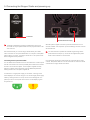
5. Connecting the Shogun Studio and powering up
Power button
Dual Redundant AC Power Supply
The Shogun Studio does not feature a software off function in the
menu and can only be powered down from the physical switch on the
front of the unit.
We recommend that you connect Shogun Studio directly to a stable
mains connection or via a power distribution unit / strip to an interruptible
power supply in your rack. The Shogun Studio has 2 x AC inputs and we
advise using both where possible.
Connecting Power-up and about PSUs:
The rear bottom left hand side of the unit are located AC1 and AC2 inputs
with IEC C14 sockets. Connect the provided power cables to the sockets
With both power supplies connected, press the Power button in for 3
seconds and both units will power up and the LED light on both channels
will illuminate red.
On initial connection of power the controller will go through a boot
phase and the fan will spin up. Once this has happened the power
button can be used to turn on the device.
Once powered, pressing the power button for 3 seconds will turn both
units off. After power down the unit’s fan will remain on whilst the internal
controller of the Shogun Studio shuts down.
and then connect to mains power. The dual power supplies internally
balance the power draw across both units and additionally allows for
backup power if one of the power supplies fail.
If a PSU fails or a single power supply is connected, a warning screen
will be displayed. To continue using the unit, activate single power supply
mode by clicking the blue X in the top corner of the message box. The
power input icons in the top left corner of each unit will display a green
and yellow icon.
*Subject to change without notice
Atomos Shogun Studio – User Manual Edition 1: November 2015
10
6. Shogun Studio Connections
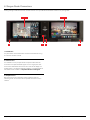
Looking at Shogun Studio from the front, recorder channel 1 is on your left side and recorder channel 2 is on your right side.
Channel 1
3
Channel 2
1
2
3
1. Power Button
The power button as described earlier controls the simultaneous turning
on or off both recorder channels.
2. Calibration Port
The Calibration 2.5mm jack port beneath the power button allows for
connection of the optional Atomos Spyder unit. This single port is able
to be used to calibrate both devices and each channel will display as a
separate option in the Atomos Calibration software, an updated release of
this software will be available via http://www.Atomos.com/support
3. Headphone Ports
Both channels have an independent 3.5mm headphone jacks for
monitoring audio. The volume control is operated via the touch screen
interface.
*Subject to change without notice
Atomos Shogun Studio – User Manual Edition 1: November 2015
11
6. Shogun Studio Connections
The rear panel of Shogun Studio has been laid out symmetrically to align the connections with the recorder
channel monitor when viewed from the front.
1
2
Channel 2
3
5
4
6
Channel 1
7
4
1
3
2
1. 4K/HD-SDI
4k/HD-SDI in: The SDI input connections are 12G compliant and
backwards compatible meaning that it can be used for 12G, 6G, 3G and
1.5G signals. This input is also used to input RAW signals from supported
cameras.
4k/HD-SDI out: This is for connection to an external monitor or other
device with an SDI input. It carries a loop-through of the incoming SDI or
HDMI signal in record and standby mode, and the playback signal when
the Shogun Studio is in playback mode. This ouput can carry either a 4K
4. Synchronization
Each Recorder channel
has GenLock input and output via BNC as well as
LTC Timecode input and loop output.
Please note that the output of the Genlock and LTC are only for loop
out and the Shogun Studio cannot generate either GenLock or LTC
Timecode.
LTC settings can be acessed in the Timecode menu.
or HD signal (with the option to down scale the 4K input to HD). The SDI
<-> HDMI conversion is always live allowing for instant conversion with out
any setup.
5. RS422 9pin D-Sub
Each recorder has its own dedicated 9pin D-Sub for RS422 machine
control. Simply connect your RS422 cable from your device or controller
2. HDMI
HDMI IN: The video input is a full size HDMI 1.4b connection used to
receive the video and when supported by your device embedded audio
and Shogun Studio
will receive and action the commands.
See page 38-39 for the supported RS422 commands.
and Timecode. This is both displayed and recorded to the Atomos
recorder/monitor storage media.
6. Ethernet
HDMI OUT: This is for connection to an external monitor or other device
The RJ45 Ethernet connection is for the remote control of the unit via AMP
SDI signal in record and standby mode, and the playback signal when
Amp commands.
with an HDMI input. It carries a loop-through of the incoming HDMI or
commands from devices that support this. See page 40-41 for supported
the Shogun Studio is in playback mode. This ouput is 1.4b and can carry
either a 4K or HD signal (with the option to down convert the 4K input
to HD). The SDI <-> HDMI conversion is always live allowing for instant
conversion without any setup.
7. USB
The USB connection on the rear is for SERVICE ONLY and should only be
used if instructed to do so as part of a firmware update.
3. Analogue Audio
Each recorder channel has 2x XLR inputs and 2x XLR outputs. The inputs
can be configured at Line, Mic and Pro level in the Audio menu. The
inputs can also provide 48V Phantom power to compatible microphones.
The XLR outputs are for monitoring and the audio channel routed to them
can be selected via the headphones selection in the Audio menu.
*Subject to change without notice
Atomos Shogun Studio – User Manual Edition 1: November 2015
12
6. Shogun Studio Connections
HDMI and SDI
3D LUT Output
Built in to the Shogun Studio are both SDI and HDMI inputs. This means
LUTs can also be selected to be applied to the outputs and routed out to
that either input is able to be routed out of both the HDMI and SDI outputs
other equipment via the HDMI or SDI connections.
at the same time. This allows you to use SDI cameras with other HDMI
equipment or HDMI cameras in an SDI infrastructure. This is accessed via
the input menu See page 18.
Video Scale Convert
Embedded Audio
The Shogun Studio can record 12 channels of digital audio embedded
in the SDI signal, and 8 channels of digital audio embedded in the HDMI
signal.
Video out also has the option for a down scale to be applied allowing your
4k input to be converted to a 1080 HD output for use with existing HD
equipment.
6. Inserting the drives
Master Caddy II Slot
Master Caddy II - New 2 keyway system
On the front of the Shogun Studio a drive slot is located under the centre of
The Master Caddy II is hot-swappable, so you can do this at any time –
each of the 7.1” SuperATOM IPS monitors.
even while the unit is turned on. But don’t do it while recording or you will
To insert a drive make sure it is mounted correctly in the Master Caddy II
and push the drive in to the slot. The side keys will guide the drive in to
position and engage the drive with the SATA connector.
get a corrupted file that may be unplayable. If files are incomplete your
AtomOS will detect this and allow you to repair the file but in the case of
power loss there will be frame loss of roughly 7 seconds.
Do not attempt to insert a drive with out a Master Caddy II as this
could damage the rear connector and the drive.
The Shogun Studio does NOT have a release latch - it is friction-fit.
Simply pull the Master Caddy II out using a finger and thumb on either
side of the Master Caddy II and pull the drive out of the slot.
Master Caddy II is backwards compatible with previous Atomos
recorders Master Caddy 1 is not compatible with Shogun Studio as
the keyways are on one side only.
*Subject to change without notice
Atomos Shogun Studio – User Manual Edition 1: November 2015
13
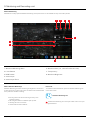
8. Using the Shogun Studio
The Shogun Studio is primarily controlled via an
intuitive touchscreen interface that allows each
unit to be controlled independently, for some
record modes Channel 1 will become the Master
and Channel 2 the Slave but each will maintain
control of it’s own WFM and monitoring tools.
Video Input Format and
Pulldown Status
Recording
Quality
File Name
Recording Time
Remaining
Continuous Power
Indicator
Icons and buttons have been designed and
laid out in a specific way to ensure operation is
simple and fast.
The high definition 1920x1200 Home Screen
displays all necessary technical and functional
information.
The menu on the bottom of the screen is 120px
allowing a full uncluttered 1920x1080 image to
be visible on screen. Everything important for
operation and adjustment is no more than one
touch away. Here is how it works:
Recorder
Channel No. /
Rec Options
3D LUTs / Display
Options
Audio Channels
Headphone
Line Out Volume
Rec/Play/Menu
Waveform
Monitoring
Monitor
Assist
Cut and Tag
Favorite / Reject
Touching the center of the screen at any time removes the top interface overlay, tapping again clears the bottom controls and a third
tap brings all the options back up. Active Shot Setup or Monitor assist functions that are enabled will remain active when the menu
system is cleared. This is to allow you to use the Shot Setup and Monitor assist functions at all times while shooting.
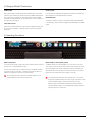
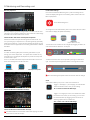
1 Category 1 – Operating Settings
This list of real-time operating settings can be adjusted or toggled when a BLUE ARROW
the setting cannot be adjusted.
is present. If the Blue arrow is disabled,
2 Category 2 – Shot Setup & Monitor Assist Tools
This list represents the icons and functions available for Shot Setup and Monitor Assist Tools:
Waveform Monitoring Functions
See page 23
Monitor Assist Functions
See page 25
Smart Log Cut and Tagging
See page 28
3D LUTs and Display Options
See page 29
Touch these icons to reveal more functional options in a sub-category. Touch the sub category icons to toggle the functions on or off.
When a Shot Setup or Monitor Assist function is active, detailed settings for each Shot Setup tool are also available from this panel.
Touch the
icon to go back to the Home Screen at any time.
3 Category 3 – Main Controls REC, PLAY & MENU
The Main Controls of the unit are indicated by large round icons.
To enable recording
See page 15
*Subject to change without notice
For instant playback and review
See page 15
To make settings changes
See page 15
Atomos Shogun Studio – User Manual Edition 1: November 2015
14
8. Using the Shogun Studio cont.
Home screen and menu functions
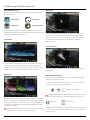
Rec (Record)
Shogun Studio uses a unit name, scene, shot and take convention to name
This is the icon you touch to begin a recording. Touch it again to stop
the clips. Select the clip you want to play by touching the file name and this
a recording. While recording the Rec icon changes to a Stop icon and
will start to playback.
a red frame is present around the screen.
No disk
Standby
The Play button will be dimmed and disabled
if there is no disk or the disk is not formatted.
See page 19 - Formatting disks
Menu
Pressing this takes you into a number of options which will explained next.
Recording
No input / No media
The Rec icon is dimmed and disabled if
there is no valid video input OR, the disk is
not formatted, or the disk is full. The button
is dimmed because you cannot record.
Play
Touch this icon to play previously recorded clips. When you press
the green Play button the Studio will switch to playback mode and
automatically play the last recorded clip.
Standby
Time Lapse
When the icon is shown with small interval lines
around the red circle this means that Time lapse
recording is activated.
For more information on Time lapse on page 35
Navigation
Pre Roll
When a white circular arrow is show this means Pre
Roll record is active.
For more information on Pre Roll see page 35
*Subject to change without notice
Atomos Shogun Studio – User Manual Edition 1: November 2015
15
8. Using the Shogun Studio cont.
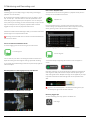
File Naming
Allows you to select the scene and shot number that will be recorded
as well as change the unit / media name. To change the unit name tap
the arrow under UNIT/MEDIA NAME, Use the left and right arrows to
select a letter, and the up and down arrows to change its value.
To modify the scene and shot number under CONFIGURE FILE NAME,
select plus or minus next to scene or shot (up to 999). The number
you choose will then be shown in the file name at the top of the
screen during recording, the take number is automatically increased
with each take.
Date & Time
Allows you to adjust the date and time shown by the clock in the
Shogun Studio. This will also change the time of day Timecode.
Touching the Date & Time takes you into the Date and Time Screen.
Date formats (i.e. dd-mm-yyyy or mm-dd-yyyy) are selectable by
tapping the blue arrow on “Select Date Format” Menu. Simply keep
tapping until the desired format is shown. The Time, Month, Day and
Year are selectable and can be modified by clicking the blue plus
and minus icons next to the desired fields.
For both Time of Day Timecode and Scheduling start times for Time Lapse record mode it’s important to ensure that the correct
time is set.
*Subject to change without notice
Atomos Shogun Studio – User Manual Edition 1: November 2015
16
UNLOCKED
8. Using the Shogun Studio cont.
UNLOCKED
Lock the Display Screen
LOCKED
You can lock the display of the Shogun Studio so that
no changes can be made by mistakenly touching
the screen, to lock the Shogun Studio simply short
UNLOCKED
LOCKED
tap the power button. The screen lock function will
simultaneously lock or unlock both Channels of the
Shogun Studio.
Short tap the power button again to unlock the unit.
LOCKED
The lock screen can be combined with the display off function so
that when lock is engaged the display is turned off. The Tally light on
the front of the unit will still display Rec (Red) or idle (green) status.
Locking of the display can be found in the Display menu.
Timecode
Takes you to the dedicated Timecode configuration page.
Refer to Page 32 of this manual for more information.
Shogun Studio Info
Shows the software (firmware) version and unique device
ID (DID) of your Shogun Studio device. This will be
required to activate the Avid DNxHD / Avid DNxHR codec.
You can also check on the Atomos website to ensure you
are running the latest firmware:
http://www.atomos.com/support
Remember that pressing on the Back button will always take you
back to the previous menu.
Both Channels of the Shogun Studio are activated using a single
code and this needs to be entered via Channel 1.
*Subject to change without notice
Atomos Shogun Studio – User Manual Edition 1: November 2015
17
8. Using the Shogun Studio cont.
1
3
4
5
2
1. The Input Menu
Simply tap the source input menu to the top left of the screen to bring up
the input control panel. This panel will is a command centre for all devices
connected to the Shogun Studio and will assist you with connectivity by
indicating if the signal is active or if attention is required.
4. Record
The record menu allows you to apply pulldown removal if recording from a
source that applies pulldown to the output signal. Note for 3:2 Pulldown
removal, movement in the frame may required to accurately lock signal,
simply wave your hand in front of the camera to achieve lock. See page
34 for more details on pulldown removal.
2. Source
Displays the input source currently connected to the Shogun Studio,
simply tap
to toggle between HDMI & SDI/SDI RAW inputs. You can
have both HDMI and SDI inputs connected at the same time and use
this menu to toggle between active inputs.
The current input resolution of the selected input source is displayed.
HDMI Devices will display an EDID Device name if the information is
available from the HDMI device connected.
A green tick on Source indicates the Shogun Studio has locked signal on
this input, a red cross indicates a signal or lock issue with the attached
device, double check your cable and camera output settings. There is
also an option to Correct Color input for use with Canon 5DMKIII that can
be applied to the input.
The 3D LUT option allows you the option to burn in your selected LUT to
the recorded file. Please be aware that this will permanently baked in and
is non reversablereversible. When this option is selected a red LUT icon
will flash in the top right hand corner of the display. See page 29 for more
details on 3D LUTs.
Pre-roll allows for you to cache the last few seconds of footage so if you
are late to hit record you won’t miss the action. When this option is
selected it will show a round arrow on the record button and flash a red
Pre Roll icon in the top right hand corner of the display.
As Pre Roll is always cache recording once activated a number of
features that are related to record settings will be locked. These
include audio record channel select, 3D LUT record, Codec selection
and Drive naming.
3. Trigger
The Shogun Studio can be remotely triggered to record from your camera.
Select the correct triggering option for your camera and set Enable
Trigger to ON. Please refer to page 22 for more information.
5. Video Out
This menu displays the active video format being output from both HDMI
and SDI outputs. A 4k to HD down conversion can be applied to the
output. This enables you to send a 4k input signal to a HD device. 3D
LUTs can also be applied to the output indepentantly of the Shogun
Studio screen. This can be useful if you wish to monitor log footage on the
Studio and show a graded image on an external display
Any selections in this option apply to both HDMI and SDI outputs.
*Subject to change without notice
Atomos Shogun Studio – User Manual Edition 1: November 2015
18
8. Using the Shogun Studio cont.
Storage Capacity Indicator
Unit Name
Located in the top right of the screen. When a disk is inserted, the
To access the unit name click the file name indicator from the home
Storage Capacity Indicator will show the recording capacity of the drive
screen, then Unit Name.
This is calclulatedcalculated based on codec settings and input signal
The unit name serves two main purposes:
type. If no input is connected it will show as --:--:--.
Formatting HDD/SSD
• Drive Naming: Naming the unit names the drive if the drive is
formatted after the unit name has been set
• File Naming: File name is the current unit name as the start of the
recorded clip name; STUDIO_S001_S002_T003
Touching the Storage Capacity Indicator on the home screen will take you
to the Media Menu. This menu provides information on the drive currently
inserted.To format the drive touch the Format Media button. A confirmation
screen will give you the choice to continue or cancel the process.
To access the unit name screen simply touch the blue arrow to the right
of the unit name. Creating your own unit name by pressing the arrow to
change and enter the letters in. Pressing OK will allocate the new unit
name and return you to the menu screen.
Power Indicator
Pressing The power icons in the top right hand corner brings up the
power menu which provides the status of the power connections
If you do not see your hard drive information, there may be a
problem with the connection or drive. Try ejecting the drive and
re-inserting the drive.
Please check the drive compatibility list prior to purchasing drives:
http://www.atomos.com/drives
The Shogun Studio file system is exFAT. We recommend that you
format each disk with the Shogun Studio and not your computer to
ensure the correct parameters are set with the file system.
*Subject to change without notice
Atomos Shogun Studio – User Manual Edition 1: November 2015
19
8. Using the Shogun Studio cont.
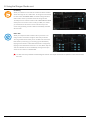
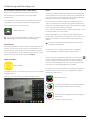
Monitoring & Recording Audio Channels
To select the input line Level to match your device. Options available are;
Audio panel and quick headphone volume adjustment bar.
Line Level (-10 dBV)
Located on the bottom left corner of the home screen you will see the
Sets the analogue input channel to Line Level via the XLR to XLR
Tap the audio bars to bring up the audio panel.
connector.
From this panel you can manage up to 12 digital channels (via SDI input)
and 8 digital channels (via HDMI input) as well as 2 analogue audio
Mic Level (-40 dBu)
Sets the analogue input channel to Mic Level via the XLR to XLR
channels (via the XLR Mic/Line in).
connector. With Mic Level selected you also have the option to provide
48V phantom power should your microphone require it. Please only use
this when your microphone supports it and if unsure please consult the
manual for the mic you are using.
Recorded digital audio inputs work in correspondence to the video
input source selected from the Input Menu, Analogue Line In is
available to both selectable inputs. An active video input is required
to record audio.
Pro Level (+24 dBu)
Sets the analogue input channel to Pro Level Audio to via the
XLR to XLR connector.
Analogue gain can then be tuned by incremental increase or decrease of
up to +/- 20dB individually for both left and Right channels.
It is not possible to vary the gain if the signal input is from the SDI
or HDMI connection because this is digital and is embedded in the
signal. You can usually adjust this from the camera, please see your
camera manual for operational details.
For the XLR outputs, the audio line out level can be adjusted by cycling
through the Audio out options
To enable phantom power for mic’s connected via the XLR connection,
Each channel has a level meter assigned to Left & Right Channels; when
there is active audio feed you will see the level indicator moving.
You can choose to record from any or all of the digital (SDI or HDMI)
channels from the active source input as well as analogue inputs.
Underneath each pair of audio channels you can see the
record
button, when this is shown in red it is set to record, simply select the
channels you want to record.
The Analogue audio input level is located to the far right, tap
to
record this channel (XLR Line in Adapter Required)
Please note that if analogue audio is recorded it will be placed as the
first pair of audio tracks in the recorded file.
Audio Options
To adjust the gain on the analogue input you need to bring up the audio
options page by pressing in the lower right corner of the audio menu.
turn on the Mic 48V option.
Audio In must be selected as Mic Level.
For monitoring the audio, the Home Page Audio options Toggles the
orientation of the audio bars displayed on the Shogun Studio home page
in the lower left corner. Options available are;
Horizontal
Displays the 2 channels you are actively monitoring.
Vertical
Displays 12 channels + 2 Analogue Channels.
Monitoring Audio
To monitor the audio, tap the headphone icon
next to the channel
you wish to monitor from the headphone output.
Audio Delay
This option allows you to delay the Audio to be in sync with the video by
adding in frame delays.
Audio During Playback Mode
When you enter into Playback mode on the Shogun Studio it will only
output channels 1/2 on the headphones, please bear this in mind when
you select the audio channels for recording.
*Subject to change without notice
Atomos Shogun Studio – User Manual Edition 1: November 2015
20
9. Monitoring and Recording
Setting up for recording
As soon as you connect a supported signal to the Shogun Studio input
Recording Checklist
• Check there is a valid signal by checking the input menu ensuring all
and have inserted a formatted drive the following will happen;
fields display a green tick.
• The Rec icons will go solid
• Check the input signal is set to what you would like from the input menu:
• The input source & format will be shown in the top left corner
- Progressive
• Audio inputs will show levels in bottom left corner
- Progressive with 2:2 or 3:2 pulldown (1080i inputs only)
- Interlaced (HD Only)
Ready to Record
• If you see No Input for any reason please check your camera settings
match a supported format for Shogun Studio. The formats supported
are listed in the technical specifications page at the end of this manual.
• Connect any additional Analogue audio inputs and adjust gain
accordingly.
• Check you have the correct audio channels in record, set to you
required from the audio panel.
• Connect headphones and monitor the audio channels to make sure the
sound is as expected
No Input / Disk Present
• Ensure the video is coming in as expected. Make sure the signal is
clean and does not have any GUI overlays from the camera.
• Check you have the correct Scene & Shot number selected, this can be
adjust by tapping the file name to the top of the screen.
• Check your drive is inserted and has been formatted by the Shogun
Studio
• Check your Timecode and tigger settings are as required
• Choose how you will start/stop your recording
• Check for clean input:
By touching the screen in Monitor mode, you can remove the Atomos
No Input / No Disk / No Disk Formatted
overlays to give you a clean screen. If any overlay graphics remain, these
will be coming from your camera. Please check the settings on your
camera to switch these off.
Choosing your recording format (Codec)
Select the codec name on to the top left of the screen to display the codec
menu.
From the codec section you can toggle between ProRes® or Avid
DNxHD® *. The Quality menu allows you to toggle codec compression
Input Present / No Disk
Apple ProRes offers 3 levels of compression (HQ, 422 & LT) DNx offers 4
(220x, 220, 145, 36 ) and DNxHR is available in HQX, HQ, SQ and LB.
The expected record time available from each codec selection is
automatically calculated from the available space on the media inserted.
If Avid DNxHD / DNxHR is required, you must activate it first. This can
be done at www. atomos.com/support – DNxHD 220x/DNxHR HQX
are 10bit, all others are 8 bit, DNxHD36 is a proxy codec.
More information regarding Apple ProRes data rates can be obtained
online from Apple ProRes whitepaper PDF document.
*Subject to change without notice
Atomos Shogun Studio – User Manual Edition 1: November 2015
21
9. Monitoring and Recording cont.
SmartControl
SmartControl is a versatile set of functions used to control the starting
and stopping of recording by automatic or external means. This section
outlines the different methods to start and stop recording.
Shogun Studio Start and Stop record control can be triggered by the
following methods:
1. Home Page Touch Screen
2. HDMI/SDI Rolling Timecode trigger
3. HDMI Camera trigger
4. SDI Camera trigger
5. RS422 Control
6. Ethernet AMP control
4. SDI Camera Trigger record
The SDI Camera trigger is manufacturer-specific, you will need to select
the appropriate manufacturer for your camera from the input menu. There
is a flag within the digital signal that lets the Shogun Studio know the start/
stop record has been pressed on the camera; in turn this will trigger the
Shogun Studio to start/ stop recording at the same time as the camera.
1. Home page Touch Screen
By pressing Rec (Record) and STOP to end recording
2. SDI / HDMI Rolling Timecode Trigger record
To enable this set TRIGGER to the camera manufacturer in the INPUT
Menu.
When the manufacturer is selected in Camera trigger, this will disable
the Timecode trigger.
If the camera is Record Run mode, recording can be stopped or started
by a moving Timecode via HDMI or SDI.
When enabled the camera and the Shogun Studio will start and stop
recording simultaneously.
Rolling Timecode trigger is for use in older cameras with TC only & no
trigger. If your camera is set to FREE RUN this trigger will start
recording immediately. Please be that aware not all cameras have
Start/Stop flags for triggering record, especially older cameras. In
such cases rolling trigger in REC RUN will need to be used to trigger
recording automatically at the same time as the camera starts
recording.
3. HDMI Camera trigger record
The HDMI Camera trigger is available for supported cameras, There is a
flag within the digital signal that lets the Shogun Studio know the start/stop
record has been pressed on the camera; in turn this will trigger the Shogun
Studio to start/ stop recording at the same time as the camera.
*Subject to change without notice
Atomos Shogun Studio – User Manual Edition 1: November 2015
22
9. Monitoring and Recording cont.
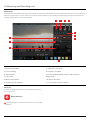
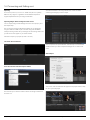
Waveform Monitoring
AtomOS6 has a newly improved Waveform Monitoring control panel which can be enabled with only a few button presses.
2
3
4
5
6
7
8
1
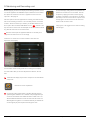
1. Waveform Monitoring Menu
6. Waveform Size (1/4, 1/3 and Full Screen view)
2. Luma Parade
7. Transparency
3. RGB Parade
8. Waveform Brightness
4. Vectorscope
5. Vectorscope Zoom
What is Waveform Monitoring?
How to use
chroma values from a video input signal. This feature has several benefits
on the home screen.
Waveform Monitoring is used for measuring the brightness, luminance or
To enable the Waveform Monitor, press the Waveform Monitoring icon
to the production workflow including:
•E
nsuring camera to camera matching accuracy when
Waveform Monitoring icon
shooting multicam.
• Returning to locations for additional pick-up shots.
• Assisting with colour correction.
• Camera white and black balance
*Subject to change without notice
The Waveform Monitoring icon will only be visible if there is an input
signal detected.
Atomos Shogun Studio – User Manual Edition 1: November 2015
23
9. Monitoring and Recording cont.
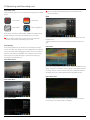
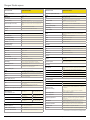
Waveform Monitor Types
Inside the Waveform Monitoring menu, two types of Waveform Monitors
Vectorscope
are available for use:
Luma Parade
Vectorscope
RGB Parade
Vectorscope zoom
Luma Parade, RGB Parade, Vectorscope and Vectorscope Zoom are
enabled simply by touching the corresponding icon and will be by default
displayed at the bottom right hand corner.
The Vectorscope display shows colour information of hue (shown as a
phase vector), and saturation (measured by outward distance from the
centre). This is useful for checking if an image is under or over saturated
Luma Parade
and for calibrating multiple cameras to ensure greater consistency
between shots.
Vectorscope Zoom
The Luma parade is a great way to visualize the dynamic range of your
image, allowing you to protect exposure of both your high lights and
shadow detail. It’s particularly useful when shooting with a low contrast
LOG curve so you can extract more detail out in post production.
RGB Parade
The Vectorscope Zoom shows a scaled up view (x8) of the centre of the
vectorscope.
Waveform Monitor Settings
From within the Waveform Monitoring menu you can access the display
settings for the waveform monitor.
To change the size of the waveform, press on the 1/4, 1/3 or Full Screen
icons and the display will update immediately.
Waveform Size settings
To toggle between Waveform Monitor sizes of 1/4, 1/3 and Full Screen
from the Home Screen, tap in the bottom left corner of the screen .
RGB Parade will monitor the level of Red, Green and Blue from an input
source. The RGB channels are displayed side by side. This can be used
to check to white balance. Just point the camera at something white and
Brightness
Transparency
the Red, Green and Blue levels should match if white balance is setup
correctly on the camera
The Waveform Monitor will remain on screen when hiding the overlays
ensuring the focus remains on calibrating your image.
*Subject to change without notice
The Brightness slider directly controls the intensity of the waveform while
the Transparency slider adjusts the transparency values of the waveform
display on screen.
Atomos Shogun Studio – User Manual Edition 1: November 2015
24
9. Monitoring and Recording cont.
Monitor Assist
AtomOS features Smart Monitor tools that help with making your shot picture perfect. Easily access Focus Peaking, Zebra, False Colour and Blue Only
Exposure to check image is in focus, noise free and correctly exposed. Options for safe area/ title area markes along with aspect ratio markers and
anamorphic desqueeze functions are also available.
2
3
4
5
6
7
9
8
10
11
1
1. Monitor Assist Menu
7. Safe Area / Title Lines
2. Focus Peaking
8. Cinema / TV Guides
3. Zebra Pattern
9. Focus Peaking Display (Colour / Monochrome /
4. False Color
Edges Only)
5. Blue Only Exposure
10. Zebra Threshold
6. Anamorphic De-squeeze
11. Focus Zoom with Pan & Scan
How to use
To enable the Monitor Assist functions, press the Monitor Assist icon
on the home screen.
Monitor Assist icon
The Monitor Assist icon will only be visible if there is an input signal
detected.
*Subject to change without notice
Atomos Shogun Studio – User Manual Edition 1: November 2015
25
9. Monitoring and Recording cont.
Focus Assist Tools
Inside the Monitor Assist menu, four types of focusing tools are available
for use:
You can change the focus peaking colors and modes from the
Focus Assist Panel.
Zebra
Focus Assist
False Colour
Zebra Pattern
Blue Only Exposure
Focus Assist, False Colour, Zebra Pattern and Blue Only Exposure are
enabled simply by touching the corresponding icon in the menu.
You can apply multiple filters to your monitor at the same time,
however can be set up individually for your needs.
Zebra pattern show the parts of the image that are exposed +-5% of the
target level set.
The Zebra threshold value can be adjusted by moving the slider left or
right.
Focus Peaking
Focus peaking allows the user to ensure their recordings are always
False Colour
in focus. The parts of the image in focus are highlighted by the selected
colour (can be adjusted by dragging the slider). There are a number of
options for how peaking is displayed, it can overlayed over the colour
video image, over a greyscale image or just show the peaking my
selecting the corresponding icon.
Focus Assist Colour
False Colour assigns different colors to areas of different brightness in the
image. This gives a visualization of what is going on with exposure across
the image. There is a scale on the left hand side, overexposed elements
will display as red, and underexposed elements will display as blue.
False Colour Scale
Focus Assist Mono
Focus Assist Outline
To help you determine the exposure range with more accuracy, please
use the scale on the left hand side of the display.
*Subject to change without notice
Atomos Shogun Studio – User Manual Edition 1: November 2015
26
9. Monitoring and Recording cont.
Focus Assist Settings
Blue Only Exposure
From within the Waveform Monitoring menu, press the Settings icon to
access the display settings for Focus Peaking, Zebra, False Colour and
Blue Only Exposure.
Focus Assist Settings icon
Blue only displays a greyscale image based on the blue channel of the
input signal. This is useful to observe the noise content of a video image
To change the Focus Assist modes, press on the Colour, Mono or Outline
icons and the display will update immediately.
as sensor noise is most visible in this channel.
Cinema Guides / Safe Areas / Anamorphic De-Squeeze
AtomOS 6.5 introduced improved frame guides and safe areas. You
Color
can cycle through your required cine or TV frame guides by repeatedly
pressing the guides icon. Action safe area and title safe areas can then
be turned on and are proportional to the frame guides based on SMPTE
standards.
Mono
Edges Only
(Depth of field focus tool)
The color of the Focus Assist can be changed by dragging the slider, the
color selected will be reflected in the top line.
How to use
To enable the Frame guides press the frame guide button to cycle
through your chosen aspect ratio. The aspect ration markers are very
useful with the 2 x Anamorphic De-Squeeze to preview and crops that
could be made in post.
To turn on the safe area markers tap the Safe area button once for the
Action area and again fore the title safe area.
Cinema Guides
Safe Areas
The Zebra threshold value can be adjusted by moving the slider left or
right. The threshold percentage will be shown on the right of the slider.
43%
Anamorphic De-Squeeze
All of these settings will update without the need to close the settings.
Zoom
Zoom mode enables you to punch in and check critical focus
Toggle 1:1 to display 1:1 pixel mapping, the indicator box
shows the location of the screen you are viewing.
Cinema Guides Shown With Menu Overlays
4K 1:1 shows 1/4 of the 4K UHD image.
Toggle 2:1 to magnify the screen, the indicator box shows
the location of the screen you are viewing, you can move
the zoomed location by dragging across the screen or
selecting a portion of the indicator box.
4K 2:1 shows 1/16 of the 4K UHD image.
Cinema Guides Shown Without Menu Overlays
The Safe Area/Grid Lines will still be visible when tapping the center
of the screen to hide the overlays.
*Subject to change without notice
Atomos Shogun Studio – User Manual Edition 1: November 2015
27
9. Monitoring and Recording cont.
SmartLog
How to use in Playback mode
playback, more on this later).
the Play icon on the bottom of the screen.
SmartLog gives you the ability to tag your clips during recording (or
To review and use the Cut and Tag feature in playback mode, press on
By the pressing the Favorite and Reject icons you can assign a “good
clip” or “bad clip”. This information can then be imported into a non-
Playback icon
linear editing system to speed up the edit process. You can easily see
which parts of your recording you have marked to keep or reject. Favorite
clips can easily be built into a playlist in playback mode and these
tagged sub clips can then be played out back to back.
From the Playback screen, hit the file name at the top centre of the
screen to bring up the Playback file lister. Select a clip from the list by
directly pressing it and it will become available for marking.
AtomOS 6.4 introduced extended tags to allow you to be also make more
specific tags that can help facilitate the edit.
SmartLog uses FCPX XML and can also be converted for Adobe and
Avid non-linear editors
How to use in Record and Monitor mode
To access tagging press the Cut and Tag on the home screen.
To access tagging press the Cut and Tag on the home screen.
Cut and Tag icon
Cut and Tag icon
You can now see your video in the background and the Favorite and
Reject icons along with other tags for marking clips whilst recording.
To use simply tap the desired tag to mark the in point and tap again to
The Favorite & Reject tags along with the other icons will appear on
screen.
mark the outpoint.
Recording Mode: Cut And Tagging For Easy Clip Selection
FAVORITE
REJECT
Press Play and when you see the section of the footage you would like to
mark as good or bad, press Favorite or Reject and then press again to
stop marking that section. Multiple other tags can be applied to your clips
to provide Timecode accurate meta tags that can be exported to FCX
XML.
A green or red line will appear in the timeline scrubbing bar so you
Recording Mode: Clip Marked As A Good Take
can identify the region that has been selected.
Removing tagged clips
To clear all marking point clips, press on the Reset icon.
Clear Tags
RESET
*Subject to change without notice
Atomos Shogun Studio – User Manual Edition 1: November 2015
28
9. Monitoring and Recording cont.
Your final stage is to Export the tags to a FCPX XML file:
• Enter either the Playback List or the Media Information page
• On the bottom right hand side there is an icon Export XML
3DLUT
LUT or Look Up Table is a table that transforms the color response and
as such adjusts the ‘Look’ of the input. 3DLUTs have a combination of
three inputs defining the combination of R, G, and B values allowing for
• Press this once
• You will be shown a please wait screen (the length of time will vary
depending on your recording time and amount of flags applied)
• Then it will return you to the previous screen
adjustment of not only color but also gamma and gamut.
LUTs can be used in a number of ways such as to preview the LOG
output of a camera source in a specific colour gamut and gamma such
as REC.709. This allows for easy preview and measurement of the image
with in a color space that is used for final delivery.
EXPORT XML ICON
EXPORT
LUTs can also be used more creatively to create a specific ‘look’ such as
film stock emulation or to match cameras . Atomos support 3DLUTs in the industry standard .CUBE format and
You can carry on recording but please remember if you add any
additional tags you will need to export your XML file again.
Favorite Play list
provides 8 LUT memory slots for you load your LUTs in to. These can be
loaded in from the Built in LUTs or from files created using 3rd party
software.
1D LUTs are not supported and will need to be converted via 3rd
party software to be imported.
When in Playback mode you have the option to create a play list of your
Favorites. You can set this up by clicking on the playlist option in the
Playback file lister. Cycle through the options until favorites is selected. You can then play these out in either order recorded or reverse. See the
To import LUTs into your Shogun Studio first copy the .CUBE files
on to the SSD/HDD in your Master Caddy II using a computer.
playpack section for more details on playlists on Page 37.
To load a LUT select the desired slot and press on the blue file icon Display Option Menu
and then choose from off DISK or the BUILT-IN option. Navigate via
touching through the disk file system to the LUT file to be uploaded,
press on the name to highlight select the LUT and then again to import.
DISPLAY MENU
Then wait for the LUT loading progress bar to complete.
The name of the currently selected 3D LUT is displayed at the top of the
The Display menu icon on in the bottom corner of the menu bar accesses
the Display options.
Tapping on the this icon brings up the following Display Options:
display menu panel. This LUT can then be applied to the display by
pressing the monitor LUT icon.
MON
LUT
MONITOR LUT ICON
MO
MON
LU
LUT
The first touch will apply the LUT to 50% of the display
MON
LUT
The LUT can then be applied to the entire image with a
source to allow a comparison of the two images.
second touch.
A third touch will turn the LUT off.
*Subject to change without notice
Atomos Shogun Studio – User Manual Edition 1: November 2015
29
9. Monitoring and Recording cont.
Lock mode Display setting allows the SuperAtom IPS
Besides applying the LUT to the display for monitoring purposes, the LUT
panel to be turned off when in lock mode. Activate
can also be applied to the HDMI/SDI outputs or baked into the recorded
file. Options to control where the LUT is applied can be found on the
input menu. See page 18.
DISPLAY
the Power on/off button on the side of the unit. Whilst
activated you can touch the screen for a quick check.
The tally light on the front of the unit will continue to
If 3D LUT option is set to be applied to the recording it will bake the LUT
function whilst the screen is off.
look into the recording and this is a non-reversible process. It cannot be
undone in Post so we advise you consider your workflow before the use
Tally Light On / Off Toggles the rear active recording
MON
of this option. When enabled, a RED MON LUT icon will
flash in the
LUT
indicator light.
top corner of the monitor and the 50/50 split cannot be activated to avoid
any potential issues with the recorded content.
the option by tapping the button and then tapping
TALLY
Waveform and Scopes are applied AFTER the LUT to allow you to
preview the effect of the LUT on the image.
Under the LUT controls are a number of sliders. These allow the
adjustment of the Display.
The First slider controls the brightness of the backlight of the display.
The other Sliders allow you to make adjustments of Gamma, Lift and
Gain.
These affect the display only and have no impact on the recorded file
or loop outs.
0
Reset all the screen adjustments
RESET
For accurate colour representation in the REC.709 color space an
optional Spyder calibration unit is available. The package allows you
to connect the calibrator and USB serial cable to a MAC or PC. The
Atomos Calibration Software can then be used to set the screen to a
REC709 gamut and gamma. It’s recommended that you calibrate the
monitor regularly as panel response will change over time.
*Subject to change without notice
Atomos Shogun Studio – User Manual Edition 1: November 2015
30
9. Monitoring and Recording cont.
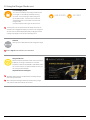
Atomos Anti-Shock Technology
File Recovery
movement and vibration are minimal and within the capabilities of the
the power fails or the drive is removed accidently all but the last few
devices. They are ideal for low-cost recording, but will suffer reduced
seconds of the clip can be recovered
Spinning disks are very reliable in a controlled environment where
performance if they are jolted or receive a sudden impact.
The Shogun Studio continuously writes to disk while in recording mode. If
In the event of an interrupted recording, when you restart the Shogun
If a large enough shock occurs a break in the recording may occur. In
Studio, or enter playback mode, you will be presented with a menu that
this case the Shogun Studio will automatically start a new recording once
gives you the option to recover immediately, or recover it later.
the drive recovers.
If you select recover later, every time you put the disk in, or start up the
This means that even if you suffer a momentary break in your recording,
Shogun Studio, the same menu will appear to prompt you to recover the
the video capture will continue without any intervention from you, the
file that did not close properly.
user.
It is obviously important for you to know that you have suffered from an
interrupted recording and the user interface will display a warning (in the
form of a Kangaroo sign) clearly in the top left hand corner of the display.
Skippy Warning
If the drive is broken, or has become corrupted, then we will not be
able to recover the file and we recommend that you try third-party
hard disk recovery software
To remove “Skippy” warning, simply touch the icon and it will
disappear.
*Subject to change without notice
Atomos Shogun Studio – User Manual Edition 1: November 2015
31
10. Timecode
Using Timecode
Touching the Timecode display on the home screen, just above the three
main controls (Rec, Play, Menu), will take you to the Timecode setup
screen (this is also accessible by touching Menu and then Timecode)
shown here. When enabled, pressing the camera Record Stop/Start
button will make the Shogun Studio start and stop record simultaneously
as the timecode starts and stops.
When using the camera in Free Run timecode, the rolling timecode
trigger might not work as expected. However, depending on the
camera, you can trigger record function by the embedded flag/trigger
in the SDI signal. Most higher end cameras have this functionality; if
unsure contact us at [email protected]
Occupying the lower-centre part of the screen is the timecode display
with controls to set the start-time of the timecode.
Time of Day
The Timecode modes supported are:
• HDMI (Embedded)
• SDI (Embedded)
• Record Run
• Time of Day
• Auto Restart
• LTC input (via GenLock BNC)
Cycle through these modes by touching the Timecode Source Selector.
With this setting, each new clip that is created will contain embedded
SDI / HDMI embedded Timecode
Timecode starting with the time of day when the recording is started.
Please check that Shogun Studio clock has been set correctly.
This can be set in Menu > Date & Time
With this setting, the SDI or HDMI input will use the Timecode embedded
in the input signal. The controls to adjust the Timecode value are
disabled in this menu as you will need to adjust these on the camera.
Note that not all HDMI sources embed Timecode.
If recording is stopped and then restarted while in this mode, there
will be a time gap between the last clip and the next one, equal to the
length of time the Shogun Studio has been out of record.
Trigger from SDI or HDMI time code
In Time of Day mode, the controls on the Timecode Setup Screen
for adjusting the start-point of the Shogun Studio Timecode are not
available, as the Timecode is set by the Shogun Studio’s internal
clock.
If SDI or HDMI timecode is selected and the camera is in REC RUN
mode, the user has the choice to start and stop recording remotely from
the source camera SDI timecode.
To enable rolling Timecode Start/Stop functions, simply press the TC icon
*Subject to change without notice
Atomos Shogun Studio – User Manual Edition 1: November 2015
32
10. Timecode cont.
LTC
Auto Restart
If LTC is selected then Timecode will be taken in via the LTC input. If no
With this setting, the Timecode will be reset to the Timecode you have
LTC signal is present the following icon is displayed
defined whenever you press record. All your clips will start with this same
and the unit
will revert to SDI/HDMI Timecode
Please note that the LTC generator needs to be set to the same frame
rate as the input video signal. If the LTC signal is looped through
to the other channel then both recordings will have synchronized
Timecode.
To adjust the Timecode use the “+” and “-” above and below the
hour:minute:seconds sections
Timecode.
Record Run
With this setting you set the starting Timecode for the first clip. The
following clips will start at the frame immediately after the out point of the
preceding clip. This will continue for all clips that follow. This is also
known as continuous Timecode.
*Subject to change without notice
Atomos Shogun Studio – User Manual Edition 1: November 2015
33
11. HD Pulldown
If you have set 1080p23.98 or 1080p24 in your camera and your Shogun
What is Pulldown?
Many professional and consumer
Studio displays 1080i59.94 or 1080i60, then you can easily remove the
cameras available today do not send
pulldown by following these steps:
true 1080p24, 1080p23.98, 1080p25,
1080p29.97 or 1080p30 signals down
their SDI or HDMI outputs.
Instead they send 1080i59.94 in NTSC
regions (eg USA, Japan), and 1080i50
in PAL regions (eg Europe)
In order to convert the signal from the internal recording format to
1080i5994 or 1080i50, they use a process called 3:2 or 2:2 pulldown.
• Select the Input Menu from the top Left and toggle the blue arrow
underneath Record repeatedly until you see 1080p23.98 (or 1080p24)
displayed. You may not get a green tick in this column immediately.
• Your Shogun Studio needs to analyse the video for about 1 second, in
order to detect the pulldown sequence and remove it.
• If it is not automatically detected after 1 second, wave your hand
from side to side in front of the lens, or wave the camera from side to
side for a few seconds. The Shogun Studio will detect the pulldown
Pulldown is only applicable to interlaced HD signals, not 4K
cadence in the movement, and you will see a green tick along with the
video displayed on the screen.
Camera Setting
Pulldown
Shogun Studio
1080p23.98
3:2
1080i59.94
1080p24
3:2
1080i60
1080p25
2:2
1080i50
1080p29.97
2:2
1080i59.94
1080p30
2:2
1080i60
Receives
• 3:2 pulldown detection is difficult, if not impossible to detect on
completely still video. This is why you should wave your hand in front
of the lens.
3:2 pulldown detection is difficult, if not impossible to detect on
completely still video. This is why you should wave your hand in front
of the lens.
If you lose the input detection – for example you unplug the SDI cable
You will, of course, want the Shogun Studio to record the actual frame
rate such as 1080p23.98, not the1080i59.94 to disk. In many cases, it is
not possible for the Shogun Studio to detect when pulldown has been
applied to the video, so you will have to set the correct mode of removal
on the Shogun Studio to match the setup of your camera.
With some cameras, the Shogun Studio can detect and remove the
pulldown automatically, in which case the mode you expect (eg
1080p23.98) will display on the Shogun Studio and you will not have to do
anything further.
or go to Playback mode, you will need to wave your hand or the
camera again, when the signal is restored to the Shogun Studio.
Some cameras use a variant of pulldown removal, for example
Panasonic Advanced pulldown. The Shogun Studio does NOT
support this format, and it will not be detected.
Standard Panasonic pulldown is supported, ensure in the Panasonic
camera settings that pulldown is not set to Advanced.
1080p25, 1080p29.97 or 1080p30
If there is no input detected, then toggle the input by pressing the screen
until you see the input you wish to record.
Atomos is adding auto-detection support for more cameras, please
check for firmware updates regularly at www.atomos.com
1080p23.98 or 1080p24
For these modes, simply press the
blue arrow underneath Record on
the input menu repeatedly until your 1080p desired format is displayed.
There is no need to wave your hand or the camera, as 2:2 pulldown
removal does not require moving video.
*Subject to change without notice
Atomos Shogun Studio – User Manual Edition 1: November 2015
34
12. Record mode options
Record Modes:
In standard record mode there are a number of features that are
When time lapse is enabled Pre-Roll is cannot be enabled.
implemented with safety in mind. Source Drop – If a connection is lost
due to the cable being pulled out from either side of the signal path the
A sequence entry will already be present in the menu and to edit the
recording will stop and close that file. As soon as you plug the cable
entry simply touch to highlight it and then tap on the blue arrow at
back in it will start recording a new file with out having to press record
right hand side of the entry. This opens the Edit Sequence menu where
again.
you can alter the following settings:
If AC power is lost the recorded files are still safe. Once the unit is
powered back up it will detect the broken file and ask you to repair the
clip now or later. With a power loss there will be some loss of content.
Typically the last 5-10 seconds of footage.
Alongside the standard recording functionality additional Record Modes
are available in the form of Pre Roll , Time Lapse, Dual Record &
Continuous Record.
Capture – Specifies the number of sequential frames to be captured
Pre Roll Record
Every – Specifies the frequency of the capture.
For – defines the amount of time to repeat the process for this entry.
Play time – this will display the playback duration for the above settings.
This option is enabled from the input menu under Record section. With
this option turned on you will see a white circular arrow around the record
Times can be specified in Frames, Second, minutes and hours
button and a red Pre Roll icon will flash in the top left hand corner. Whilst
enabled the input is constantly been recorded with approximately the last
The number of frames specified for ‘Capture’ will capture in quick
8 seconds in HD and 2-3 seconds in 4k being cached into memory. The
succession at the specified time – so for example if it is set to capture
frame rate and codec selected will affect the number of seconds being
5 frames every 1 minute, The 5 frames will be captured sequentially
cached for pre roll. Using a lower bit rate codec setting and shooting at
at the start of every minute. The frames captured will not be evenly
lower frame rate will increase the length of pre-roll.
spread across the minute.
When the record button is pressed or trigger is sent,,. the buffered
pre-roll data in memory will be written out to the start of the recording.
This means if you are few seconds slow hitting the record button when
something interesting happens you will still capture the shot.
When Pre Roll mode activated the Recorder is constantly caching
frames internally to the unit and as such any feature that can not be
changed whilst recording is not available. This includes audio
channel select, 3D LUT record, codec, disk options etc. Time Lapse
record is also disables when Pre Roll is enabled.
When setting up a sequence you can also choose to add Motion blur to
an entry. With this option enabled the behavior is slightly different. The
number of frames specified in ‘Capture’ are added together with the
resulting single summed frame being recorded. You will notice that the
Playtime decreases when you have motion blur turned on as multiple
frames are been summed to a single frame instead of been recorded
sequentially. When motion blur is on the maximum setting for ‘Capture’ is
64 frames.
The sequence setting for the current entry is saved when you lap the OK
button.
Time Lapse
The Add icon allows you to add additional entries to your
Video Time lapse provides the ability to create seamless time lapses with
out capturing individual images that require compiling in post. Utilizing
video also takes away the wear on you camera shutter that can be
time lapse sequence. Up to 10 sequences can be added
ADD
expensive to replace if you are doing lots of time-lapse work.
This function is accessed via the input menu and then selecting the Time
Lapse option in the bottom left of this menu.
OFF
Pause sequences can also be set up to allow the
recording to be paused for a specified amount of time with
PAUSE
TIMELAPSE
Time Lapse On/off – this allows you to turn on time
lapse recoding mode and when an input is present the
record button will white have dashed lines around it
no frames captured.
After the required number of sequence entries have been
The Time Lapse Recording menu will then open to
provide you with a number of options.
will automatically flow in to each other.
SMOOTH
TRANSITION
set up an option to apply a smooth transition can be
selected. This will apply a ramp between the different
sequence entries to improve the blend between differing
capture settings. The icon will be white when the option is
selected.
like a clock face.
*Subject to change without notice
Atomos Shogun Studio – User Manual Edition 1: November 2015
35
12. Record mode options cont.
The Schedule start icon allows you to utilize the
internal clock of your Shogun Studio to set a specific
SCHEDULE
START
Dual record Mode – Dual record mode allows an input from Recorder
Channel 1 to be simultaneously recorded on both channels.
time for the start of the time-lapse sequence.
Pressing the icon will activate the Schedule start
To activate Dual record mode:
mode and the icon will turn white with a default time
of 00:00:00 will appear with a blue arrow. Press the blue arrow to adjust
the starting time For the Scheduled start to be accurate please check the
Date & Time settings are correct. They can be accessed via the blue
1
Press the Recorder Channel 1 icon and select Dual Record
Mode to enable this option. Once activated, Channel 1
becomes the Master and Channel 2 becomes the Slave.
Menu button at the bottom centre of the GUI and Selecting the Date &
Time icon
to adjust them if required.
When record is pressed on Recorder Channel 1 then Recorder Channel 2
will also start to record. The dual record mode feature allows for both
With Schedule Start activated when you press the record button a red
multi codec, multi stream and multi resolution recording.
icon will flash in the top corner, along with the red record border and tally light and a count down to the scheduled start will be displayed.
Whilst in Dual record mode although Channel one acts as the master
to control Channel 2 separate inputs can be connected to each
Continuous Record Mode – This option allows a single input to record
Channel input allowing synchronised recording of separate inputs.
continuously, starting with the media on Recorder Channel 1 and
Timecode will not necessarily be synchronized. Timecode needs to
changing
to the media Recorder Channel 2 when it is full.
be synced either at the cameras or through use of LTC Timecode
setup
A loop out of Recorder Channel 1 into the input of recorder Channel 2
needs to be connected with an SDI or HDMI cable.
To activate continuous record mode:
Multi Codec/Resolution Recording – This provides the benefit of
recording two versions of the same input using different codecs The loop
out function also allow for dual resolution 4K & HD versions of the same
1
Press the Recorder Channel 1 icon and select Continuous
content to be recorded. This can be achieved by turning on the 4K to HD
Record Mode to enables this option. Once activated,
down scale via the input menu of the GUI. This allows for a full resolution
Channel 1 becomes the Master and Channel 2
4k master and lower resolution proxy of the same recording. Other
becomes the Slave.
combinations of ProRes, DNxHD or DNxHR can be recorded
simultaneously, e.g;
Recording will start on Channel 1 which will show a Red recording border
around the screen. Channel 2 will show a green border. It is safe to
4K ProRes HQ & 1080p ProRes LT
remove the disk when the green border is displayed, but a disk must be
4K DNxHR HQ & 1080p DNxHD 36
inserted before the first drive is full. Once the disk on Recorder Channel 1
4K Prores HQ & 4K DNxHR HQ
is full, it will automatically start recording on Channel 2 and this will now
display a red border. Once the green border is showing on Channel 1,
These simultaneous record features are achieved via either the use of an
the disk is safe to remove.
external routing matrix e.g. SDI router or via connection from the Loop out
of Channel 1 to Channel 2 or vice versa. The Trigger on the SDI or the
Please note that for to ensure no content is lost there is a 2 sec
HDMI will be passed through the loop which means that when record is
recording buffer overlap during continuous record.
pressed on the camera, both units will start to record.
This can also be used in conjunction with Dual Record mode to allow
control via the touch screen. When using the Loop out feature in
Simultaneous record you have the added benefit to convert HDMI to SDI
and apply a LUT burnt in to the Slave Recorder Channel to create
instant dailies that can be reviewed straight off the drive using a stand
alone Shogun or Ninja Assassin unit.
*Subject to change without notice
Atomos Shogun Studio – User Manual Edition 1: November 2015
36
13. Playback & Playout
Playback Mode
Whilst a clip is playing these buttons have the
One of the key elements of the Shogun Studio REC PLAY MONITOR EDIT
both forward and in reverse.
ability to play the clip back at 2 x or 4x speeds
is the ability to utilize the monitor recorder as a play back and play out
device for the content that has been recorded whilst maintaining the
Whilst a clip is Paused these buttons have the
same visually lossless high quality images.
ability to step the clip by 1 second either
forward or reverse to give you chance to
Pressing the Play button will turn your put the device
analyse the clip in more detail, this is
into play back mode and the last clip recorded on to
especially useful when combined with the 2:1
the drive will instantly begin to playback.
zoom function.
Once within Play mode the same feature Monitoring tool set is available
allowing you to analyse the content. This is key for establishing if takes
Playlist
are out of focus, lighting has changed or previewing content with LUTs
To increase the functionality and flexibility of the playback mode there is
applied.
also the ability to create a Playlist.
Clips can be selected for play back by tapping the clip name at the top of
To start to build a Playlist press on the file name in the top menu and
the screen, with the ability to skip to the next or previous clip via the on
open the content list. Then press the Playlist button,
screen controls.
which will turn green and reveal the options available.
Once the file name had been pressed a menu displaying the clips
It’s important to note that all clips in the play list must be in the same
available on the drive will be displayed showing clip name (with Scene
codec, resolution and frame rate.
shot Take numbers) as well as resolution, codec and duration. Tapping
to highlight a clip will show a preview of the first frame in the back ground
The Order Arrow allows you to choose order in which clips
and tapping again will play this clip or by pressing the play button.
playback. The clips are stored based on the order they
were recorded with the last clip recorded at the top of the
When the playback content list menu is open play back will
list. You can either play down the list (newest to oldest) or
automatically stop.
up the list (sequential order).
Whilst a Clip is playing you can play or pause the clip by using the main
This icon can be pressed to scroll through the play list
play button in the center of the menu controls at the bottom of the screen.
options. All will play all clips on the disk.
Above the Monitor tools icons are also a Play and Pause button along
with additional play back controls.
Will play only the clips that are tagged as favorites.
By tapping this icon you can put the clip in to loop play
back. In and out markers for loop you can be placed and
cleared using the following buttons :
Will allow the clips for the playlist to be selected using the
Press to turn on and mark loop starting point, press again
IN
LOOP
tick boxes.
to remove both in and out loop markers. When loop in is
pressed the loop out point will automatically be set to the
end of the clip.
Will include the favorites and also allow the ability to
selected additional clips to be played back.
OUT
LOOP
Press to place the loop out marker and replace the marker
at the end of the clip, press again to reset it to the end of
the clip.
The duration of each clip is combined together and are shown on the
scrub bar in play pack controls. A white vertical line indicates the
start and end points and clips will seamlessly playback across those
selected to be in the play lost.
These are accessed via the green flag tagging menu
*Subject to change without notice
Atomos Shogun Studio – User Manual Edition 1: November 2015
37
13. Playback & Playout
The Genlock input can accept a standard composite video signal such
as a Black Burs bi-level reference signal and Tri-level reference signal.
Shogun Studio additional control
Shogun Studio can either be controlled via the lightning fast AtomOS
Once connected, playback output is synchronized to this common
touch screen interface, which allows you to control each device
reference source. This can be done across multiple units and ensures
individually, via the RJ45 connection to take advantage of Advanced
proper deck use with Switchers and Vision Mixers in live events
Multimedia (AMP) protocol commands or via 9 pin D-sub connection of
& mobile production studios. Having all the inputs synchronized at the
RS422 Machine control. Using the display lock function the touch screen
video Switcher allows the Switcher to operate glitch free when making
can be locked to allow for only remote control operation of the Shogun
transitions, cuts, and graphic overlays between those synchronized.
Studio
Metadata tagging and cut edits
RS422 – Each recorder channel has a 9 pin D-Sub connection that can
applying a single tag to a clip. With a clip selected and either ready to
functionality of recorder channel. At launch the Shogun Studio will offer
play or playing you can set in and out points for tags. This allows you to
support for basic transport controls:
In playback mode the ability to tag clips is extended beyond simply
be connected to a controller or other source to control the basic
make Timecode accurate clips and even subclips with those tags. The
tagscan be applied by tapping the appropriate icon to mark in and out
points at the desired play head positions.
REC – will activate record as well as switch back to Record mode from
Play mode
This can be done whilst the clip is playing or by simply dragging the
scrub bar toto the position wanted. Favorites will be displayed as agreen
section on the scrub bar, a red section indicates rejected areas and white
is used for the other tags.
STOP – Will operate in both Record and Playback Mode
PLAY – will activate play back or switch to Playback mode from Record
mode
Reverse Play – will Activate reverse play at normal speed.
FFWD – will activate fast forward at 2 x speed
RWD – will activate fast Rewind at 2 x speed
In conjunction with a Jog shuttle dial the scrubbing function will be
utilized to move the play head up and down the duration of the clip or
Creating smart cut tags via this method is non destructive to the clips and
play list.
the information can be exported to a separate XML file. These markers
are ideal for creating an Edit Decision List (EDL) to go with the clips. This
allows for edit preparation to take place on set, whilst traveling or with a
client to save time in post production.
Advanced Multimedia Protocol – AMP
Setting up AMP
The control of the Shogun Studio via AMP requires and Cat5 or above
EXPORT
Creates and saves the metadata tags in to XML in
cable to be connected to the RJ45 connector on the rear of the of the
FCPX format.
Shogun Studio. In tern this needs to be connected to the same network
as the controlling device.
Tapping reset will remove the all tags from the
RESET
current clip.
Setting the IP address
To assign the IP address to the Shogun Studio press the blue Menu
button and the select the Network Configuration settings icon. By default
the Shogun Studio is set to DHCP and so will be assigned an address via
the existing network infrastructure.
Favorite Play list
The cut tag edit points can be combined with the favorites play list
allowing the in and out points that have been created with in the clip
using the favorites flag to be used as sub clips with in a play list. This
means that if in and out points have been marked on a clip only those
section of the clip will play when used in a favorites or combined Play list.
Close attention should be place to the order icon as this also relates to
the sub clips in that with the run down order
will play the last sub
clip first in the play list.
Whilst a playlist is in operation further metadata tags can not longer
be applied to these clips.
*Subject to change without notice
Atomos Shogun Studio – User Manual Edition 1: November 2015
38
13. Playback & Playout
Alternatively a Static IP address can be set for each recorder channel in
the Shogun Studio. Press the blue Menu button and then press the
Network Configuration settings button then press on DHCP and the IP
address input will appear.
It’s important to maintain accuracy with the required IP and Subnet as
a single incorrect digit will mean that the unit will no respond to the
required commands.
Supported Amp (Advanced Media Protocol) Commands
Name
Code
Description
Stop
2X.00
Stops any playback or recording
Play
2X.01
Places the unit in play mode and begins playback
Record
2X.02
Places the unit in record mode and begins recording
Fast Forward
20.10
Fast forward at 16x playback rate
Jog Forward
2X.11
Step forward specified number of frames
Variable Forward
2X.12
Fast forward at specified rate
Shuttle Forward
2X.13
Fast forward at specified rate
Rewind
20.20
Rewind at 16x speed
Jog Reverse
2X.21
Step backward specified number of frames
Variable Reverse
2X.22
Rewind at specified rate
Shuttle Reverse
2X.23
Rewind at specified rate
Set Loop Playback Mode
41.42
Enable or Disable loop mode
ID Count Request
A0.26
Return the number of files on disk
List First ID
AX.14
Return the filename of first file on disk
List Next ID
AX.15
Return filename of next file on disk
In Preset
4X.14
Cue up the specified filename
*Subject to change without notice
Atomos Shogun Studio – User Manual Edition 1: November 2015
39
14. Connecting and Editing
Connect
To access and edit your recorded material, connect the Master Caddy
Docking Station to a Mac® or Windows® editing workstation via USB 2.0
or USB 3.0.
The Master Caddy Docking Station is a sophisticated device
supporting two different data interfaces: USB 2 and USB 3. When
using the Master Caddy Docking Station you may need to connect
both USB connectors. This is because when it has to power a disk
Eject the Master Caddy from your Shogun Studio and insert it into the
Docking Station. After a short wait, the recorded video will be accessible
drive and its interface electronics, the Docking Station may consume
more power than is available from a single USB port.
to the target computer via a standard disk (exFAT) file system.
Transferring Files
Now your docking station is connected and your disk is recognized by
NLE supported
We have chosen the Apple ProRes®, Avid DNxHD® and Avid DNxHR®
codecs as they are both not only visually lossless, but also edit-ready
formats. All major NLEs support ProRes and DNxHD/DNxHR.
•
Final Cut Pro (version 7)
•
Final Cut X
•
Adobe CS5 (with 5.51 update or later)
•
EDIUS 6
•
Sony Vegas 10
files to your own storage.
Windows
Open the disk in My Computer > Select all the files or just the ones you
wish to transfer, copy and paste them to your desired location.
(ctrl+c copy, ctrl+v paste).
Mac OS
Your Shogun Studio disk will show in Finder. Select the files you wish to
•Lightworks
•
your operating system, you can edit directly from the drive or copy the
Avid Media Composer 6 (version 8.3 or later for DNxHR)
transfer, drag the files to your desired location or use the copy and paste
commands. (COMMAND + C copy, COMMAND + V paste).
Avid DNxHD® / DNxHR® support requires online activation.
If you have used a FAT32 formatted disk in the Shogun Studio this will
ExFAT compatibility
The Shogun Studio formats your disk as exFAT. We have chosen this file
system to overcome the 4GB file limitation of FAT32 and keep
compatibility on both Windows and MAC OS.
The Operating Systems that support exFAT are:
have a folder structure Scene, Shot, Take. This will mean you either
transfer all the folders or utilize the Windows Search or MACs
automate program to transfer just the .mov files. There are instructions
on this in our knowledge base; visit www.atomos.com/support for
more info.
• Windows XP - install the following update:
http://www.microsoft.com/download/en/details.aspx?id=19364
• Windows Vista - install SP1 or higher
• Windows 7 & 8 (32/64bit)
• Snow Leopard 10.6.5 or higher
• Lion 10.7
• Mountain Lion 10.8
• Mavericks 10.9 and above
USB 2.0 and 3.0 compatible
Attach Master Caddy
*Subject to change without notice
Connect to Laptop/
Workstation
Ensure disk is
properly attached
Atomos Shogun Studio – User Manual Edition 1: November 2015
40
14. Connecting and Editing cont.
Importing
Final Cut Pro (version 7), Final Cut X , Adobe CS5 (with 5.51 update),
You’ll see the folders in the Shogun Studio drive. Select the folder
containing the footage you want to import:
EDIUS 6, Sony Vegas 10, Lightworks and Avid Media Composer 6
support imported files from your Shogun Studio disk.
Importing Shogun Studio footage into Final Cut Pro
You can import Shogun Studio footage into Final Cut Pro (FCP) in just a
few simple steps.
First, connect the Shogun Studio Docking Station to your Apple Mac
using the USB 2.0 or USB 3.0 port. Insert the Shogun Studio Master
Caddy containing the disk with your footage into the Docking Station and
you will see the drive appear in your Finder window.
Start FCP and open your project (or start a new one).
The screen will look like this:
Click on Import All or Import Selected, individual clips can be selected.
Choose the Event you wish to import the footage into, or create a new
event.
Select Import:
Go to the File menu and select Import > Media
Your Scene, Shot and Take files now appear in the project window, ready
for use in your FCP project.
FCP will show you a “browse” window. Look for the Shogun Studio drive,
and click on it.
*Subject to change without notice
Atomos Shogun Studio – User Manual Edition 1: November 2015
41
14. Connecting and Editing cont.
SmartLog with FCP X
2. Manual
• You have exported XML whilst the drive is in your Shogun Studio
• Create a New Project (or you can use an existing project); in this
Prior to importing the XML files into FCP X, ensure that:
• You have connected your Master Caddy Docking Station and inserted
your Master Caddy into the Dock
• Open FCP X
example it is called XML Import
• Select File, Import, XML
• You are using an operating system that supports ExFAT
• Your QuickTime version is up to date
• FCP X is the latest version
There are 2 ways to import the XML file:
1. Directly from the docked hard drive
2. Manually into FCP X
1. Automatic Import
• Open Finder
• Select the drive (in this example it is EXCVIDEO)
• Double-click the unitname.FCPXML file
• This will open FCP X and import the .xml file
• Select the Shogun Studio drive under Devices (in this example it is
called EXCVIDEO)
FCP X will make a event of the disk name and reference all the footage
• Choose the unitname.FCPXML, select Import
in that event.
The XML will import
You will notice that on the clips you have added Smart Tags too, with
Green and Red indicating Favorite and Reject.
You can sort these by using the pull-down menu to show favorites.
This will show all the individual favorites as separate clips in the
Event Viewer.
Once imported you can expand the clip and you will see the Favorite and
Reject tags. You can also filter the view to only see favorite, etc.
*Subject to change without notice
Atomos Shogun Studio – User Manual Edition 1: November 2015
42
15. Software Updates
Updating AtomOS (Firmware)
The Shogun Studio uses it’s own version of AtomOS and you will need
to apply this to both recorder channels individually by placing the new
ATOMSHS.FW file in the root of your drive, placing this in drive bay
before turning the device on. You can update both units at the same time
but this will require a disk to be in the drive bay of each unit.
From time to time we will issue software updates for your Shogun Studio.
To update the firmware (that’s the software that runs inside your Shogun
Studio), there is a simple procedure you have to follow.
• Go to www.atomos.com/support
• Locate and download the firmware upgrade
1. Extract the file ATOMSHS.FW from the firmware zip file.
2. Copy ATOMSHS.FW onto a drive in a Master Caddy.
a. A
tomos recommends you use a freshly formatted known good
disk.
b. A
lways format your drives in the Shogun Studio. The Shogun
c. Ensure that the firmware update file is on the root of the drive,
Studio formats the drive for optimal performance for Video.
and not in a folder on the drive.
3. Power down your Shogun Studio.
4. Insert the Master Caddy with the ATOMSHS.FW file.
5. Power up your Shogun Studio with a short press of the Power Button.
6. Watch the screen. The Atomos logo will appear, and then be
replaced with a Please Wait logo and after a few seconds the
IMPORTANT: Problems when installing AtomOS
Very occasionally, the firmware update process can go wrong. This might
be because of an incomplete or corrupted download.
In the unlikely event of your Shogun Studio becoming unresponsive, there
is a built-in recovery mechanism.
All you have to do is press and hold the on/off button for 10 seconds. If
you do this your Shogun Studio will revert to its factory condition, and you
will be able to retry the firmware update later (taking due precautions to
identify and remove possible reasons for the failure of the previous
attempt).
firmware upgrade will start.
7. The firmware upgrade will take up to a few minutes.
8. When the firmware upgrade is finished, the Shogun Studio will:
a. Delete ATOMSHS.FW from the drive.
b. Power itself down.
9. Turn on your Shogun Studio again with a short press of the Power
Button located on the side.
Please ensure that you do not interrupt your Shogun Studio while its
firmware is upgrading. You will see a progress bar to the lower half of
the screen, When it is fished, the Shogun Studio will restart and you
will be able to use the device as normal. This process can take up to
7 minutes.
10. When the Shogun Studio has booted, Press “MENU” and then
“Shogun Studio Info” and check that the version number is the
version expected.
Please make sure that the FW file is not renamed when you computer
unpacks the ZIP file. If you have other FW in the same folder the file
may become names ATOMSHS-2.FW and the update will not work.
Firmware update for Shogun Studio Controller
Occasionally the Shogun Studio’s controller will also need to be updated
this is achieved via the USB port on the rear of the
unit and placing the
relevant file in the Root of a FAT32 formatted USB flash drive. Please see
the release notes for specifics on how to conduct this update.
*Subject to change without notice
Atomos Shogun Studio – User Manual Edition 1: November 2015
43
Shogun Studio specs
SPECIFICATIONS
SHOGUN STUDIO
SHOGUN STUDIO
SPECIFICATIONS
Weight & dimensions
Audio in/out (48kHz PCM audio)
Weight
5.0kg / 11lb
HDMI
2 or 8ch 24-bit, camera dependent
Rack height
3RU
SDI
12ch 48kHz 24-bit
Rack mounting
Removable rack ears
Analogue audio
2 x XLR in & 2 x XLR out on rear per record
channel.
Mic or line level with phantom 48V
Dimensions (W x H x D mm)
447 x 152 x 251mm, 17.6 x 6.0 x 9.9” (without rack
ears)
490 x 152 x 251mm, 19.3 x 6.0 x 9.9” (with rack
ears)
Processing
Gain control on line in & headphone output
Construction
Steel construction for durability
Maximum audio quality
24-bit, 48kHz
Cooling
Actively controlled fan with heat sinks
Audio delay
Delay setting +1 to 99 frames
Remote control
Power
Operating power
20 - 60W
Redundant PSU
Yes
Compatible batteries
No
Input voltage (battery)
-
DC Out
No
Continuous power
* Patent pending
-
HDMI
Auto HDMI Trigger
Supported Protocols - Canon, Sony, Atomos Open
Standard
SDI
SDI trigger camera selectable
RS422
RS422 machine control
AMP
Ethernet RJ45 10/100
Serial
Calibration (front)
Timecode
Touchscreen
HDMI
Embedded Timecode from camera or video device
Size
7.1”
SDI
Embedded Timecode from camera or video device
Resolution
1920 x 1200
LTC In
Yes (LTC loop back)
PPI
325
GenLock In
Yes (GenLock loop back)
Aspect ratio
16:9 native
Color standard
Rec.709 HDTV
Look up table (LUT) support
3D LUT (.cube file format)
Technology
Playback
Playlist
Yes (run down or reverse order) for selected, favorite
or all clips
SuperAtom IPS panel (capacitive touch), calibration
to Rec.709 with optional Atomos Spyder
Playback options
Loop in & out markers
Video analysis tools
Luma waveform, RGB parade, Vectorscope,
Vectorscope zoom
Calibration in factory to Rec.709, in field
calibration with optional Spyder
Recording
Calibration
Video input/loop out
HDMI
1 x HDMI (1.4b) per channel
SDI
1 x 4K-SDI 12G/6G or HD-SDI 3G/1.5G (SMPTE)
per channel
Signal
Uncompressed true 10-bit or 8-bit 422
(camera dependent)
Video output (play out)
HDMI
1 x HDMI (1.4b) per channel
SDI
1x 4K-SDI 12G/6G or HD-SDI 3G/1.5G (SMPTE)
per channel
Signal
Uncompressed true 10-bit or 8-bit 422
(playback file dependent)
Record 4K masters with HD proxies. Record both
ProRes & DNxHR versions, independent dual channel
record.
Continuous record
Single channel 4K / HD recording automatically
switches between drive when at capacity
Pre-roll record
Yes (HD 8s, 4K 2s)
Custom time lapse
Yes (Key frameable up to 10 video and single frame
Intervals, can be triggered from internal clock).
Meta data tagging
Yes (10 tags available)
Recording media
Drive slots
2 (1 per record channel)
Drive connection types
SATA
Supported media
(Approved List Only)
Supported formats (Record & Playback)
4K - DCI RAW 4096x2160 to
Supported cameras;
Sony FS700, FS7
Canon C300MKII, C500
Dual channel
Apple ProRes
HQ, 422, LT
DNxHR
HQX, HQ, SQ, LB
4K-UHD 3840x2160 8/10-bit 4:2:2 to
Apple ProRes
HQ, 422, LT
1920x1080 8/10-bit 4:2:2 to
1280x720 8/10-bit 4:2:2 to
4K / HD (50/60/120p*)
CFast 2.0, SSD 2.5”, HDD (HD 50/60 only - 7,200 up
to 1080p60)
HD
CFast 1.0, SSD 2.5”, HDD (5,400 up to 1080p30)
Master caddy case
Master Caddy II (included)
75mm x 105mm x 12mm
DNxHR
HQX, HQ, SQ, LB
Master caddy dock
2.5” SATA to USB 2.0/3.0
Apple ProRes
HQ, 422, LT
DNxHD
220x, 220, 145, 36
Supported applications
Apple ProRes
HQ, 422, LT
DNxHD
220x, 220, 145, 36
FCPX/FCP7+ / Media Composer 5.0+ / Premiere 5.5+,
EDIUS 6.0+ / Vegas Pro 10+ / Lightworks / Autodesk
Smoke 2015
XML support
FCPX XML native, FCP7 supported with conversion
(Adobe compatible)
Accessories included
Shogun Studio unit, 2x Rack ears with screws, 5x
Master II Caddies, 4x Rubber feet, 2x Large rubber
feet, 2x IEC power cable, 1x Screen cleaning cloth
Onboard processing
Pulldown removal
24/25/30pSF > 24/25/30p (2:2 pulldown)
60i > 24p (3:2 pulldown)
Optional extras
Master Caddy II x 5, Spyder calibration
HDMI < > SDI conversion
Yes - Always on
Warranty
1 year. Extended to 3 years on product registration
4K - UHD to HD downscale
On HDMI/SDI loop out (Rec & Playout)
*Subject to change without notice
Specifications correct at time of printing E&OE
Atomos Shogun Studio – User Manual Edition 1: November 2015
44
Construction note:
Your Shogun Studio is designed to operate in ambient temperatures up to
45°C/113°F. It features a heat pipe design with a silent fan to circulate air and
remove excess heat from the rear vents .
If you wish to extend the temperature of operation in high temperature
conditions, you can choose an SSD drive, and set the TFT brightness to a
minimum.
Atomos (HQ)
29 Nott Street, Port Melbourne
Victoria 3207 Australia
Tel: 1300 ATOMOS
www.atomos.com
Have you registered your Shogun Studio yet?
Register now to receive communication on all future updates
Web: www.atomos.com Sales: [email protected] Support: [email protected]
*Subject to change without notice
Atomos Shogun Studio – User Manual Edition 1: November 2015
45