1
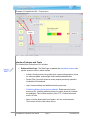
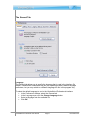
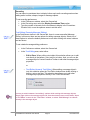
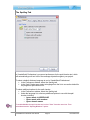
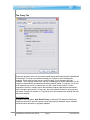
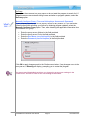
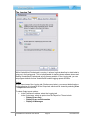
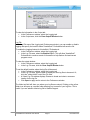
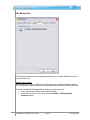
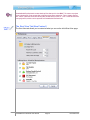
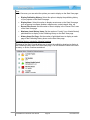
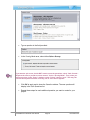
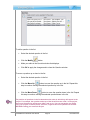
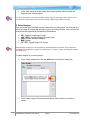
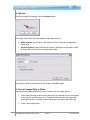
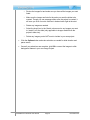
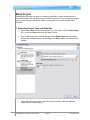
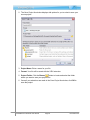
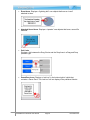
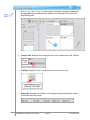
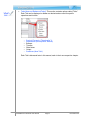
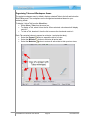
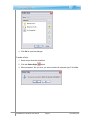
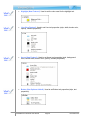
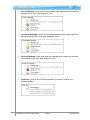
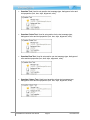
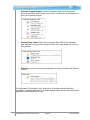
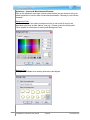
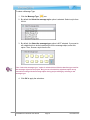
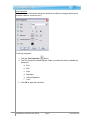
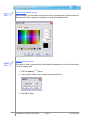
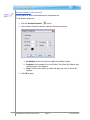
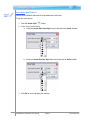
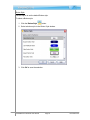
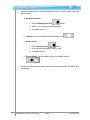
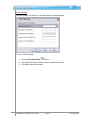
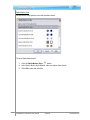
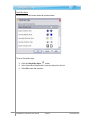
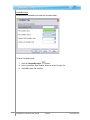
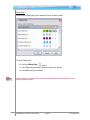
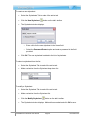
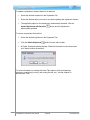
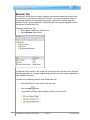
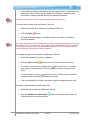
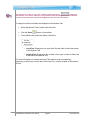
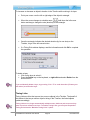
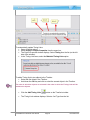
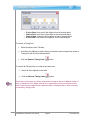
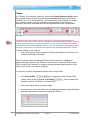
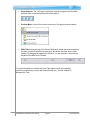
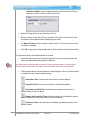
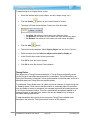
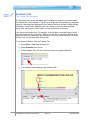
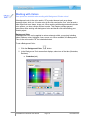
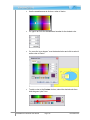
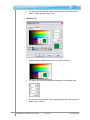
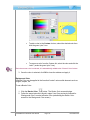
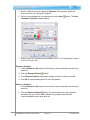
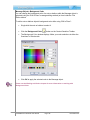
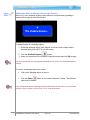
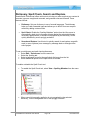
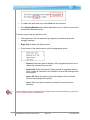
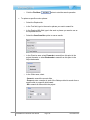
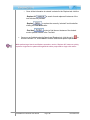
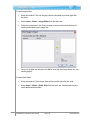
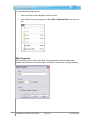
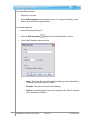
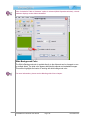
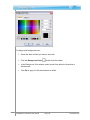
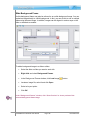
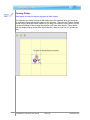
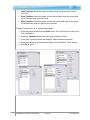
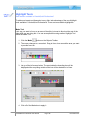
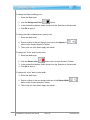
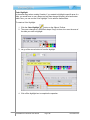
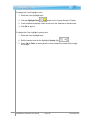
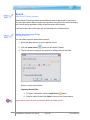
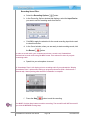
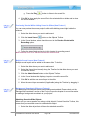
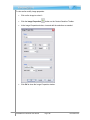
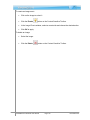
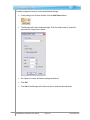
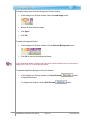
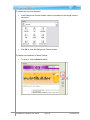
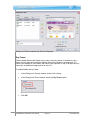
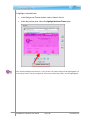
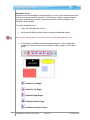
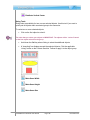
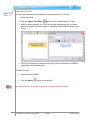
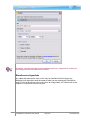
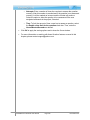
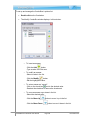
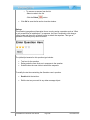
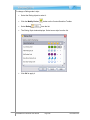
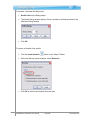
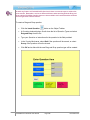
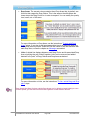
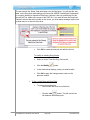
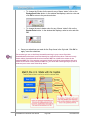
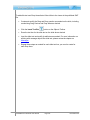
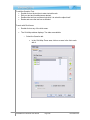
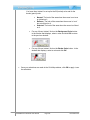
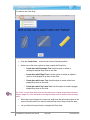
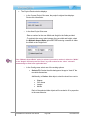
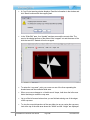
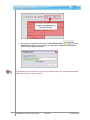
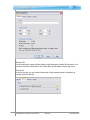
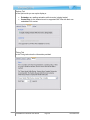
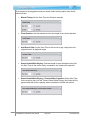
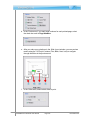
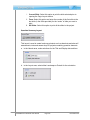
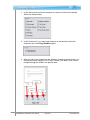
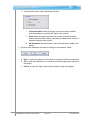
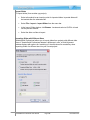
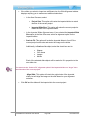
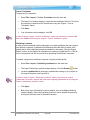
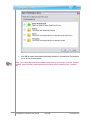
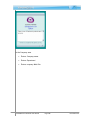
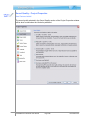
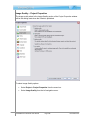
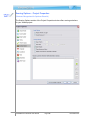
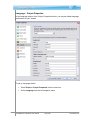
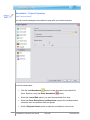
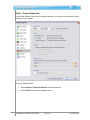
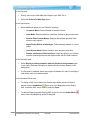
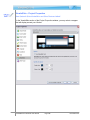
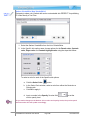
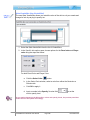
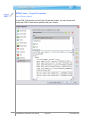
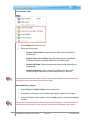
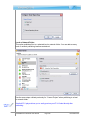
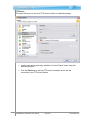
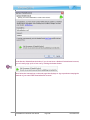
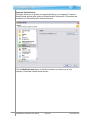
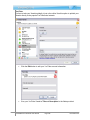
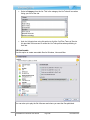
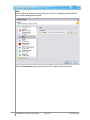
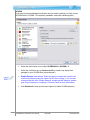
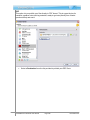
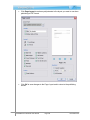
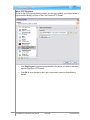
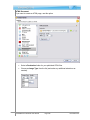
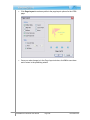
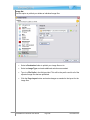
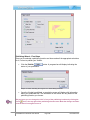
o To change the fill color for the area for any of these “states” click on the Background Color button. In the window that displays, select a color and click OK to return to the previous window. o To change the area’s border color for any of these “states” click on the Border Color button. In the window that displays, select a color and click OK. Once your selections are made for the Drop Areas in the Style tab. Click OK to apply / save the selections. The text that you see on the Drop Area while working in your source file within ViewletQuiz4 Professional is used to identify its respective Drop Area. This text is only visible within ViewletQuiz4 Professional and will NOT be visible to the viewer in the published SWF file. If you want to use text to identify each Drop Area and have this text visible to the viewer in the published SWF file, you must add a message object (such as slide text) on or near each of the Drop Areas. ViewletQuiz4 Professional User Manual Page 246 November 2011