1
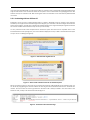
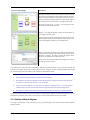
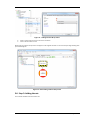
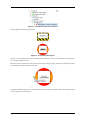
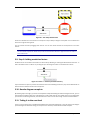
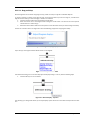
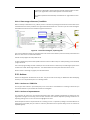
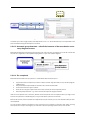
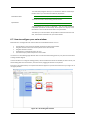
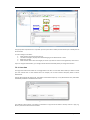
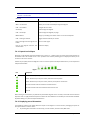
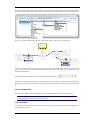
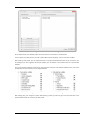
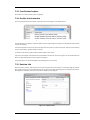
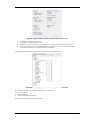
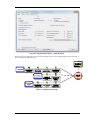
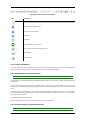
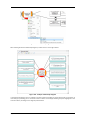
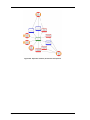
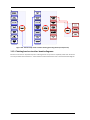
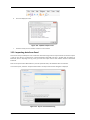
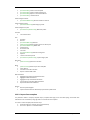
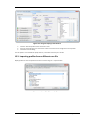
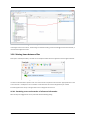
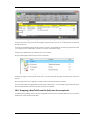
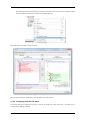
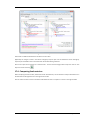
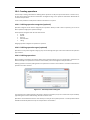
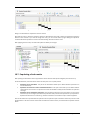
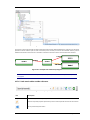
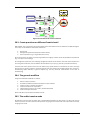
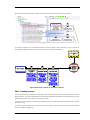
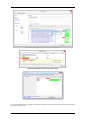
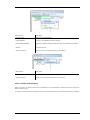
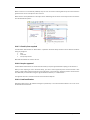
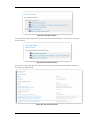
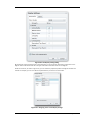
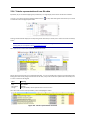
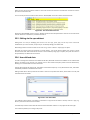
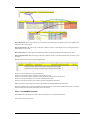
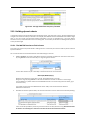
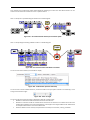
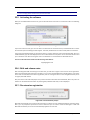
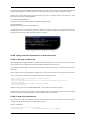
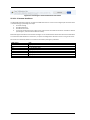
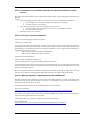
Figure 16 - The newly added threat
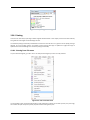
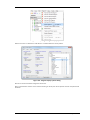
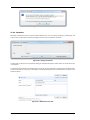
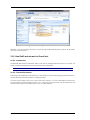
You can also right-click the top event and find the Add -> New Threat menu item.
Continue to add threats until you are satisfied you’ve covered them all.
Note: Use the scroll bars and the zoom in/out buttons on the toolbar to navigate through your diagram.
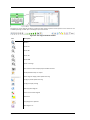
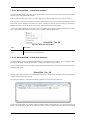
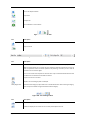
Turn to paragraph 7.3, The editor and the editor dockable window on page 56 for more information about
the diagram and its toolbar icons.
3.7. Step 4: Adding consequences
If your top event were to occur, you would want to have an understanding of possible outcomes and necessary
reactions to such an event. Consequences in a bowtie diagram allow you to analyze both sides of a top event.
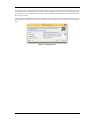
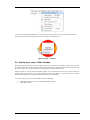
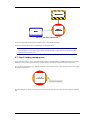
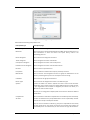
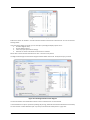
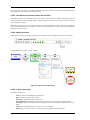
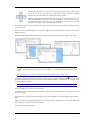
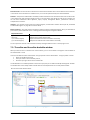
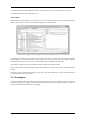
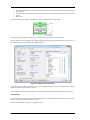
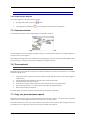
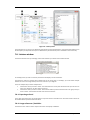
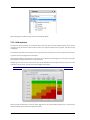
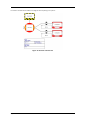
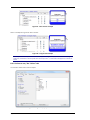
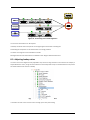
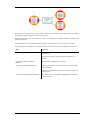
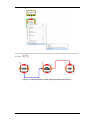
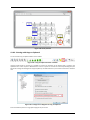
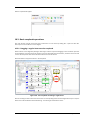
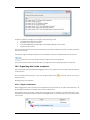
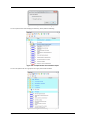
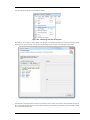
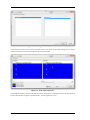
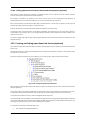
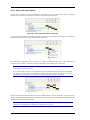
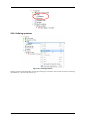
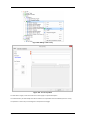
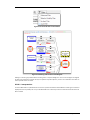
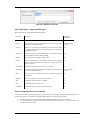
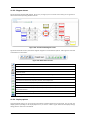
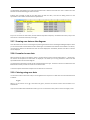
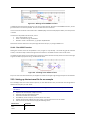
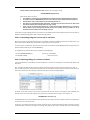
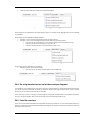
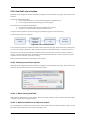
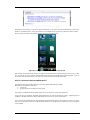
You can add consequences to your diagram similar to how we added threats – click the green button on the right
hand side of the top event:
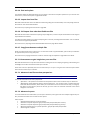
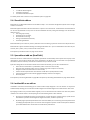
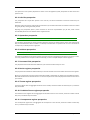
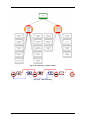
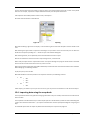
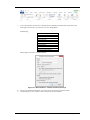
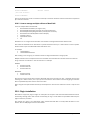
Figure 17 - Green “+” buttons (consequences)
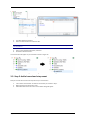
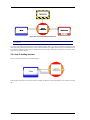
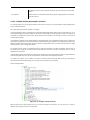
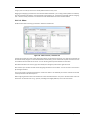
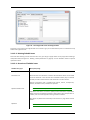
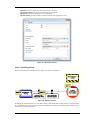
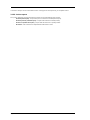
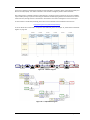
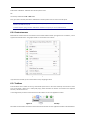
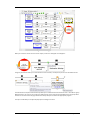
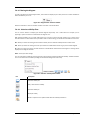
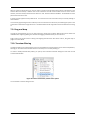
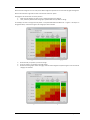
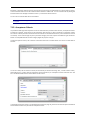
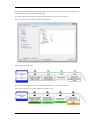
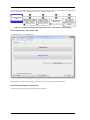
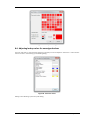
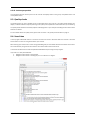
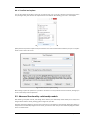
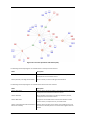
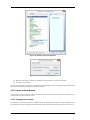
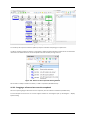
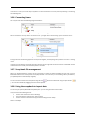
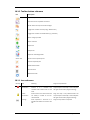
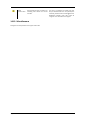
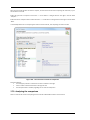
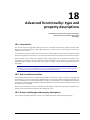
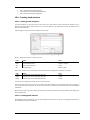
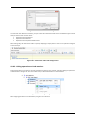
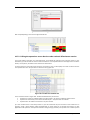
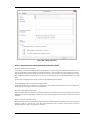
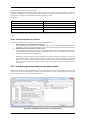
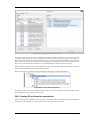
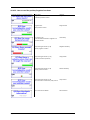
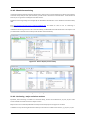
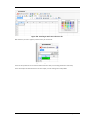
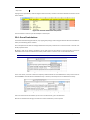
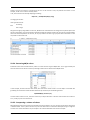
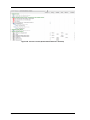
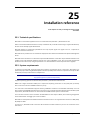
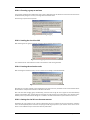
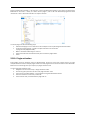
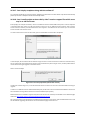
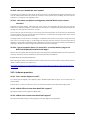
The editor will pop up. Enter a description for the consequence. Click ok or hit return. Now your diagram looks like
this:
Page 21 of 227