1
3.11.3.1. Drag and drop
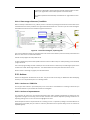
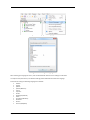
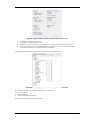
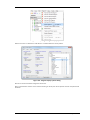
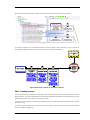
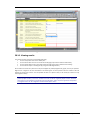
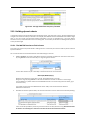
All link assignments can be made using drag and drop, similar to how you copy files in Windows Explorer.
To assign an activity to a barrier using drag and drop, ensure that the barrier you want to assign to, is visible in the
diagram and the activity you want to assign, is visible in the treeview.
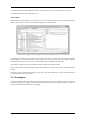
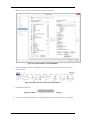
1. Click the activity and keep the mouse button pressed down.
2. Move the mouse over to the diagram whist holding the mouse button. You will see the mouse pointer
indicate when it is valid to let go.
3. Release the mouse button when the mouse pointer is over the barrier where you want to assign the activity.
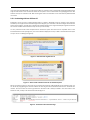
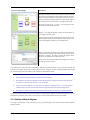
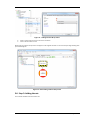
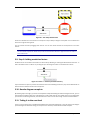
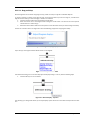
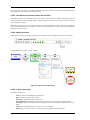
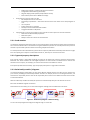
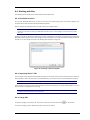
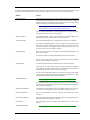
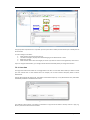
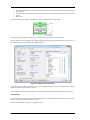
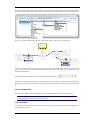
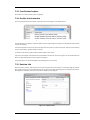
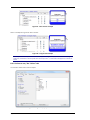
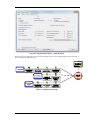
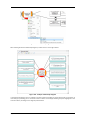
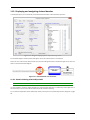
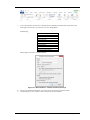
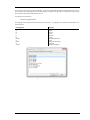
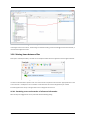
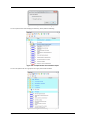
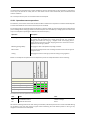
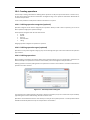
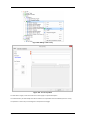
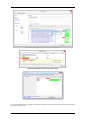
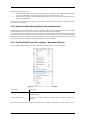
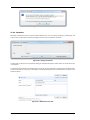
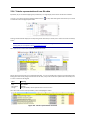
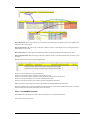
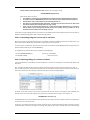
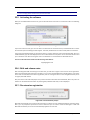
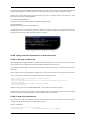
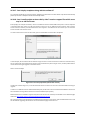
The link has now been made. You might have notice the following popup when dropping the activity:
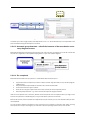
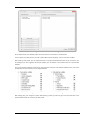
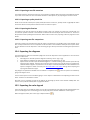
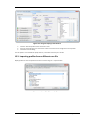
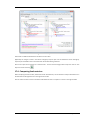
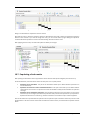
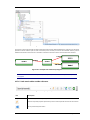
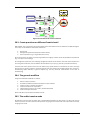
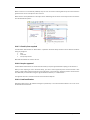
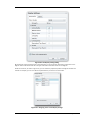
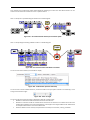
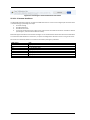
Figure 25 - Diagram display popup
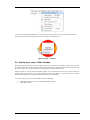
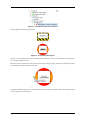
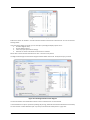
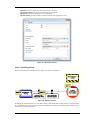
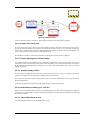
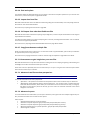
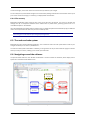
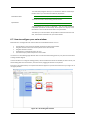
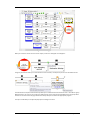
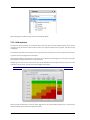
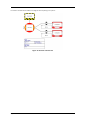
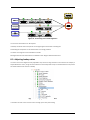
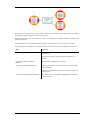
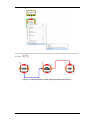
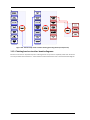
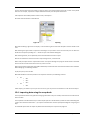
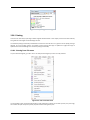
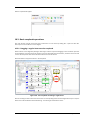
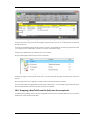
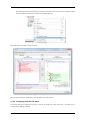
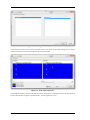
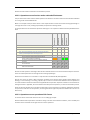
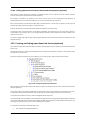
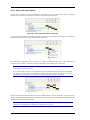
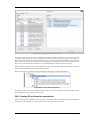
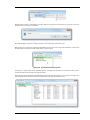
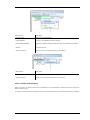
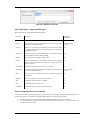
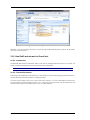
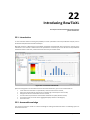
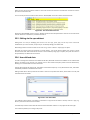
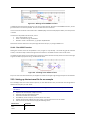
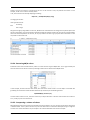
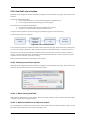
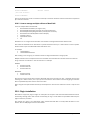
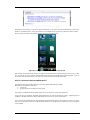
If you click yes, the assigned activities will be shown on the diagram:
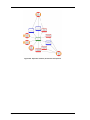
Figure 26 - Activity linked to barrier
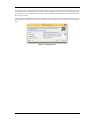
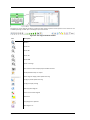
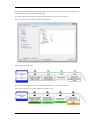
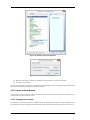
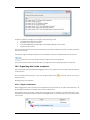
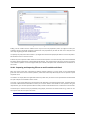
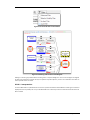
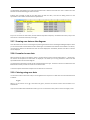
If we missed the dialog, we can also manually adjust the display settings. To do so, take the following steps:
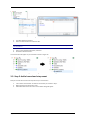
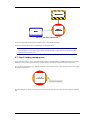
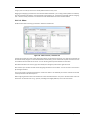
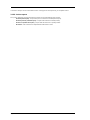
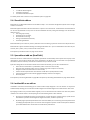
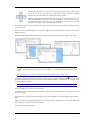
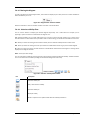
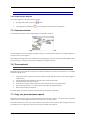
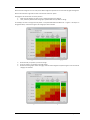
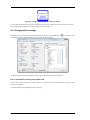
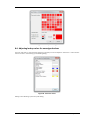
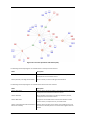
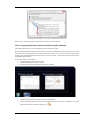
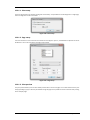
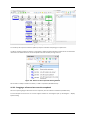
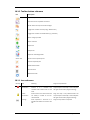
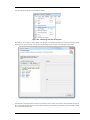
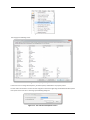
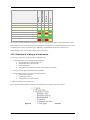
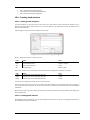
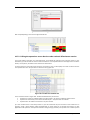
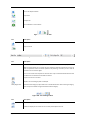
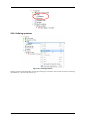
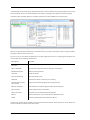
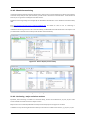
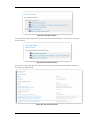
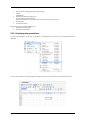
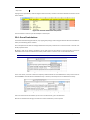
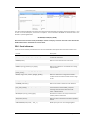
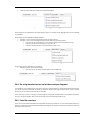
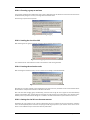
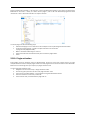
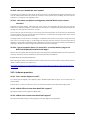
1. Click the little eye icon on the barrier:
Figure 27 - Barrier display - eye-icon
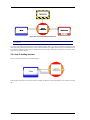
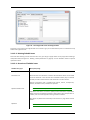
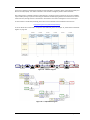
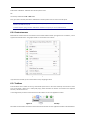
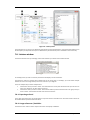
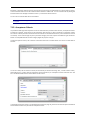
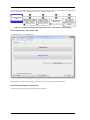
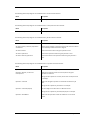
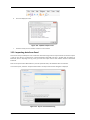
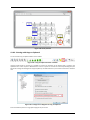
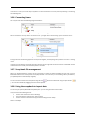
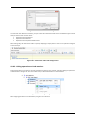
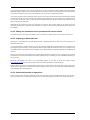
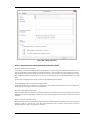
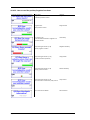
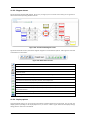
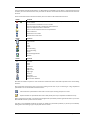
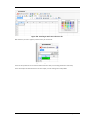
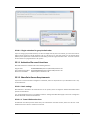
This will bring up a dialog which allows you to adjust display options for barriers. Note that all shapes have this little
icon.
Page 27 of 227